
How do I see what is new in Reachific?
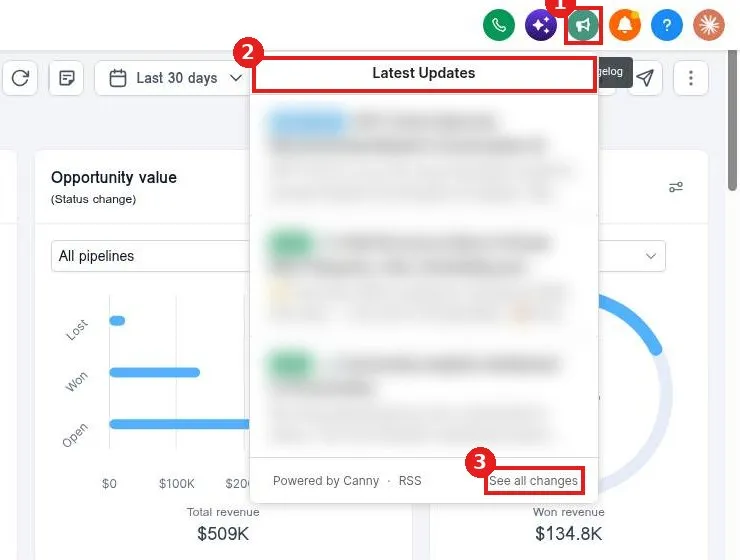
Quick answer: Click the megaphone icon at the top right of any page. The Latest Updates panel opens with the newest features and improvements. Click See all changes to read the full list.
Step 1: Open Latest Updates
Click the megaphone icon in the top bar (1). A red dot on it means there are updates you have not seen.
Step 2: Read the updates
The Latest Updates panel (2) lists recent changes. Each one is tagged, for example New or Improved. Click an update to read more.
Step 3: See the full list
Click See all changes (3) at the bottom of the panel for older updates.
FAQ
Do updates change my account on their own?
New features become available, but your settings, automations and pages stay as you set them.
How do I close the panel?
Press Esc or click anywhere outside it.
Who do I ask about a new feature?
Submit a ticket and our team will explain how it fits your business.
Want us to handle it? Our team watches every update and can set up new features for you. Book a free strategy call and get a free quote.
Related articles
- How do I find anything fast with the search bar?
- How do I manage my notifications?
- How do I read my Reachific dashboard?
Still stuck? Submit a ticket and our team will help. Need faster answers? See our support plans.
