
How do I manage my notifications?
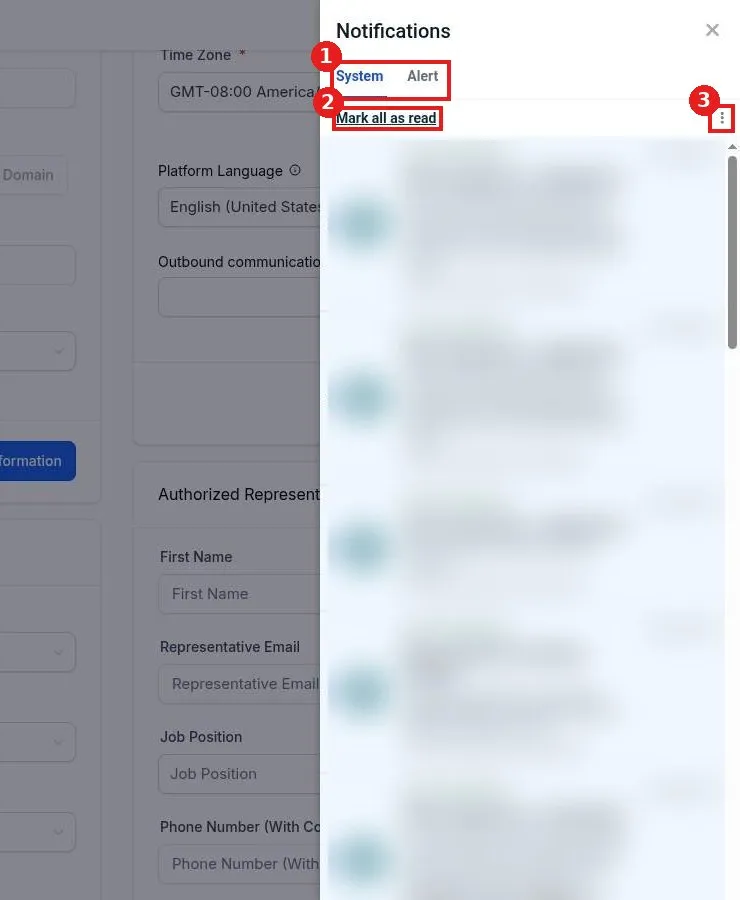
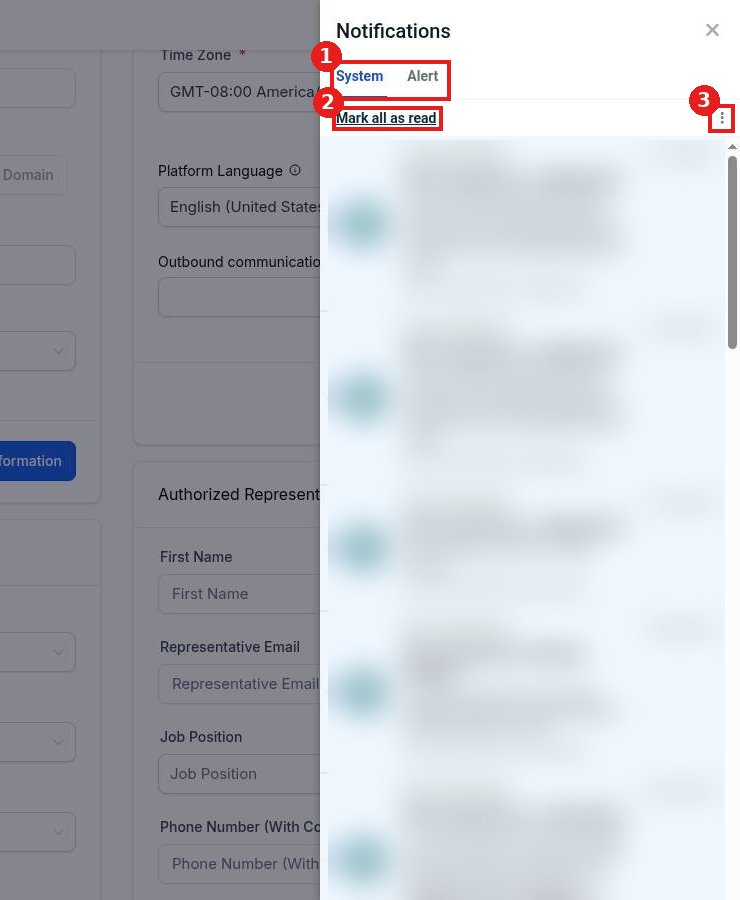
Quick answer: Click the bell icon at the top right. In the Notifications panel, switch between the System and Alert tabs, click Mark all as read to clear the badge, or open the three dot menu to Clear all notifications.
Step 1: Open notifications
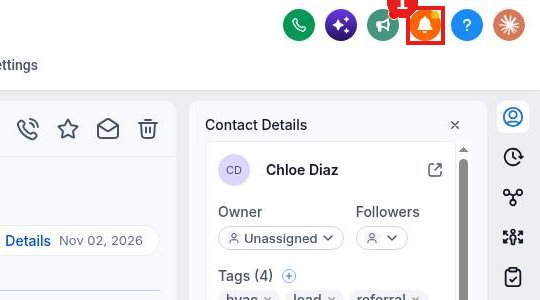
Click the bell icon in the top bar (1). A dot on the bell means you have something new.
Step 2: Read and sort
Use the System and Alert tabs (1) to switch lists. System notifications include new messages and voicemails. Click a notification to go to it. Unread ones have a blue dot.
Step 3: Clear the list
Click Mark all as read (2) to clear the unread dots. To remove everything, click the three dots (3) and choose Clear all notifications.
FAQ
Is clearing notifications the same as deleting messages?
No. Your conversations stay in Conversations. Clearing only empties this list.
Why do I see too many notifications?
Every new message can create one. Reply from Conversations and mark them read to keep the list short.
How do I close the panel?
Click the X at the top right of the panel.
Want us to handle it? Our team can set up alerts so the right person hears about each lead. Book a free strategy call and get a free quote.
Related articles
- How do I reply to texts, emails and chats from one inbox?
- How do I mark a conversation as read, unread or starred?
- How do I see what is new in Reachific?
Still stuck? Submit a ticket and our team will help. Need faster answers? See our support plans.
