
How do I see and manage all my tasks?
Quick answer: Open Contacts and click the Tasks tab. Switch between All, Due today, Overdue and Upcoming, and filter by assignee, status or due date. Click Add Task to create one.
Step 1: Open Tasks
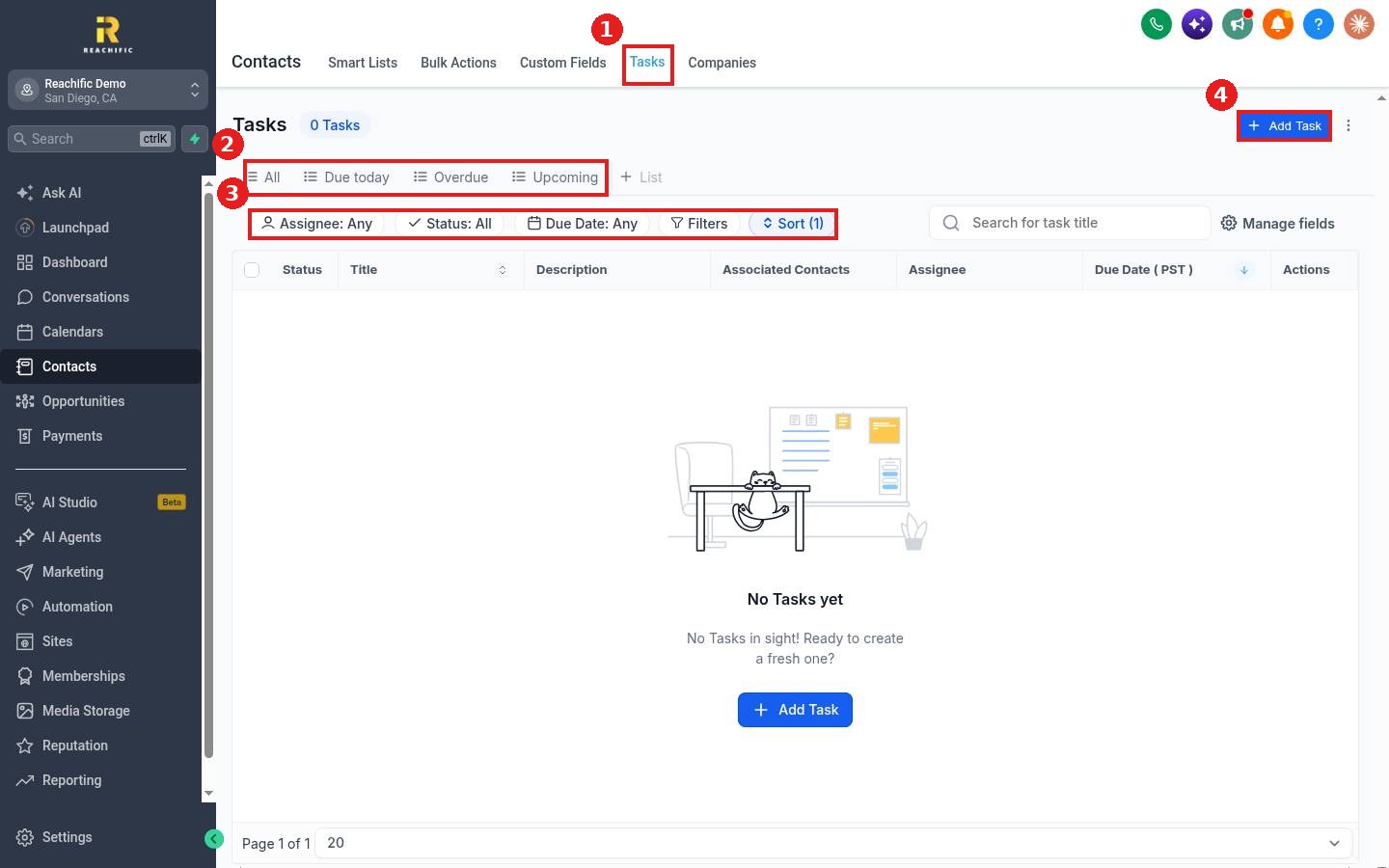
Click the Tasks tab (1). Pick a view (2) and use the filters (3) to see, for example, only your open tasks due this week. Click Add Task (4) to create one.
Step 2: Create a task
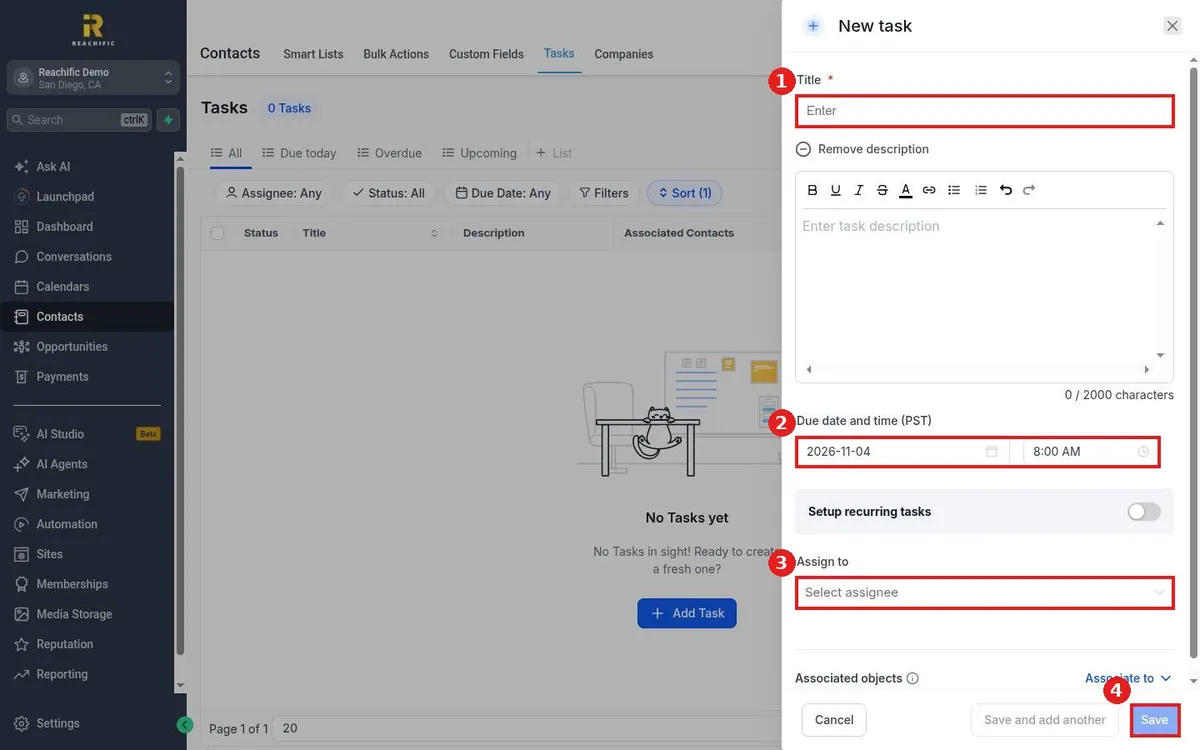
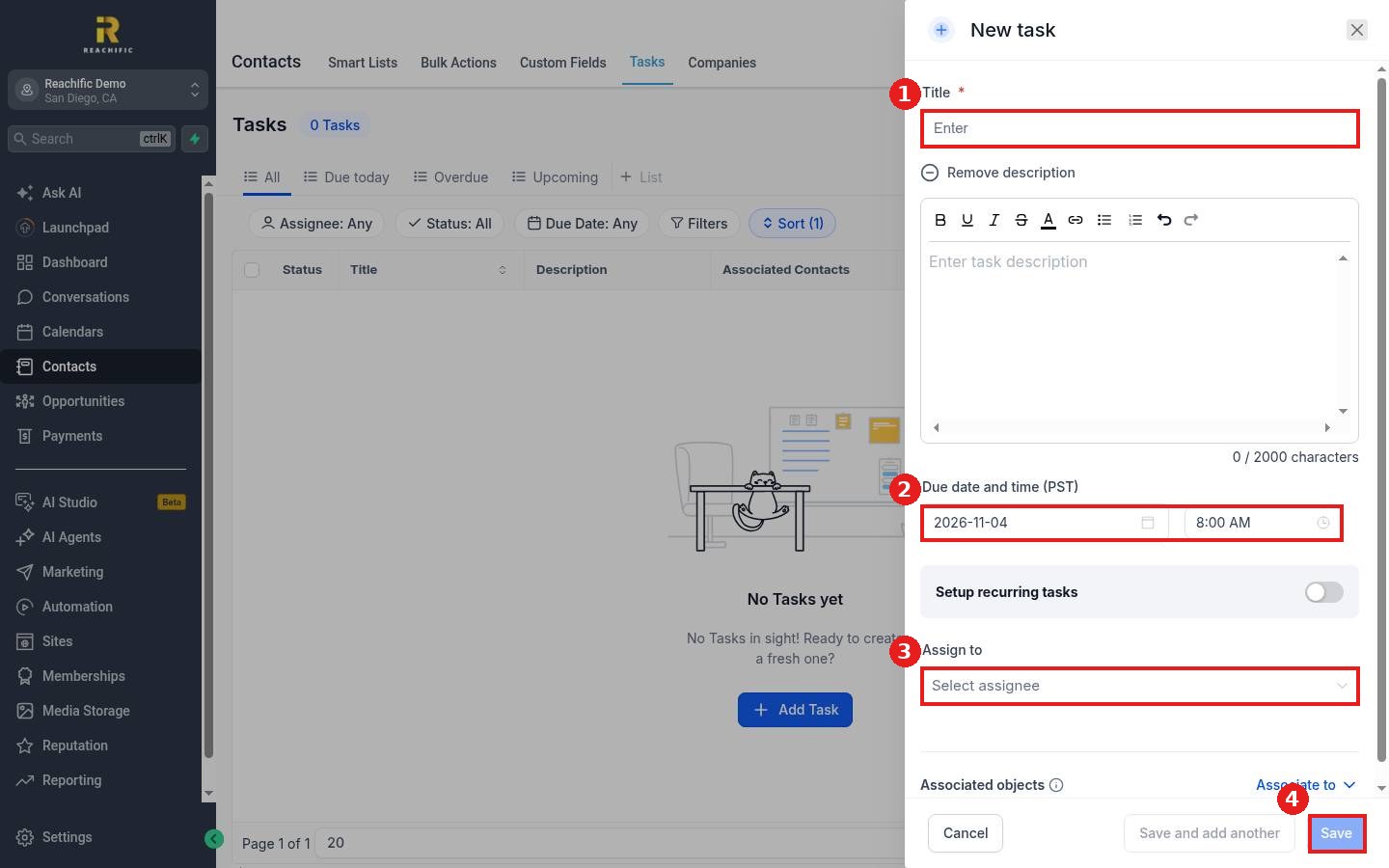
Enter a Title (1) and an optional description. Set the Due date and time (2) and pick who it is assigned to under Assign to (3). Use Associate to to link it to a contact. Click Save (4).
Step 3: Complete tasks
Mark a task done from its Status in the list. Completed tasks drop out of the Due today and Overdue views.
FAQ
Can tasks repeat?
Yes. Turn on Setup recurring tasks in the New task panel.
Can workflows create tasks?
Yes. Add a task action to a workflow, for example to call every new lead within an hour.
Can I save a view?
Yes. Click + List to save the current filters as a list.
Want us to handle it? Our team can set up automatic follow up tasks so no lead slips. Book a free strategy call and get a free quote.
Related articles
- How do I add notes and tasks to a contact?
- How do I create my first workflow?
- How do I read my Reachific dashboard?
Still stuck? Submit a ticket and our team will help. Need faster answers? See our support plans.
