
How do I review what my AI agents said?
Quick answer: Go to AI Agents > Agent Logs. The Sessions tab lists every AI conversation and call. Click Add Filter to narrow by agent, channel, contact or message content, then open a session to read exactly what the agent said.
Before you start
- Logs appear once an agent has talked to someone. Test messages in the builder are not sent to contacts.
Step 1: Open Agent Logs
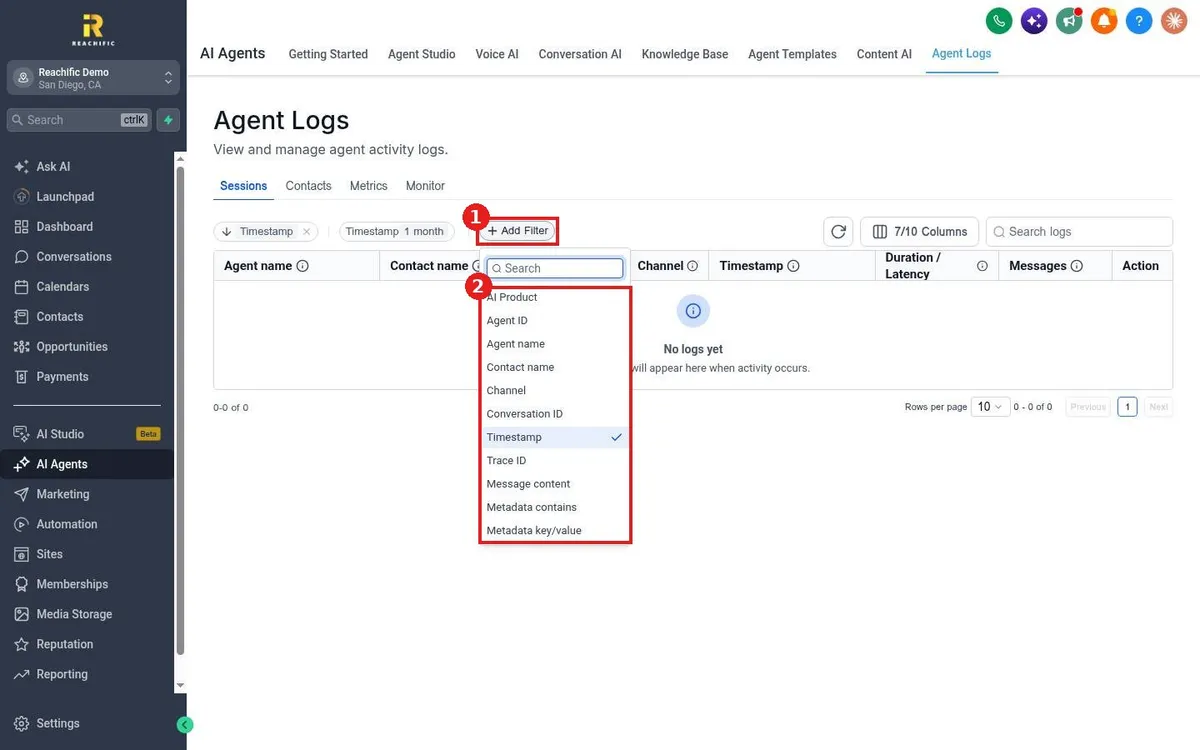
- Click AI Agents in the left menu, then Agent Logs.
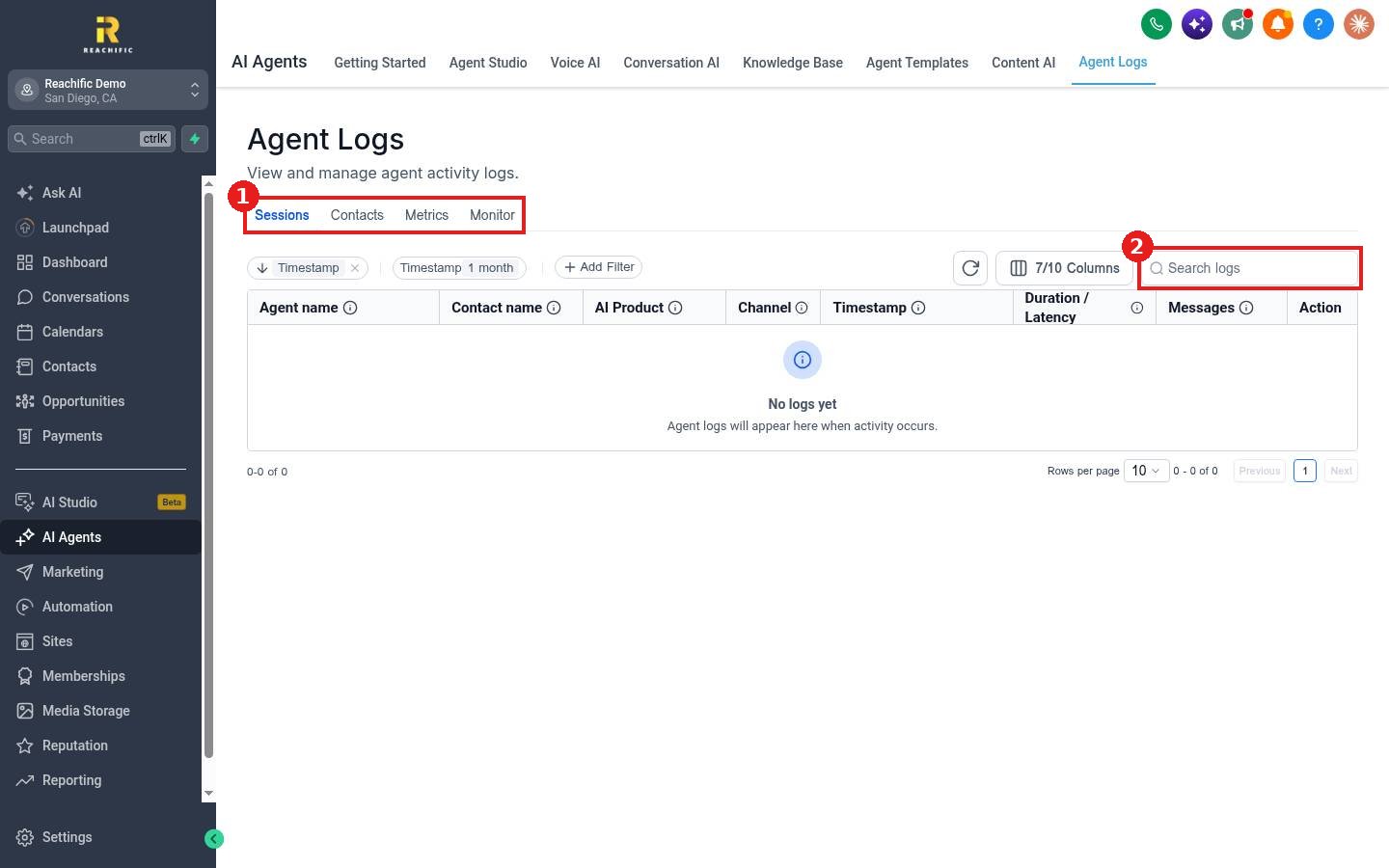
- Pick a tab (1): Sessions for each conversation, Contacts for activity per person, Metrics for totals and Monitor for live activity.
- Search (2) for a name or words from a conversation.
Step 2: Filter the logs
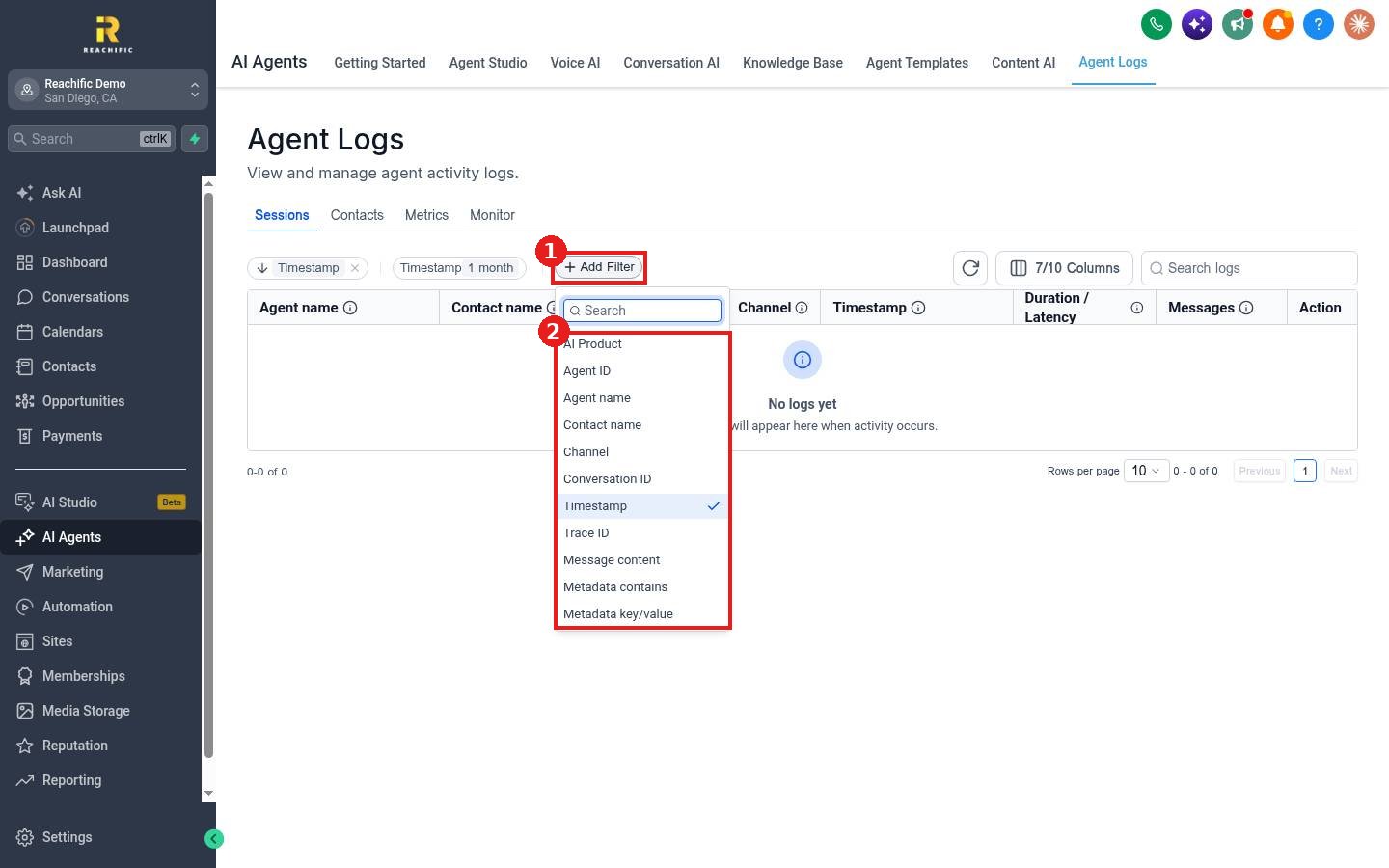
Click Add Filter (1) and choose from the list (2): AI Product, Agent ID, Agent name, Contact name, Channel, Conversation ID, Timestamp, Trace ID, Message content and Metadata. Use Columns to show or hide table columns.
Step 3: Improve the agent
When you see a wrong or weak answer, add the right answer to your knowledge base or adjust the agent prompt. Check the Knowledge gaps tab in your knowledge base for questions agents could not answer.
FAQ
Do the logs include voice calls and chats?
Yes. Filter by AI Product or Channel to separate Voice AI calls from Conversation AI messages.
How far back can I look?
The default view is the last month. Change the Timestamp filter to see older sessions.
Want us to handle it? Our team can audit your AI conversations and keep tuning your agents for better results. Book a free strategy call and get a free quote.
Related articles
- How do I review Voice AI call recordings and transcripts?
- How do I create a knowledge base for my AI agents?
- How do I set up a Conversation AI bot?
Still stuck? Submit a ticket and our team will help. Need faster answers? See our support plans.
