
How do I review Voice AI call recordings and transcripts?
Quick answer: Go to AI Agents > Agent Logs. On the Sessions tab, click Add Filter and filter by AI Product or Agent name to see your Voice AI calls, then use the Action column to open a call and read what was said.
Before you start
- You need a Voice AI agent that has taken calls. See How do I set up a Voice AI agent to answer my calls?
- Calls also show in the caller's conversation and contact record.
Step 1: Open Agent Logs
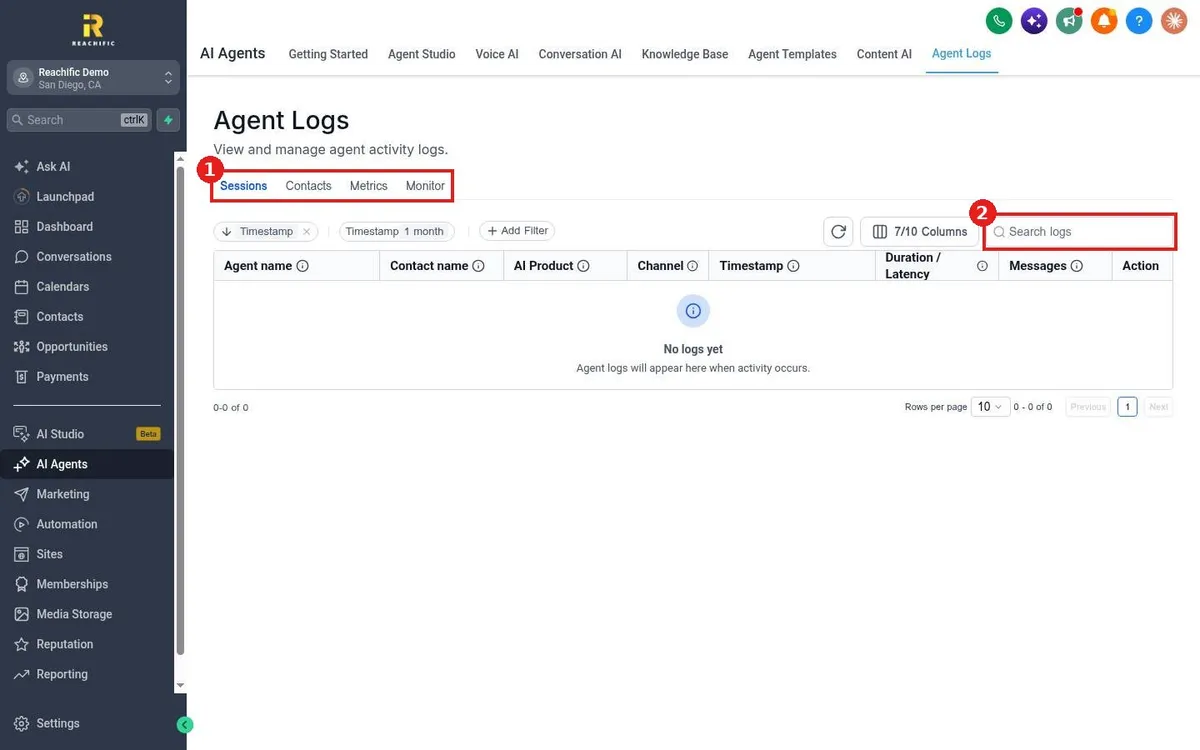
- Click AI Agents in the left menu, then Agent Logs.
- Stay on the Sessions tab (1). Contacts, Metrics and Monitor give other views.
- Use Search logs (2) to find a caller by name or words from the call.
Step 2: Filter to Voice AI calls
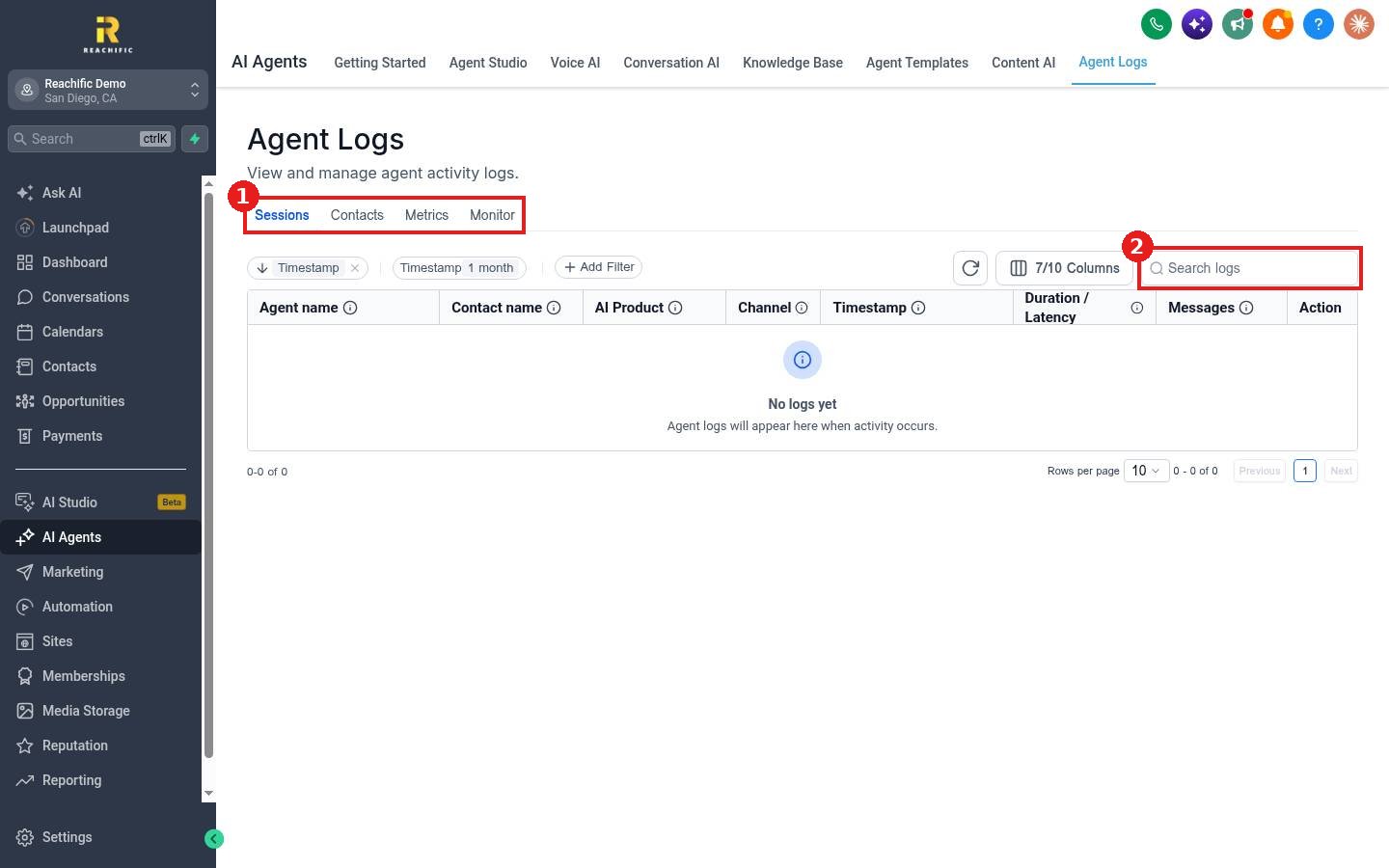
- Click Add Filter (1).
- Pick a filter (2) such as AI Product, Agent name, Channel, Contact name or Message content.
- The default Timestamp filter shows the last month. Change it to look further back.
Step 3: Read the call
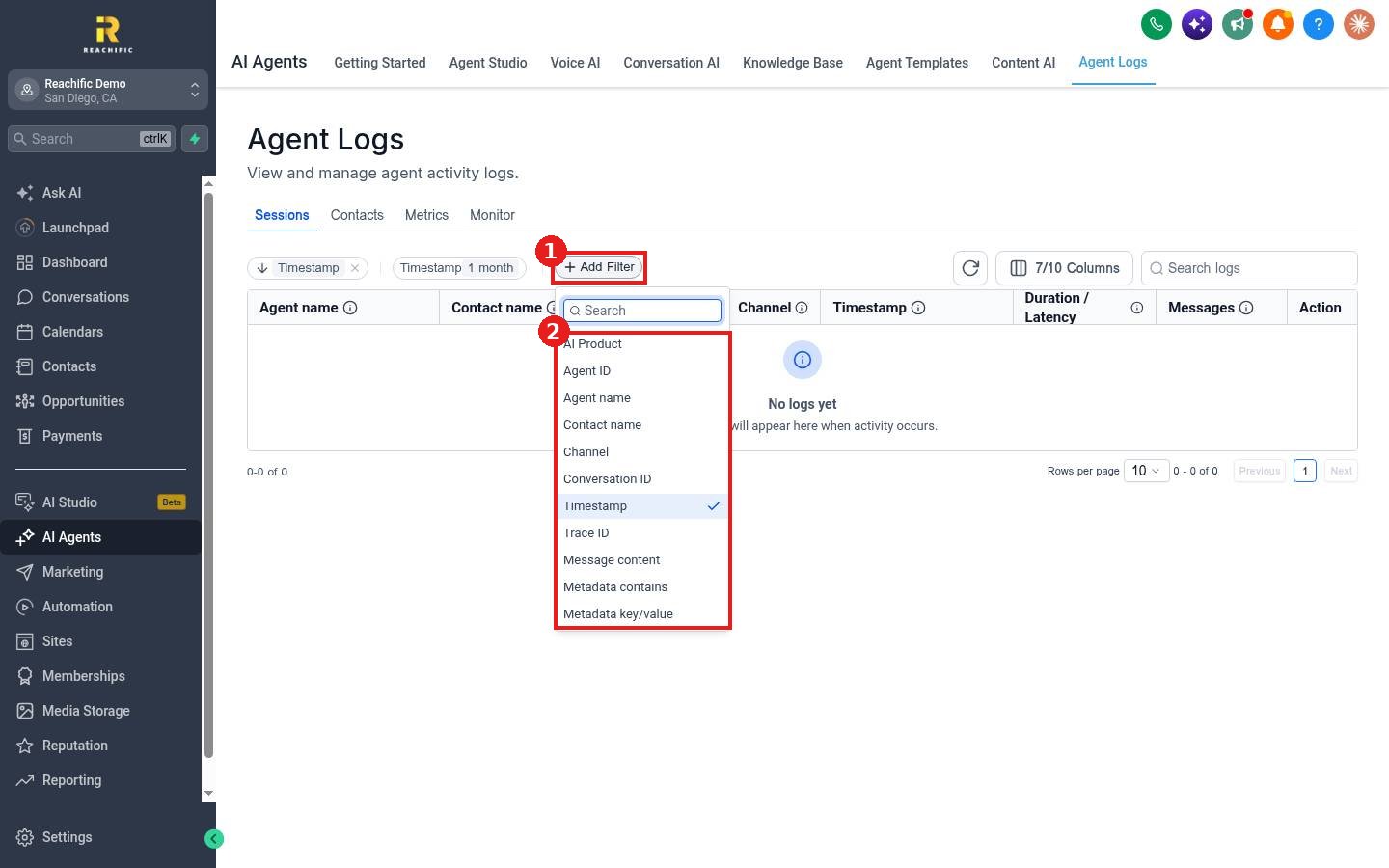
Each row shows the agent, contact, AI product, channel, time, duration and message count. Use the Action column to open the session and read the full transcript.
FAQ
Can I get a call summary sent to me?
In the Voice AI builder, open Post-Call for notifications and workflows after each call, and Reporting for summary email reports.
Why is the list empty?
No calls match the current filters, or the agent has not taken calls yet. Clear filters and widen the date range.
Want us to handle it? Our team can review your AI calls each week and tune the agent so it books more jobs. Book a free strategy call and get a free quote.
Related articles
- How do I review what my AI agents said?
- How do I set up a Voice AI agent to answer my calls?
- How do I call a contact from my browser?
Still stuck? Submit a ticket and our team will help. Need faster answers? See our support plans.
