
How do I call a contact from my browser?
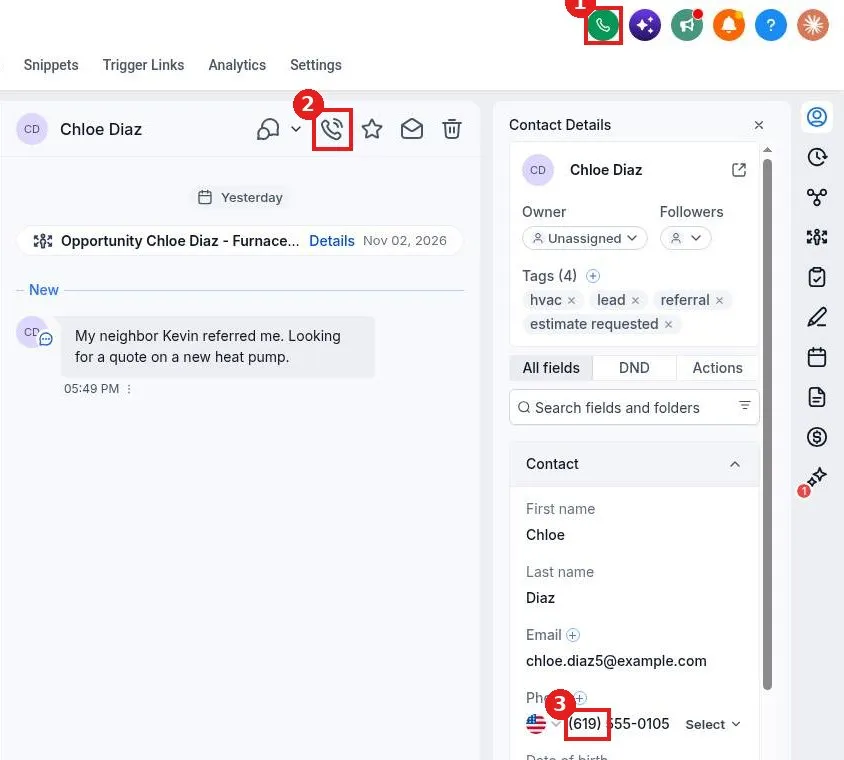
Quick answer: Open the contact's conversation and click the phone icon in the conversation header, or click the green phone icon at the top of any page to open the dialer. Allow microphone access the first time, and the call goes out from your Reachific phone number.
Before you start
Your account needs a Reachific phone number. If you have not added one yet, the message box shows No Phone Number Added with a button to get one. The contact also needs a phone number on their record.
Step 1: Open the conversation
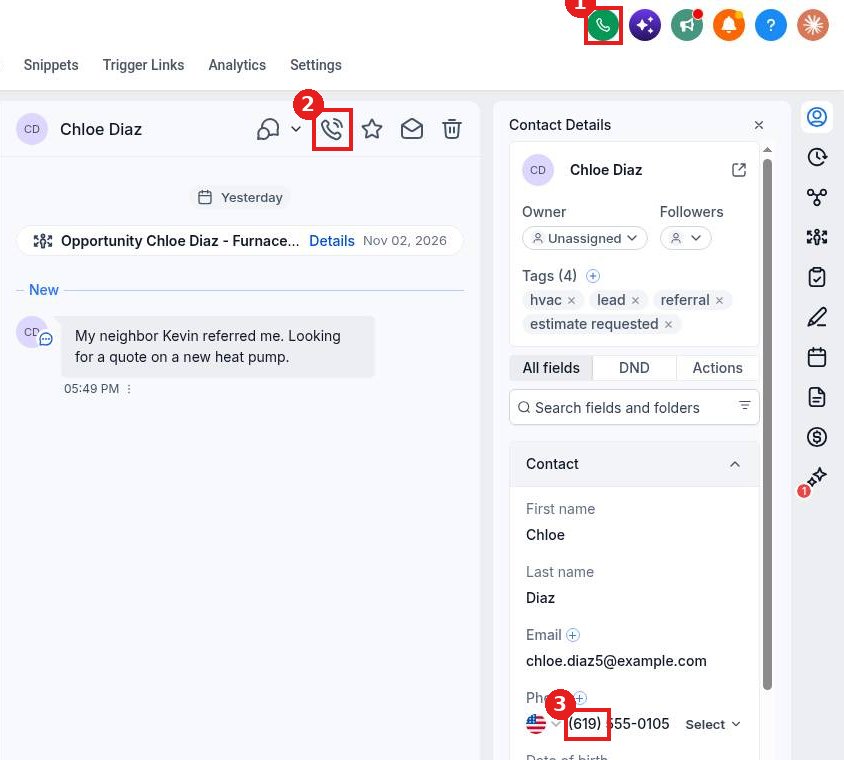
Go to Conversations and click the contact. Check their number in the contact panel on the right (3).
Step 2: Start the call
Click the phone icon in the conversation header (2) to call that contact. To dial any number, click the green phone icon at the top of the screen (1).
Step 3: Allow your microphone
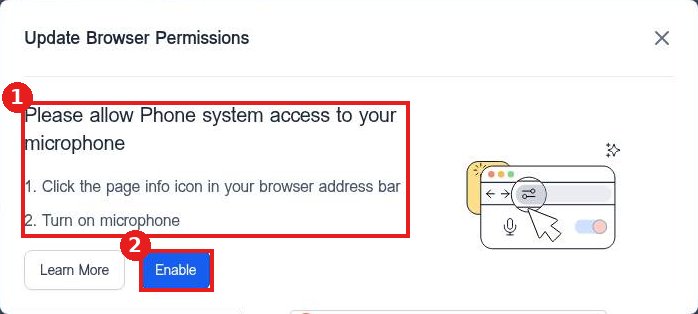
The first time you call, your browser asks for microphone access. Follow the steps shown (1): click the page info icon in the address bar and turn on the microphone. Then click Enable (2).
FAQ
Why can I not hear the caller?
Check that your browser allows the microphone and that the right headset is picked in your computer sound settings.
Does the call show in the conversation?
Yes. Calls are logged in the contact's conversation so your team can see the history.
Why does the phone icon do nothing?
Make sure your account has a Reachific phone number and the contact record has a valid number.
Want us to handle it? Our team can set up your phone numbers and call routing for you. Book a free strategy call and get a free quote.
Related articles
Still stuck? Submit a ticket and our team will help. Need faster answers? See our support plans.
