
How do I remove a team member?
Quick answer: Go to Settings > Users. Find the person and click the trash icon in the Actions column. Type DELETE in the box and click Delete. The person can no longer log in, and anything assigned to them becomes unassigned.
Before you start
Reassign their open conversations, contacts and opportunities to someone else first, so nothing is left without an owner. See How do I assign a conversation?
If they are on a calendar, add another team member to it so bookings keep working.
Only want to limit what they see? Change their permissions instead. See How do I set what a team member can see and do?
Step 1: Find the user
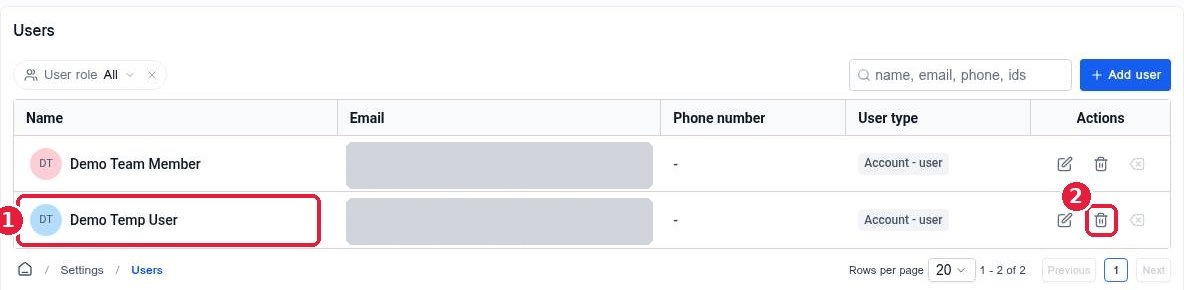
Open Settings > Users and find the person (1). Use the search box if you have a long list. Click the trash icon (2) on their row.
Step 2: Confirm the removal
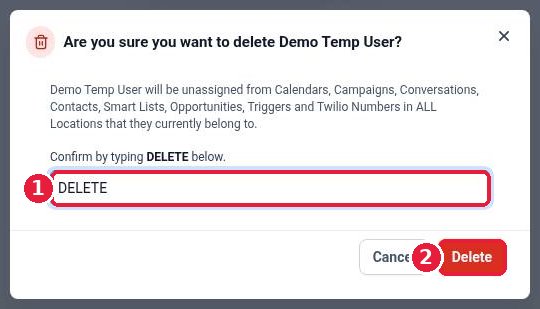
Reachific explains what will happen: the user is unassigned from calendars, campaigns, conversations, contacts, smart lists, opportunities, triggers and phone numbers. Type DELETE (1) and click Delete (2).
Step 3: Check the list
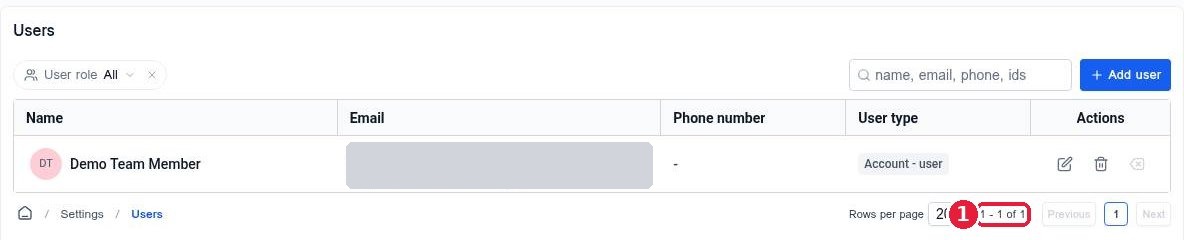
Reload the page. The user is gone and the count at the bottom drops by one (1).
FAQ
Does removing a user delete their contacts or messages?
No. Contacts, conversations and history stay in your account. They just no longer have that person as owner.
Can I undo a removal?
No. To bring the person back, add them again as a new user and set their permissions again.
Is the person told they were removed?
Reachific does not send them a message about it. They simply can no longer log in to your account.
What happens to their phone number?
Any number assigned to them becomes unassigned but stays on your account. Assign it to someone else in Phone System settings.
Related articles
Still stuck? Submit a ticket and our team will help. Need faster answers? See our support plans.
