
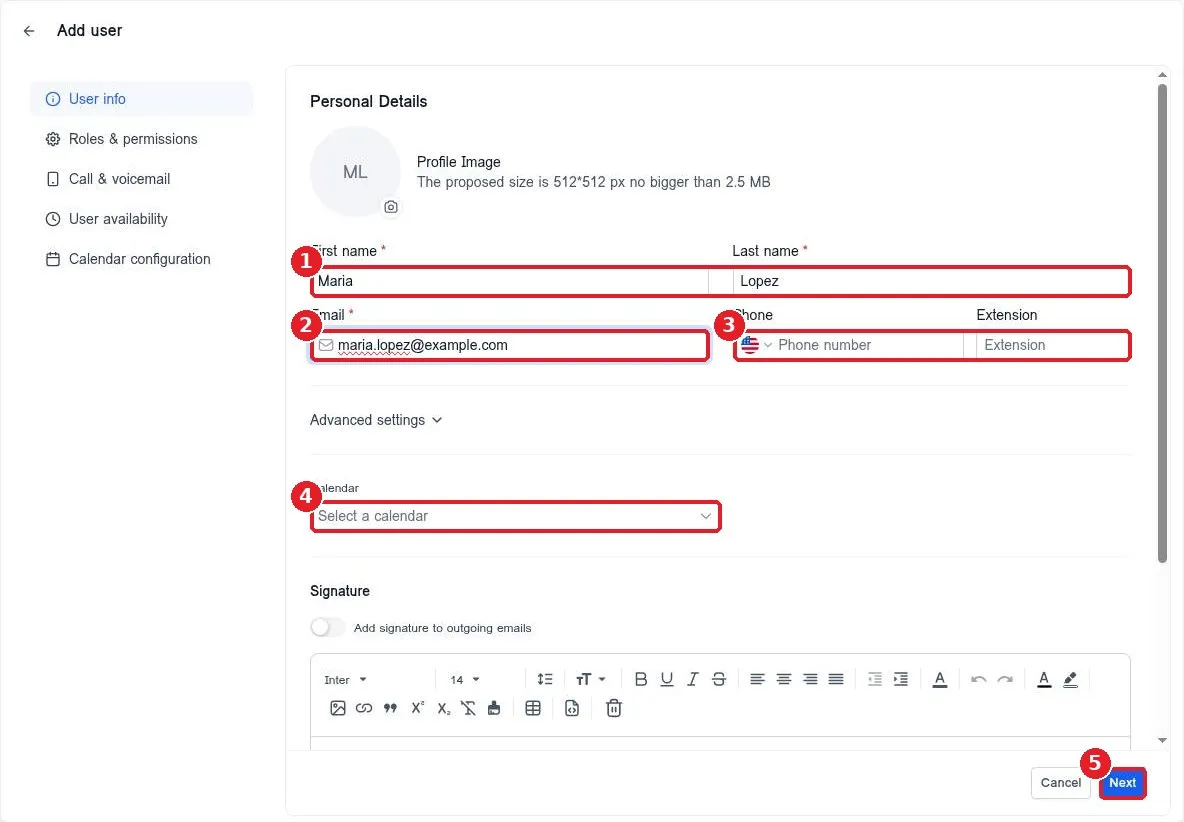
How do I add a team member?
Quick answer: Click Settings at the bottom of the left menu, then Users. Click Add user, enter the person's first name, last name and email, and click Next. On Roles & permissions, pick a User role, turn individual permissions on or off, and click Save.
Before you start
- Use the email address your team member will log in with. Each person needs their own login.
- Decide what they should see. Office staff may need Contacts and Calendars only, while a manager may need everything.
- Have their mobile number ready if they will make calls or get alerts from Reachific.
Step 1: Open Users
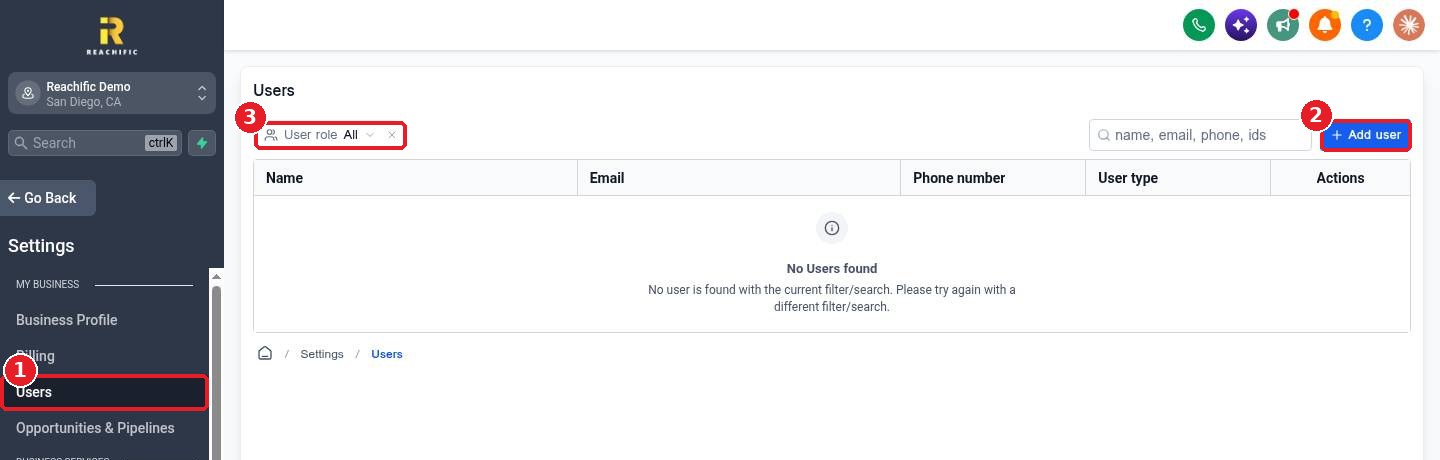
Click Settings at the bottom of the left menu, then click Users (1). Click Add user (2). The User role filter (3) helps you find people once your list grows.
Step 2: Enter their details
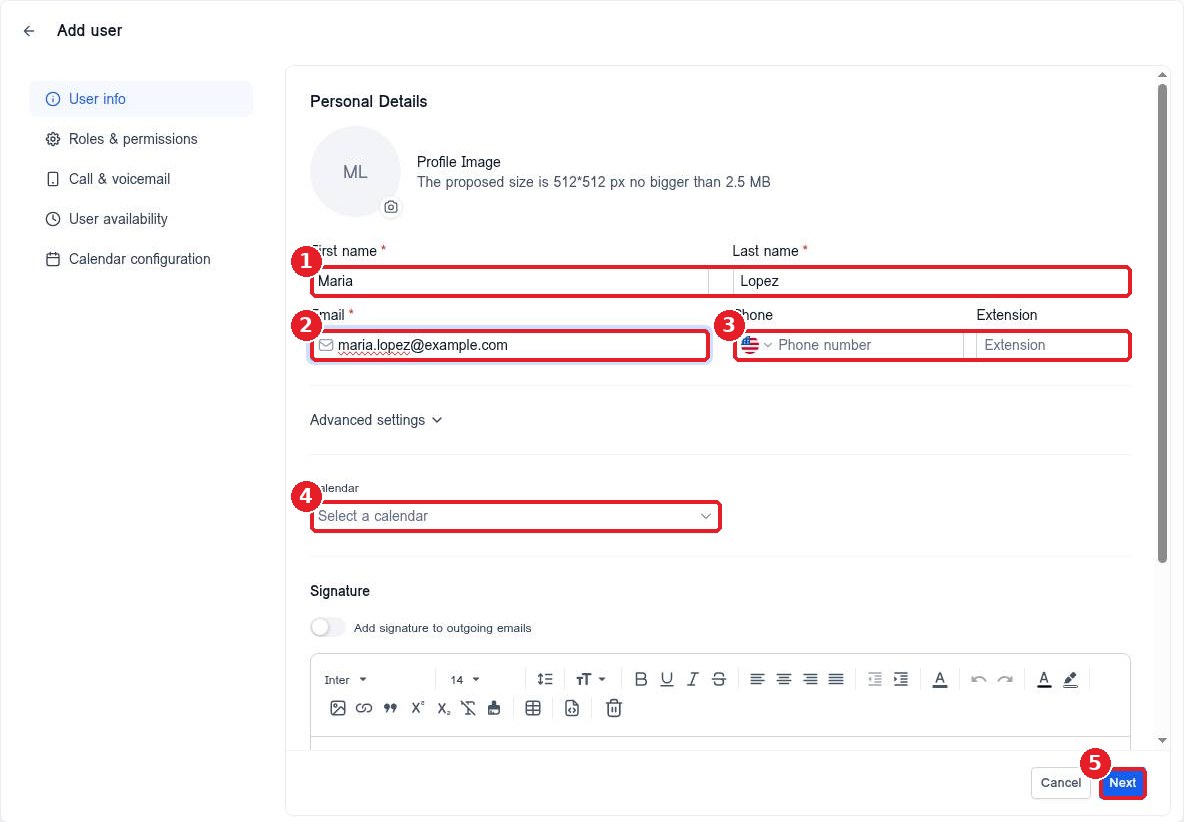
On User info, type the First name and Last name (1) and Email (2). Add a Phone number and extension (3) if they will use calling. Pick a Calendar (4) if they take appointments. Click Next (5).
Step 3: Choose their role and permissions
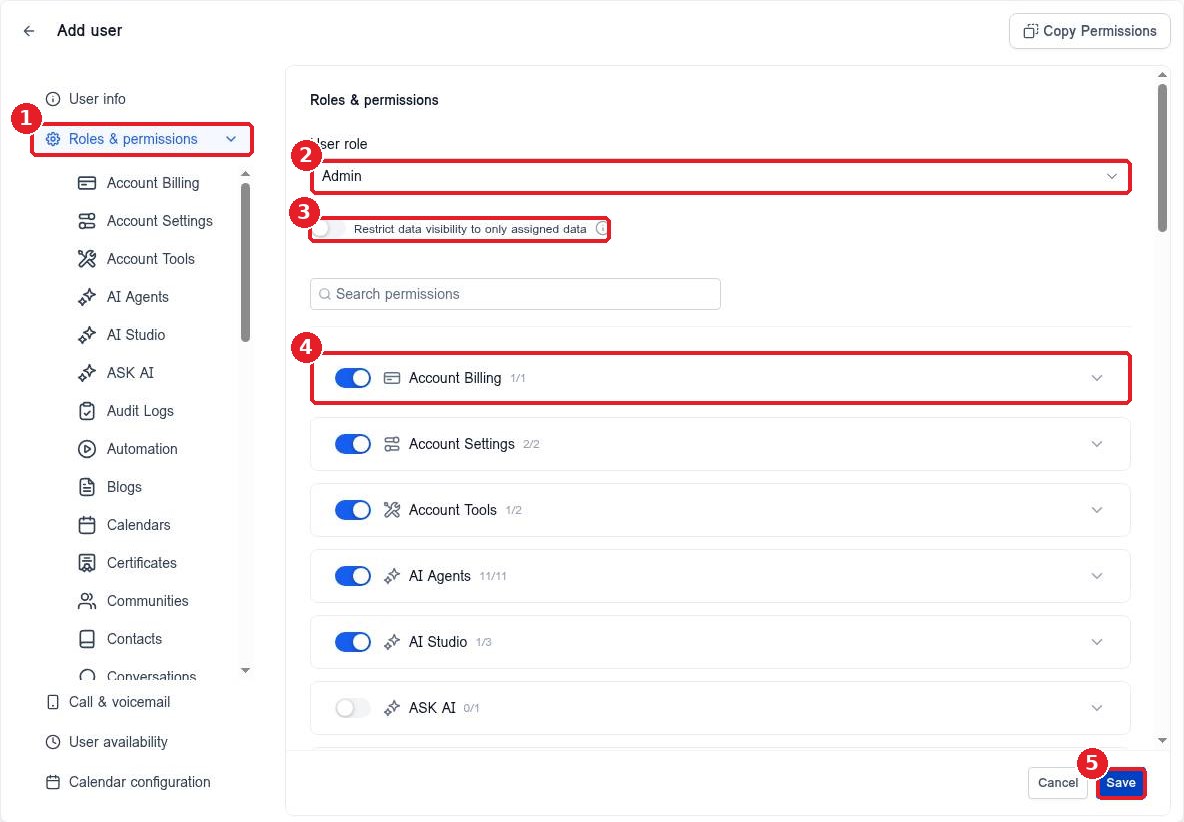
On Roles & permissions (1), choose a User role (2). An Admin can manage settings, while a User has more limited access. Turn on Restrict data visibility to only assigned data (3) if they should see only the contacts and deals assigned to them. Use the toggles (4) to turn each area, such as Account Billing or AI Agents, on or off. Click Save (5).
The new team member now shows in your Users list. Ask them to sign in with the email you entered.
FAQ
Should I make my staff Admins?
Only give Admin to people who need to change settings or billing. For most staff, choose the User role and turn on only the areas they use.
Can I copy permissions from another user?
Yes. On the Roles & permissions screen, use Copy Permissions at the top right to start from an existing team member's setup.
How do I set their working hours?
Open User availability and Calendar configuration in the same Add user screen to set the hours they can be booked.
How do I change access later?
Go back to Settings > Users, click the edit icon next to the person and update their role or permissions.
Want us to handle it? Our team can set up your users, roles and calendars so everyone sees exactly what they need from day one. Book a free strategy call and get a free quote.
Related articles
- How do I create a booking calendar?
- How do I import contacts from a CSV file?
- How do I send a review request?
Still stuck? Submit a ticket and our team will help. Need faster answers? See our support plans.
