
How do I assign a conversation to a team member?
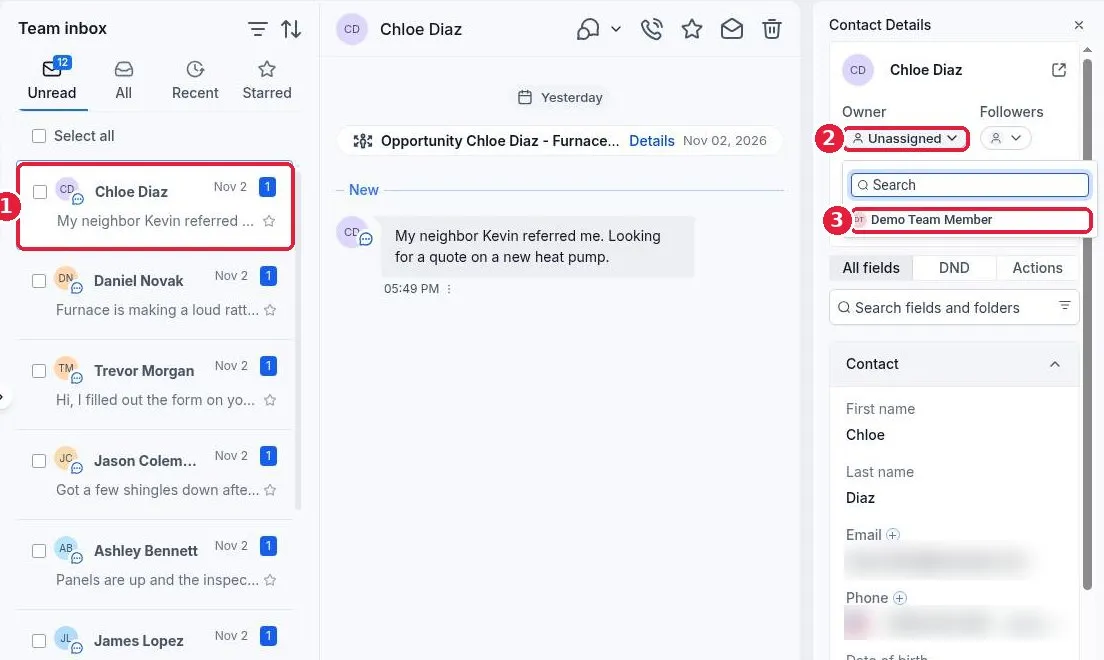
Quick answer: Open Conversations and click the conversation (1). In the Contact Details panel on the right, click Owner (2) and choose the team member (3). The change saves right away. That person now owns the contact and the conversation, so it shows when the inbox is filtered to their assigned conversations.
Before you start
- The person must already be a user on your account. See How do I add a team member?
- If a user is set to see only assigned data, they will see the conversation only after you assign it to them.
Step 1: Open the conversation and pick an owner
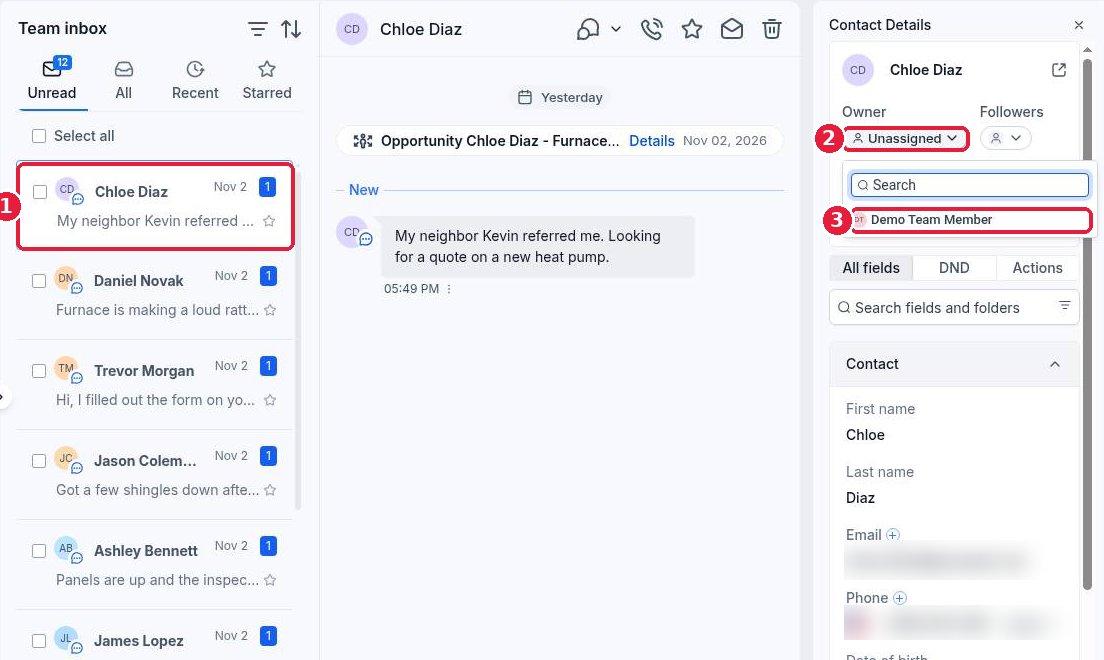
Click the conversation in the inbox list (1). If the Contact Details panel is closed, click the person icon on the far right to open it. Click the Owner field, which shows Unassigned when nobody owns it yet (2). Search for or click the team member (3).
Step 2: Check the assignment
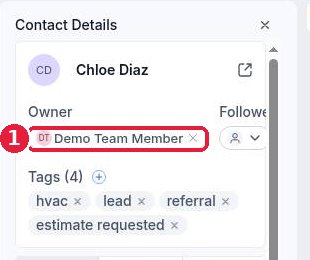
The Owner field now shows the team member's name (1). To hand it to someone else, open the dropdown again and pick a different person. Click the small x next to the name to unassign it.
Step 3: Let your team see what is theirs
Each team member can filter the inbox to show conversations assigned to them. See How do I filter my inbox. You can also add Followers next to Owner so others get updates without owning the conversation.
FAQ
Does the team member get notified?
Users can get notifications for new messages on contacts assigned to them, based on their notification settings.
Can I assign conversations automatically?
Yes. A workflow can use an Assign to User action, for example to rotate new leads between team members.
Does assigning change who the customer talks to?
No. The customer sees the same business number or email. Assigning only decides who on your team is responsible.
Can I assign many conversations at once?
Owners are set per contact. To set many at once, select the contacts on the Contacts list and use the bulk action to change the owner.
Want us to handle it? Our team sets up your shared inbox, lead routing and follow up workflows so no message slips through. Book a free strategy call and get a free quote.
Related articles
- How do I reply to texts, emails and chats in one inbox?
- How do I filter my inbox by unread, starred or assigned?
- How do I add a team member?
Still stuck? Submit a ticket and our team will help. Need faster answers? See our support plans.
