
How do I refund a payment?
Quick answer: Go to Payments > Transactions, click the three dots on the payment, choose Refund, check the amount, add a note and click Refund.
Before you start
- You can only refund a payment that shows in your Transactions list. If you cannot find it, see How do I find a transaction?
- Decide the amount first. A refund sends money back to your customer, so check the payment before you click.
Step 1: Open the payment
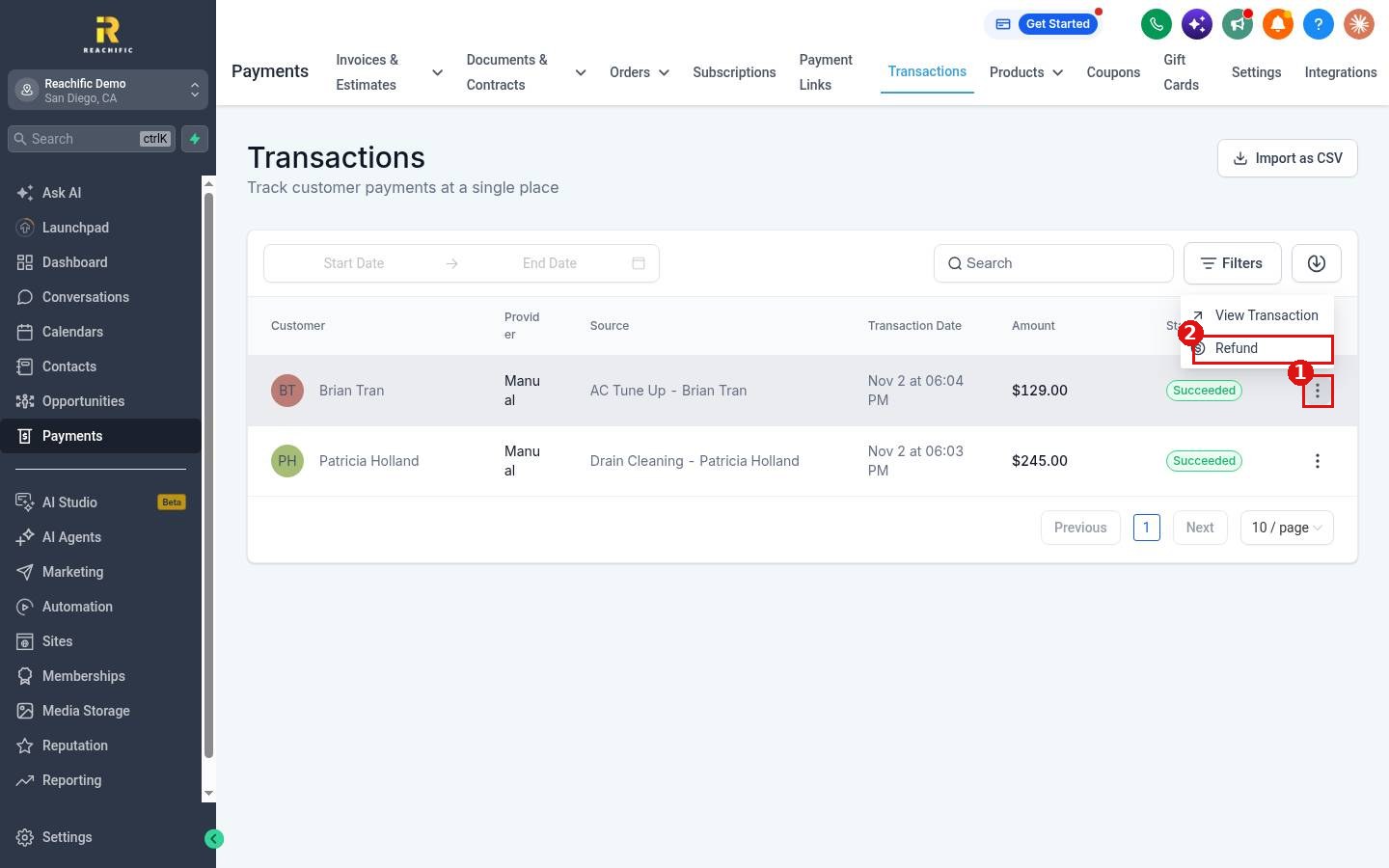
Click Payments in the left menu, then Transactions. Find the payment and click the three dots at the end of its row (1). The menu shows View Transaction and Refund (2).
Step 2: Confirm the refund
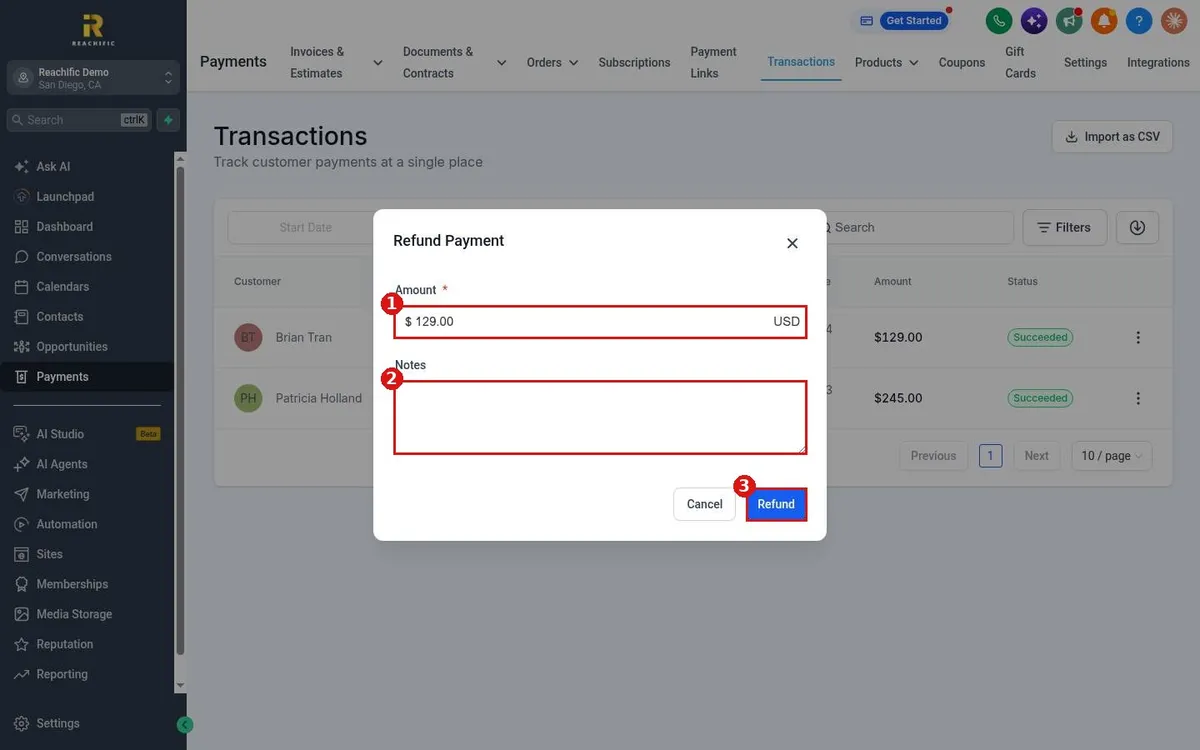
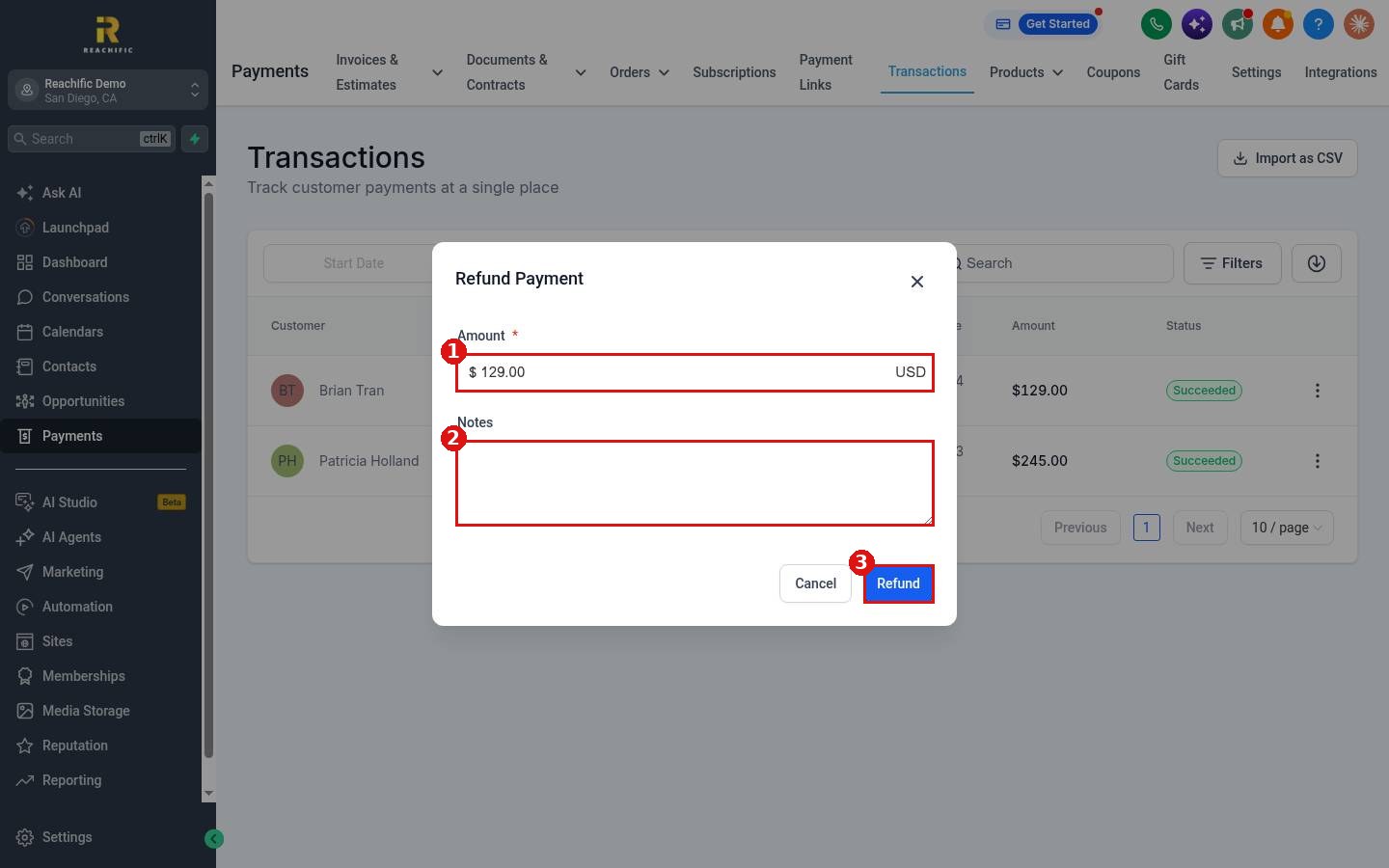
- In the Refund Payment window, check the Amount (1). It starts with the full payment amount.
- Add a reason in Notes (2) so your team knows why it was refunded.
- Click Refund (3).
FAQ
Can I look at the payment before I refund it?
Yes. Choose View Transaction from the same menu to see the details first.
How do I find the payment if I only know the customer name?
Use the search box on the Transactions page. See How do I find a transaction?
Want us to handle it? Our team can set up your payments, invoices and customer follow up so your books stay clean. Book a free strategy call and get a free quote.
Related articles
- How do I find a transaction?
- How do I record a payment made by cash or check?
- How do I create and send an invoice?
Still stuck? Submit a ticket and our team will help. Need faster answers? See our support plans.
