
How do I find a transaction?
Quick answer: Go to Payments > Transactions. Type a customer name in the search box, pick a date range, or click Filters to narrow by status, payment mode and source type.
Before you start
- The Transactions page lists every customer payment in one place, with the customer, provider, source, date, amount and status.
- Payments you record by hand also show here, with Manual as the provider.
Step 1: Open Transactions
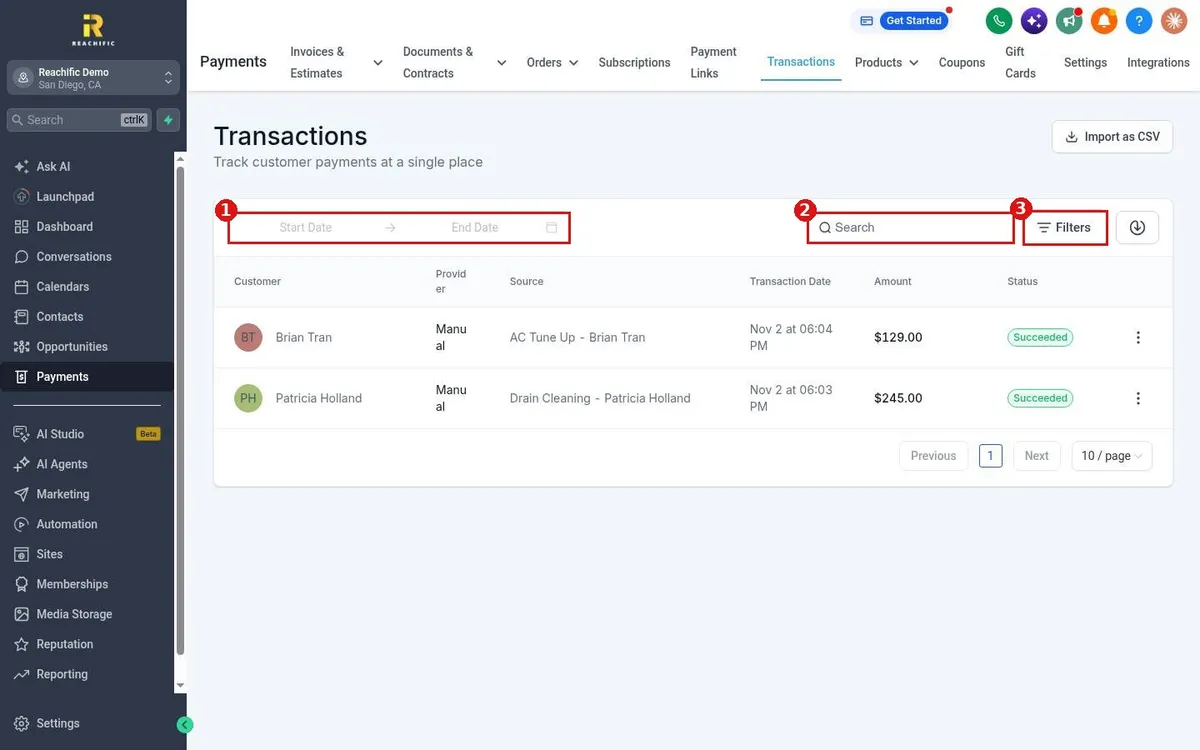
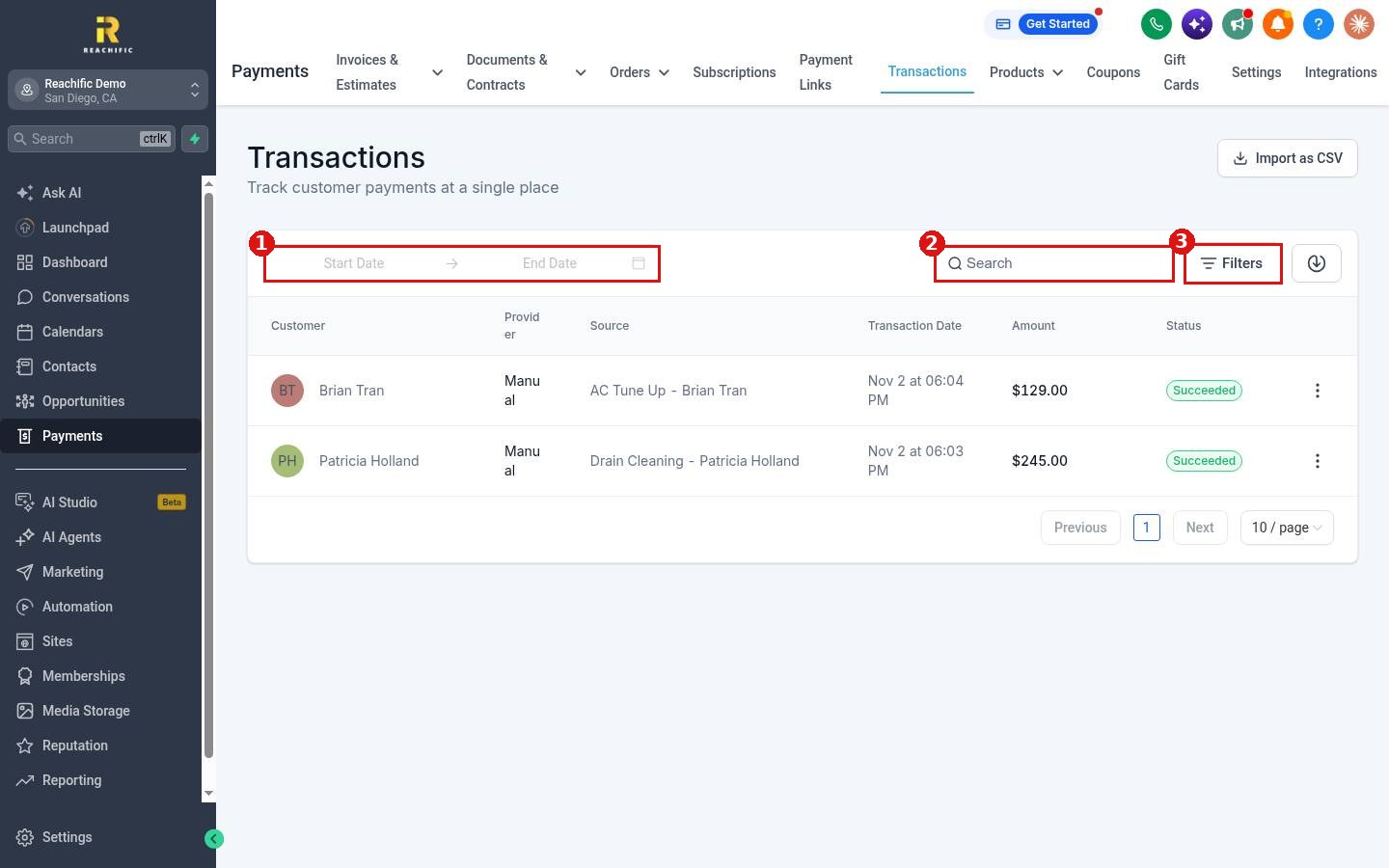
Click Payments in the left menu, then Transactions in the top menu. Use the date range (1) to show a time period, or the Search box (2) to look up a customer or invoice name. Click Filters (3) for more choices.
Step 2: Narrow the list with Filters
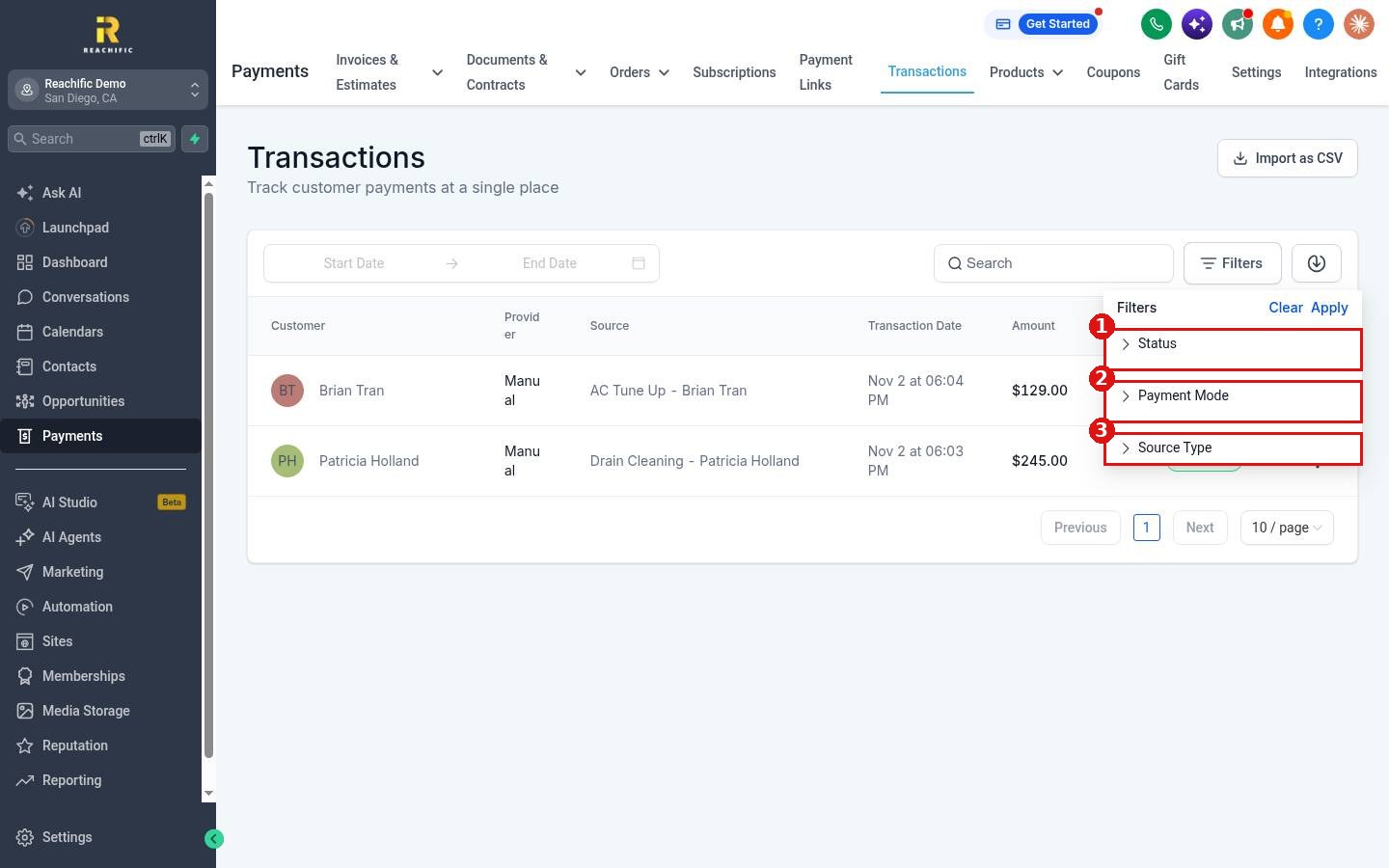
The Filters panel has three groups. Click a group to open it, choose your options, then click Apply. Click Clear to start over.
- Status (1), such as succeeded.
- Payment Mode (2), such as manual.
- Source Type (3), which shows where the payment came from.
Step 3: Open or refund a payment
Click the three dots at the end of a row to View Transaction or Refund. See How do I refund a payment?
FAQ
Can I download my transactions?
Use the download button next to Filters to export the list.
Why is a payment I recorded by hand not under a card provider?
Manual payments use Manual as the provider. See How do I record a payment made by cash or check?
Want us to handle it? Our team can set up your payments and reporting so you always know what came in. Book a free strategy call and get a free quote.
Related articles
- How do I refund a payment?
- How do I record a payment made by cash or check?
- How do I connect Stripe to take payments?
Still stuck? Submit a ticket and our team will help. Need faster answers? See our support plans.
