
How do I reconnect Google Analytics on my dashboard?
Quick answer: When a Google Analytics widget says Connection expired. Reconnect to continue., go to Settings > Integrations, click Connect on the Google card, sign in with the Google account that owns your Analytics property, allow access, then refresh your dashboard.
Before you start
- Use the Google account that has access to your Google Analytics property.
- Connections expire when a Google password changes or access is removed.
Step 1: Spot the expired widget
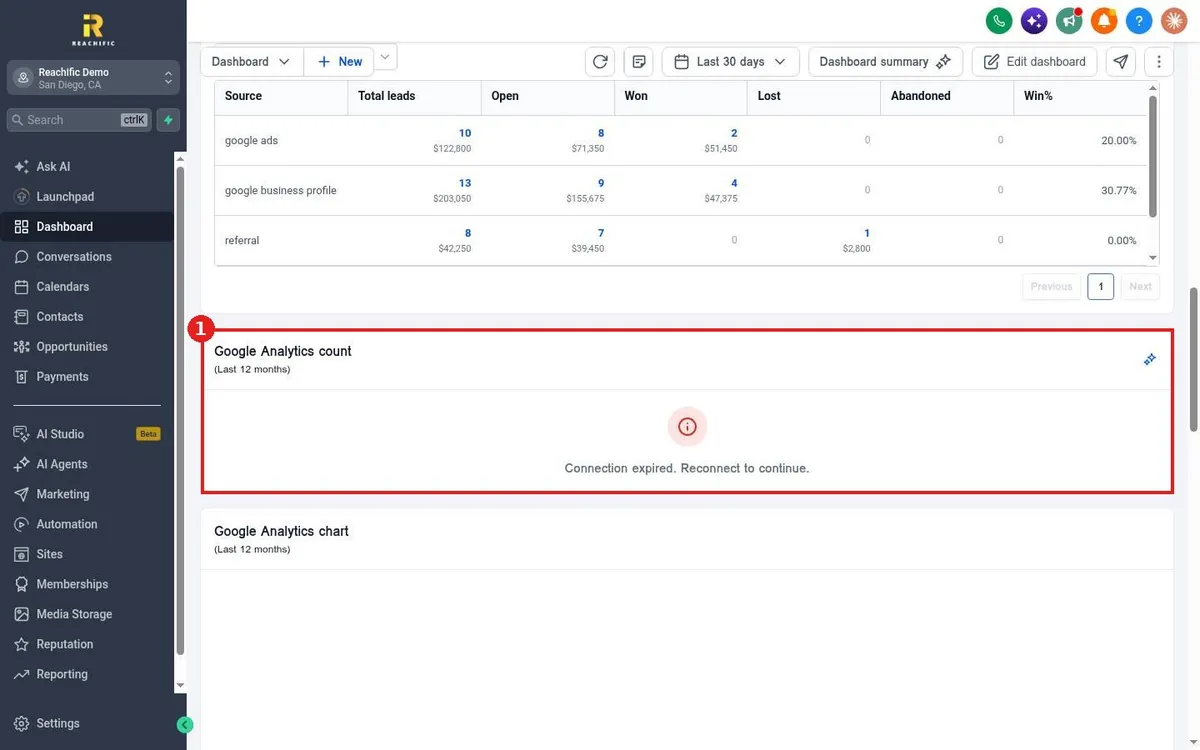
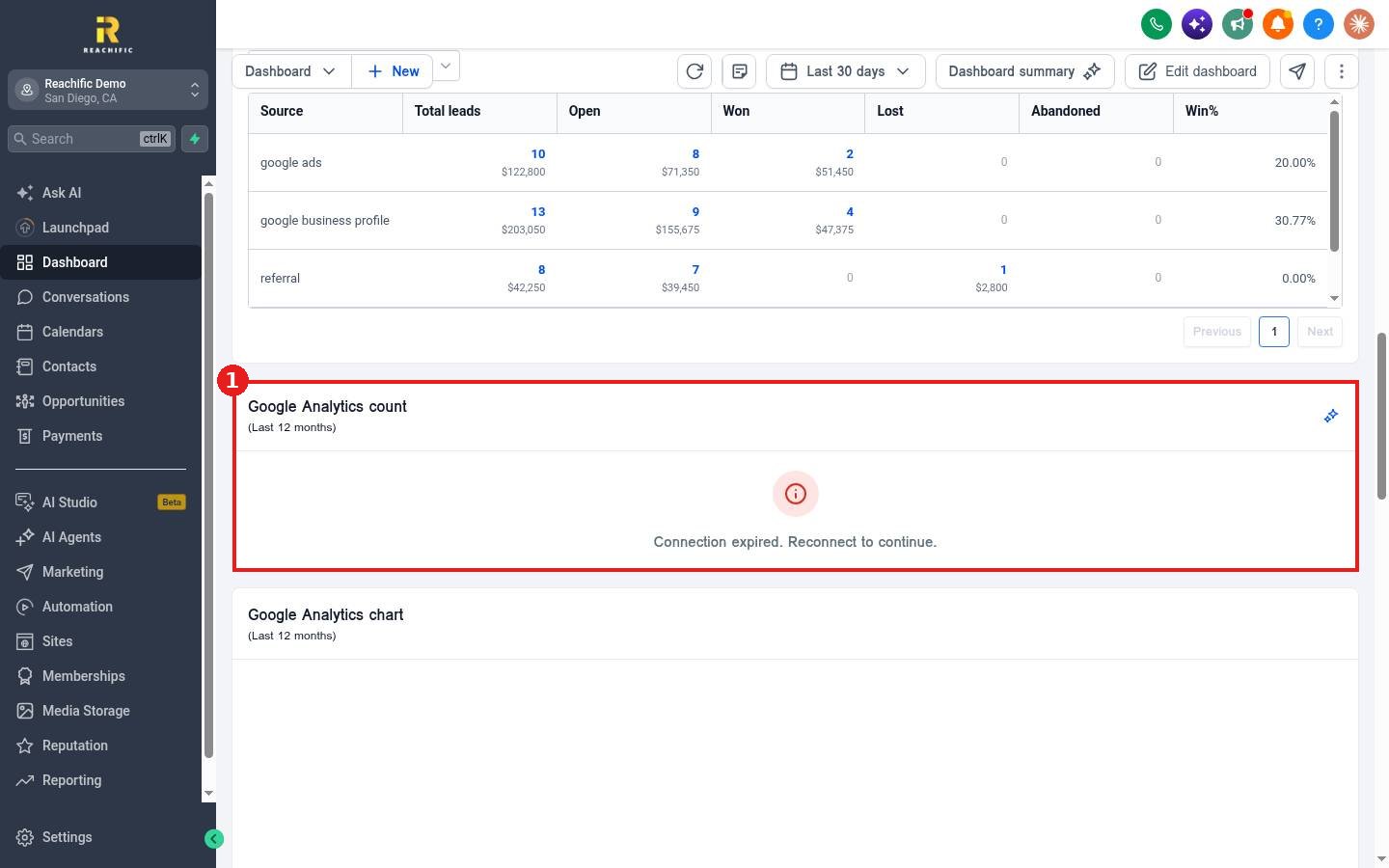
On your Dashboard, the Google Analytics count and Google Analytics chart widgets (1) show Connection expired when Google access has lapsed.
Step 2: Reconnect Google
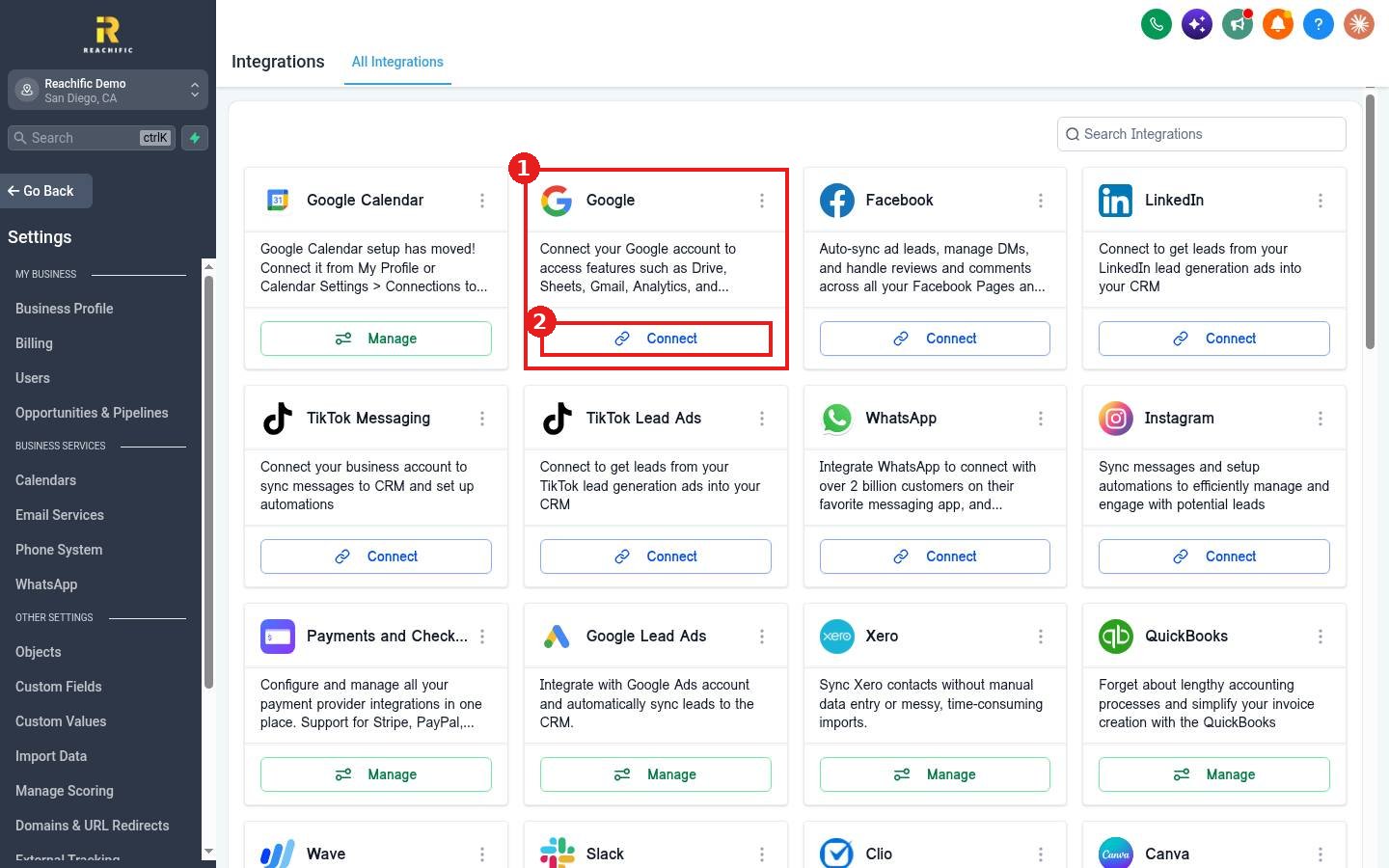
- Click Settings at the bottom of the left menu, then Integrations.
- Find the Google card (1), which covers Drive, Sheets, Gmail, Analytics and AdWords.
- Click Connect (2), sign in and allow access. If it is already connected, use the three dots on the card to reconnect.
Step 3: Refresh the dashboard
Go back to Dashboard and click the refresh icon at the top. Pick your Analytics property in the widget settings if asked.
FAQ
Why does it keep expiring?
Google ends access when the password changes, the account loses Analytics access, or permissions are removed. Reconnect with an account that keeps steady access.
Can I remove the widget instead?
Yes. See How do I add, remove or move dashboard widgets?
Want us to handle it? Our team can connect your analytics and build a dashboard that shows what matters. Book a free strategy call and get a free quote.
Related articles
- How do I read my Reachific dashboard?
- How do I add, remove or move dashboard widgets?
- How do I change the dashboard date range?
Still stuck? Submit a ticket and our team will help. Need faster answers? See our support plans.
