
How do I add, remove or move dashboard widgets?
Quick answer: Open Dashboard and click Edit dashboard. Add a widget from the Widget panel on the left. Drag a widget by its handle to move it, drag the bottom right corner to resize it, and open its three dot menu to Edit, Duplicate or Delete it. Your changes save automatically.
Before you start
- Edit mode saves as you go. There is no Save button, so delete with care.
- Use the undo arrow at the top if you change something by mistake.
- Want to try ideas without touching your main view? Make a copy first. See How do I create a second dashboard for my team?
Step 1: Open edit mode
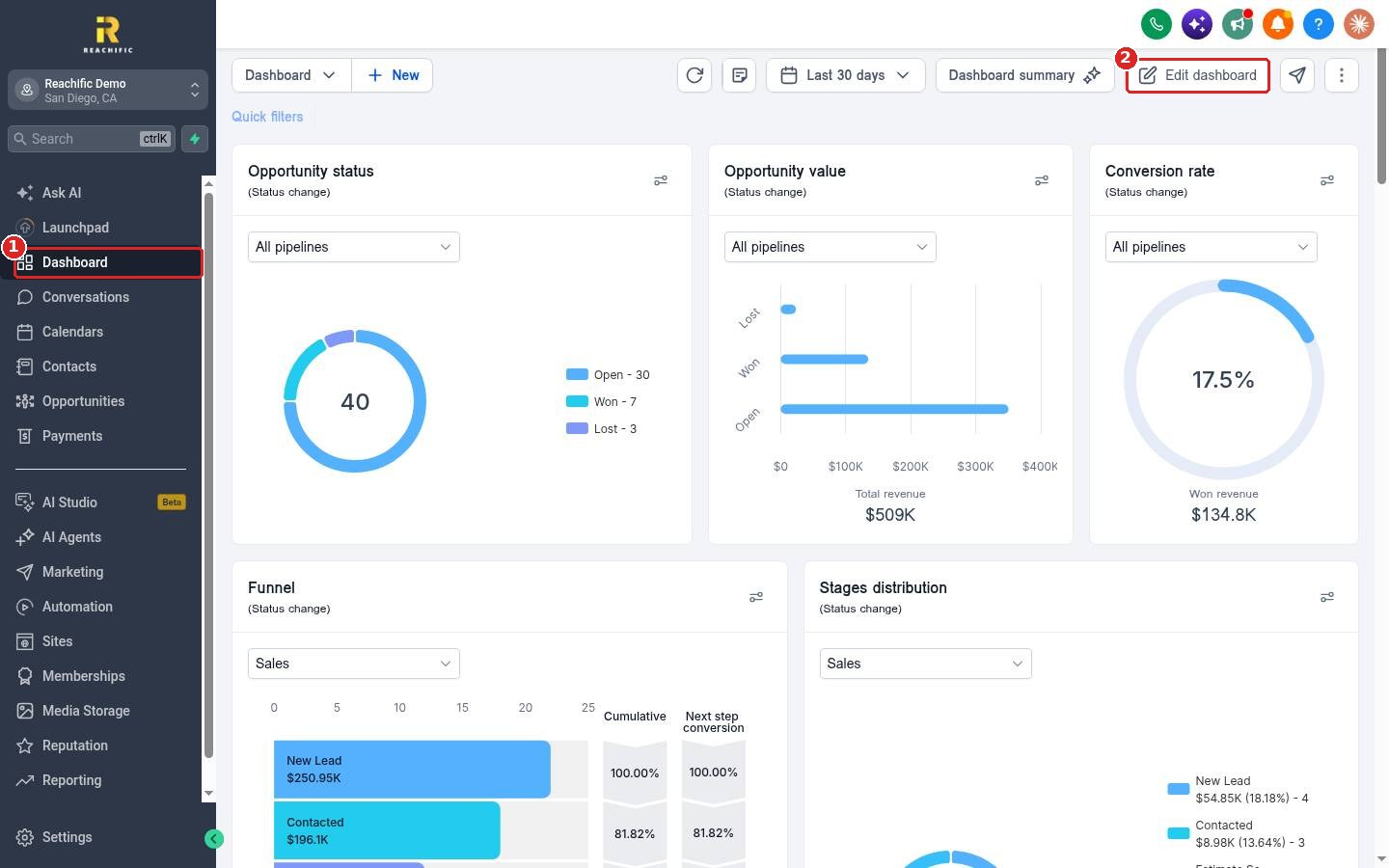
Click Dashboard (1) in the left menu, then click Edit dashboard (2) at the top right.
Step 2: Add a widget
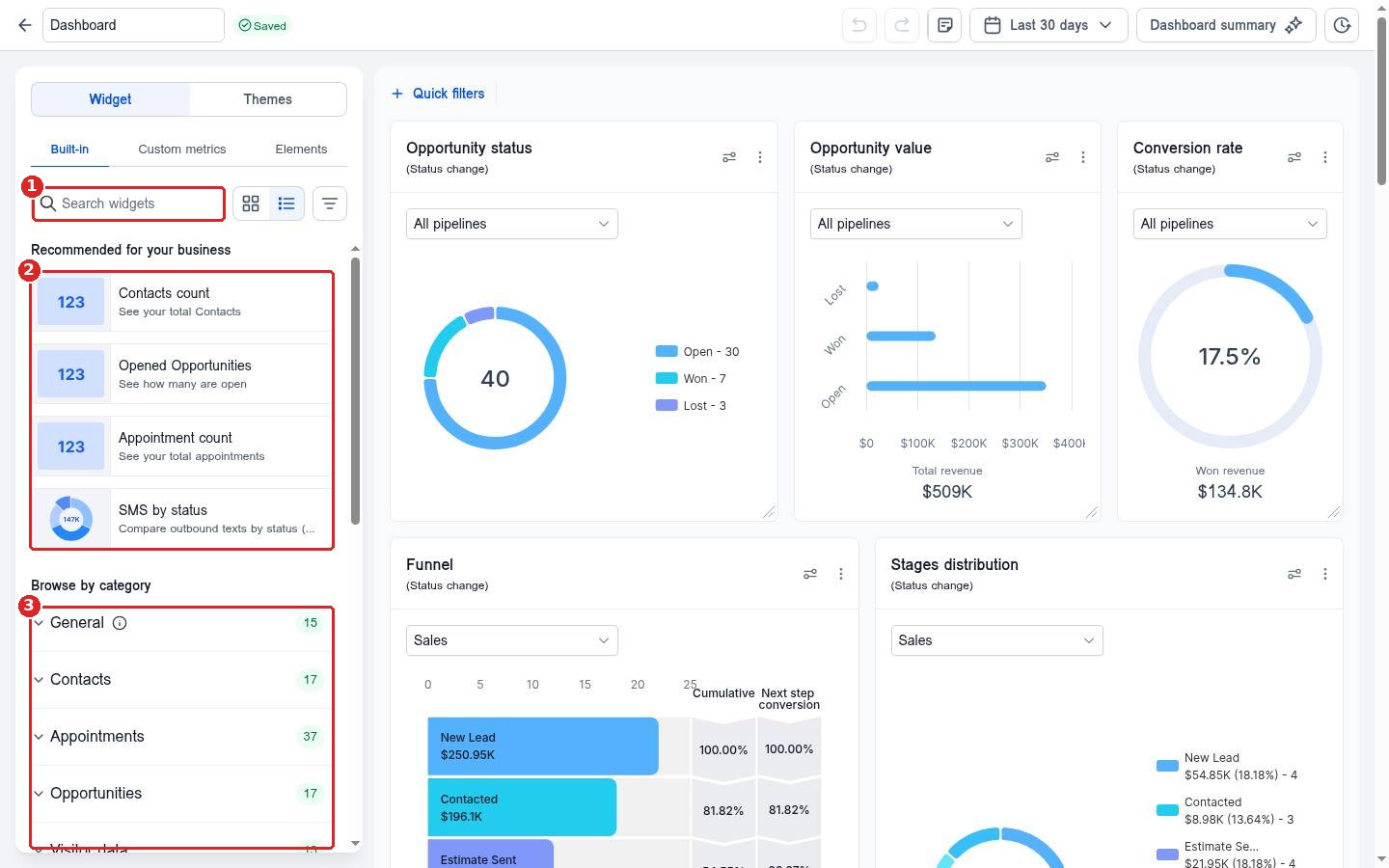
In the Widget panel on the left, type in Search widgets (1) or pick one from Recommended for your business (2), such as Contacts count or Appointment count. You can also open a category under Browse by category (3), like Contacts, Appointments or Opportunities. Drag or click the widget to add it to your dashboard.
Step 3: Move, resize, edit or remove a widget
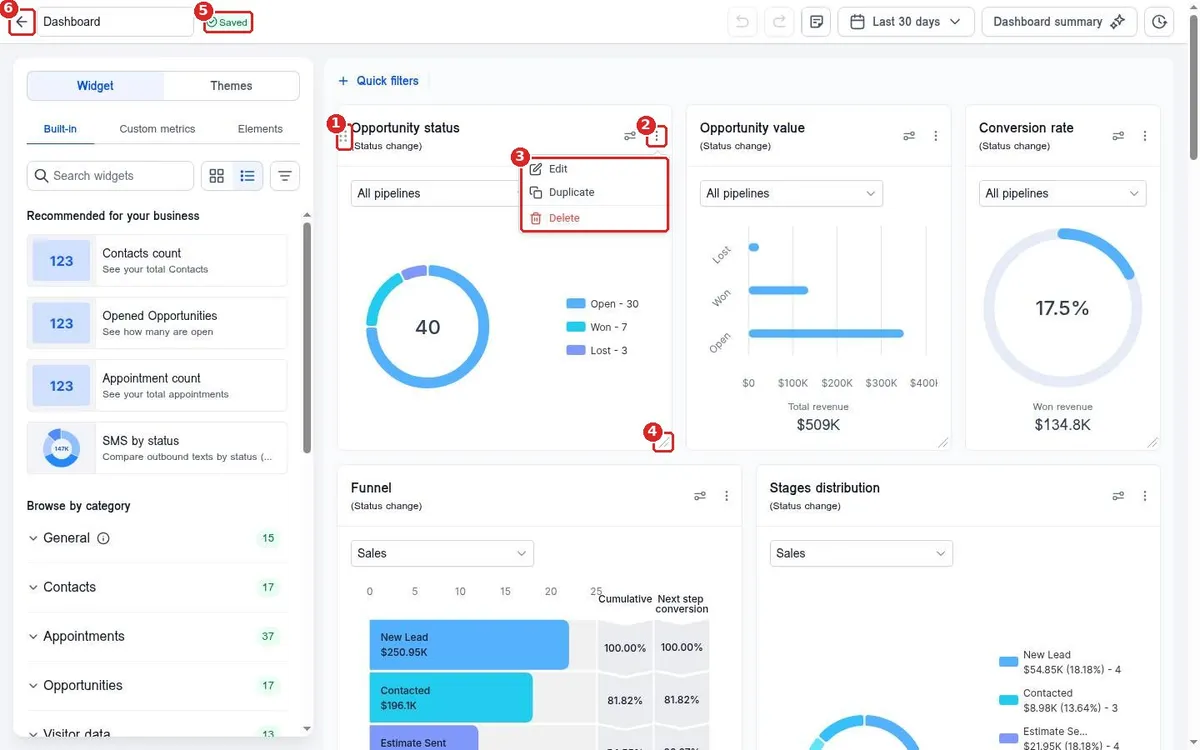
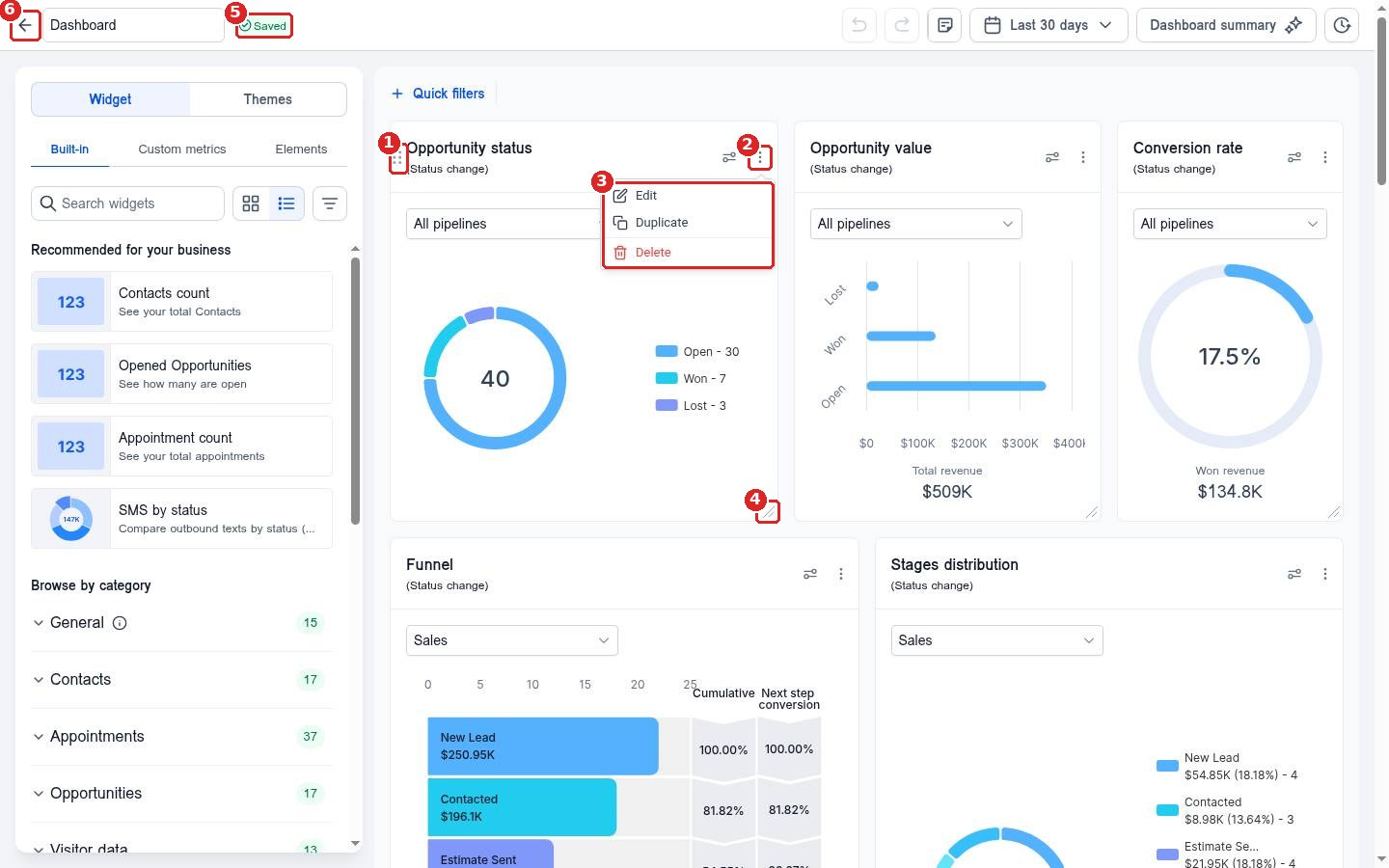
Hover over a widget and drag the handle (1) next to its title to move it. Click the three dot menu (2) to open Edit, Duplicate and Delete (3). Drag the bottom right corner (4) to make it bigger or smaller. The Saved tag (5) confirms your change was kept. Click the back arrow (6) when you are done.
FAQ
I deleted a widget by mistake. Can I get it back?
Click the undo arrow at the top of edit mode right away. If you already left, add the same widget again from the Widget panel.
Can I change the colors of my dashboard?
Yes. Open the Themes tab next to Widget in edit mode.
Can I build my own metric?
Yes. Open the Custom metrics tab in the Widget panel to build a widget from your own numbers.
Do my changes affect other users?
Anyone who views the same dashboard sees your changes. Make a separate dashboard if each person wants their own layout.
Want us to handle it? Our team can build a dashboard around the numbers your business runs on. Book a free strategy call and get a free quote.
Related articles
- How do I read my Reachific dashboard?
- How do I change the dashboard date range?
- How do I create a second dashboard for my team?
Still stuck? Submit a ticket and our team will help. Need faster answers? See our support plans.
