
How do I organize custom fields into folders?
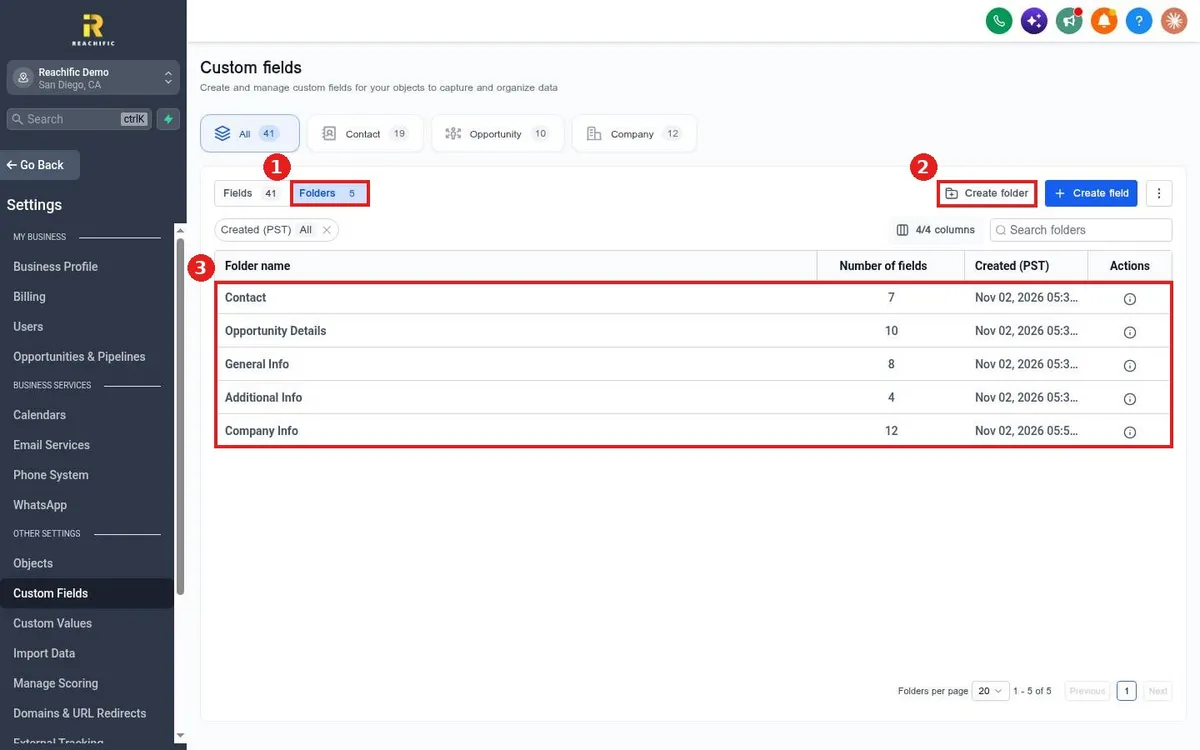
Quick answer: Open Contacts, then Custom Fields, and click the Folders tab. Click Create folder to add a group. When you create or edit a field, pick that folder in Folder name.
Step 1: Open Folders
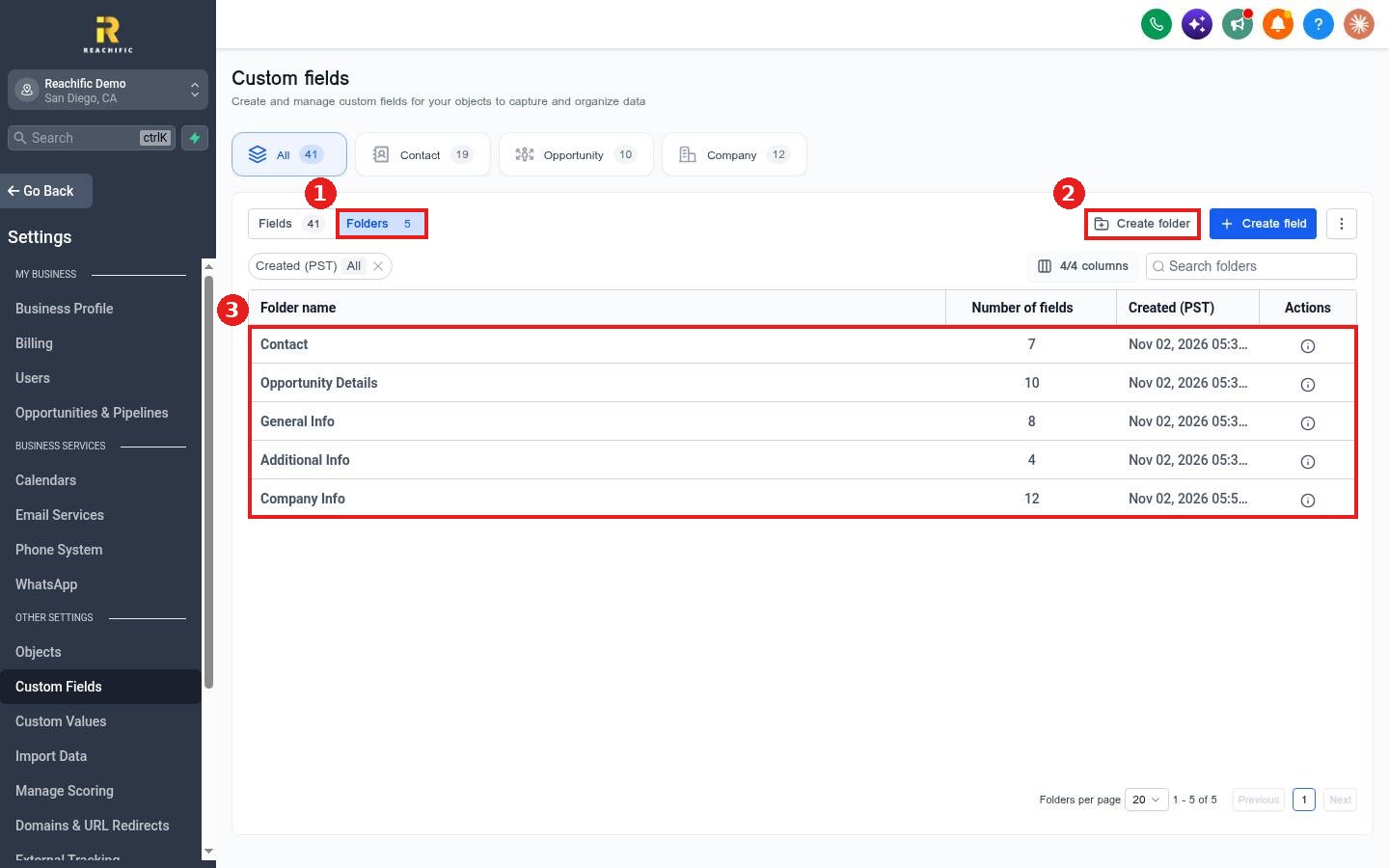
Click the Folders tab (1). Click Create folder (2), name it, like Job Details, and save.
Step 2: Put fields in the folder
The list (3) shows each folder and how many fields it holds. When you create a field, choose the folder under Folder name. To move an existing field, use the folder icon on its row in the Fields tab.
Step 3: Check the contact
Open any contact. Fields now show grouped under their folder in the left panel.
FAQ
Why group fields?
Folders keep long contact records easy to scan for your team.
Can I rename a folder?
Yes, from the folder row's actions.
Do folders change my forms?
No. Folders only change how fields are grouped inside the account.
Want us to handle it? Our team can organize your fields and records for you. Book a free strategy call and get a free quote.
Related articles
- How do I create a custom field for contacts?
- How do I edit a contact's details?
- How do I create a smart list with filters?
Still stuck? Submit a ticket and our team will help. Need faster answers? See our support plans.
