
How do I merge duplicate contacts?
Quick answer: Go to Contacts. Search for the person, check the box next to each duplicate, then click More and Merge. Choose the Master record and the values to keep, then click Merge Contacts.
Before you start
- Merging cannot be undone. Check both records first.
- To stop new duplicates, set your duplicate rule. See how to set contact deduplication.
Step 1: Select the duplicates
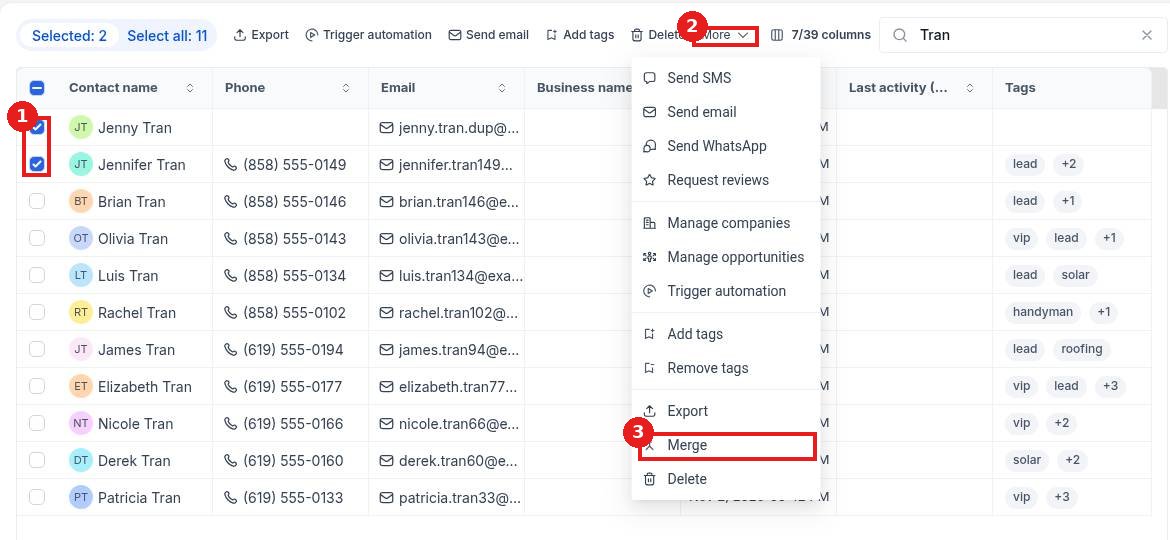
Search by name, email or phone so both records show. Check the box (1) next to each one. Click More (2), then Merge (3).
Step 2: Pick the Master and the values to keep
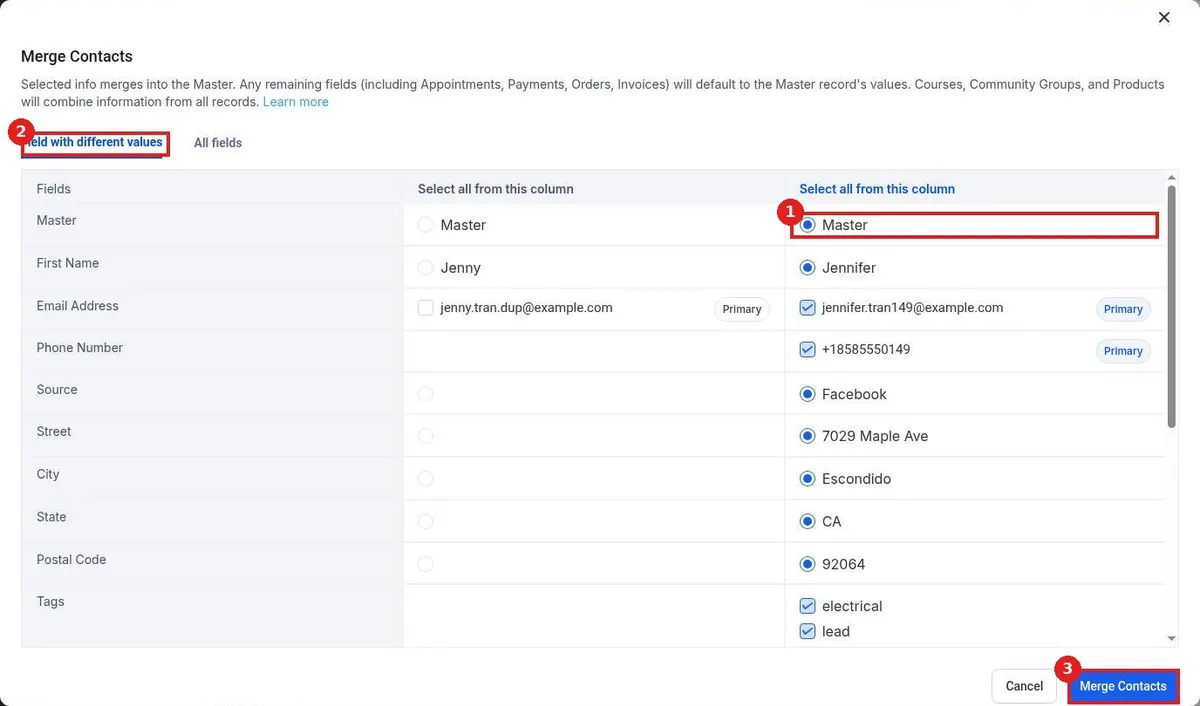
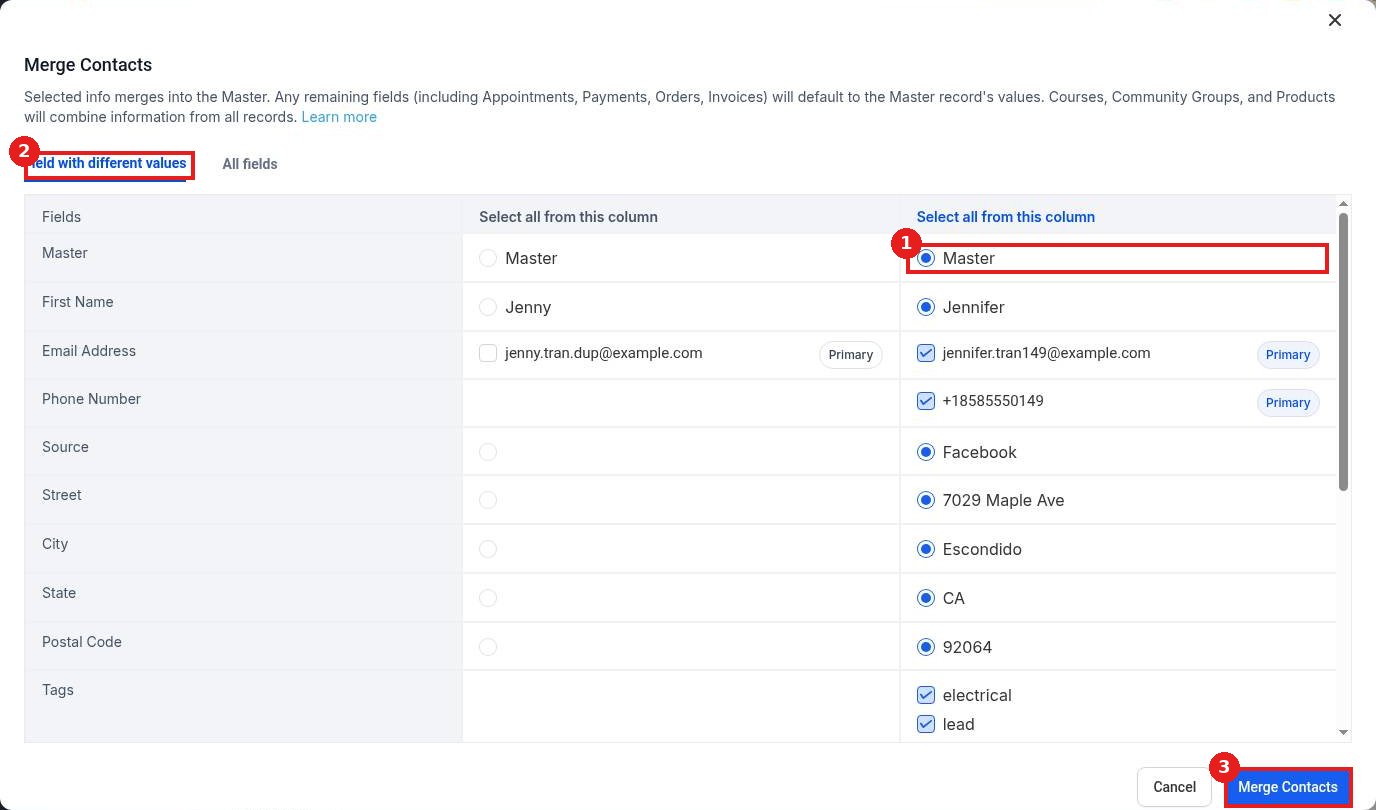
Click Master (1) at the top of the column for the record you want to keep. Its values are selected. Field with different values (2) shows only the fields that differ; switch to All fields to see everything. Pick any values you want from the other record, then click Merge Contacts (3).
Step 3: Check the merged contact
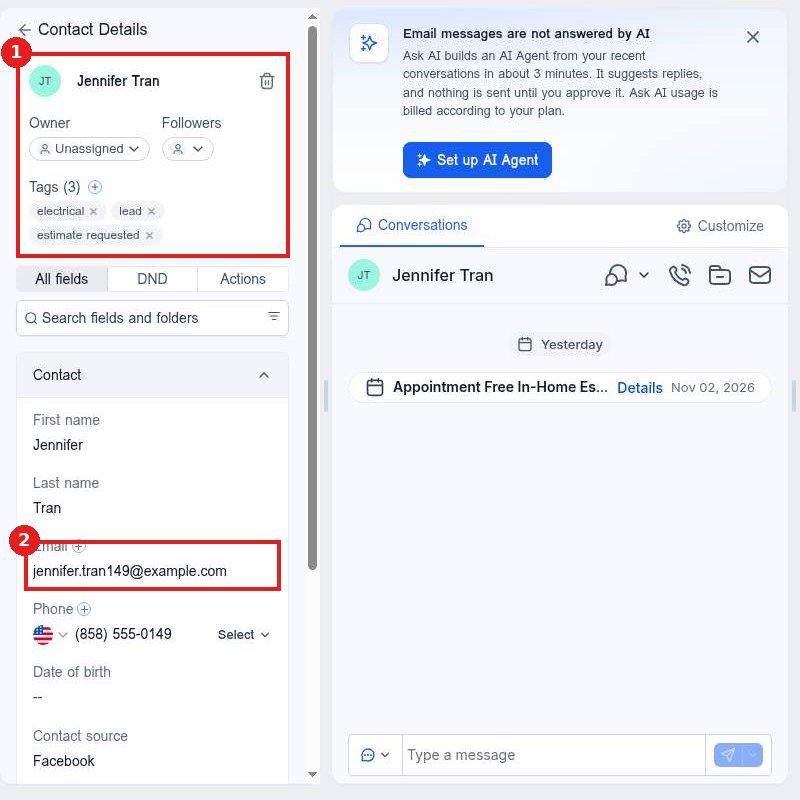
The merged record opens (1) with its tags and history. Emails and phones you kept (2) show on the record. The extra record no longer appears in your list.
FAQ
What happens to appointments and payments?
Appointments, payments, orders and invoices go to the Master record. Courses, community groups and products combine from all records.
Can I merge more than two contacts?
Select every duplicate before you click Merge, then choose one Master.
Can I undo a merge?
No. Check the values carefully before you click Merge Contacts.
Want us to handle it? Our team can clean up and dedupe your contact list and set rules so duplicates stop coming in. Book a free strategy call and get a free quote.
Related articles
- How do I set my contact deduplication preference?
- How do I edit a contact's details?
- How do I delete contacts?
Still stuck? Submit a ticket and our team will help. Need faster answers? See our support plans.
