
How do I mark a conversation as read, unread or starred?
Quick answer: Open the conversation and use the icons in its header: the star stars it and the envelope marks it read or unread. You can also click the small star on any conversation in the list. Find them again with the Unread and Starred tabs.
Step 1: Open the conversation
Go to Conversations and click a conversation in the list.
Step 2: Star it or change read status
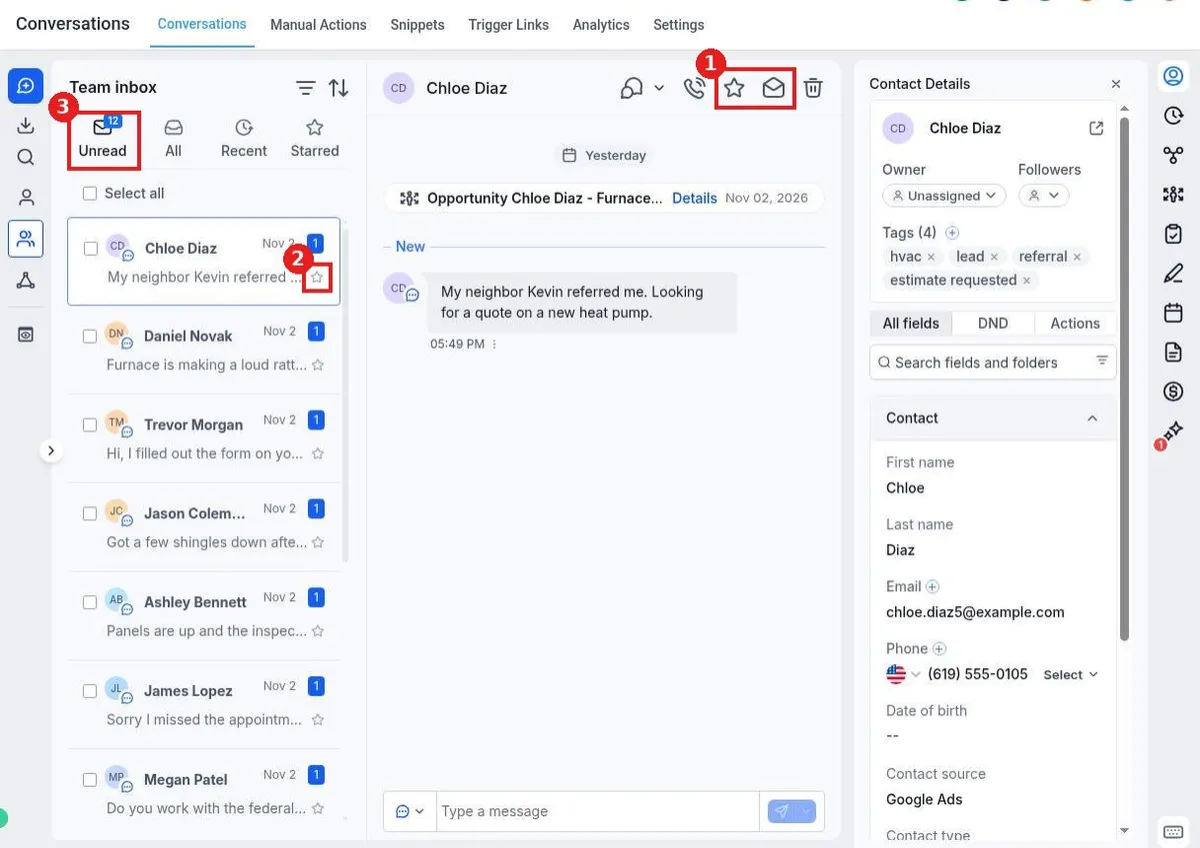
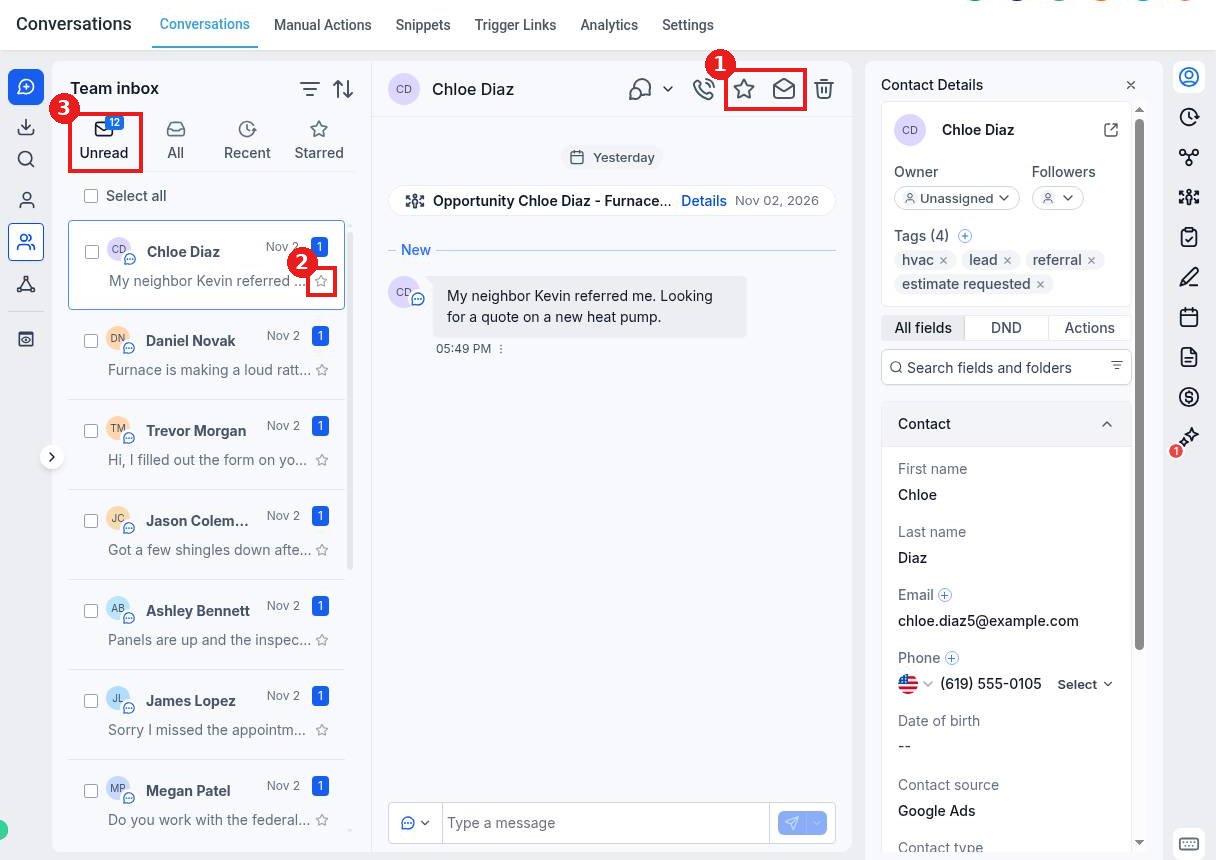
In the conversation header, click the star to star it, or the envelope to switch it between read and unread (1). From the list, click the star on the right of any conversation (2) without opening it.
Step 3: Find them later
Click Unread (3) to see everything still waiting on a reply. The badge shows how many there are. Click Starred to see the ones you starred.
FAQ
Why did a conversation become read on its own?
Opening a conversation marks it read. Click the envelope to set it back to unread so it stays on your list.
Can I mark many conversations at once?
Tick the boxes next to the conversations, or use Select all, to act on several together.
Does my team see my stars?
Use stars as your own reminders. To hand a conversation to someone, assign it instead.
Want us to handle it? Our team can set up your inbox and team routing for you. Book a free strategy call and get a free quote.
Related articles
- How do I filter my inbox by unread, starred or assigned to me?
- How do I reply to texts, emails and chats from one inbox?
- How do I schedule a message to send later?
Still stuck? Submit a ticket and our team will help. Need faster answers? See our support plans.
