
How do I install the chat widget from the Launchpad?
Quick answer: Click Launchpad in the left menu. On the webchat widget row, click Connect, enter the website address where the chat should appear, click Continue, then follow the steps to add the widget code to your site.
Before you start
- Know where your website is built and how to add code to it, or have your web person ready.
- If your site is built in Reachific, the chat widget can be added from the site builder.
Step 1: Start from Launchpad
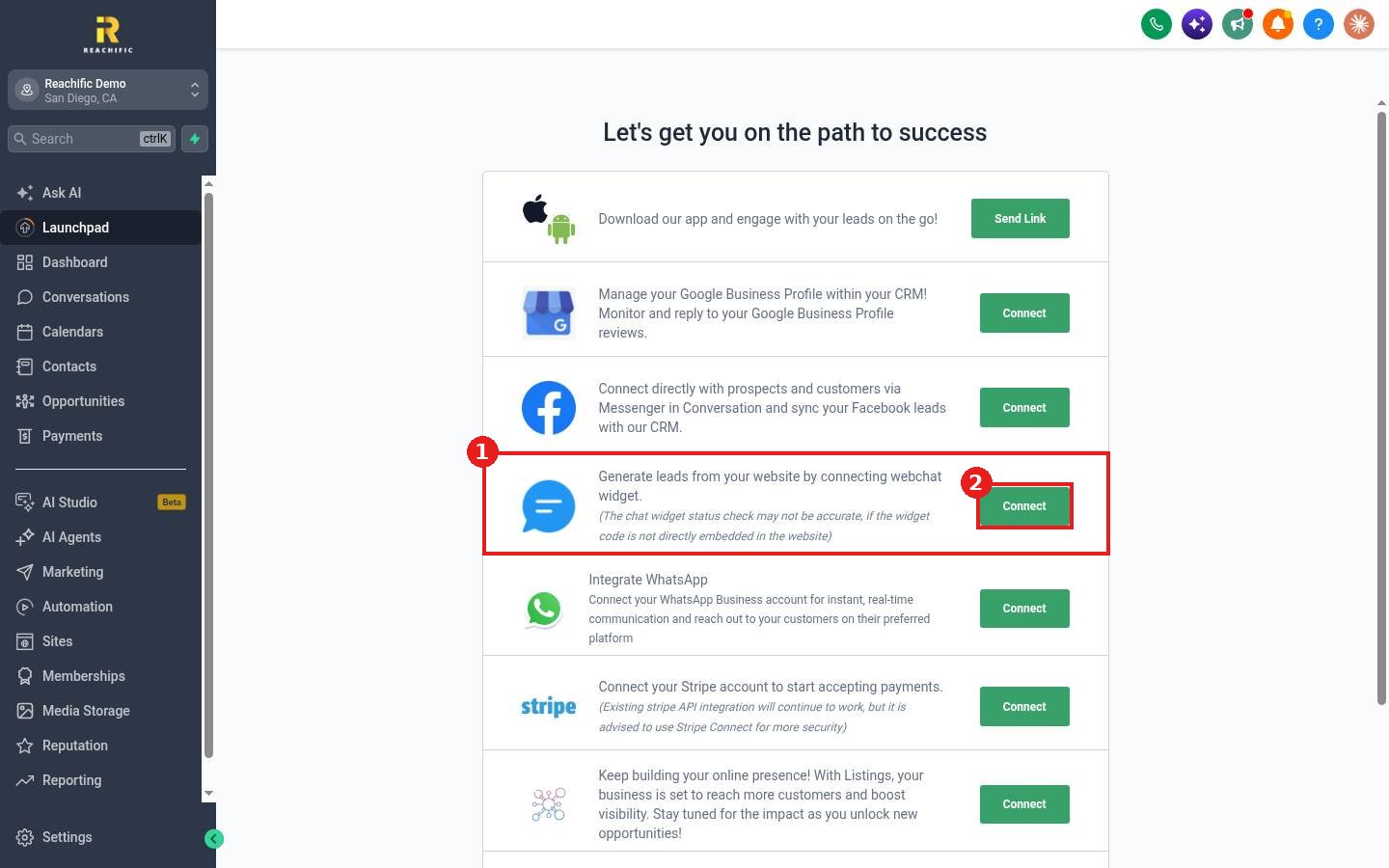
- Click Launchpad in the left menu.
- Find the row (1) that says Generate leads from your website by connecting webchat widget.
- Click Connect (2).
Step 2: Enter your website
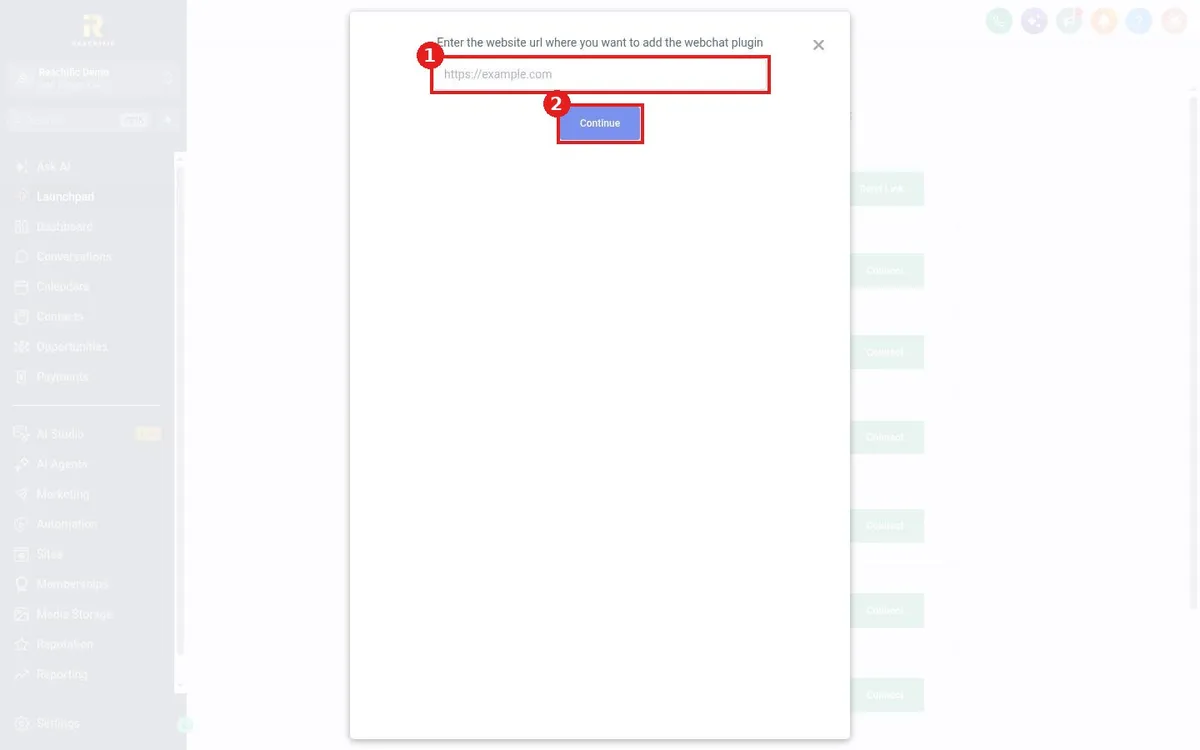
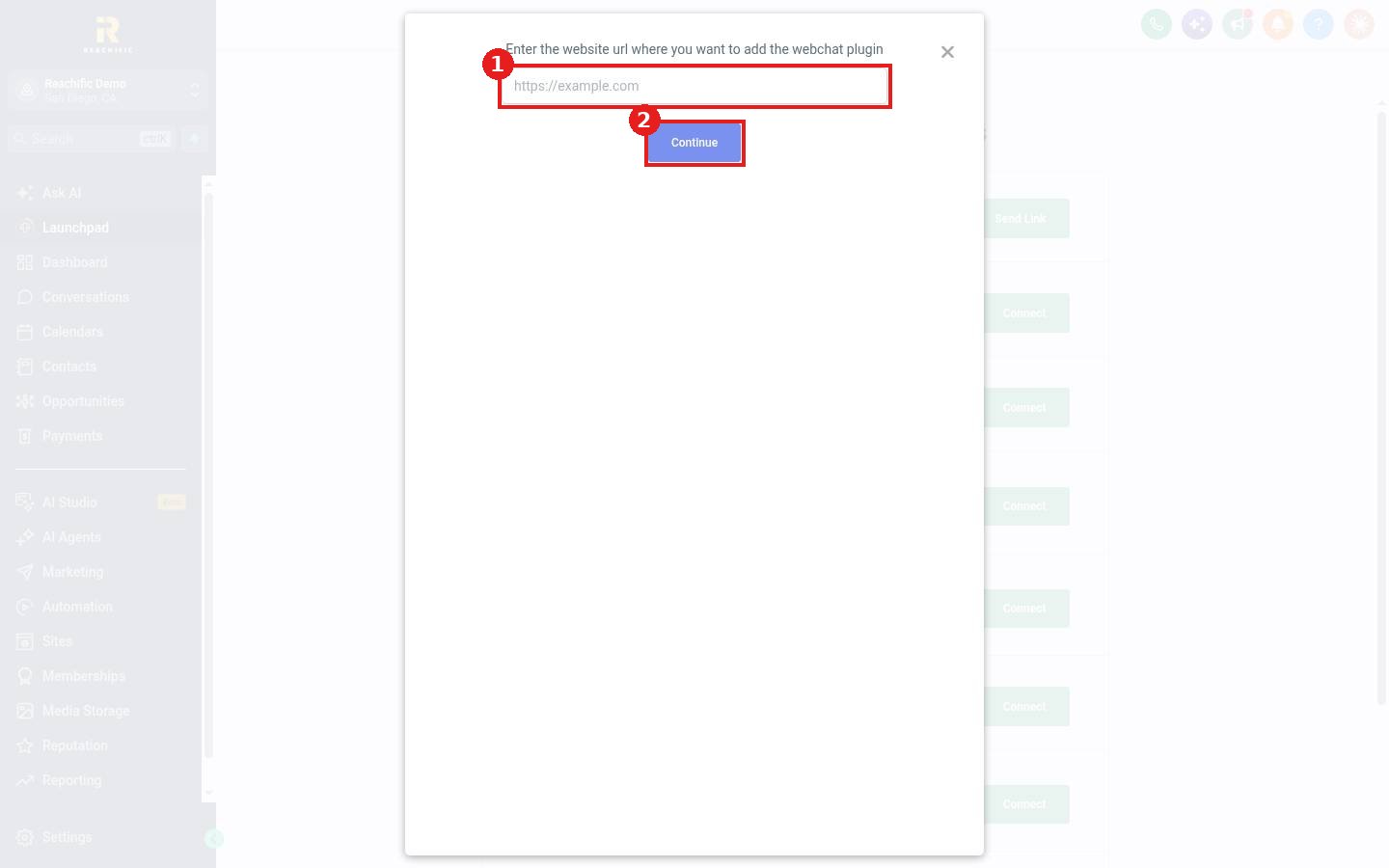
- Type your website address (1), for example https://yourbusiness.com.
- Click Continue (2) and follow the steps to place the widget code on your site.
Step 3: Test it
Open your website in a private browser window, send a test chat and check that it arrives in Conversations.
FAQ
The Launchpad still says not connected. Is it broken?
The status check may not be accurate if the widget code is not placed directly in your website. Send a test chat to confirm it works.
Can the AI bot answer website chats?
Yes. See How do I choose which channels the AI bot answers?
Want us to handle it? Our team can install and style your chat widget and route every chat to the right person. Book a free strategy call and get a free quote.
Related articles
- How do I use the Launchpad checklist to set up my account?
- How do I reply to texts, emails and chats from one inbox?
- How do I set up a Conversation AI bot?
Still stuck? Submit a ticket and our team will help. Need faster answers? See our support plans.
