
How do I import data in settings?
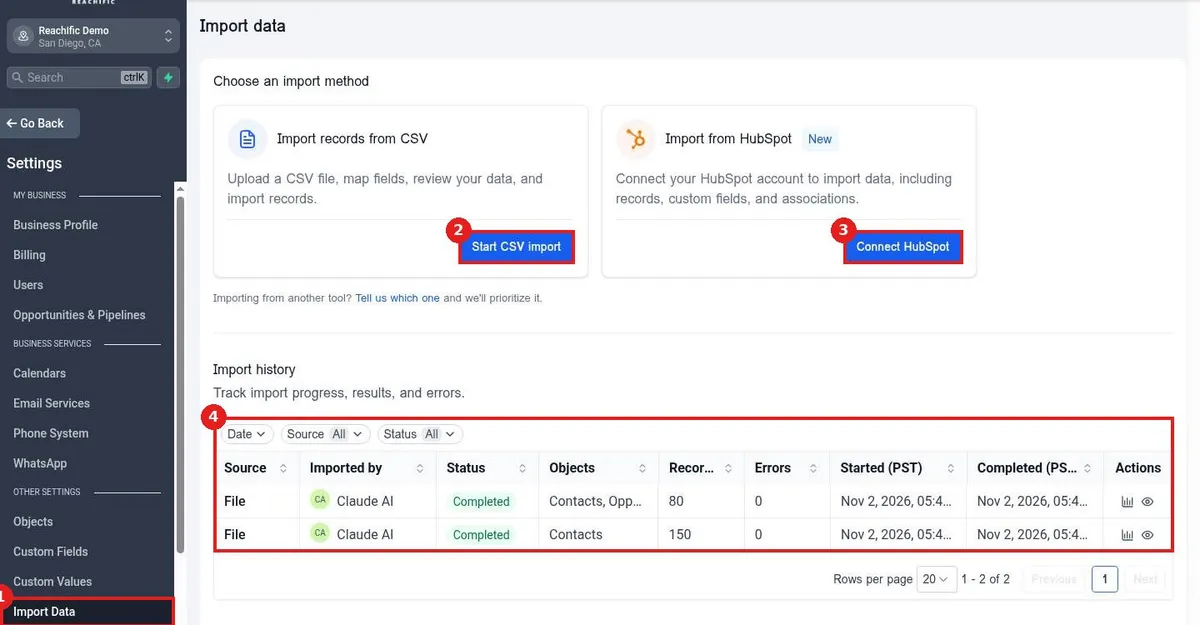
Quick answer: Go to Settings > Import Data. Click Start CSV import to upload a CSV, map columns to fields, review and import. Or click Connect HubSpot to pull in records, custom fields and associations. Check results in Import history.
Before you start
- Save your spreadsheet as CSV with one header row.
- Create any custom fields you need before you import so columns have a place to go.
Step 1: Choose an import method
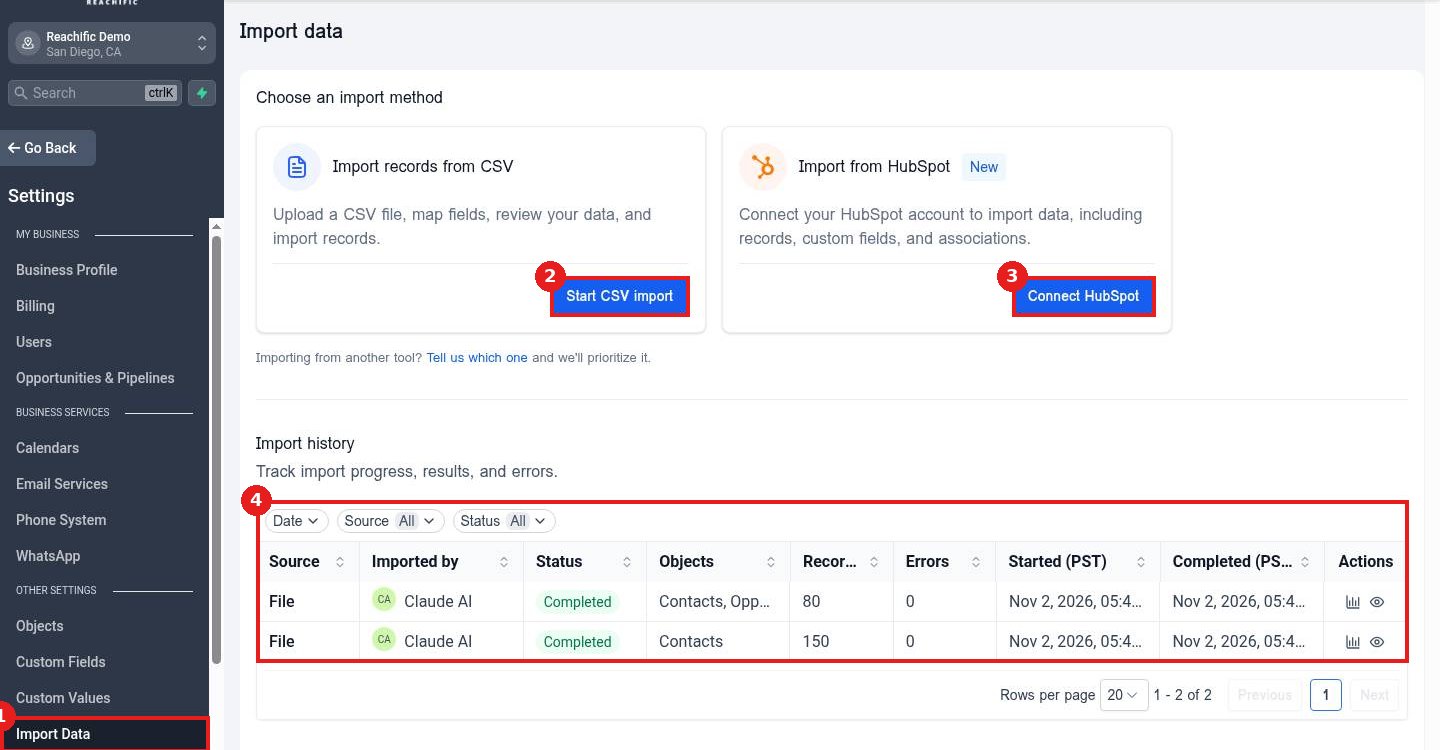
Click Import Data (1) in Settings. Pick Start CSV import (2) for a file or Connect HubSpot (3) to move from HubSpot.
Step 2: Map and review
Upload the file, match each column to a field, choose how to handle duplicates and start the import.
Step 3: Check Import history
Back on Import Data, Import history (4 in the picture above) shows the source, status, objects, record count and errors. Use the eye icon to view details.
FAQ
Can I import contacts and opportunities together?
Yes. Map the columns for both and the import links them.
What if some rows fail?
The Errors column shows how many. Open the import to see why, fix the rows and import them again.
Will importing create duplicates?
Your duplicate settings decide whether matching contacts update or get skipped.
Want us to handle it? Our team sets up your account settings, data and tracking so everything matches how your business really works. Book a free strategy call and get a free quote.
Related articles
- How do I import contacts from a CSV file?
- How do I import opportunities from a CSV?
- How do I set my contact deduplication preference?
Still stuck? Submit a ticket and our team will help. Need faster answers? See our support plans.
