
How do I import posts from an RSS feed or CSV?
Quick answer: Open your blog in Sites > Blogs. For a feed, open RSS imports, click Create import, paste the Feed URL, click Validate and Continue. For a file, open CSV imports and click Create import. Imported posts come in as drafts you can review before publishing.
Before you start
- Find your old blog's RSS feed URL. It often ends in /feed or /rss.xml.
- Create the authors and categories you want first, so you can set them as defaults.
Step 1: Open the import tabs
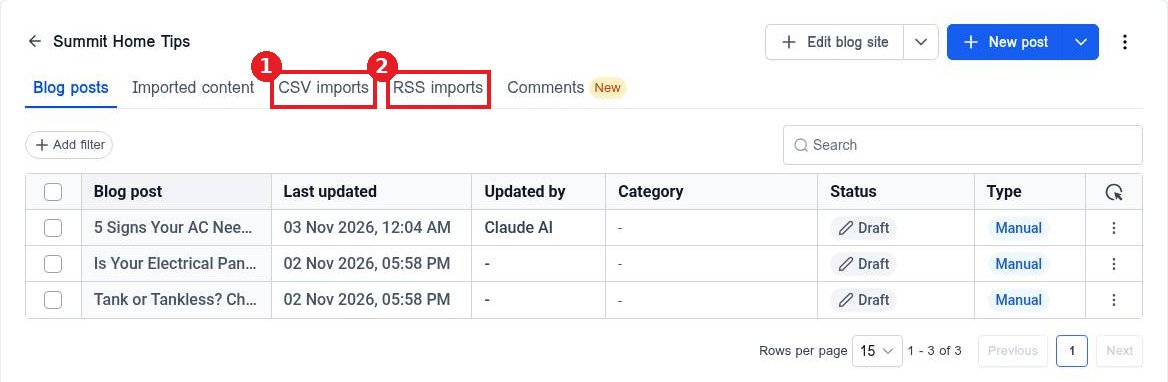
Open your blog. Use the CSV imports tab (1) for a spreadsheet file or the RSS imports tab (2) for a feed.
Step 2: Import from an RSS feed
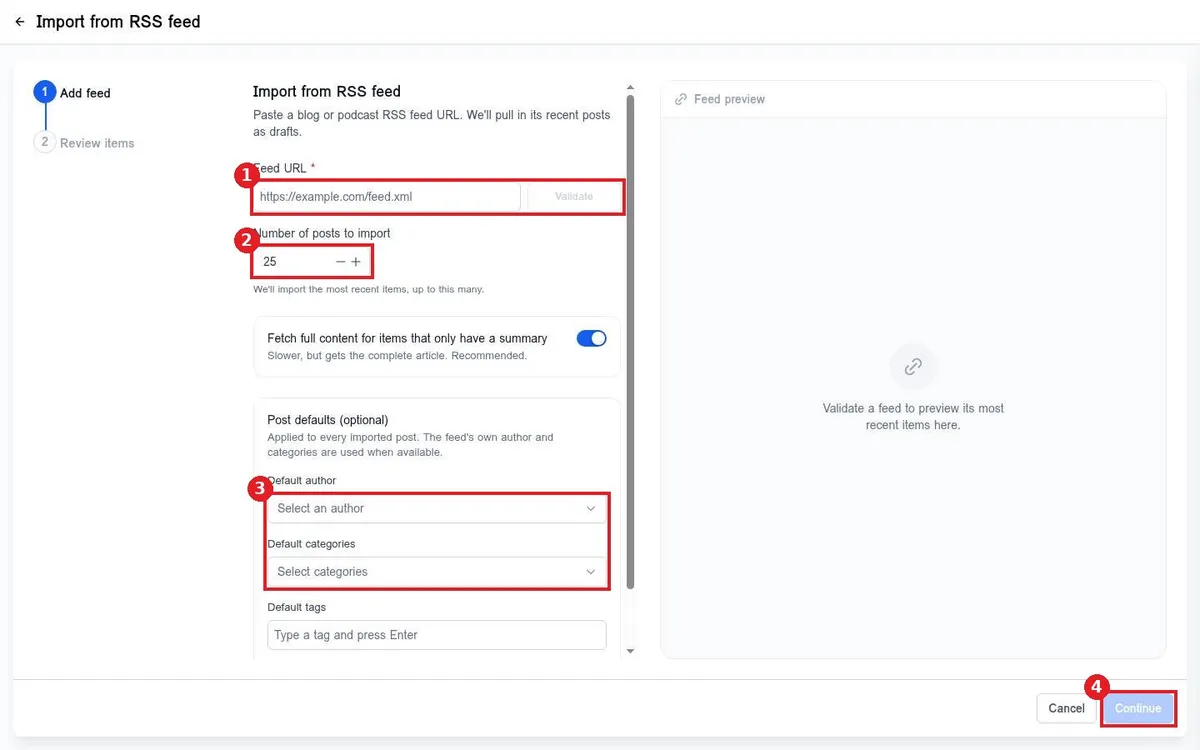
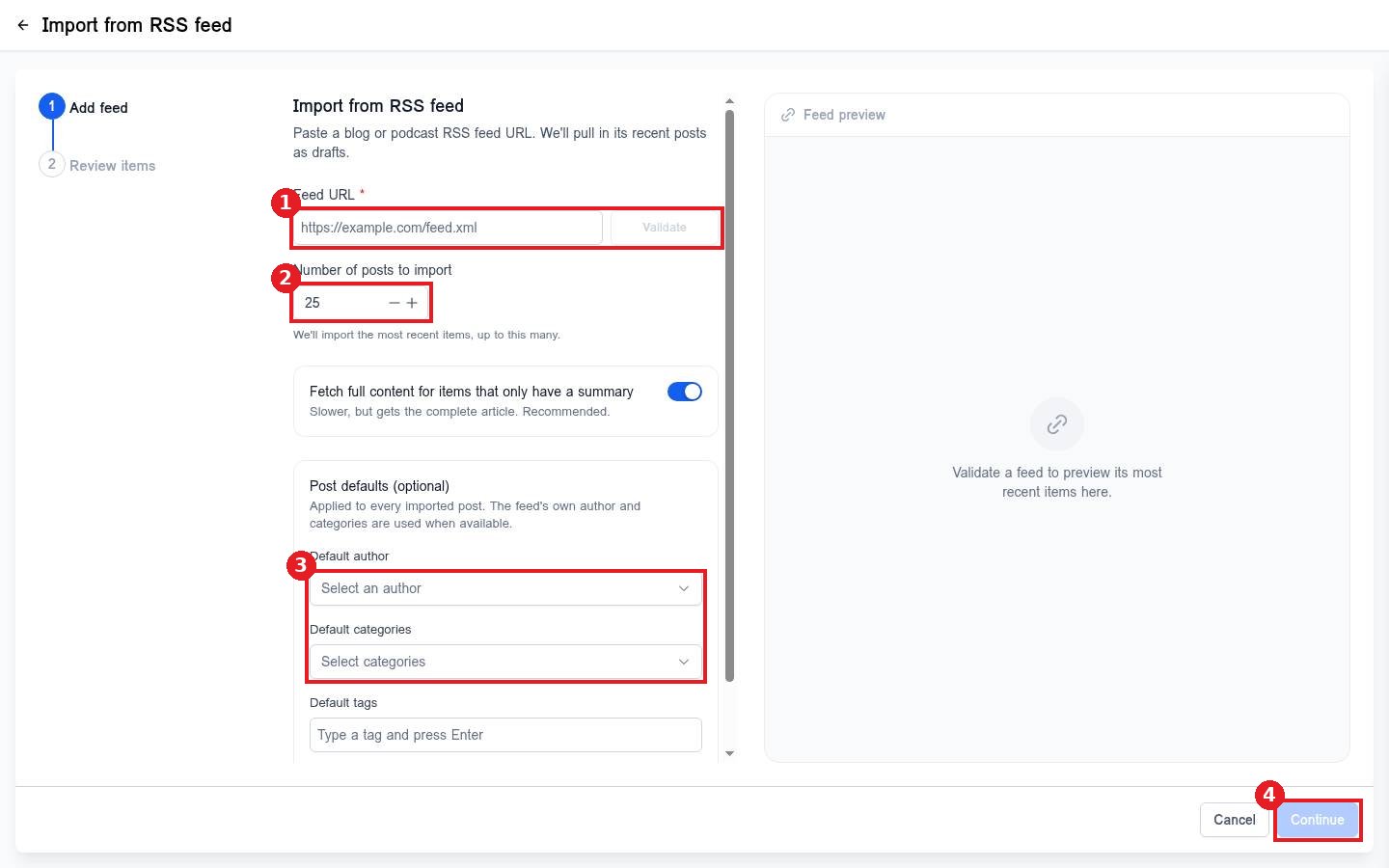
On RSS imports, click Create import. Paste the Feed URL (1) and click Validate to preview it. Set the Number of posts to import (2). Optionally pick a default author, categories and tags (3). Click Continue (4), review the items and finish.
Step 3: Import from a CSV file
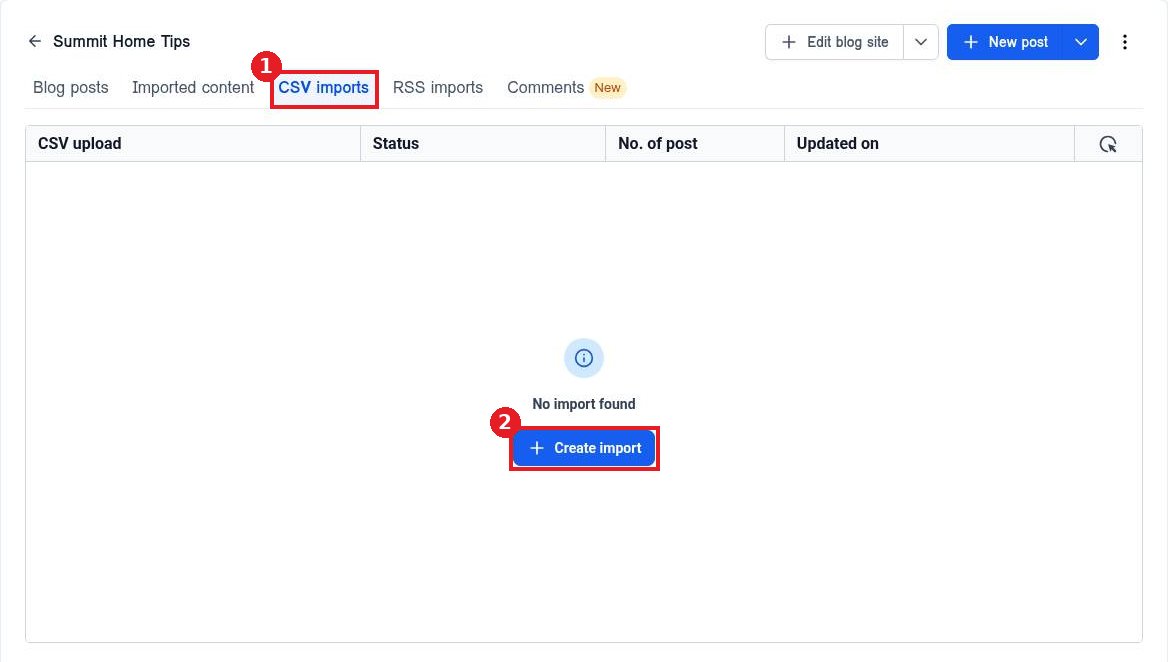
On the CSV imports tab (1), click Create import (2). Upload your file, match its columns to post fields and start the import.
Step 4: Review and publish
Imported posts show in Imported content and the posts list as drafts. Open each one, check images, category and SEO, then publish.
FAQ
Why did my post import only a summary?
Some feeds only share a summary. Keep Fetch full content turned on so Reachific pulls the full article.
Will imported posts go live right away?
No. They arrive as drafts so you can review them first.
How many posts can I import at once?
Set the number on the import screen. The most recent items in the feed are imported first.
Want us to handle it? Our team plans and writes search friendly blog content that brings in leads, then publishes it for you on a steady schedule. Book a free strategy call and get a free quote.
Related articles
Still stuck? Submit a ticket and our team will help. Need faster answers? See our support plans.
