
How do I give a customer access to a course?
Quick answer: Course access is given through an offer. Go to Memberships > Courses > Offers and click Create Offer. Name it, pick the course, choose Free or a paid type and click Save. Switch the offer from Draft to Published, then share its link or grant it to a contact.
Before you start
Build the course first in Courses > Products.
For paid offers, connect a payment processor like Stripe in Payments.
Step 1: Open Offers
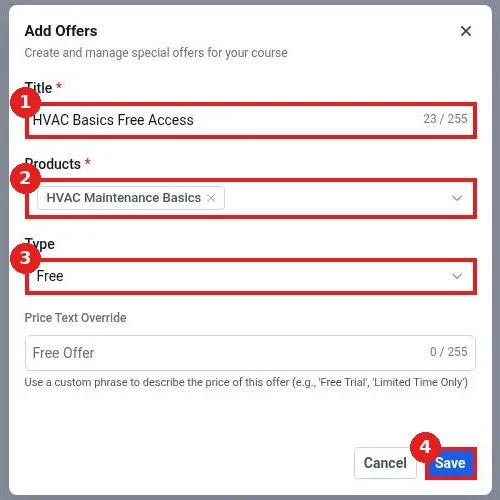
In Memberships, open the Courses menu and click Offers (1). Click Create Offer (2).
Step 2: Fill in the offer
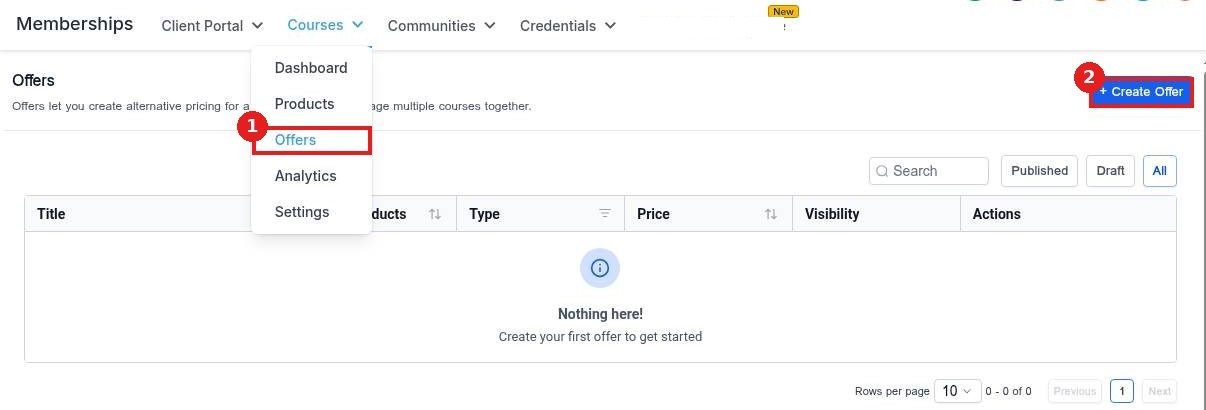
Type a Title (1). Under Products (2), pick the course or courses this offer unlocks. Choose the Type (3): Free, one time or subscription. Click Save (4).
Step 3: Publish the offer and share it
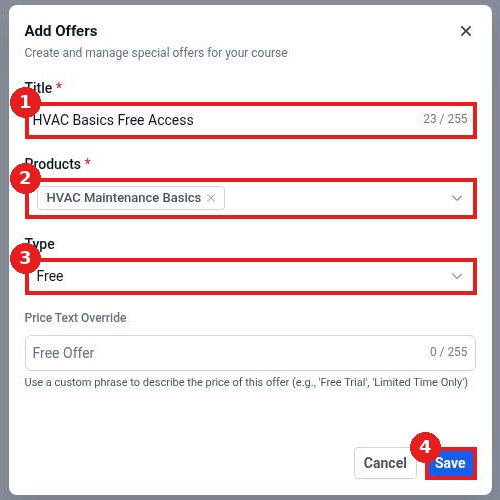
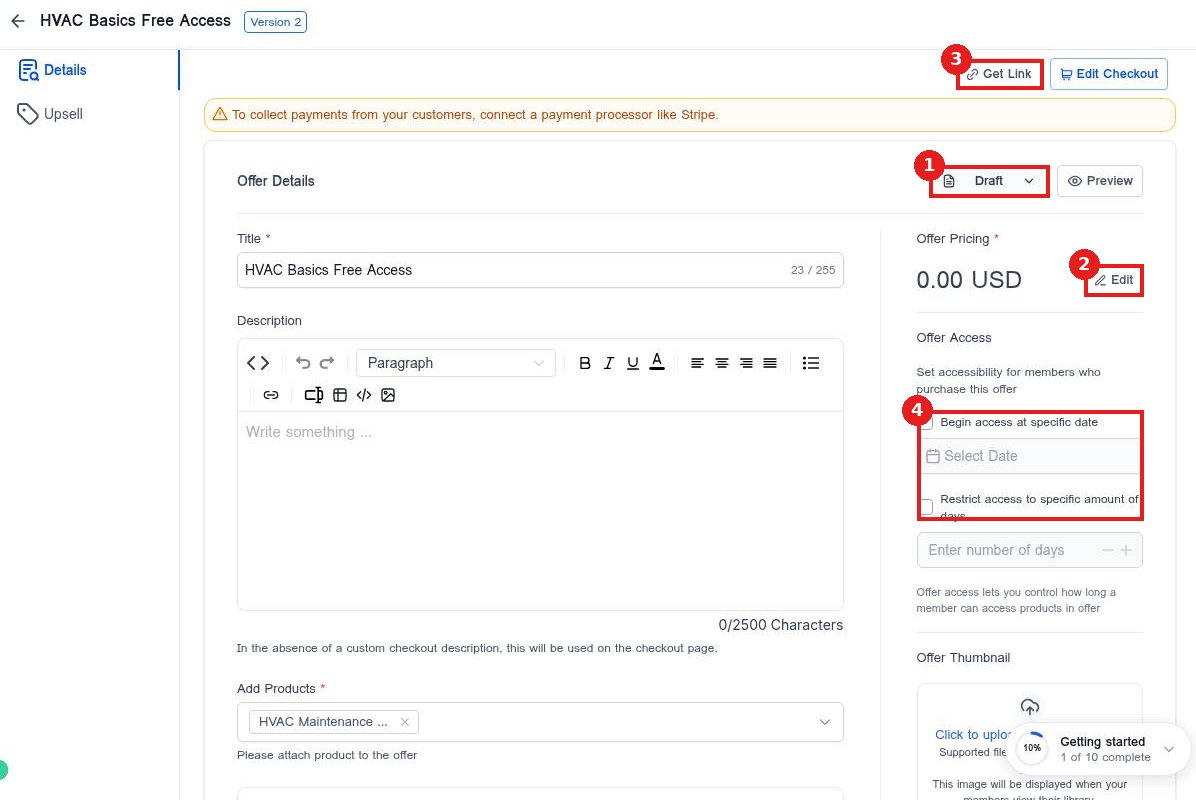
The offer opens as a Draft (1). Change it to Published when it is ready. Use Edit (2) to change the price. Click Get Link (3) to copy a checkout link you can send or put on a page. Use Offer Access (4) to start access on a set date or limit it to a number of days.
Step 4: Grant it to someone directly (optional)
To give access without checkout, open the contact in Contacts and grant the offer from their record, or use an automation with the Grant Offer action when someone fills a form or buys elsewhere.
FAQ
Why does the offer say connect a payment processor?
Paid offers need Stripe or another processor connected in Payments. Free offers work without one.
Can one offer unlock several courses?
Yes. Add more than one course under Products to sell a bundle.
How do I remove someone's access?
Open the contact, find the offer under their memberships and revoke it, or use the Revoke Offer action in an automation.
Related articles
Still stuck? Submit a ticket and our team will help. Need faster answers? See our support plans.
