
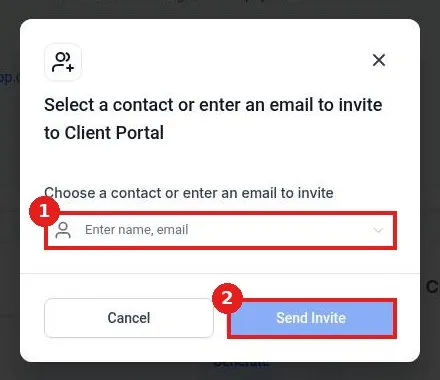
How do I invite someone to the client portal?
Quick answer: Go to Memberships > Client Portal > Dashboard and click Invite next to Invite to client portal. Pick a contact or type an email and click Send Invite. For a one click login instead, click Generate next to Generate magic link.
Before you start
The person can already be a contact, or you can type a new email.
Invites go out by email, so check the address before you send.
Step 1: Find the Actions on the dashboard
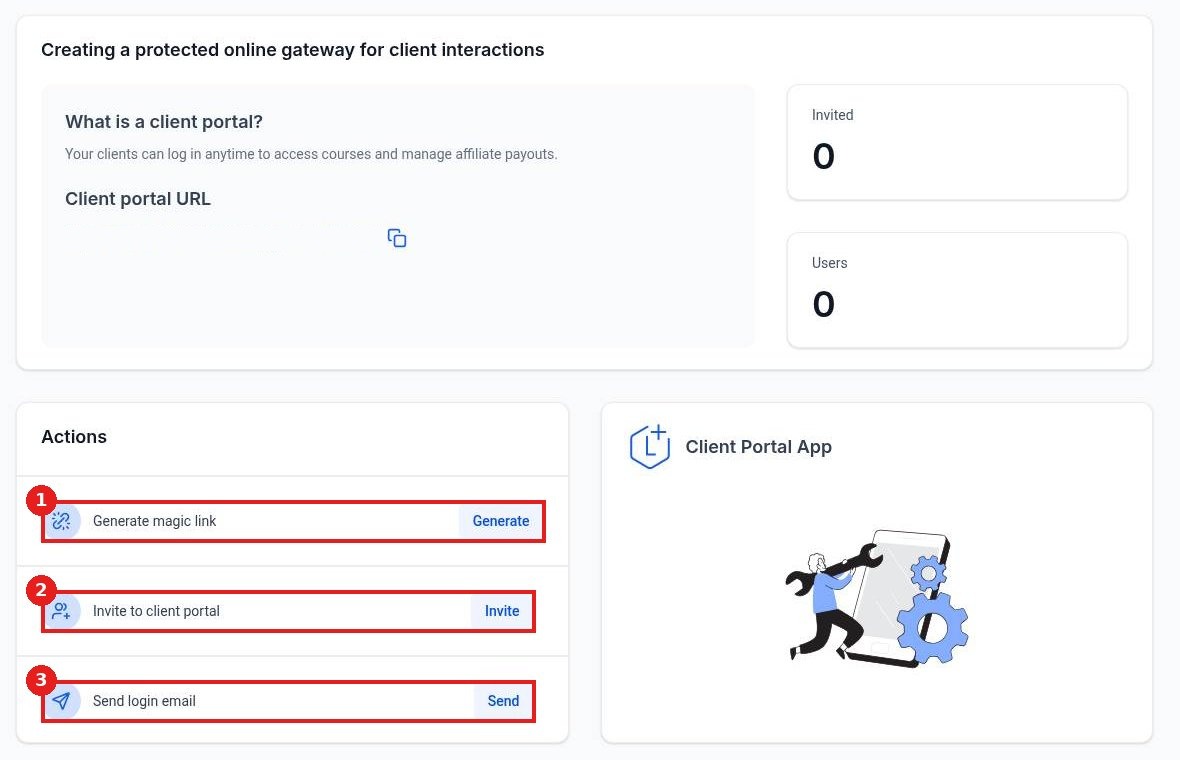
Open Memberships > Client Portal and scroll to Actions. Use Invite to client portal (2) to send an invite, or Generate magic link (1) for a direct login link.
Step 2: Choose the person and send
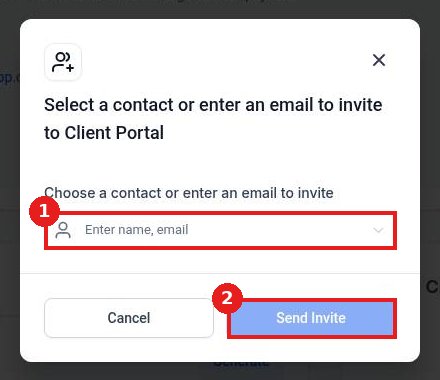
Click Invite. In the window, search for a contact or type an email (1). Click Send Invite (2). They get an email to set their password and log in.
Step 3 (optional): Generate a magic link
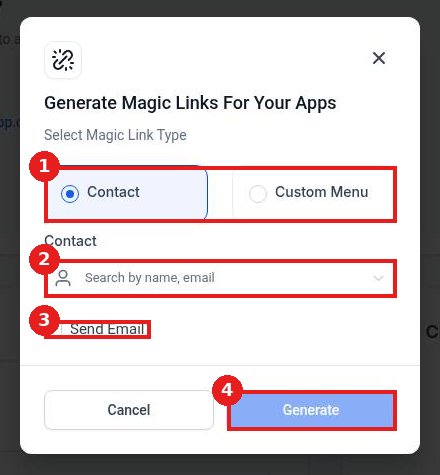
Click Generate next to Generate magic link. Keep the type on Contact (1), search for the contact (2), and tick Send Email (3) if you want it emailed to them. Click Generate (4) and copy the link.
FAQ
They did not get the invite. What now?
Check spam, confirm the email on the contact, then use Send login email on the dashboard to resend it.
Does buying a course invite people automatically?
Yes. When someone gets access to a course or community, they get portal access too. Use Invite for people who have not bought anything yet.
Is a magic link safe to share?
A magic link logs that contact in, so only send it to the person it was made for.
Related articles
Still stuck? Submit a ticket and our team will help. Need faster answers? See our support plans.
