
How do I add lessons and videos to a course?
Quick answer: Open your course in Memberships > Courses and stay on the Outline tab. Click the plus icon next to a category and choose Add Lesson. Give the lesson a title and description, click Upload Video to add a video from your device, a link or an embed code, and click Save.
Before you start
- Create the course first. See How do I create an online course?
- Video files can be .mp4, .webm or .mov, up to 5 GB each. A 16:9 shape looks best.
- Keep lessons short. Five to ten minutes per video helps students finish.
Step 1: Add a lesson to a category
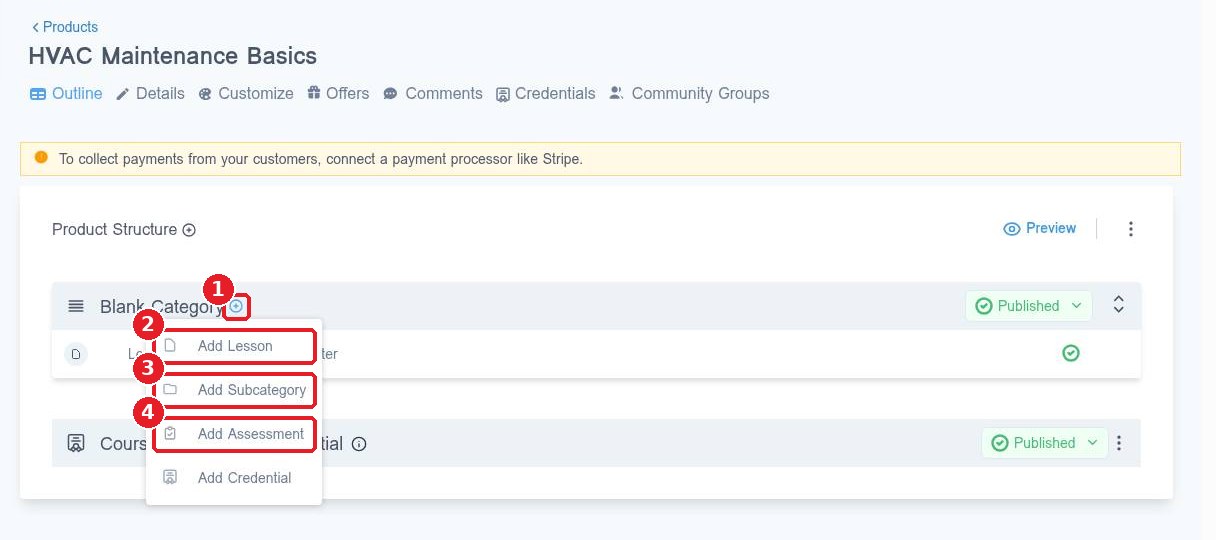
On the course Outline, click the plus icon next to the category name (1). Choose Add Lesson (2). You can also add a Subcategory (3) to group lessons, or an Assessment (4) such as a quiz.
Step 2: Write the lesson
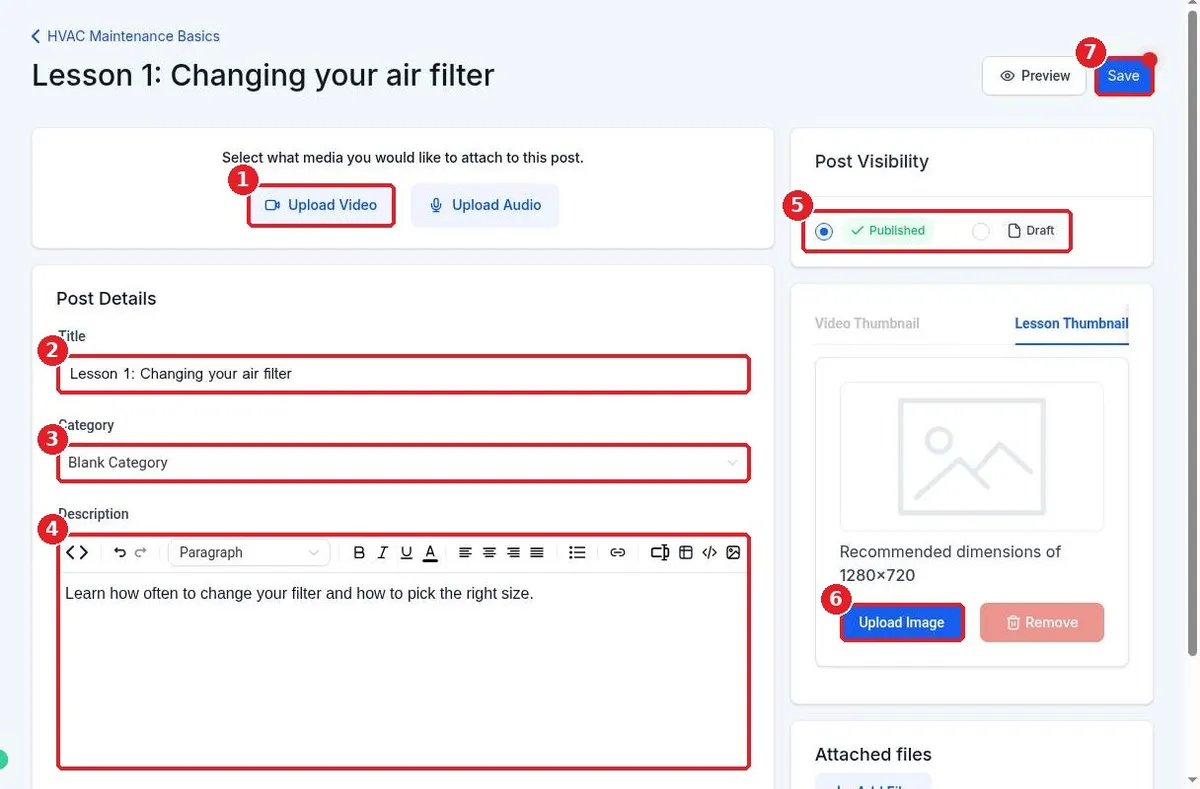
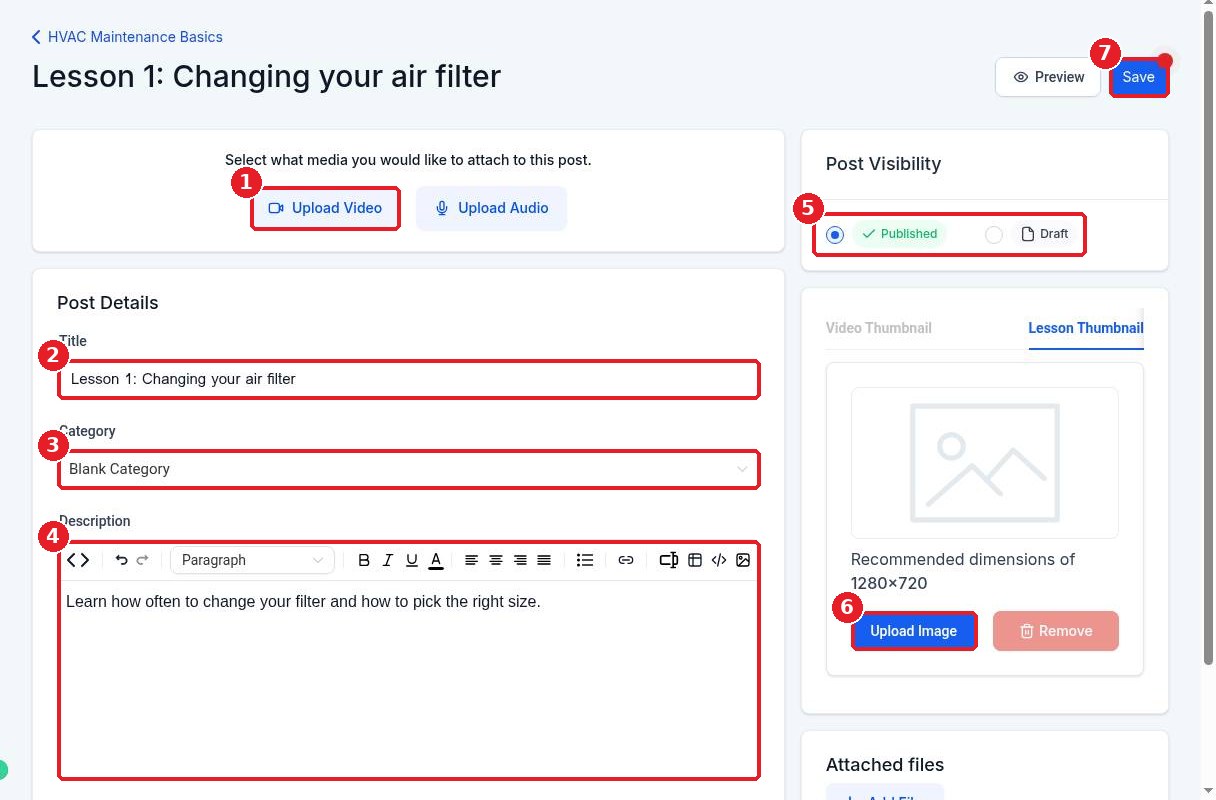
In the lesson editor, click Upload Video (1) to attach your video, or Upload Audio for an audio lesson. Type the lesson Title (2) and check the Category (3) it belongs to. Write notes, steps or links in the Description (4). Choose Published or Draft (5) under Post Visibility, and add a Lesson Thumbnail with Upload Image (6). Click Save (7).
Step 3: Upload the video
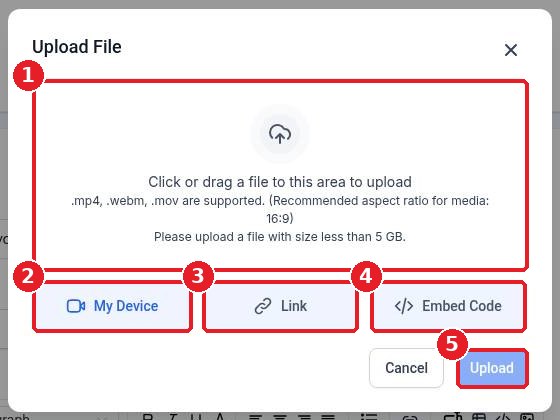
In Upload File, click or drag your video into the box (1) to upload it from My Device (2). If the video is already online, choose Link (3) to paste its address, or Embed Code (4) to paste a player code from a video host. Click Upload (5), then Save the lesson.
Use Preview on the outline to watch the lesson the way students will see it.
FAQ
Can I add PDFs or worksheets to a lesson?
Yes. Scroll down in the lesson editor to Attached files and add your files there.
Can I hide a lesson until it is ready?
Yes. Set Post Visibility to Draft. Students will not see it until you switch it to Published.
What video formats work best?
Upload .mp4 for the widest support. Files must be under 5 GB.
Can I use a video that is already on YouTube or Vimeo?
Yes. In Upload File, choose Link or Embed Code instead of uploading from your device.
Want us to handle it? Our team can upload your videos, organize your lessons and set up checkout so your course is ready to sell. Book a free strategy call and get a free quote.
Related articles
- How do I create an online course?
- How do I upload images and files to Media Storage?
- How do I set up an online store?
Still stuck? Submit a ticket and our team will help. Need faster answers? See our support plans.
