
How do I filter and sort opportunities?
Quick answer: Open Opportunities and click Advanced filters. Add conditions such as status, owner, source or tag and click Apply. Click Sort to change the order, or type a name in Search opportunities.
Step 1: Find the tools
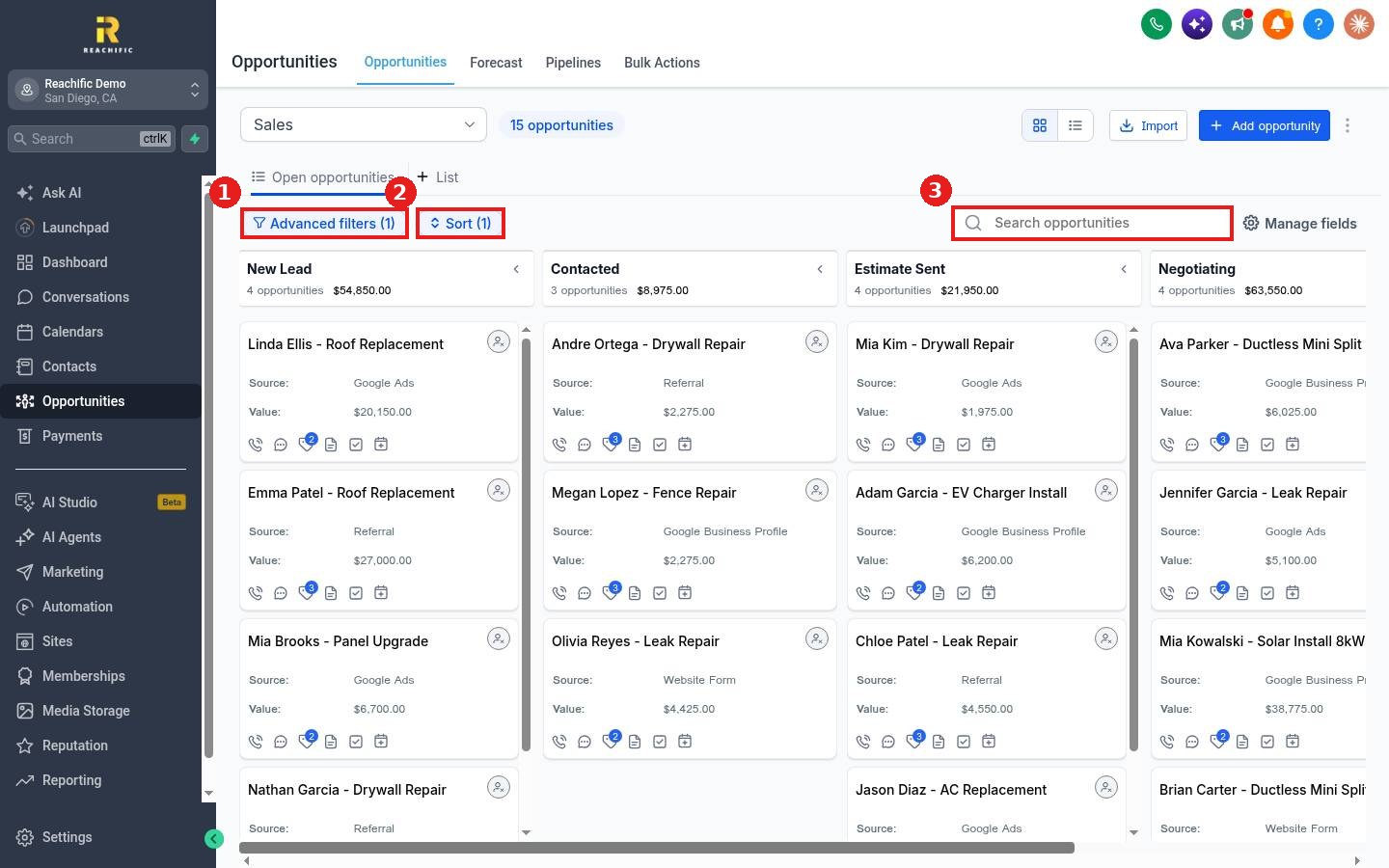
Above the board you will see Advanced filters (1), Sort (2) and the search box (3). The number in brackets shows how many are active.
Step 2: Add a filter
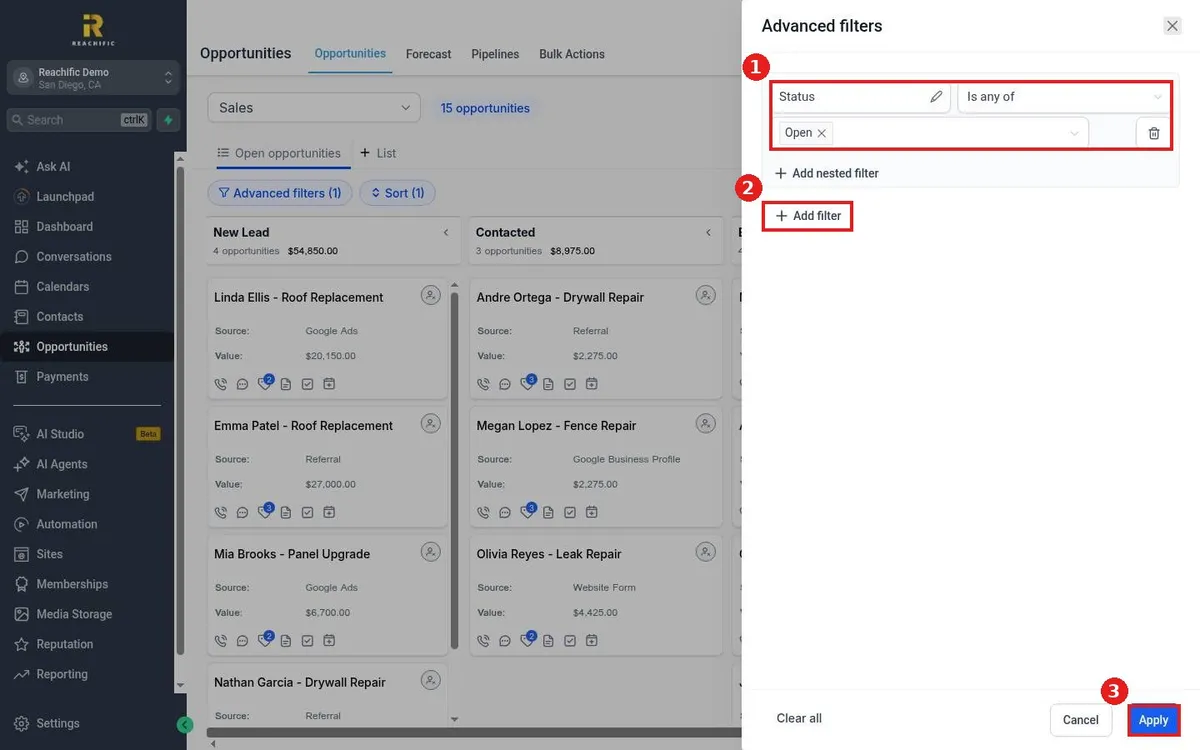
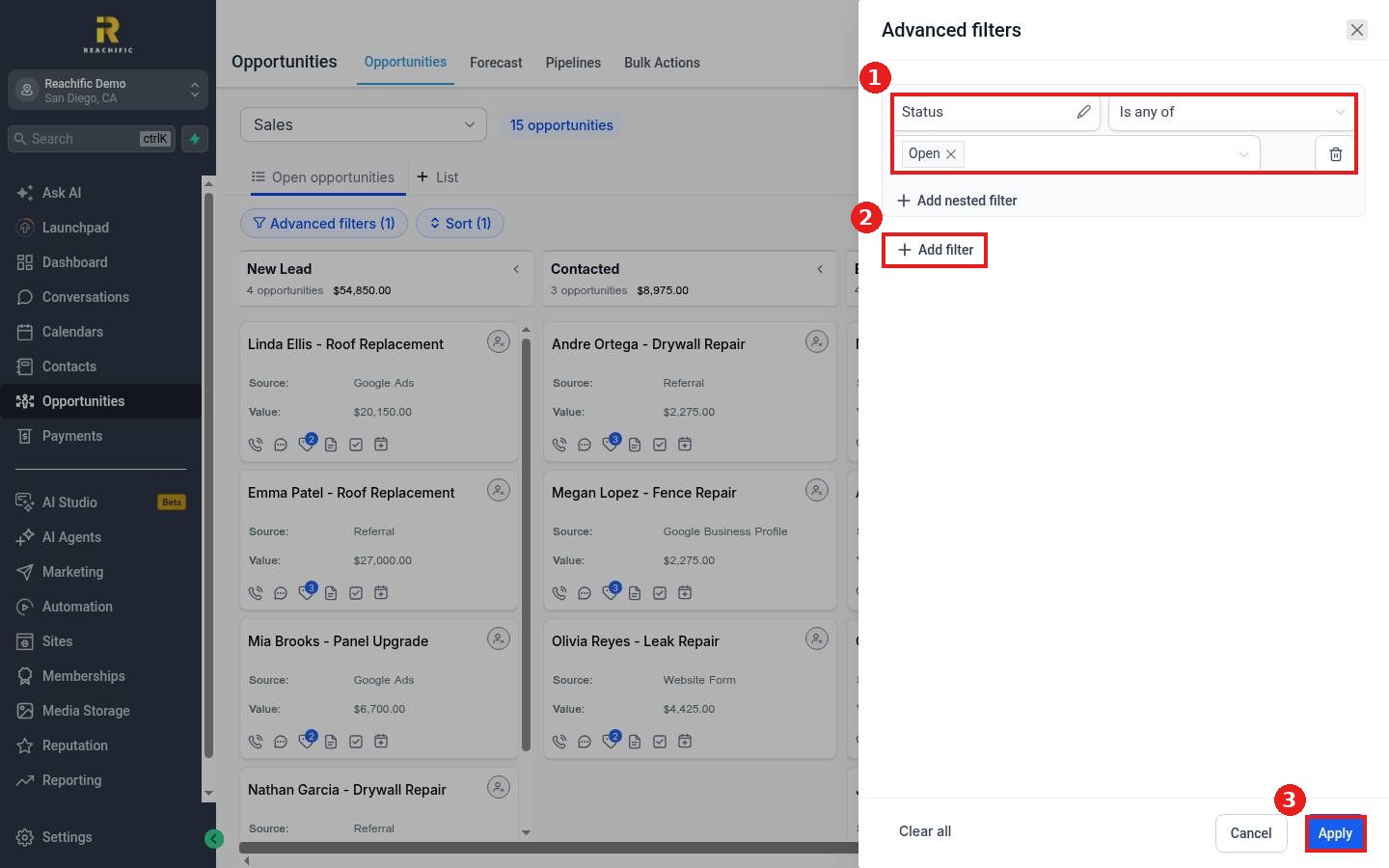
Click Advanced filters. Edit a condition, such as Status is any of Open (1), or click Add filter (2) to pick another field like Owner or Tag. Click Apply (3).
Step 3: Sort and save
Click Sort to order cards by date, value or name. To keep a filtered view, click + List next to Open opportunities and save it.
FAQ
Why do I not see won or lost deals?
The default filter shows Open only. Change or remove the Status filter.
How do I clear all filters?
Open Advanced filters and click Clear all.
Can I filter by a custom field?
Yes. Custom opportunity fields appear in the Add filter list.
Want us to handle it? Our team can build saved views for each person on your team. Book a free strategy call and get a free quote.
Related articles
- How do I switch between board and list view?
- How do I mark an opportunity won, lost or abandoned?
- How do I create a smart list with filters?
Still stuck? Submit a ticket and our team will help. Need faster answers? See our support plans.
