
How do I edit pipeline stages in settings?
Quick answer: Go to Settings > Opportunities & Pipelines and open the Pipelines tab. Click the three dot menu on a pipeline and choose Edit. Click Add stage for a new stage, drag stages to reorder them, set the Probability (%), and use each stage menu to rename or delete it.
Before you start
- Moving or deleting a stage can affect workflows and reports that use it. Check them after.
- Keep stage names short and in the order deals really move.
Step 1: Open the Pipelines tab
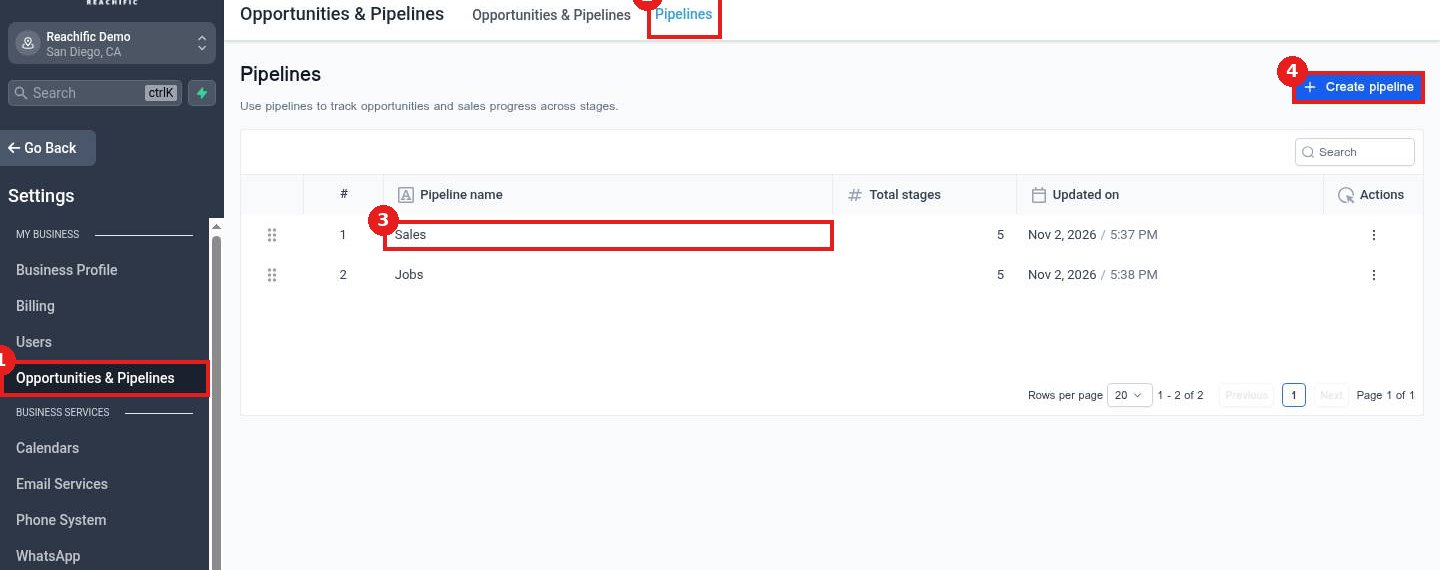
Click Opportunities & Pipelines (1) in Settings, then the Pipelines tab (2). Each pipeline (3) shows its stage count. Create pipeline (4) adds a new one.
Step 2: Edit a pipeline
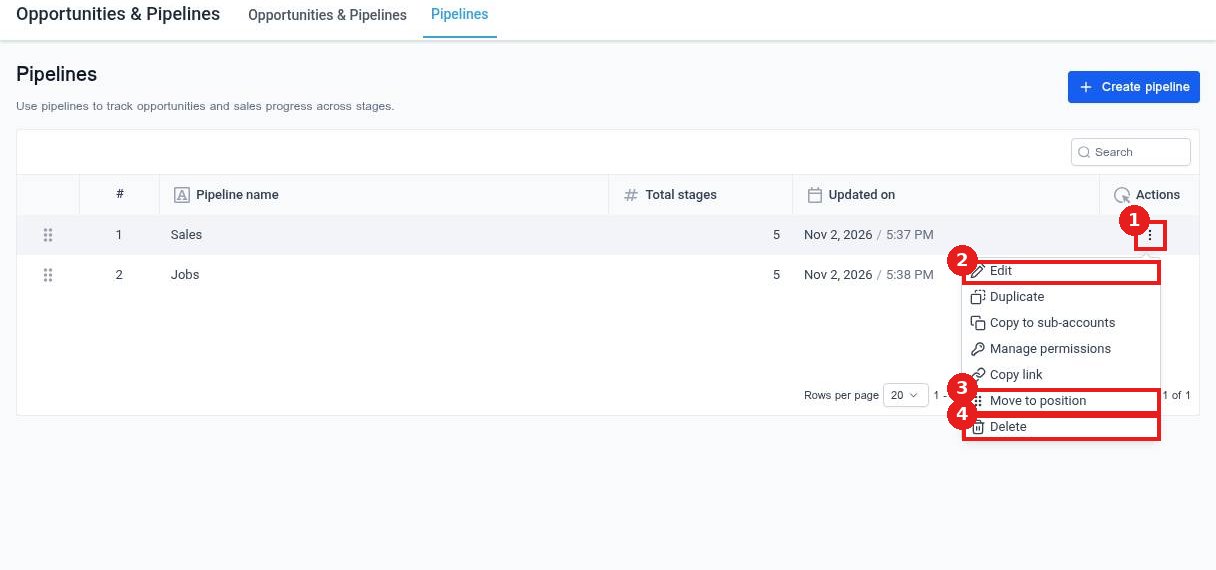
Click the three dot menu (1) and choose Edit (2). The same menu has Move to position (3) and Delete (4).
Step 3: Change the stages
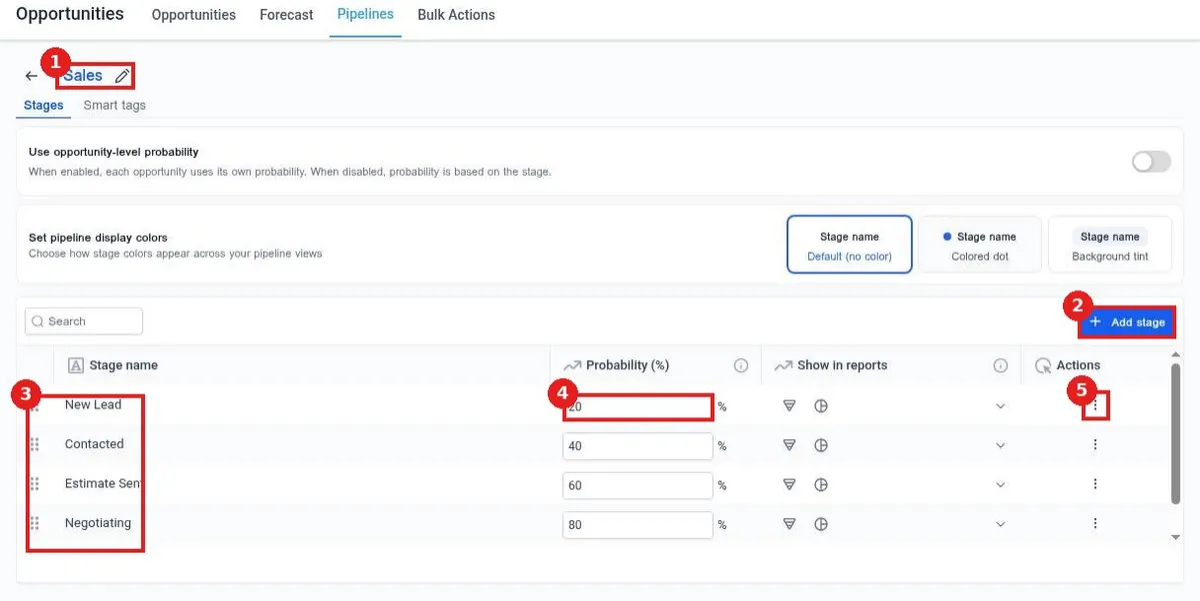
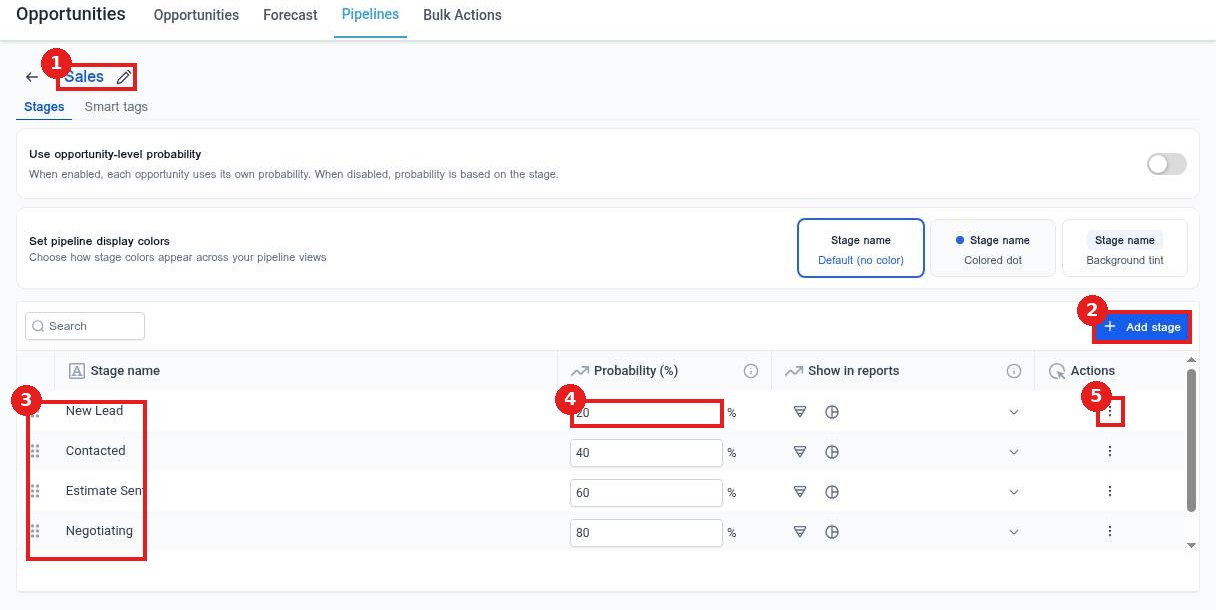
Click the pencil (1) to rename the pipeline. Click Add stage (2) for a new stage. Drag stages (3) to reorder them. Set the Probability (%) (4) for forecasting. The stage menu (5) renames or deletes a stage.
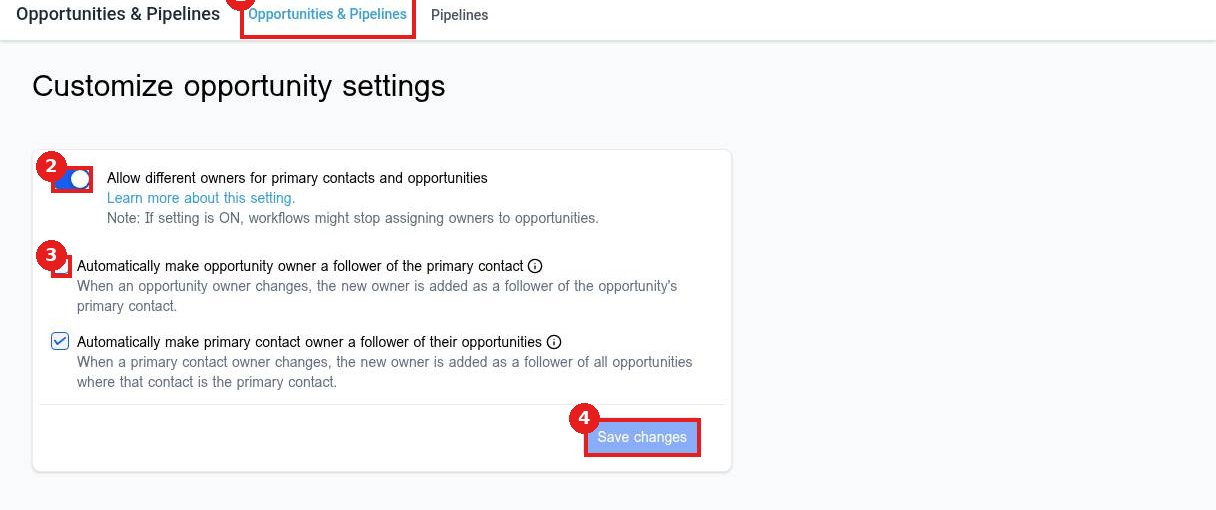
Step 4: Set opportunity rules
On the Opportunities & Pipelines tab (1), choose whether contacts and opportunities can have different owners (2) and whether owners follow each other's records (3). Click Save changes (4).
FAQ
What happens to deals in a stage I delete?
Move those opportunities to another stage first so they stay visible.
What is stage probability for?
It weights each deal in the forecast, so later stages count for more.
Can I hide a stage from reports?
Yes. Use the Show in reports options on that stage.
Want us to handle it? Our team sets up your account settings, users and pipelines so everything matches how your business really works. Book a free strategy call and get a free quote.
Related articles
- How do I create a sales pipeline with stages?
- How do I move a card to the next stage?
- How do I add an opportunity to a pipeline?
Still stuck? Submit a ticket and our team will help. Need faster answers? See our support plans.
