
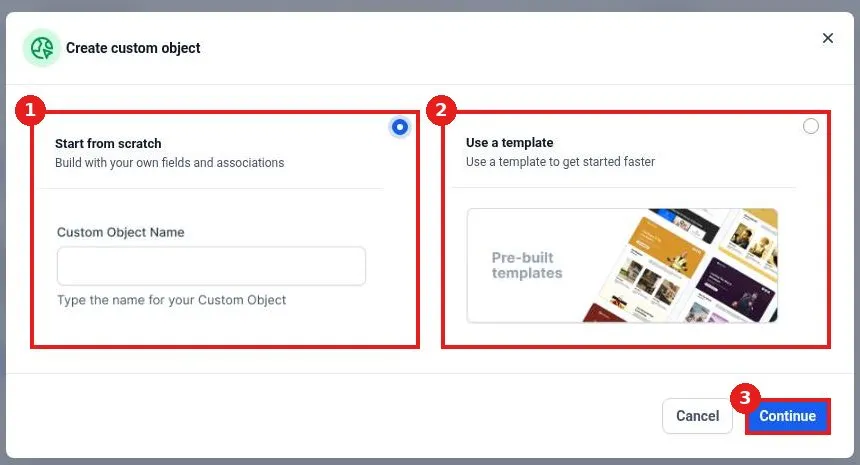
How do I create custom objects?
Quick answer: Go to Settings > Objects and click Add custom object. Choose Start from scratch and type a name, or Use a template, then click Continue. Add the fields you need and link the object to contacts, companies or opportunities.
Before you start
- Custom objects track things that are not contacts or deals, such as properties, vehicles or equipment.
- Plan the fields first. A short list is easier to keep clean.
Step 1: Open Objects
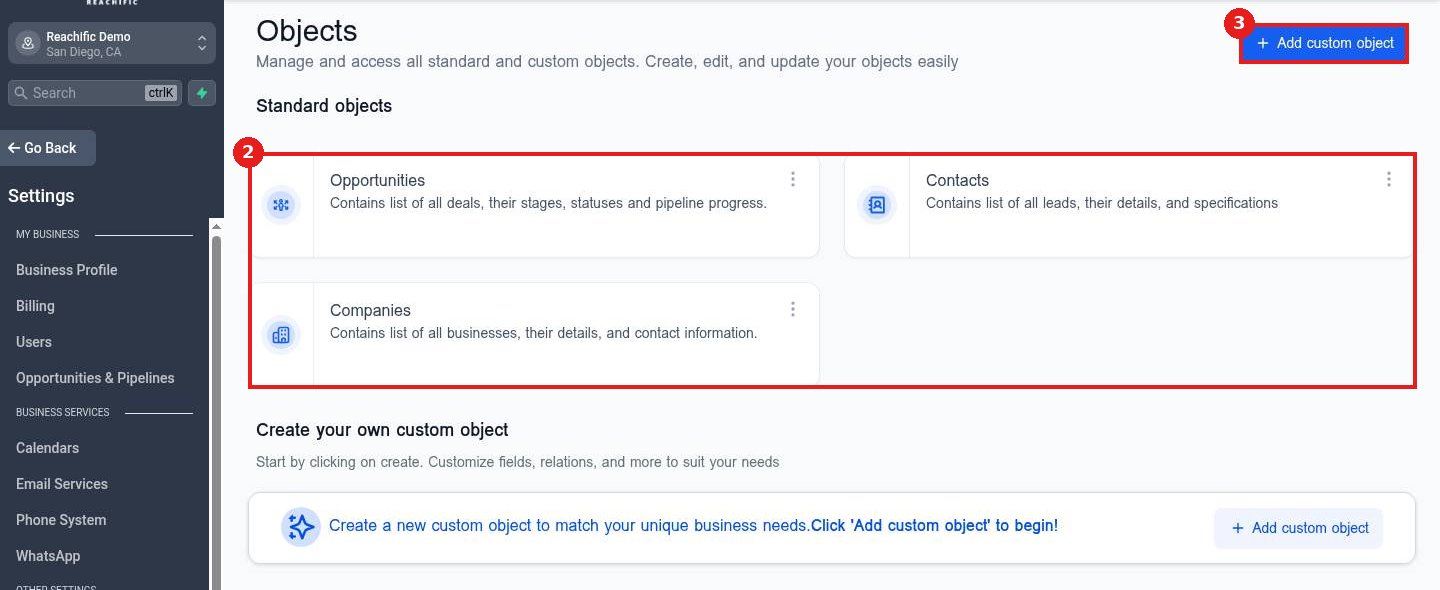
Click Objects (1) in Settings. The Standard objects (2) are Opportunities, Contacts and Companies. Click Add custom object (3).
Step 2: Pick how to start
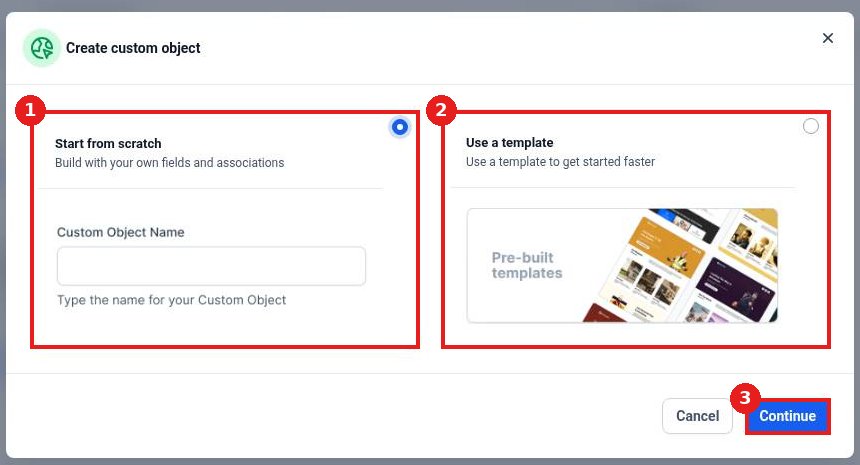
Choose Start from scratch (1) and type the Custom Object Name, or Use a template (2) for a ready made layout. Click Continue (3).
Step 3: Add fields and associations
Add fields such as address or serial number, then set associations so each record links to the right contacts or companies. Save.
FAQ
Can I use a custom object in workflows?
Yes. Records can be created and updated, and they show on linked contacts.
Can I edit the standard objects?
You can add fields to them, but you cannot delete them.
When should I use a custom object instead of a custom field?
Use a custom object when one contact can have many of something, such as several properties or vehicles. Use a custom field for a single detail.
Want us to handle it? Our team sets up your account settings, data and tracking so everything matches how your business really works. Book a free strategy call and get a free quote.
Related articles
- How do I create a custom field for contacts?
- How do I organize custom fields into folders?
- How do I import data in settings?
Still stuck? Submit a ticket and our team will help. Need faster answers? See our support plans.
