
How do I connect my Google Business Profile from the Launchpad?
Quick answer: Click Launchpad in the left menu. On the Google Business Profile row, click Connect, sign in with the Google account that manages your profile, allow access and pick your business location.
Before you start
- Sign in with a Google account that is an owner or manager of your Business Profile.
Step 1: Click Connect
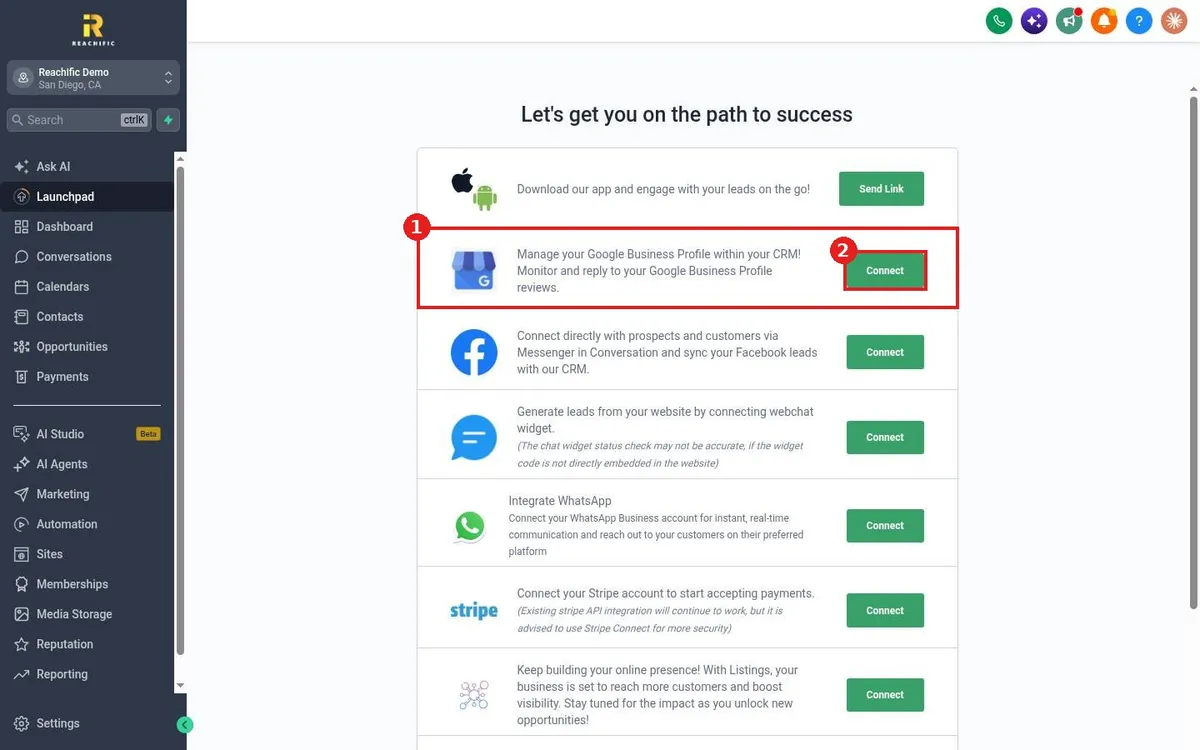
- Click Launchpad in the left menu.
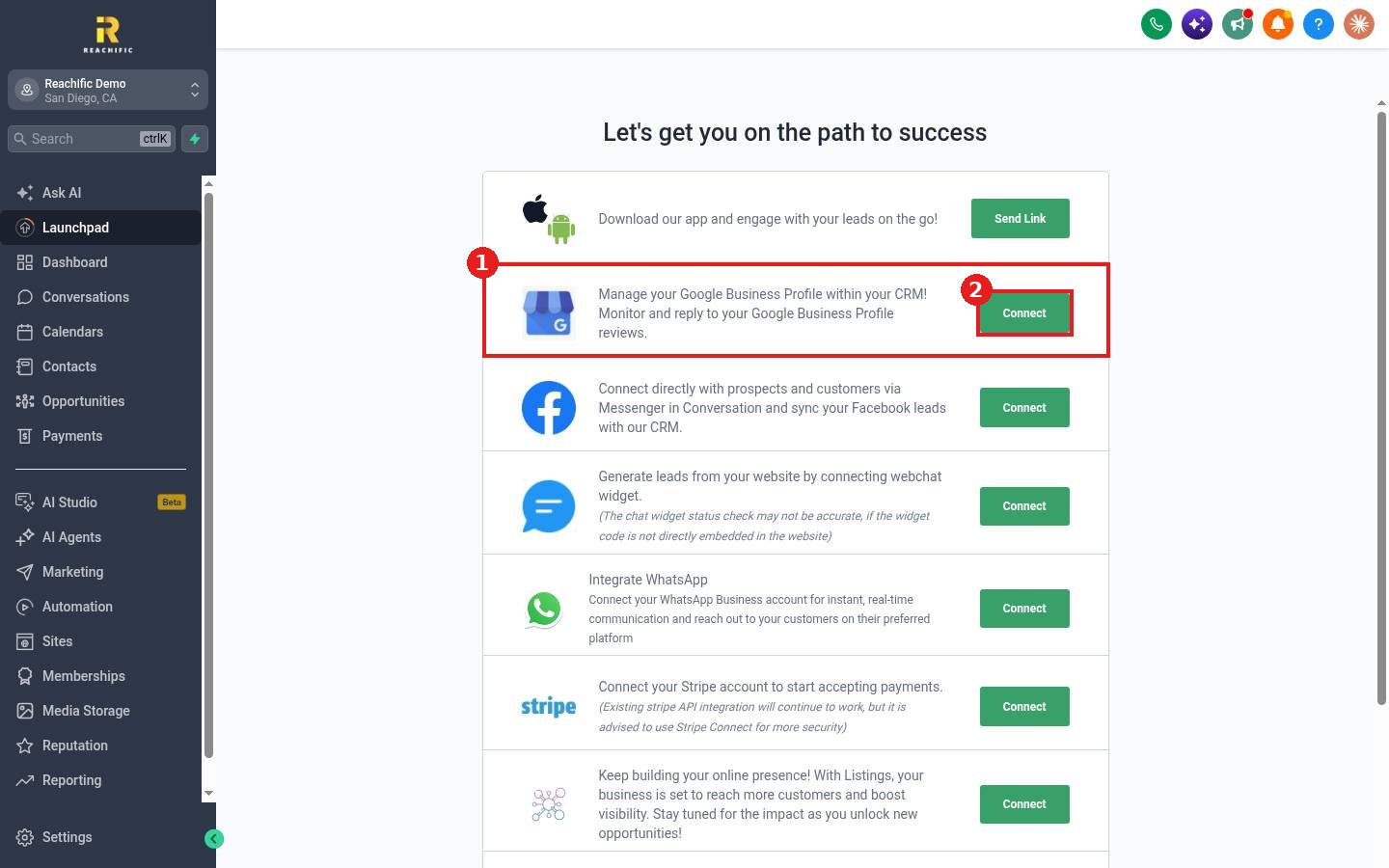
- Find the row (1) that says Manage your Google Business Profile within your CRM.
- Click Connect (2).
Step 2: Approve in Google
- Sign in to Google in the window that opens.
- Allow the requested access.
- Pick your business location and confirm.
When it connects, you can monitor and reply to Google reviews inside Reachific.
FAQ
Is this the same as connecting Google in Reputation?
It is the same connection. See How do I connect my Google Business Profile for reviews?
My location does not show up. Why?
The Google account you used may not manage that profile. Sign in with the account that does.
Want us to handle it? Our team can connect and optimize your Google Business Profile for more local calls. Book a free strategy call and get a free quote.
Related articles
- How do I use the Launchpad checklist to set up my account?
- How do I send a review request?
- How do I connect my Google Business Profile for reviews?
Still stuck? Submit a ticket and our team will help. Need faster answers? See our support plans.
