
How do I choose which fields show on opportunity cards?
Quick answer: Open Opportunities and click Manage fields at the top right of the board. Pick a card layout, check the fields you want, uncheck the rest, drag them into order and click Apply.
Step 1: Open Manage fields
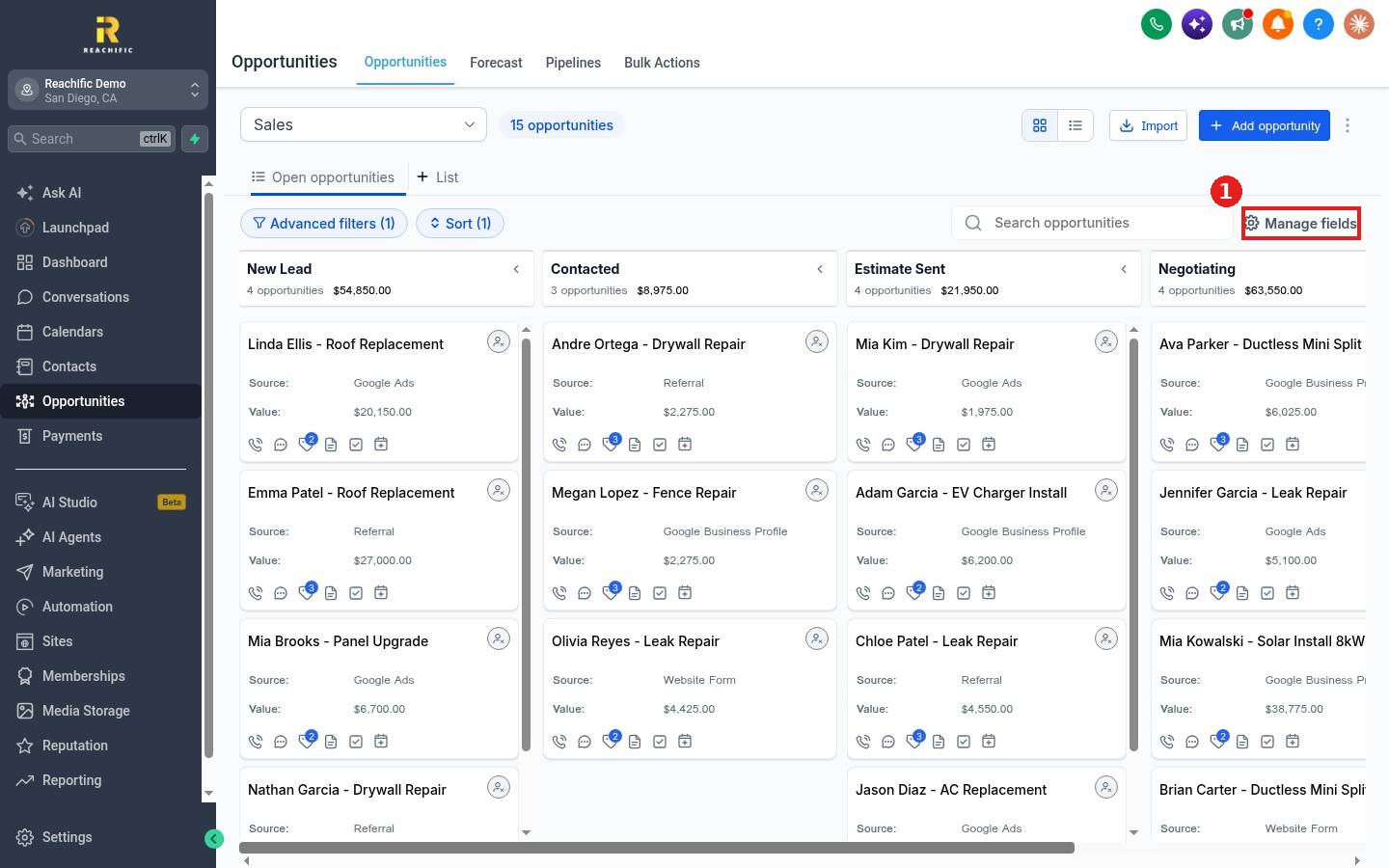
Click Manage fields (1) above the board.
Step 2: Pick a layout and fields
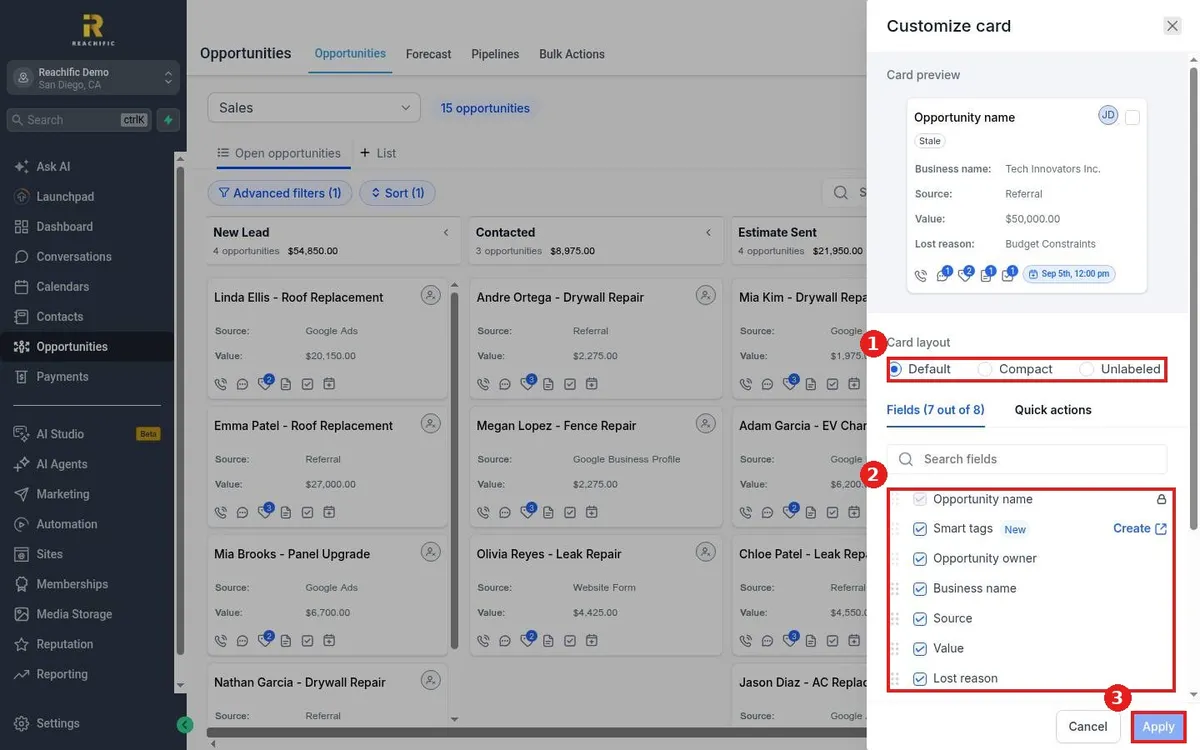
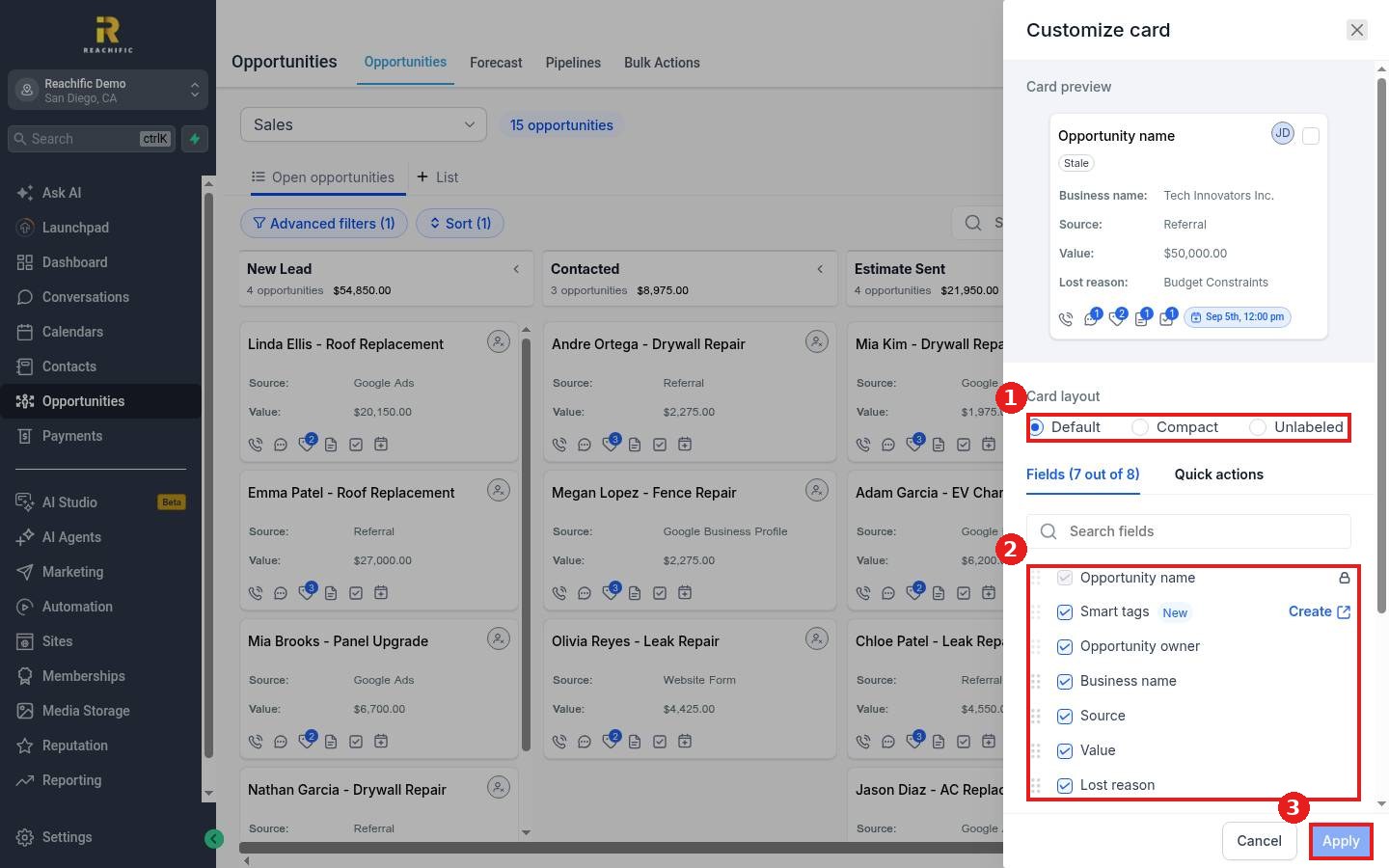
The Card preview at the top updates as you go. Choose a Card layout (1): Default, Compact or Unlabeled. In the Fields tab, check or uncheck fields and drag the handles to reorder them (2). The Quick actions tab controls the icons at the bottom of each card.
Step 3: Apply
Click Apply (3). Every card on the board now shows your chosen fields.
FAQ
Can I show a custom field on cards?
Yes. Custom opportunity fields appear in the list. Use the search box to find one fast.
Why can I not uncheck Opportunity name?
The name is locked so every card stays easy to identify.
Which layout should I use?
Compact fits more cards on screen, which helps when a stage has many deals.
Want us to handle it? Our team can set up the fields your sales team actually needs. Book a free strategy call and get a free quote.
Related articles
- How do I switch between board and list view?
- How do I filter and sort opportunities?
- How do I add an opportunity to a pipeline?
Still stuck? Submit a ticket and our team will help. Need faster answers? See our support plans.
