
How do I change the platform language?
Quick answer: Go to Settings, Business Profile. In the section with your address and time zone, open Platform Language, pick a language and click Update.
Step 1: Open Business Profile
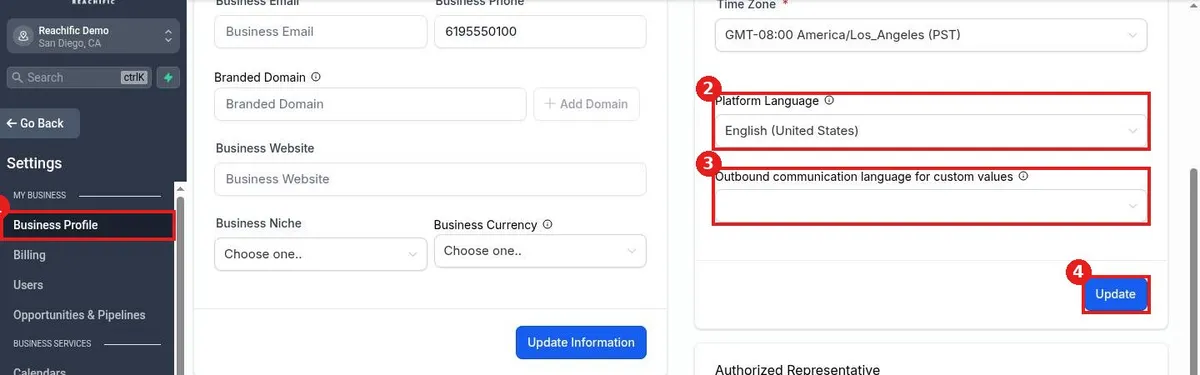
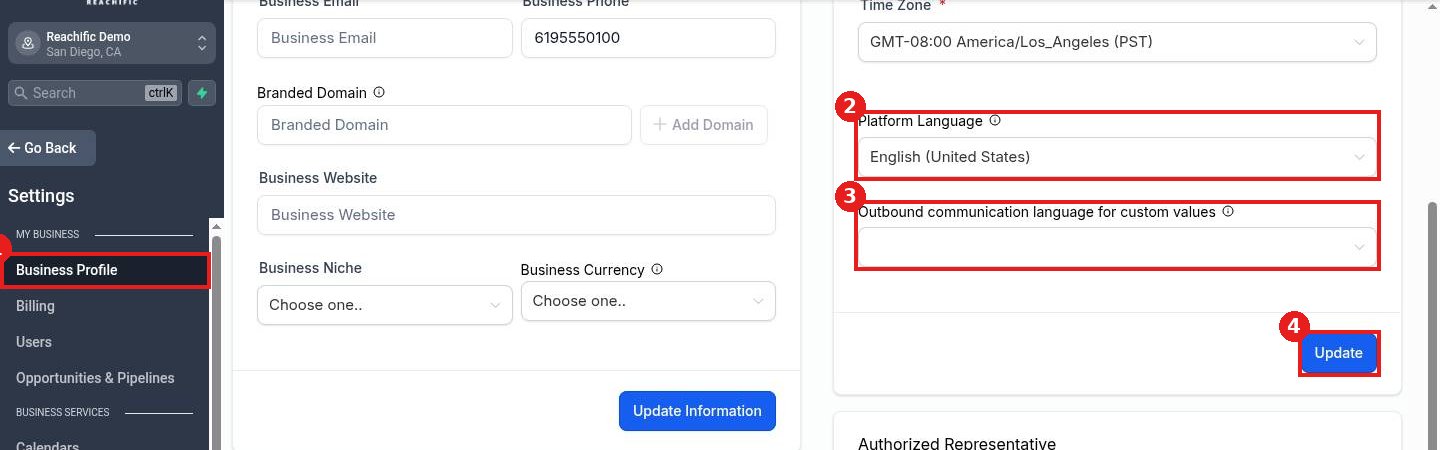
Click Settings at the bottom left, then Business Profile (1).
Step 2: Pick the language
In the right column, under the time zone, open Platform Language (2) and choose a language. If you use custom values in messages, set Outbound communication language for custom values (3) to the language your customers read.
Step 3: Save
Click Update (4) at the bottom of that section. Reload the page to see the change.
FAQ
Does this change the language my customers see?
Platform Language is the language of your account screens. The outbound setting covers custom values used in messages you send.
Why did nothing change?
Make sure you clicked Update in the same section, then reload the page.
Can each team member use a different language?
This setting is for the whole business account. Ask our team if you need something different.
Want us to handle it? Our team can set up your account, including bilingual messages, for you. Book a free strategy call and get a free quote.
Related articles
- How do I fill in my business profile?
- How do I change my business time zone?
- How do I upload my business logo?
Still stuck? Submit a ticket and our team will help. Need faster answers? See our support plans.
