
How do I run bulk actions on opportunities?
Quick answer: On Opportunities, switch to the list view and check the deals you want. Click Edit in the bar that appears to change stage, status, owner or other fields for all of them at once. Track progress on the Bulk Actions tab.
Before you start
- Bulk changes can start workflows tied to stage or status changes. Check your workflows first.
- Delete cannot be undone. Use status Lost or Abandon if you only want deals off the board.
Step 1: Select deals
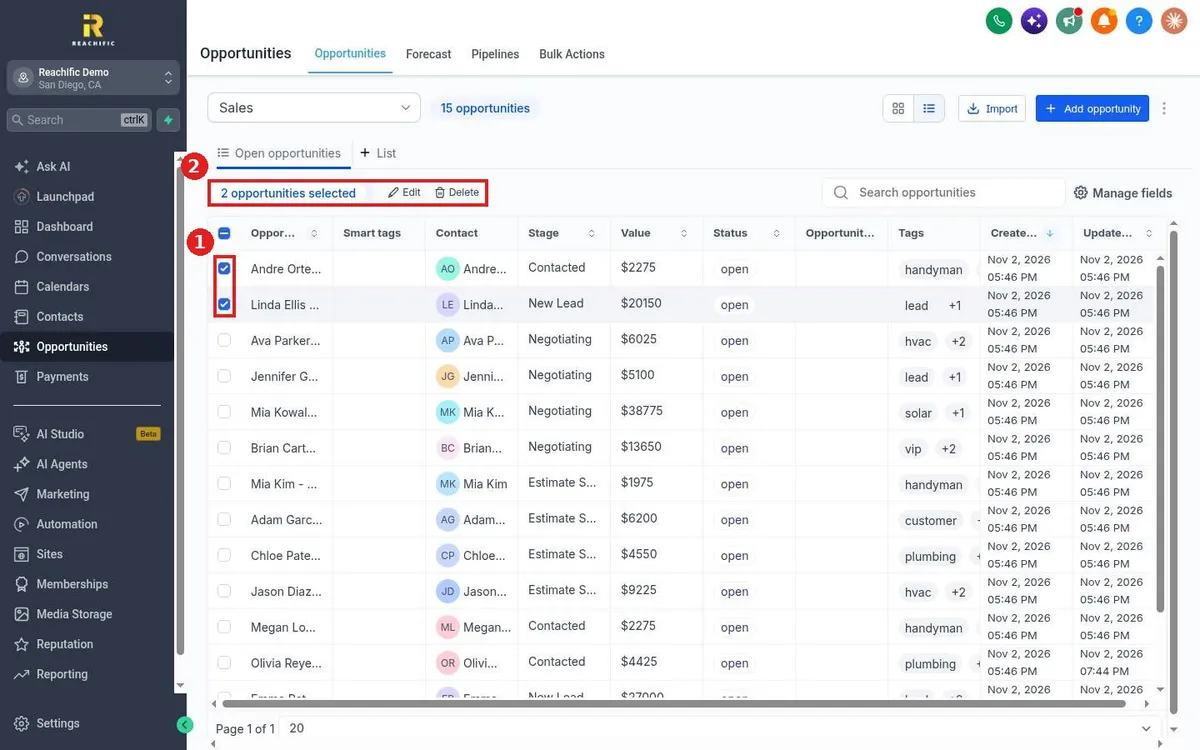
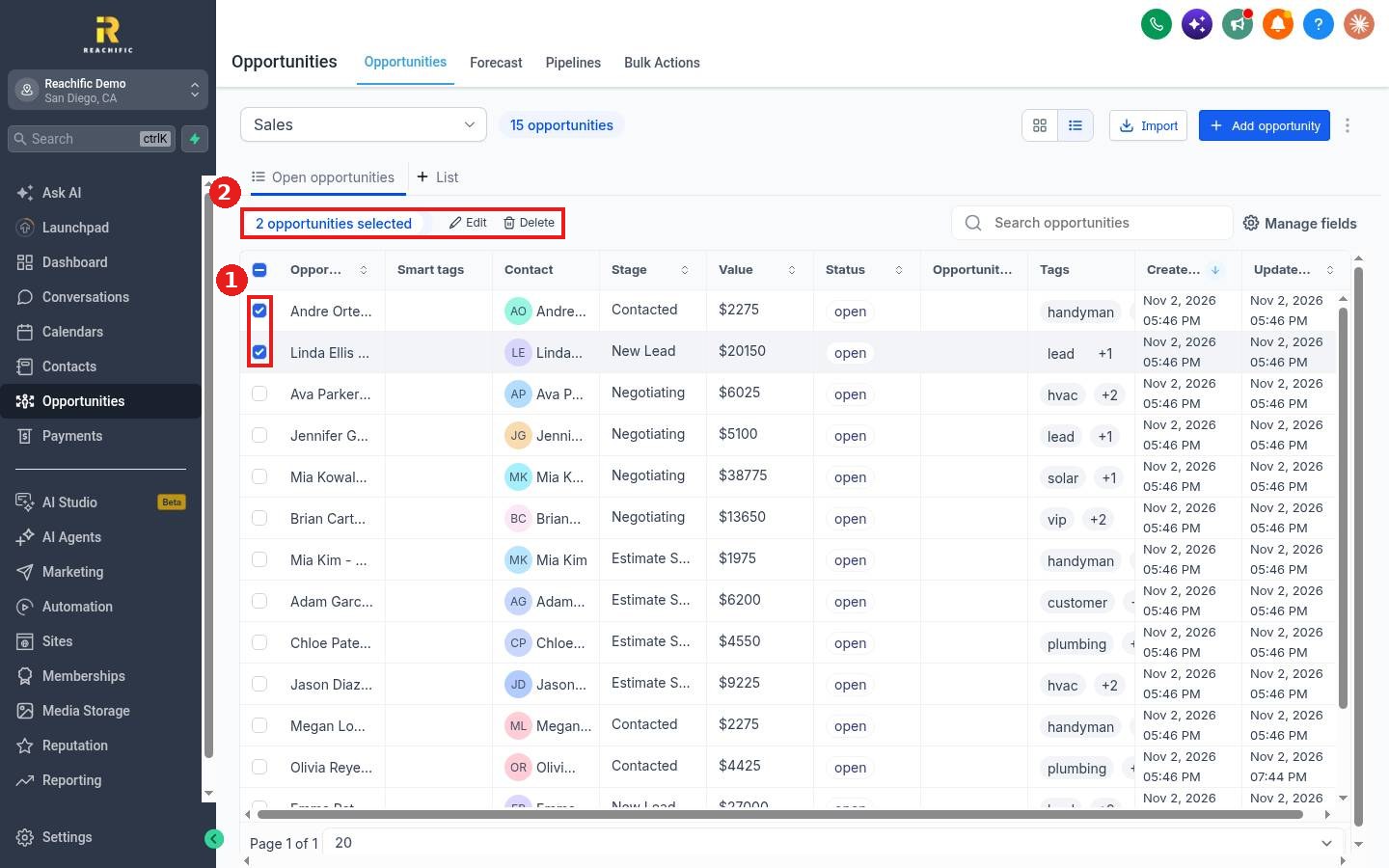
Switch to the list view, then check the box next to each deal (1), or use the top box to select the whole page. The bar shows how many are selected with Edit and Delete (2).
Step 2: Make the change
Click Edit, pick the field to change, such as Stage or Owner, set the new value and confirm.
Step 3: Track the job
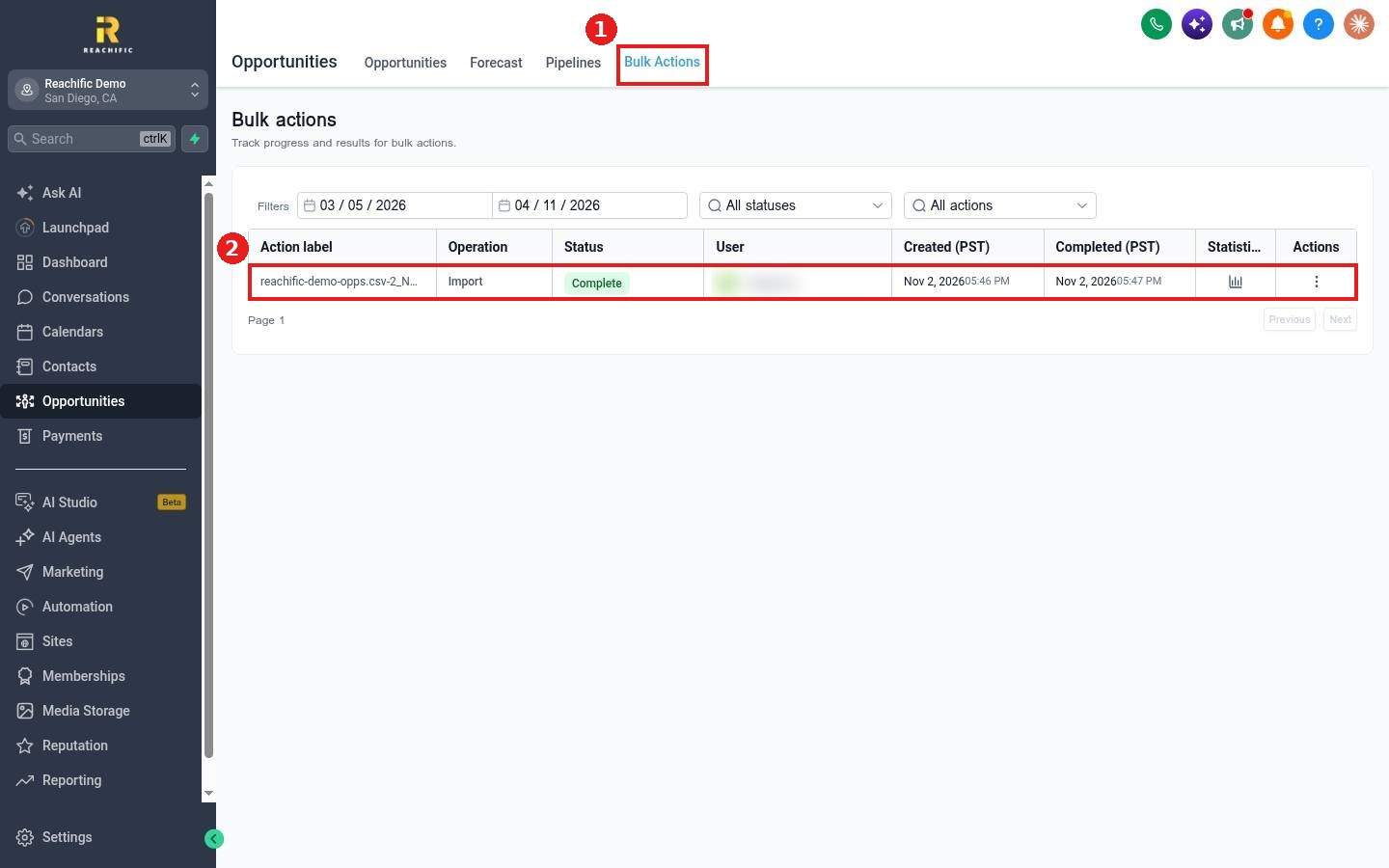
Click the Bulk Actions tab (1). Each job shows its operation, status and when it finished (2). Click the chart icon to see how many records succeeded.
FAQ
How many deals can I change at once?
Select all on the page, or raise the rows per page at the bottom to select more.
Why is a job still running?
Large jobs take a few minutes. Refresh the Bulk Actions tab to see the latest status.
Can I filter the Bulk Actions list?
Yes. Filter by date range, status or action type at the top.
Want us to handle it? Our team can clean up your pipeline and set rules that keep it tidy. Book a free strategy call and get a free quote.
Related articles
- How do I switch between board and list view?
- How do I mark an opportunity won, lost or abandoned?
- How do I filter and sort opportunities?
Still stuck? Submit a ticket and our team will help. Need faster answers? See our support plans.
