
How do I build a website with AI?
Quick answer: Go to Sites > Websites and click Build with AI. Fill in the page name, business niche, goal and target audience, check the prompt and click Generate. The AI plans the sections, writes the copy and adds images. Review the page, change anything you like, then click Publish.
Before you start
- Have your business name, main service and the area you serve ready.
- Building takes a few minutes. Keep the tab open while it works.
- The page is not live until you publish it and connect your domain.
Step 1: Open Build with AI
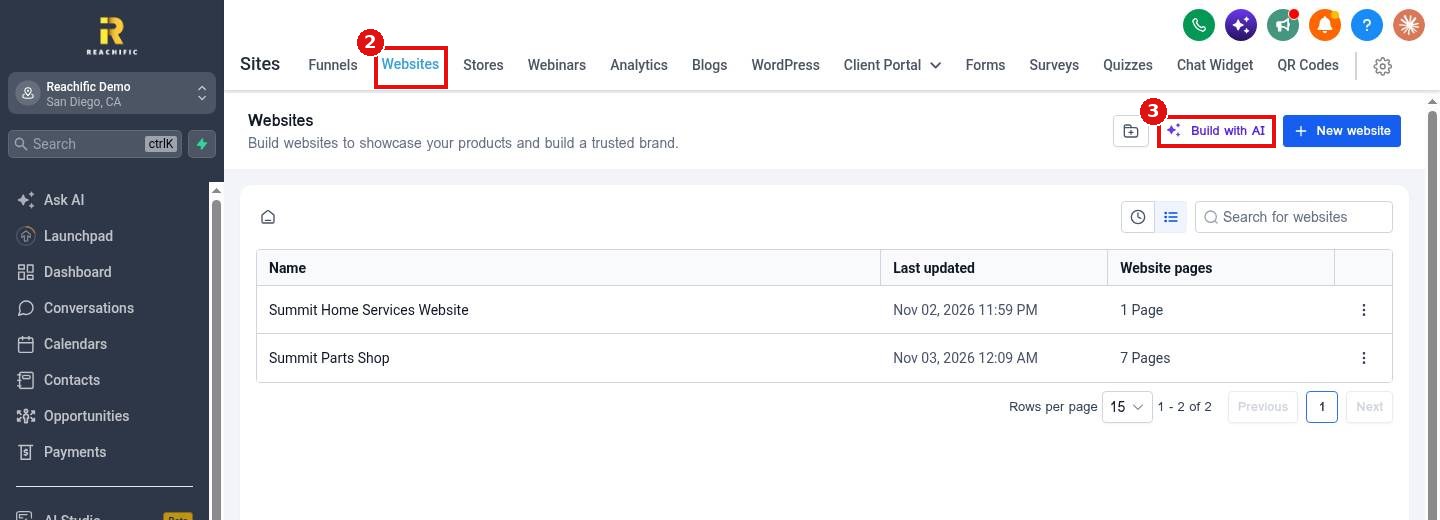
Click Sites (1) in the left menu, stay on the Websites tab (2) and click Build with AI (3). A new website opens in the builder with the Ask AI panel on the left.
Step 2: Describe your business
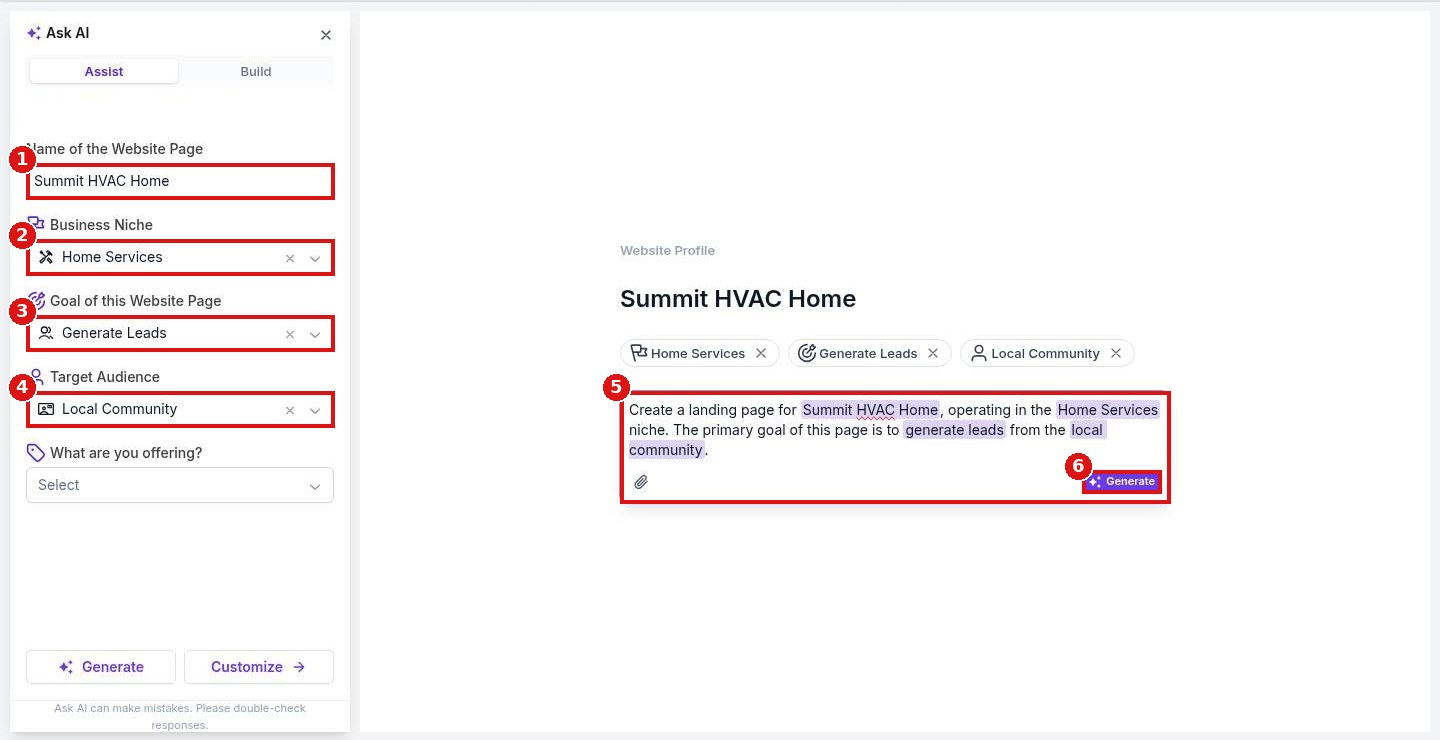
Type the Name of the website page (1), pick your Business niche (2), the Goal of the page (3) and your Target audience (4). The prompt on the right fills in as you go (5). Add details there, such as the city you serve or your phone number, then click Generate (6).
Step 3: Let the AI build the page
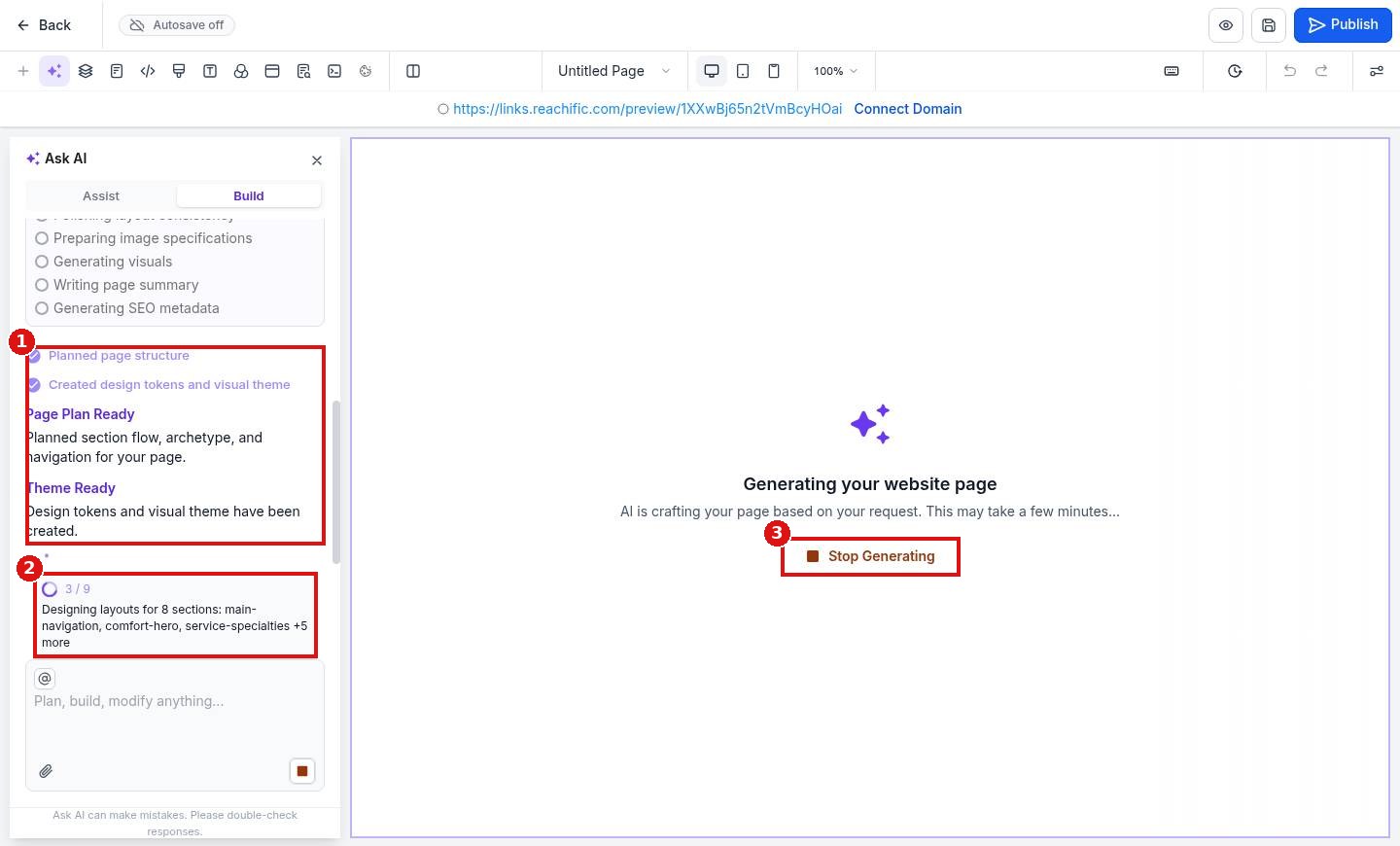
The Build tab shows each section as it is planned and written (1) and a progress counter (2). Click Stop Generating (3) only if you want to cancel.
Step 4: Review, edit and publish
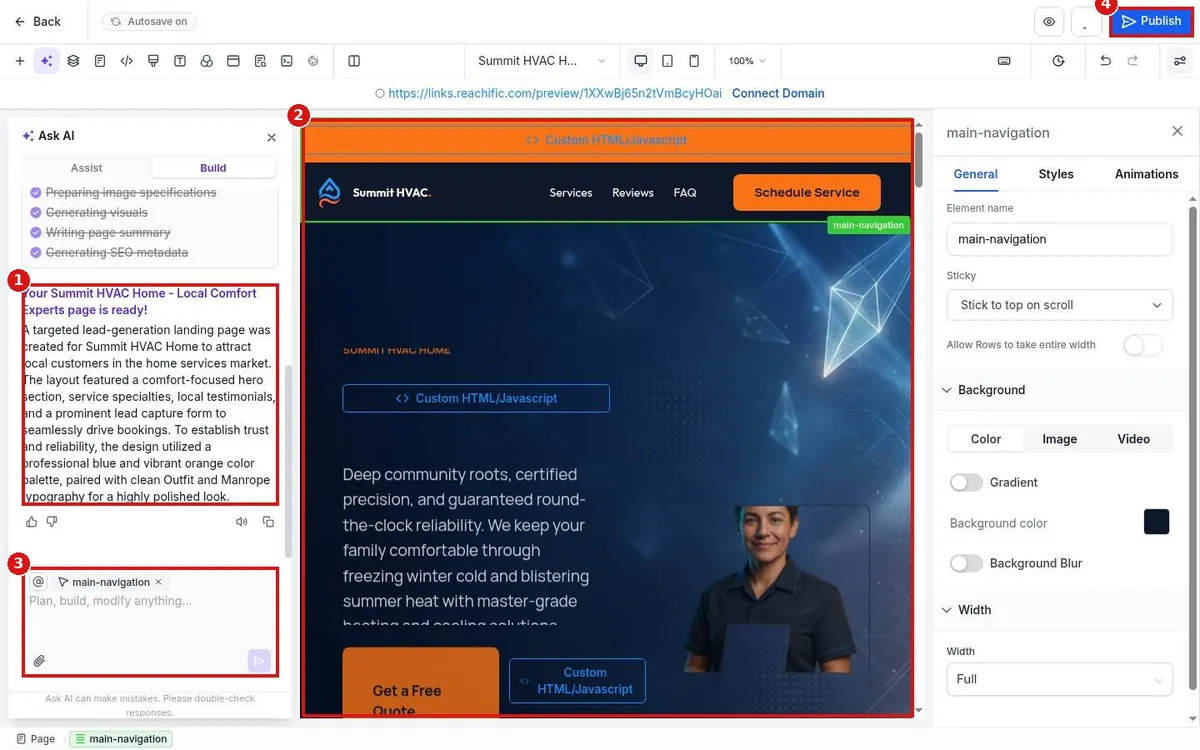
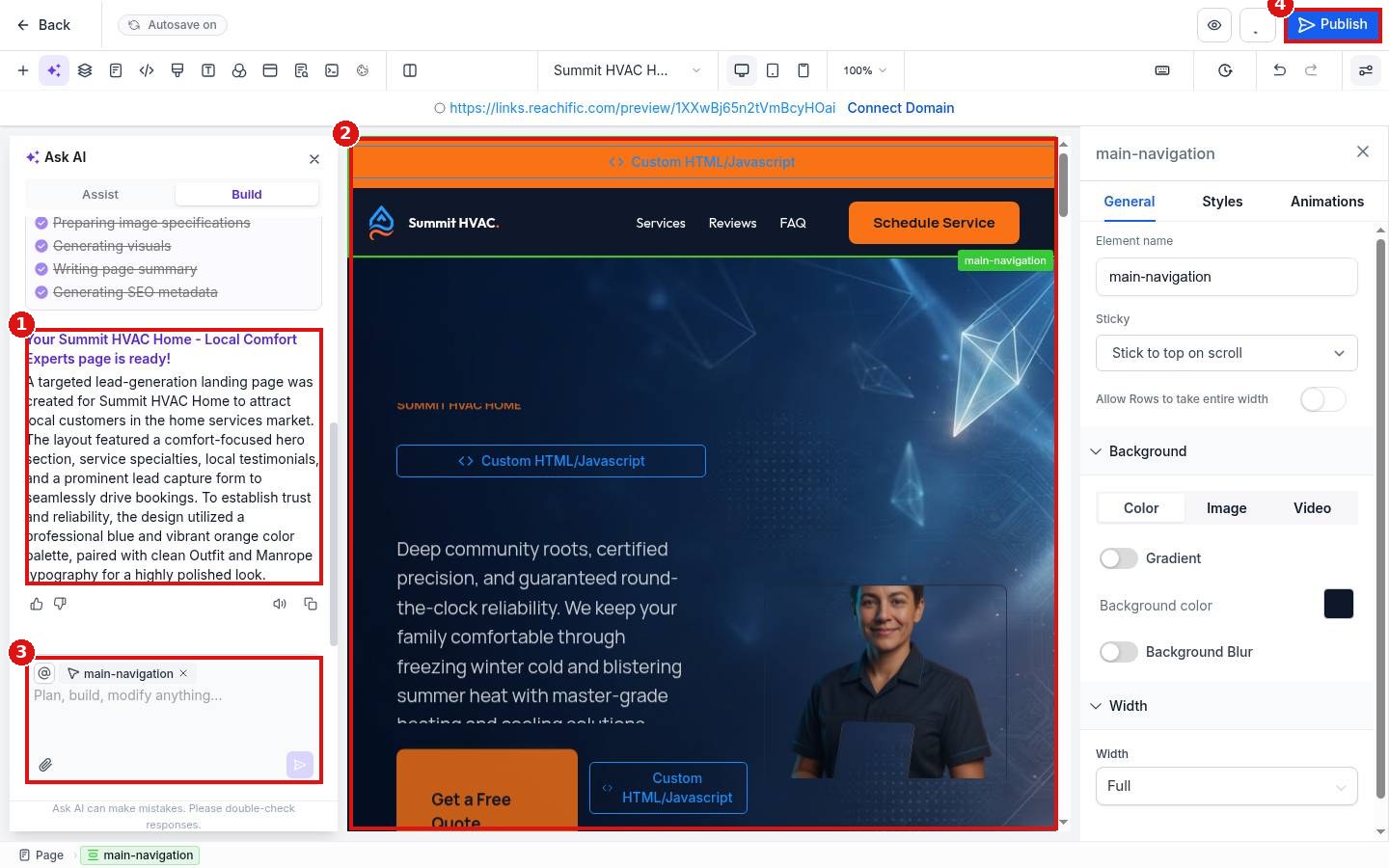
When it finishes you see a summary of what was built (1) and the new page in the editor (2). Click any part of the page to edit it, or type a change in the Ask AI box (3), for example: make the headline shorter. When it looks right, click Publish (4).
FAQ
Can I change what the AI wrote?
Yes. Click any text or image on the page to edit it, or ask the AI for a change in plain words.
Does it check facts like prices or licenses?
No. The panel notes that Ask AI can make mistakes. Check every claim, number and review before you publish.
How do I put the site on my own domain?
Click Connect Domain at the top of the builder, or follow our domain guide below.
Want us to handle it? Our team designs and builds fast, mobile friendly websites that turn visitors into leads, then connects your domain and forms for you. Book a free strategy call and get a free quote.
Related articles
- How do I connect my domain to my Reachific website?
- How do I edit my header and footer on every page?
- How do I set a page title, meta description and social image?
Still stuck? Submit a ticket and our team will help. Need faster answers? See our support plans.
