
How do I block time off on my calendar?
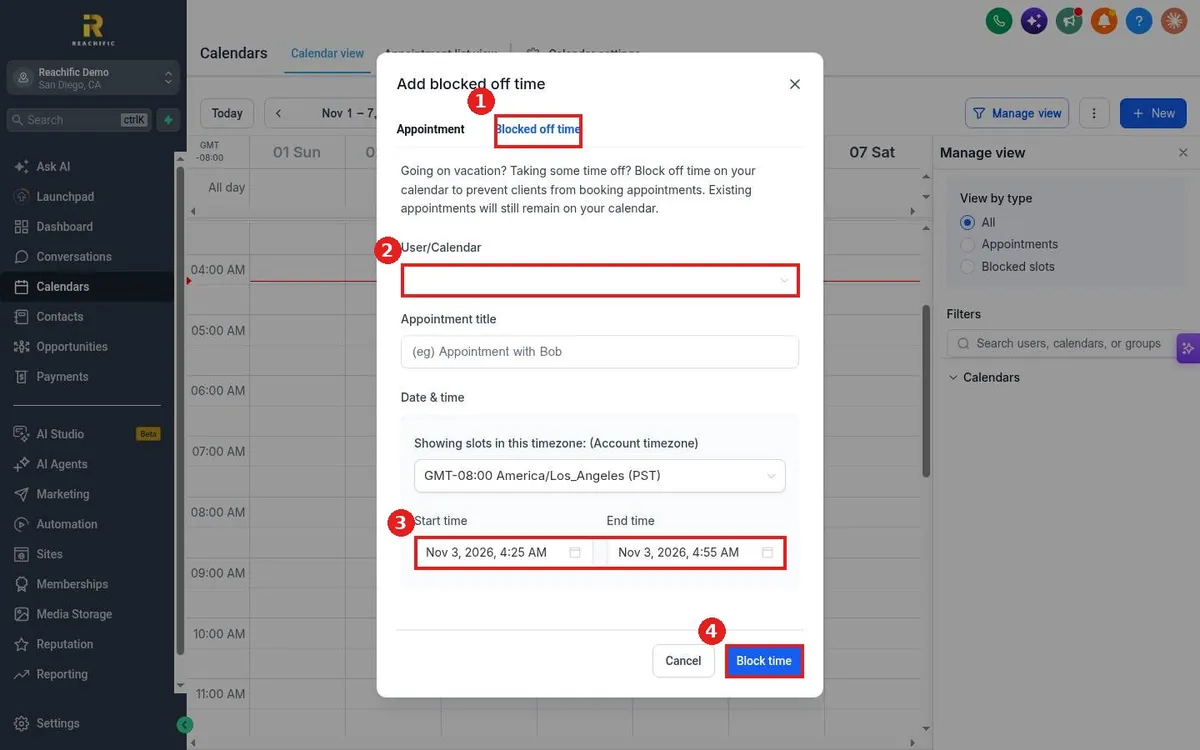
Quick answer: Open Calendars, click New and switch to the Blocked off time tab. Pick the user or calendar, add a title, set the start and end time and click Block time.
Before you start
- Blocked time stops new bookings. Appointments already on the calendar stay there, so move them first if needed.
- For a weekly closed day, change your hours instead. See How do I set my available hours on a calendar?
Step 1: Open the blocked time window
In Calendars, click New, then click the Blocked off time tab (1).
Step 2: Choose who and when
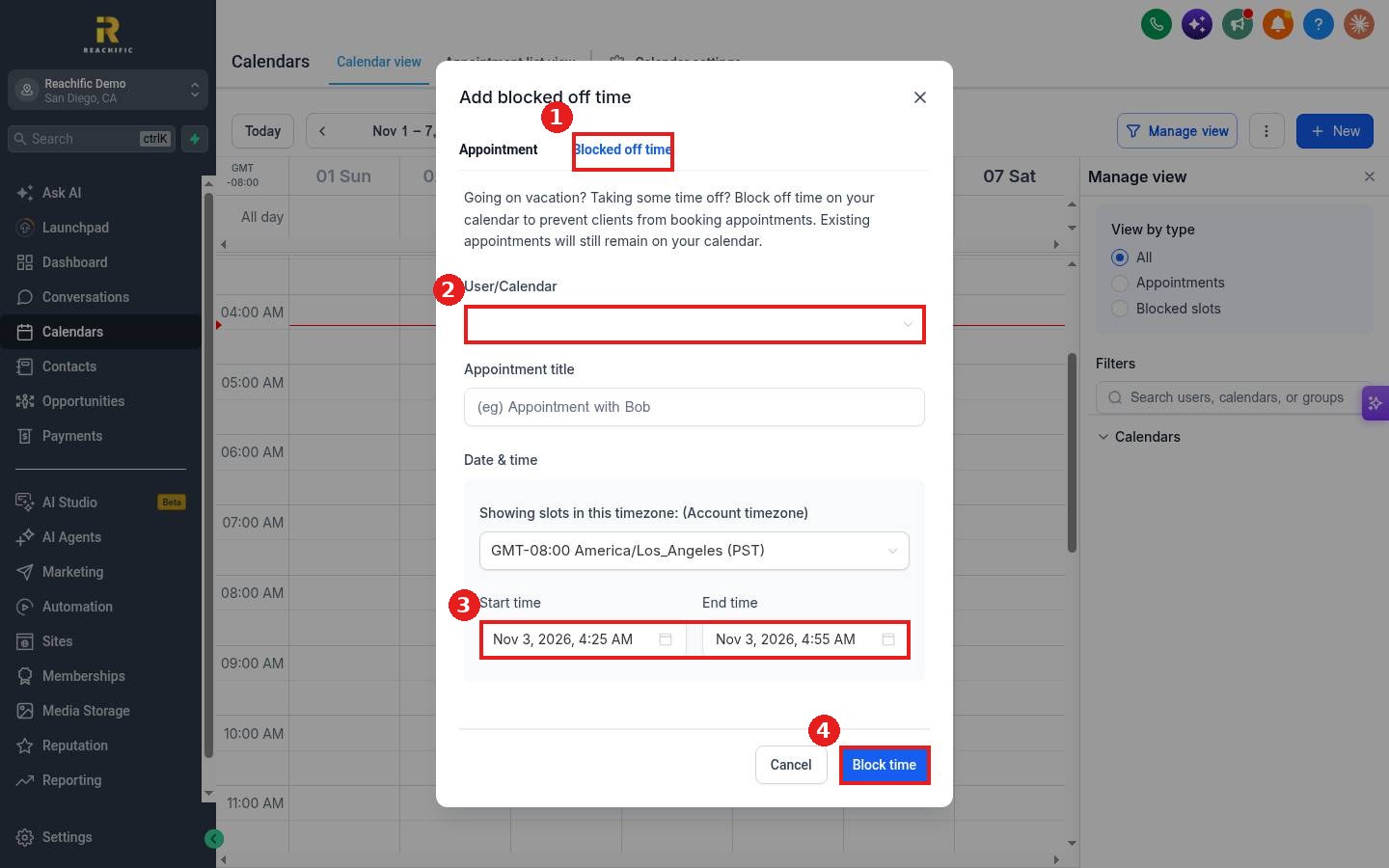
Pick the team member or calendar under User/Calendar (2). Add a title like Vacation or Training so your team knows why. Set the Start time and End time (3).
Step 3: Save
Click Block time (4). The block shows on the calendar grid and those times disappear from your booking link.
FAQ
Can I block a whole week?
Yes. Set the start time on the first day and the end time on the last day.
How do I remove a block?
Click the block on the calendar grid and delete it.
Can I see only blocked slots?
Yes. Click Manage view and choose Blocked slots under View by type.
Want us to handle it? Our team can set up team calendars, time off and routing for you. Book a free strategy call and get a free quote.
Related articles
- How do I set my available hours on a calendar?
- How do I book an appointment for a customer?
- How do I switch between day, week and month views?
Still stuck? Submit a ticket and our team will help. Need faster answers? See our support plans.
