
How do I add a form to my website?
Quick answer: Open the form in Sites > Forms and click the Integrate tab. Under Embed, pick a layout, click Embed code and Copy code. Paste it into an HTML or custom code block on your page and publish. On a Reachific site or funnel, you can add the Form element in the builder instead.
Before you start
- Build and save your form first.
- Know where on your page the form should appear.
Step 1: Open the Integrate tab
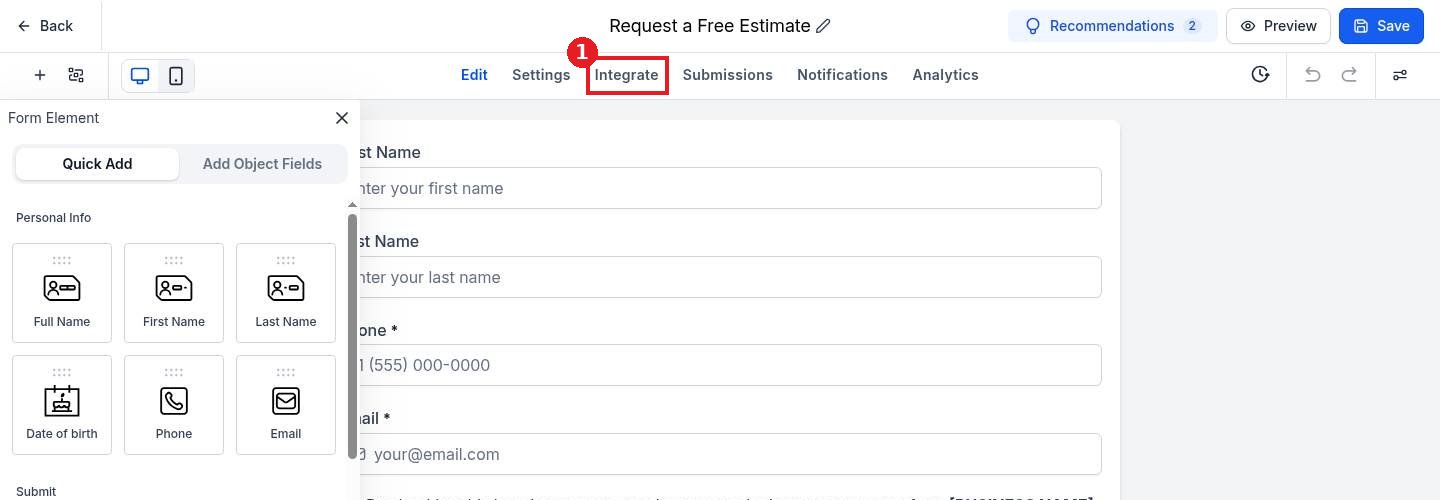
Open the form from the forms list. Click Integrate (1) at the top of the form builder.
Step 2: Choose how the form shows
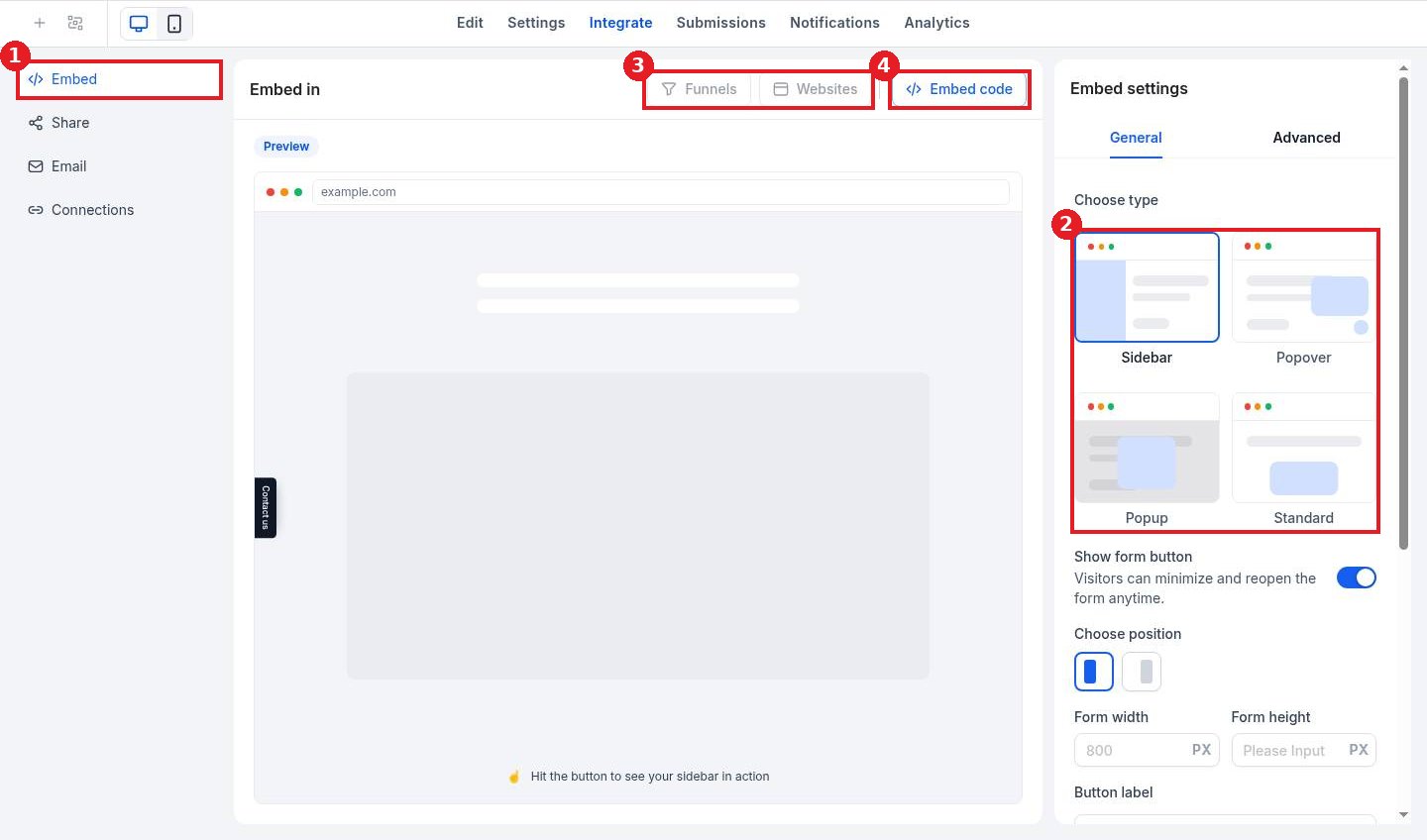
Stay on Embed (1). Pick a type (2): Sidebar, Popover, Popup or Standard. To place it on a Reachific page, use Funnels or Websites (3). For any other site, click Embed code (4).
Step 3: Copy and paste the code
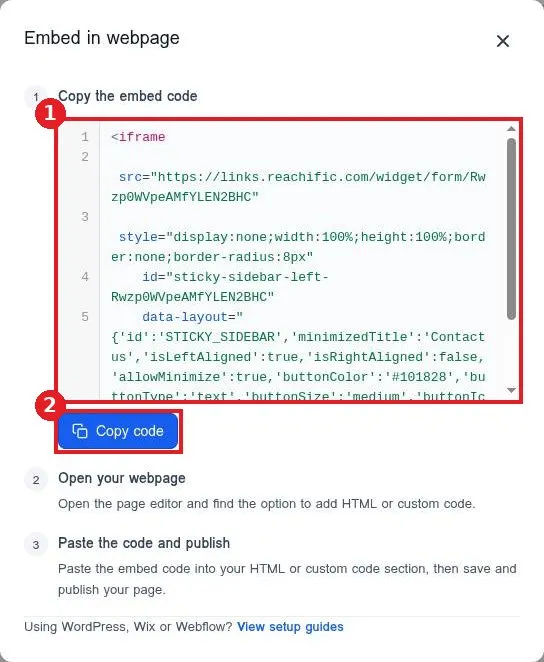
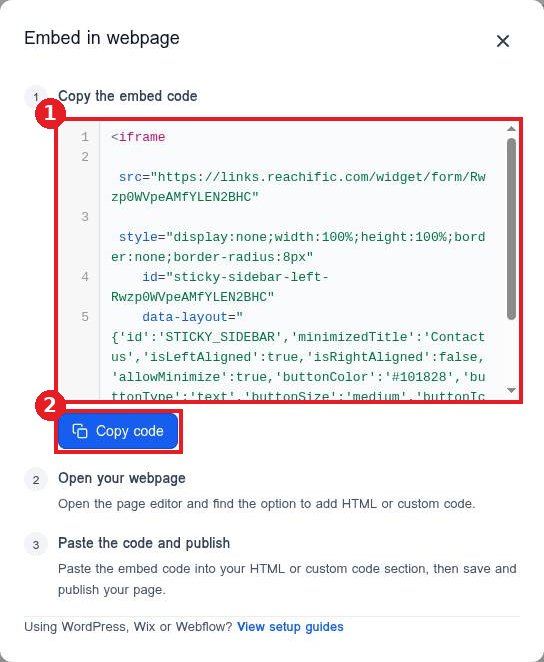
Check the code (1) and click Copy code (2). In your page editor, add an HTML or custom code block, paste the code, then save and publish.
FAQ
Which form type should I use?
Standard sits inside the page. Popup and Popover open over the page. Sidebar slides in from the side.
Do I need to re-embed after editing the form?
No. Changes you save in the form builder show on your site automatically.
Can I embed on WordPress or Wix?
Yes. Paste the embed code into a custom HTML block on that platform.
Want us to handle it? Our team designs and builds fast, mobile friendly websites that turn visitors into leads, then keeps them updated for you. Book a free strategy call and get a free quote.
Related articles
- How do I build a form?
- How do I add a form or calendar to a page?
- How do I add custom code to a page?
Still stuck? Submit a ticket and our team will help. Need faster answers? See our support plans.
