
How do I work my manual call and text tasks?
Quick answer: Go to Conversations and click the Manual Actions tab. Filter by workflow and assignee, then click Let's Start to work through each call or text task in order.
What are manual actions?
Manual actions are tasks where a person places a call or sends a text instead of the system doing it. Your automations add them to this list when a step needs a human touch.
Step 1: Open Manual Actions
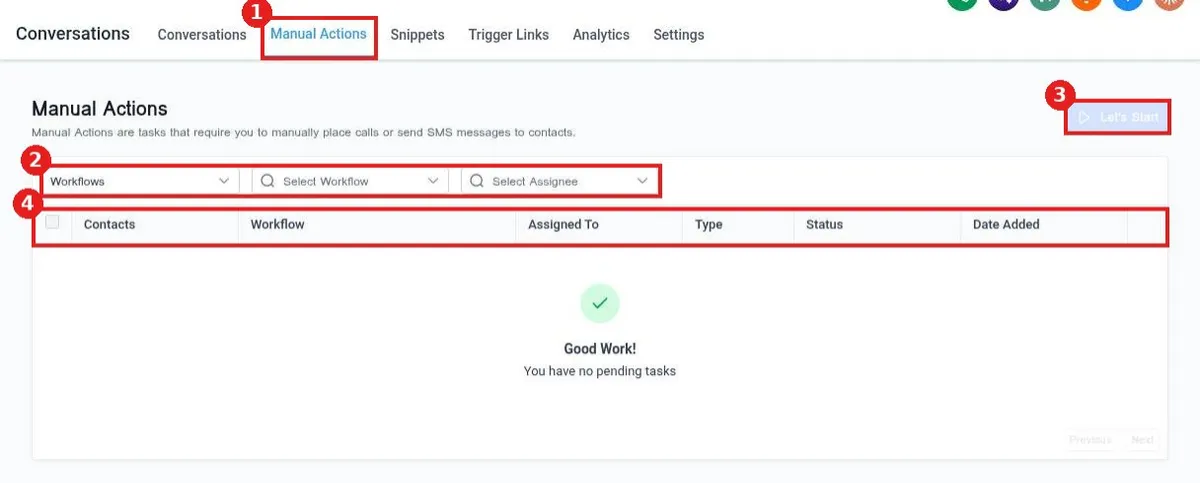
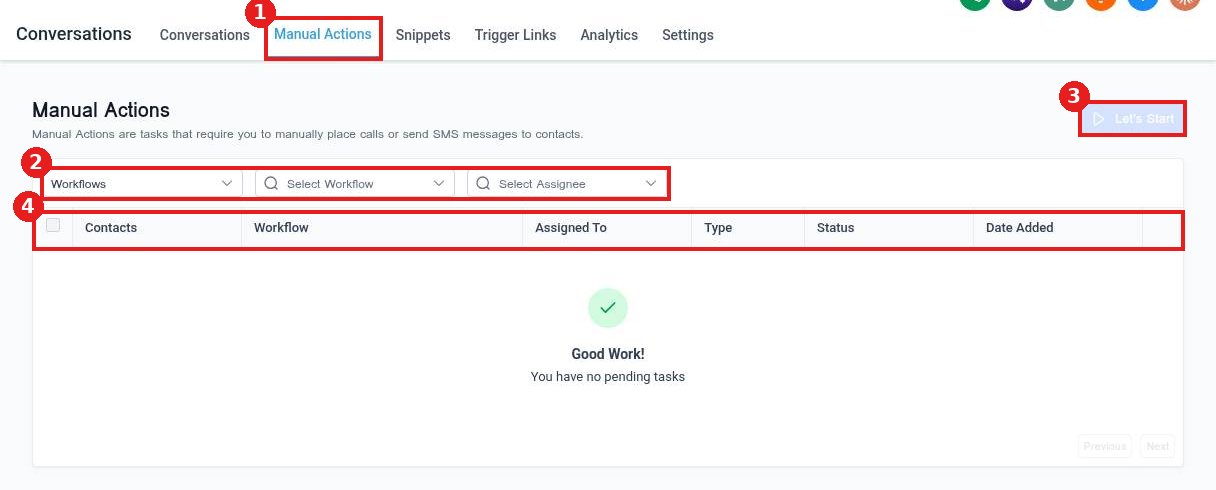
Click the Manual Actions tab at the top of Conversations (1).
Step 2: Narrow the list
Use the filters (2) to pick the source, a workflow and an assignee. The table (4) shows each contact, the workflow it came from, who it is assigned to, the type, status and date added.
Step 3: Start working
Click Let's Start (3). Reachific opens the first task so you can call or text the contact, then moves you to the next one.
FAQ
Why is Let's Start greyed out?
There are no pending tasks for the filters you picked. The page shows Good Work! You have no pending tasks when the list is clear.
Where do these tasks come from?
From workflow steps that ask for a manual call or manual text.
Can I see only my own tasks?
Yes. Pick your name in the assignee filter.
Want us to handle it? Our team can build follow up workflows with the right call and text steps for you. Book a free strategy call and get a free quote.
Related articles
- How do I call a contact from my browser?
- How do I send a text message to a contact?
- How do I see and manage all my tasks?
Still stuck? Submit a ticket and our team will help. Need faster answers? See our support plans.
