
How do I see conversation response time analytics?
Quick answer: Go to Conversations and click the Analytics tab. The SLA performance report shows how fast your team replies and how often response targets are met or missed. Turn on SLA settings first so there is something to measure.
Step 1: Open Analytics
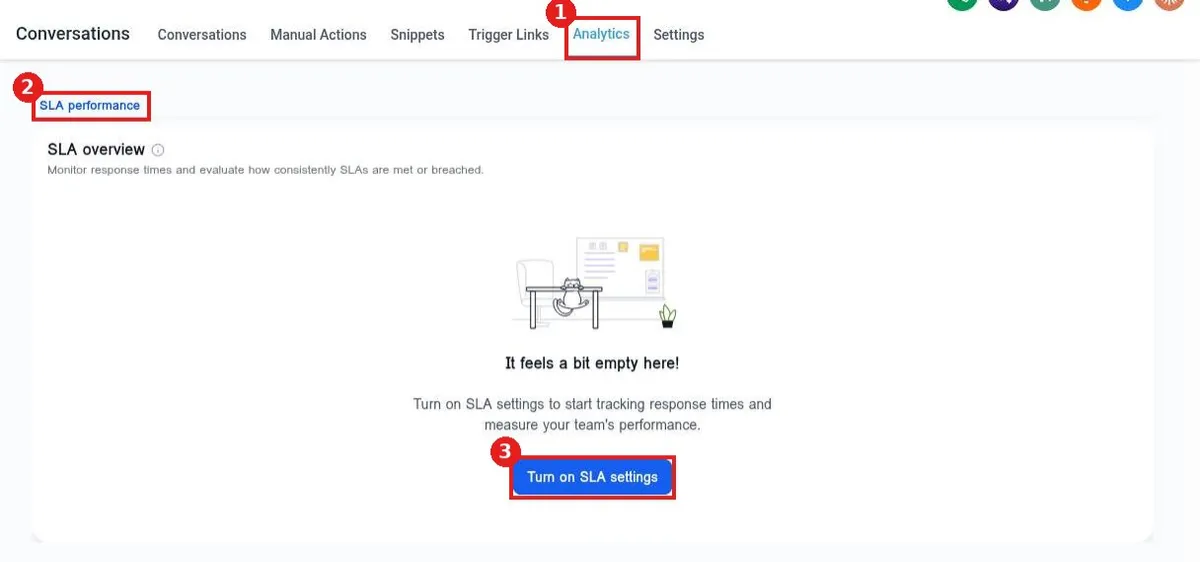
Click the Analytics tab at the top of Conversations (1). The SLA performance view (2) opens with the SLA overview.
Step 2: Turn on SLA settings if the page is empty
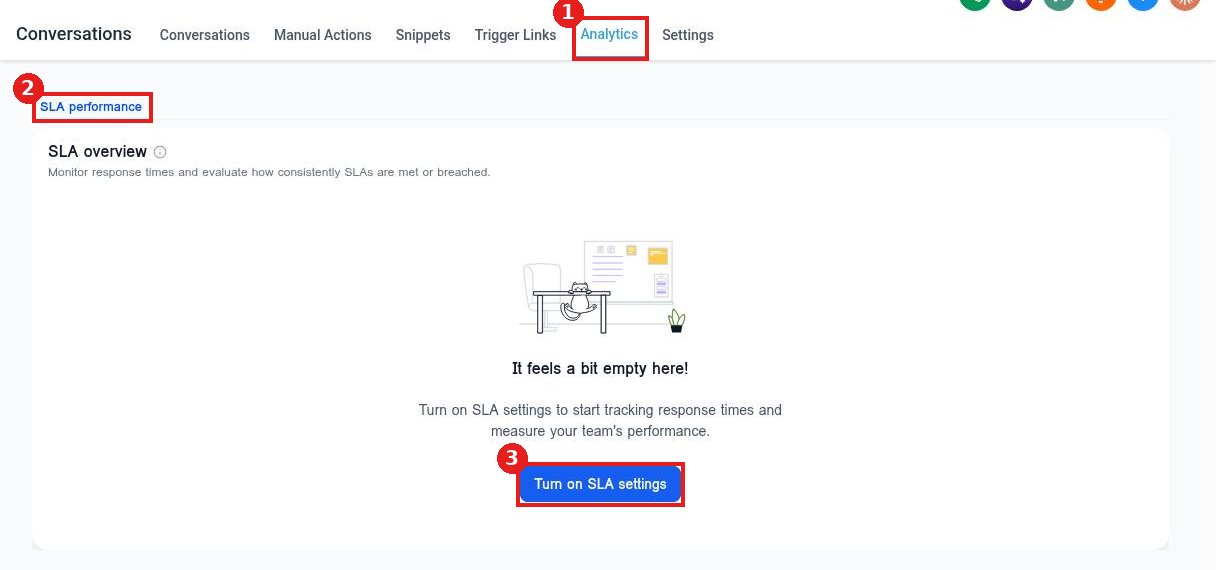
If you see It feels a bit empty here!, no response targets are set yet. Click Turn on SLA settings (3) to set them. See the related article on inbox settings for each option.
Step 3: Read the overview
Once targets are on, the SLA overview tracks response times and shows how consistently your team stays inside them.
FAQ
What is an SLA?
It is your response time target, for example reply within 5 minutes. Reachific flags messages that are due soon or overdue.
Do past conversations count?
Tracking starts after you turn SLA settings on, so give it a few days of messages before you judge the numbers.
Do automated replies count as a response?
You decide. The SLA settings let you count automation and AI replies or wait for a person.
Want us to handle it? Our team can set up instant AI replies so no lead waits. Book a free strategy call and get a free quote.
Related articles
- How do I change my inbox settings?
- How do I reply to texts, emails and chats from one inbox?
- How do I read my Reachific dashboard?
Still stuck? Submit a ticket and our team will help. Need faster answers? See our support plans.
