
How do I change my inbox settings?
Quick answer: Go to Conversations and click the Settings tab. Turn on SLA Settings or click Set SLA, pick your response time targets and rules, then click Save.
Step 1: Open Settings
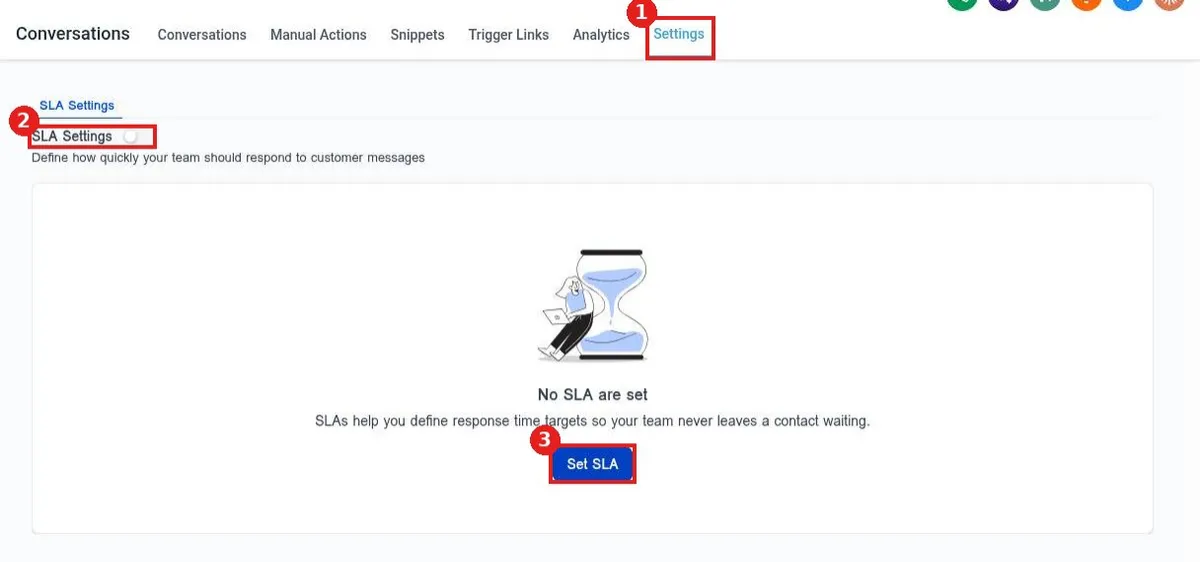
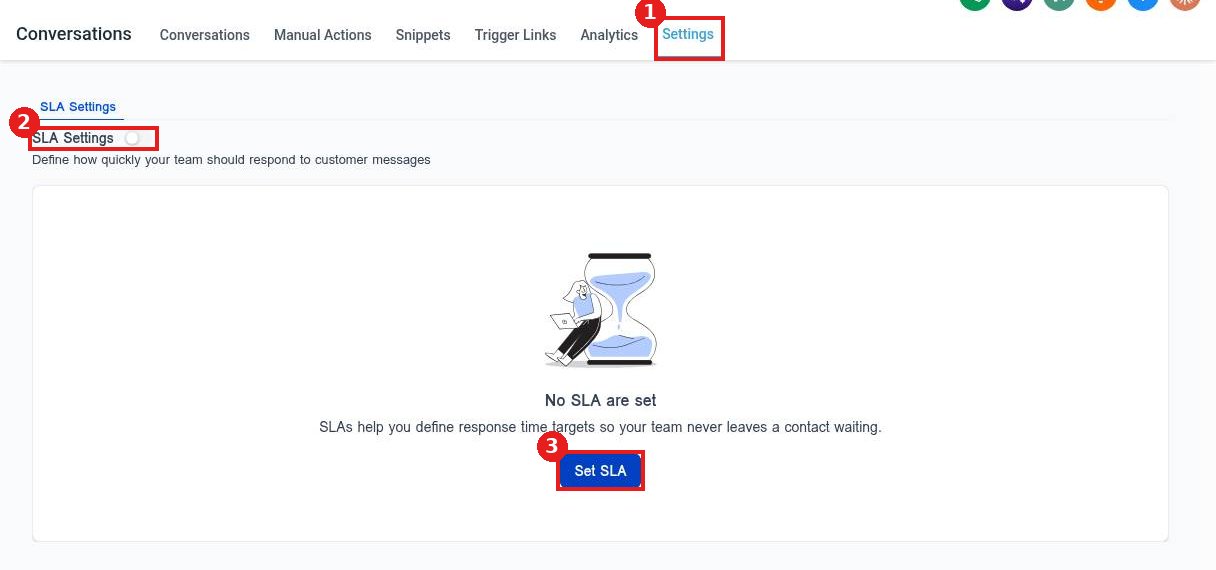
Click the Settings tab at the top of Conversations (1). Turn on the SLA Settings toggle (2) or click Set SLA (3).
Step 2: Choose your rules
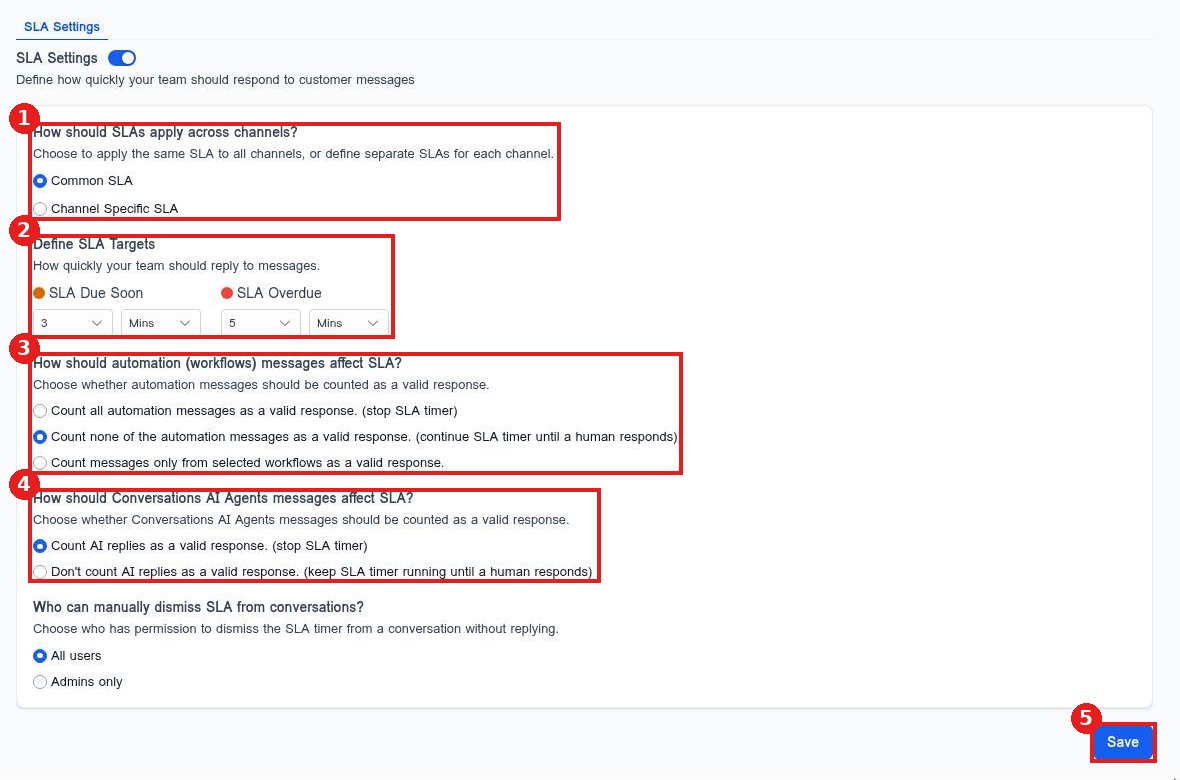
- How SLAs apply across channels (1): one Common SLA for every channel, or Channel Specific SLA.
- SLA targets (2): when a message is Due Soon and when it is Overdue, in minutes or hours.
- Automation messages (3): count all, none, or only selected workflows as a valid response.
- AI Agent replies (4): count them as a response, or keep the timer running until a person replies.
- Who can dismiss an SLA: all users or admins only.
Step 3: Save
Click Save (5) at the bottom. Response times then show on the Analytics tab.
FAQ
What targets should I start with?
Pick numbers your team can hit during business hours, then tighten them once you see the results.
Should AI replies stop the timer?
If an AI Agent answers your leads, counting its replies keeps your numbers fair. If you want a person on every lead, choose to keep the timer running.
Can I turn it off later?
Yes. Switch the SLA Settings toggle off.
Want us to handle it? Our team can set up your inbox rules and team routing for you. Book a free strategy call and get a free quote.
Related articles
- How do I see conversation response time analytics?
- How do I filter my inbox by unread, starred or assigned to me?
- How do I add an internal comment to a conversation?
Still stuck? Submit a ticket and our team will help. Need faster answers? See our support plans.
