
How do I schedule a message to send later?
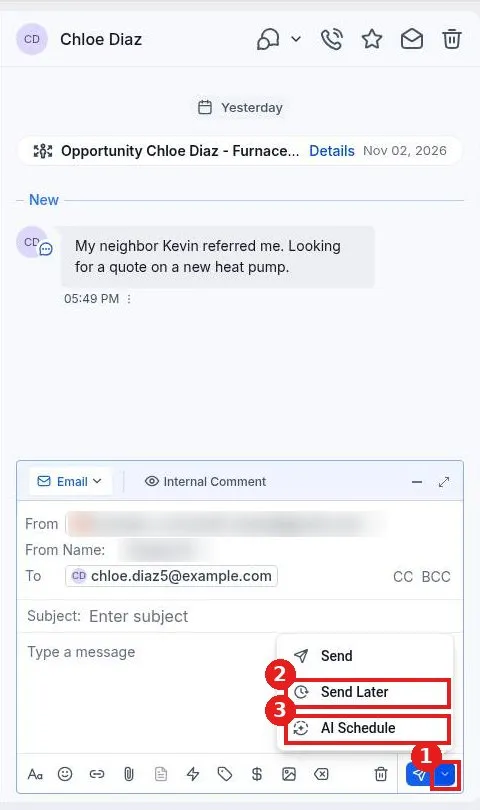
Quick answer: In the conversation, write your message, click the small arrow next to the Send button and choose Send Later. Pick the date, time and time zone, then click Schedule.
Step 1: Write your message
Open Conversations, click the contact and pick the channel at the bottom left of the message box. Type your message as usual.
Step 2: Open the send options
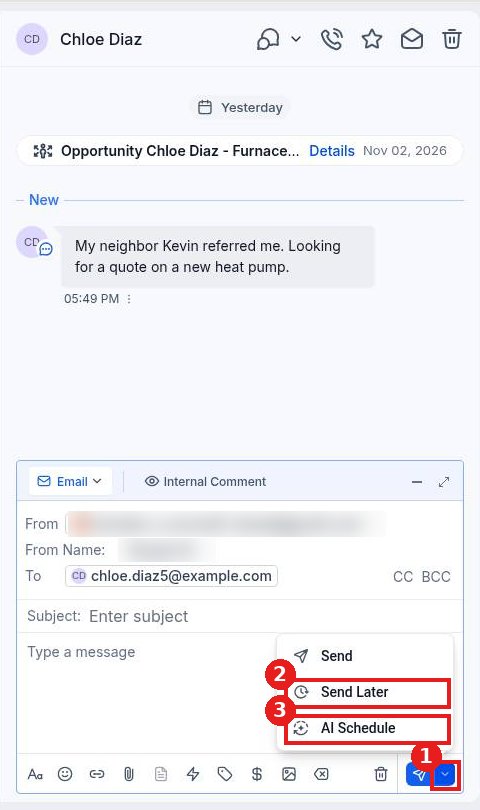
Click the arrow on the right side of the Send button (1). Choose Send Later (2). AI Schedule (3) is also listed if you want help picking a time.
Step 3: Pick the date and time
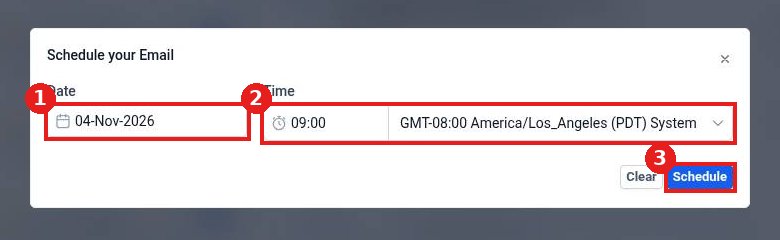
Choose the date (1), then the time and time zone (2). Click Schedule (3). The message waits in the conversation until it goes out.
FAQ
Which time zone is used?
The one you pick in the schedule window. Check it before you click Schedule, especially if your customer is in another state.
Why do I not see the Send arrow?
Pick a channel and start typing first. For texts, your account also needs a Reachific phone number.
How do I clear the time I picked?
Click Clear in the schedule window before you click Schedule.
Want us to handle it? Our team can build automated follow ups so messages go out on time without you. Book a free strategy call and get a free quote.
Related articles
Still stuck? Submit a ticket and our team will help. Need faster answers? See our support plans.
