
How do I save reply templates with snippets?
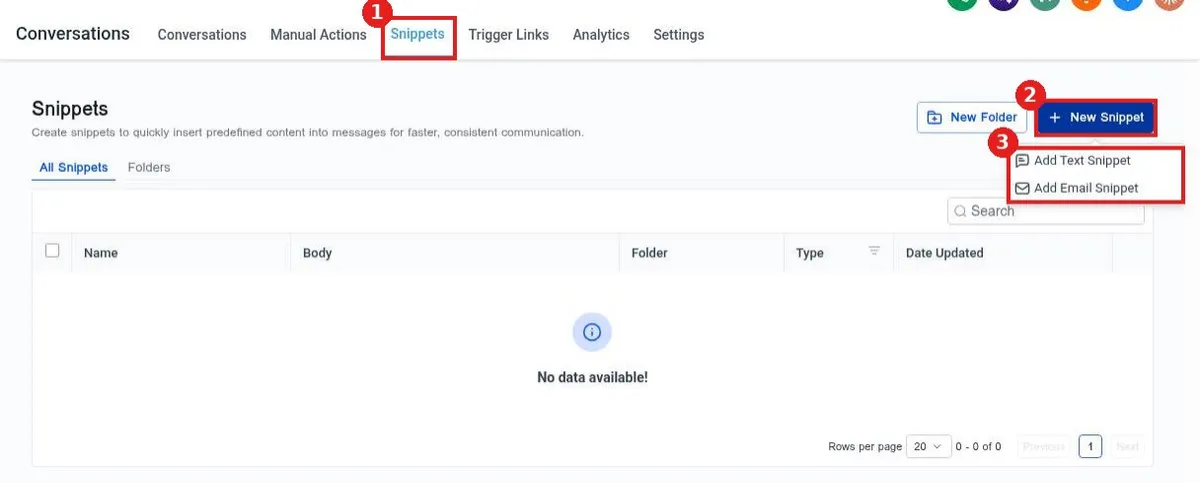
Quick answer: Go to Conversations, click Snippets, then New Snippet. Pick Add Text Snippet or Add Email Snippet, give it a name, write the message and click Save. Your team can reuse it in any reply.
Step 1: Open Snippets
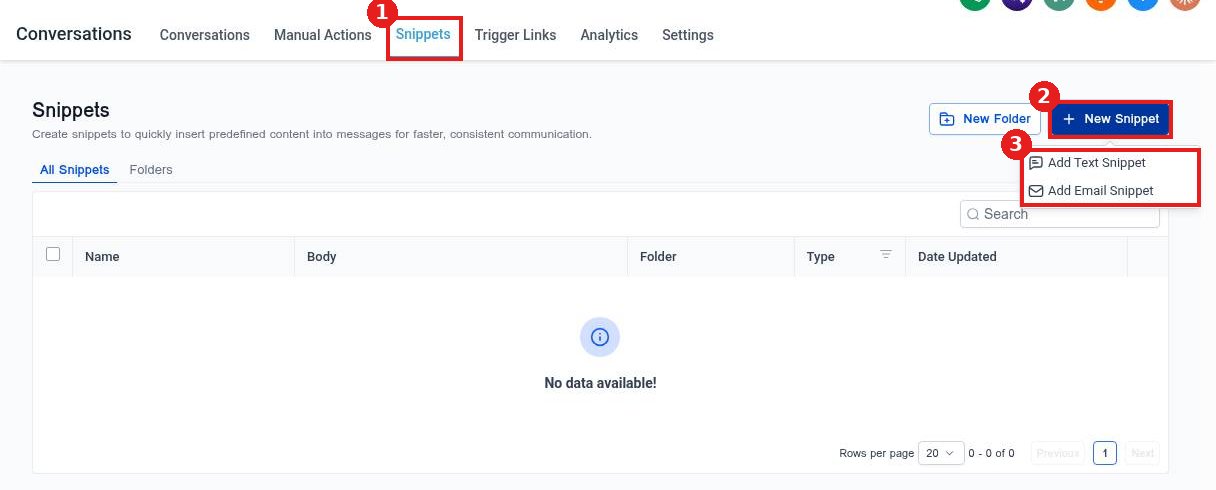
Click the Snippets tab at the top of Conversations (1). Click New Snippet (2) and choose a text or email snippet (3). Use New Folder to group snippets, for example Quotes or Scheduling.
Step 2: Write the snippet
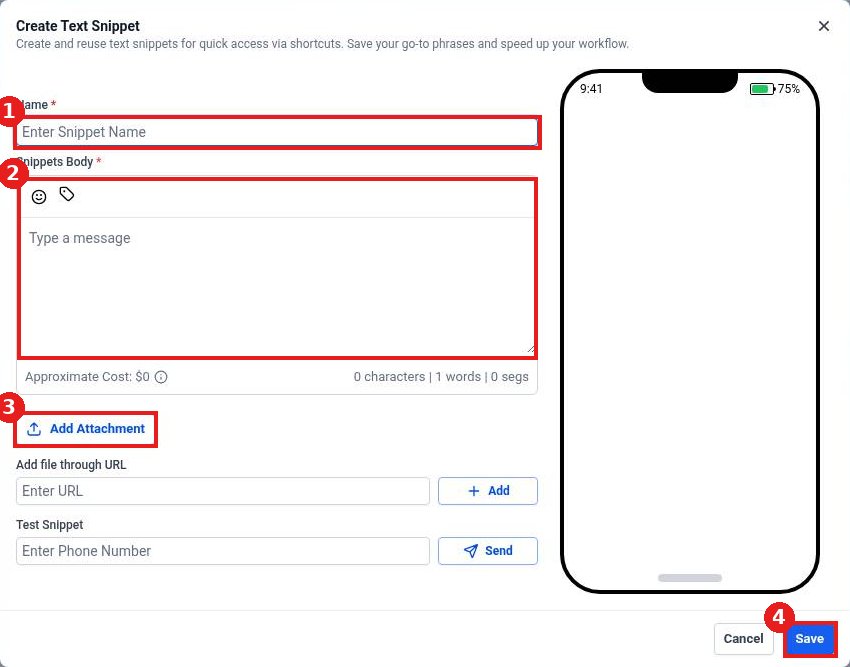
Enter a short name you will recognize (1). Type the message in Snippets Body (2). The tag icon adds custom values such as the contact's first name so each reply feels personal. Add a file with Add Attachment (3) if needed. The phone on the right shows a live preview.
Step 3: Save
Click Save (4). The snippet appears in the list with its folder, type and date.
FAQ
What is the difference between a text and an email snippet?
Text snippets are short messages for SMS. Email snippets hold a full email you can reuse.
Can I test a text snippet before using it?
Yes. Enter a phone number under Test Snippet and click Send to get a test copy.
What does the cost line mean?
Texts are billed per segment. The character and segment count help you keep messages short.
Want us to handle it? Our team can write a full set of reply snippets in your brand voice. Book a free strategy call and get a free quote.
Related articles
- How do I reply to texts, emails and chats from one inbox?
- How do I send a text message to a contact?
- How do I schedule a message to send later?
Still stuck? Submit a ticket and our team will help. Need faster answers? See our support plans.
