
How do I filter my inbox by unread, starred or assigned to me?
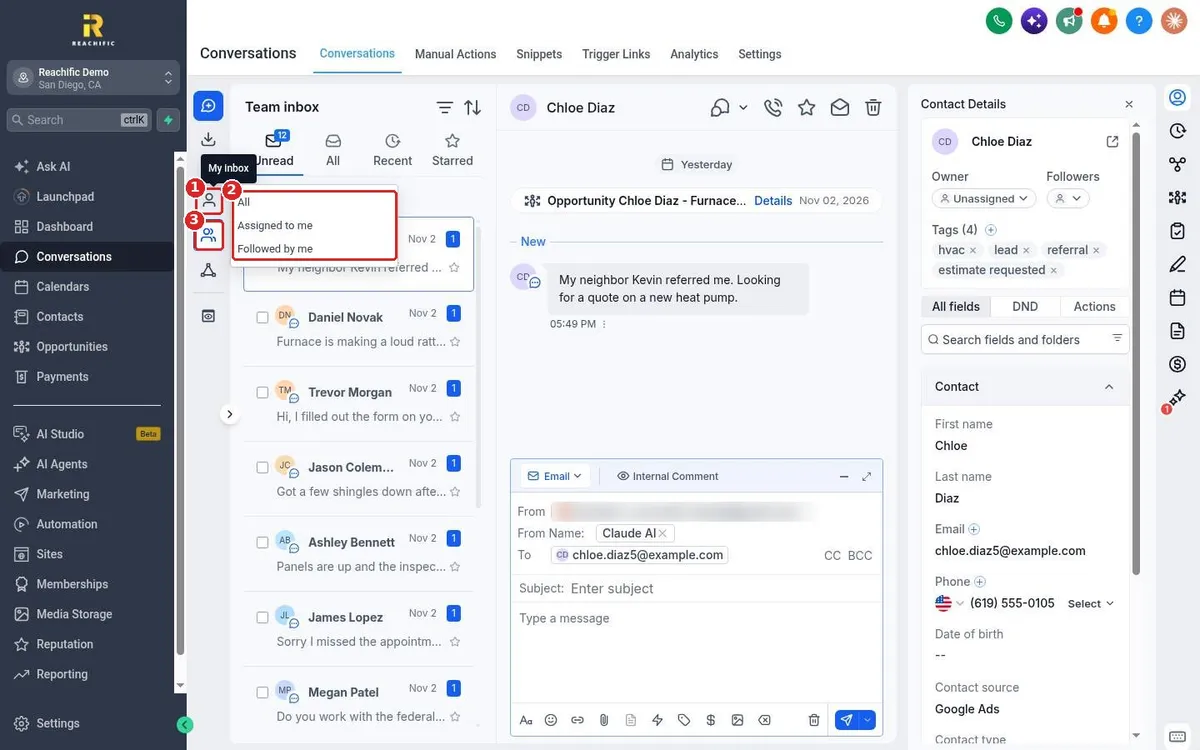
Quick answer: In Conversations, click the Unread, All, Recent or Starred tab above the list. To see only your conversations, click the My Inbox icon on the far left and choose Assigned to me. For more options, click the filter icon and filter by assigned user, tag, channel and more.
Before you start
- Star important conversations so you can find them fast later.
- Assigned to me only works when conversations are assigned to users. Set the Owner on the contact to assign one.
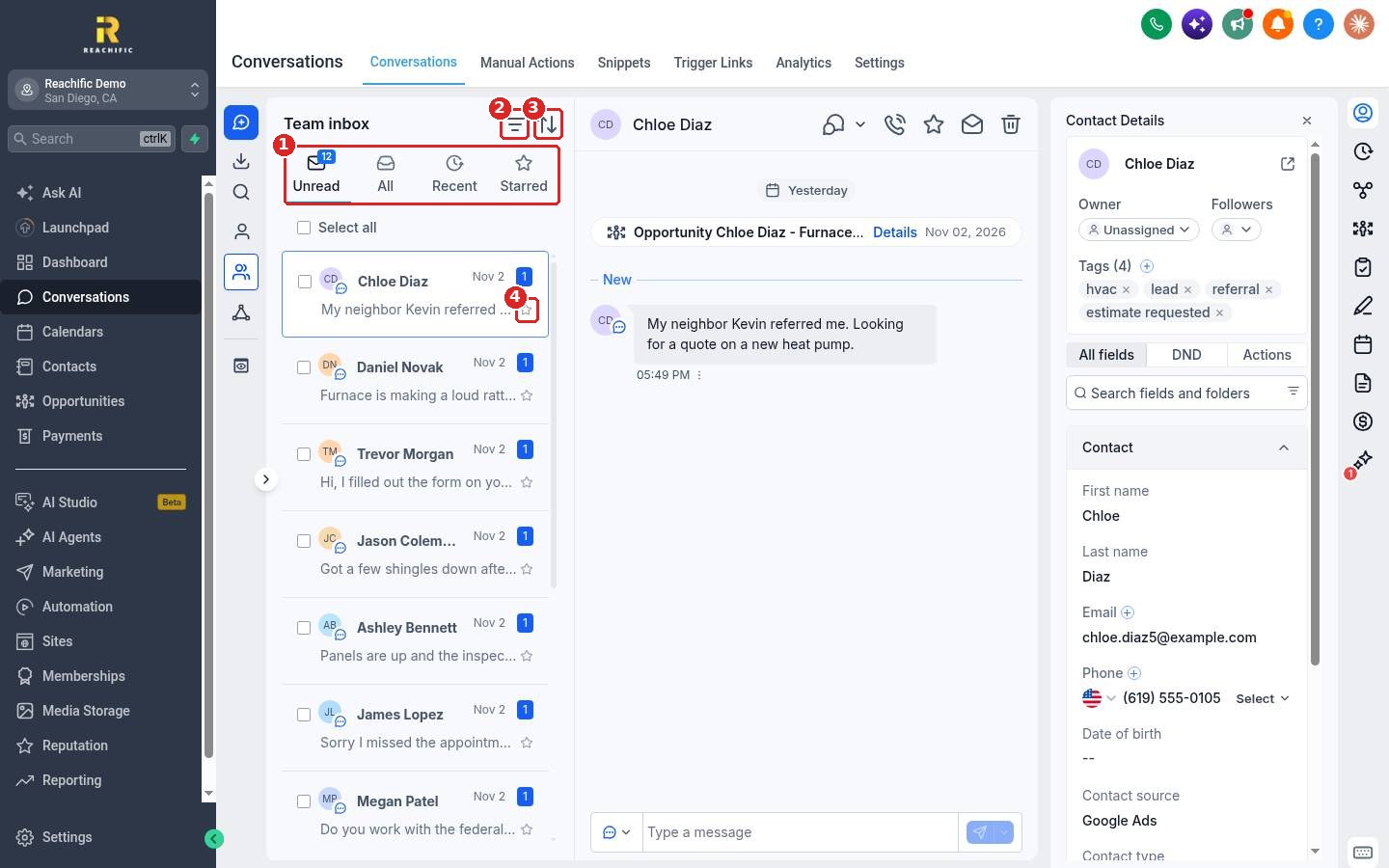
Step 1: Use the inbox tabs
Above the list, click a tab (1): Unread for messages you have not opened, All, Recent or Starred. Click the filter icon (2) for more filters or the sort icon (3) to change the order. Click the star (4) on any conversation to add it to Starred.
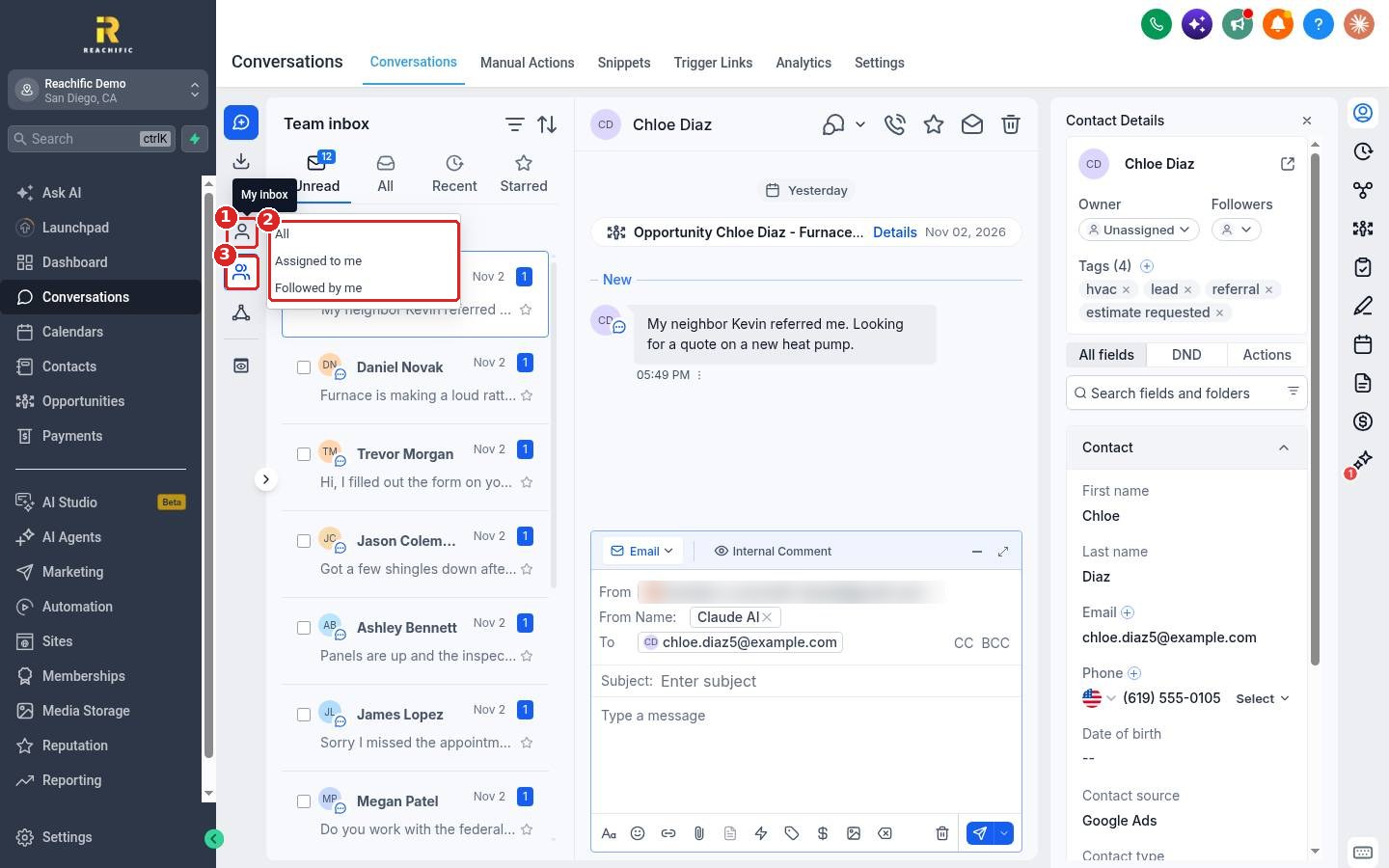
Step 2: Show only your conversations
Click the My Inbox icon (1) in the narrow bar on the left. Choose All, Assigned to me or Followed by me (2). Click the Team inbox icon (3) to go back to everyone's conversations.
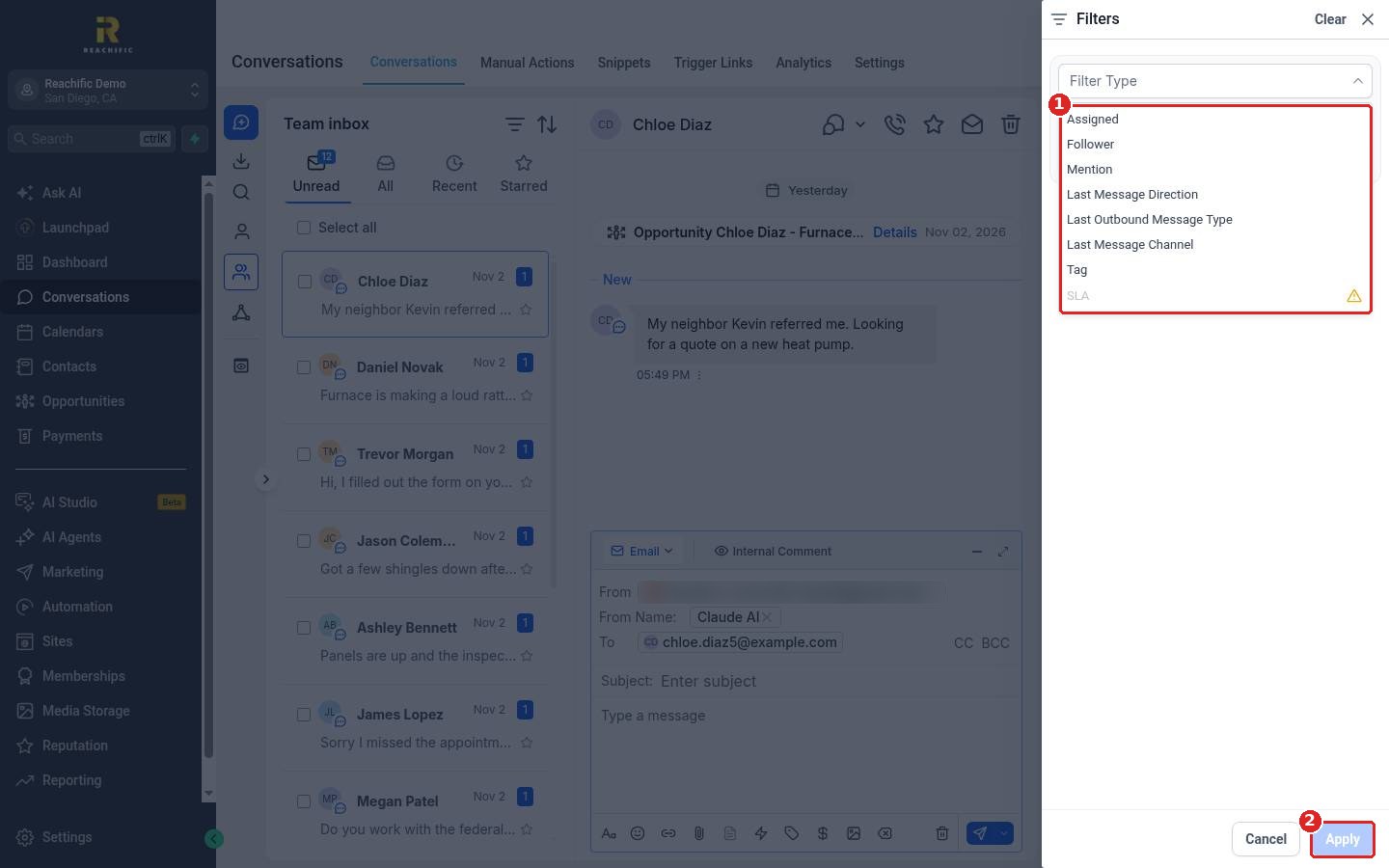
Step 3: Build a custom filter
Click the filter icon to open Filters. Open Filter Type (1) and choose Assigned, Follower, Mention, Last Message Direction, Last Outbound Message Type, Last Message Channel or Tag. Pick a value and click Apply (2).
FAQ
How do I clear a filter?
Open Filters and click Clear at the top right of the panel.
Can I combine filters?
Yes. Add more than one condition and join them with AND or OR.
Why is Assigned to me empty?
No conversations are assigned to you yet. Set yourself as the Owner on a contact to assign their conversation.
Want us to handle it? Our team can set up assignment rules so every lead goes to the right person. Book a free strategy call and get a free quote.
Related articles
- How do I reply to texts, emails and chats from one inbox?
- How do I add a team member?
- How do I send an email from a conversation?
Still stuck? Submit a ticket and our team will help. Need faster answers? See our support plans.
