
How do I connect Zapier or Make?
Quick answer: Open App Marketplace and search Zapier or Make. Open the app card, click Install and approve with Allow & install. Then build your Zap or Make scenario and pick your Reachific account when asked. For custom builds, create a private integration key and paste it into the tool.
Before you start
- Have your Zapier or Make login ready.
- For simple sends to another tool, a workflow Webhook action may be all you need.
Step 1: Find the app
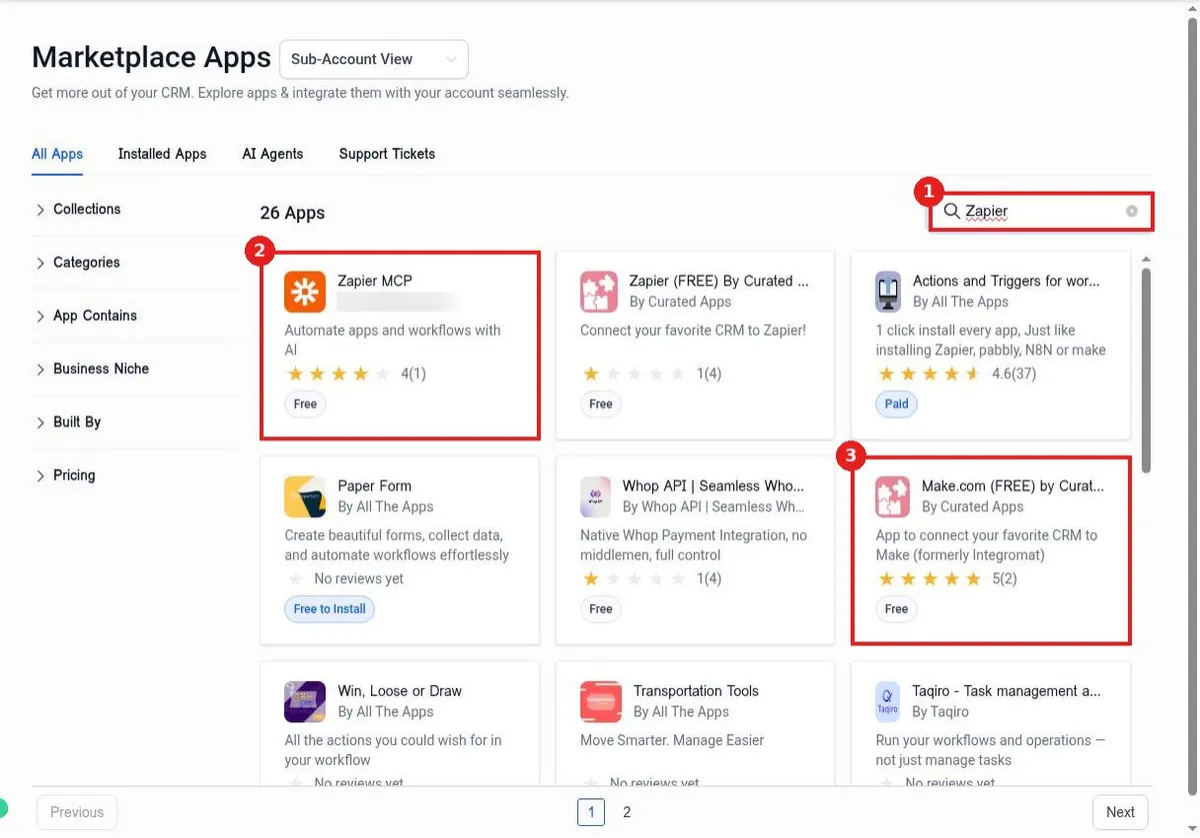
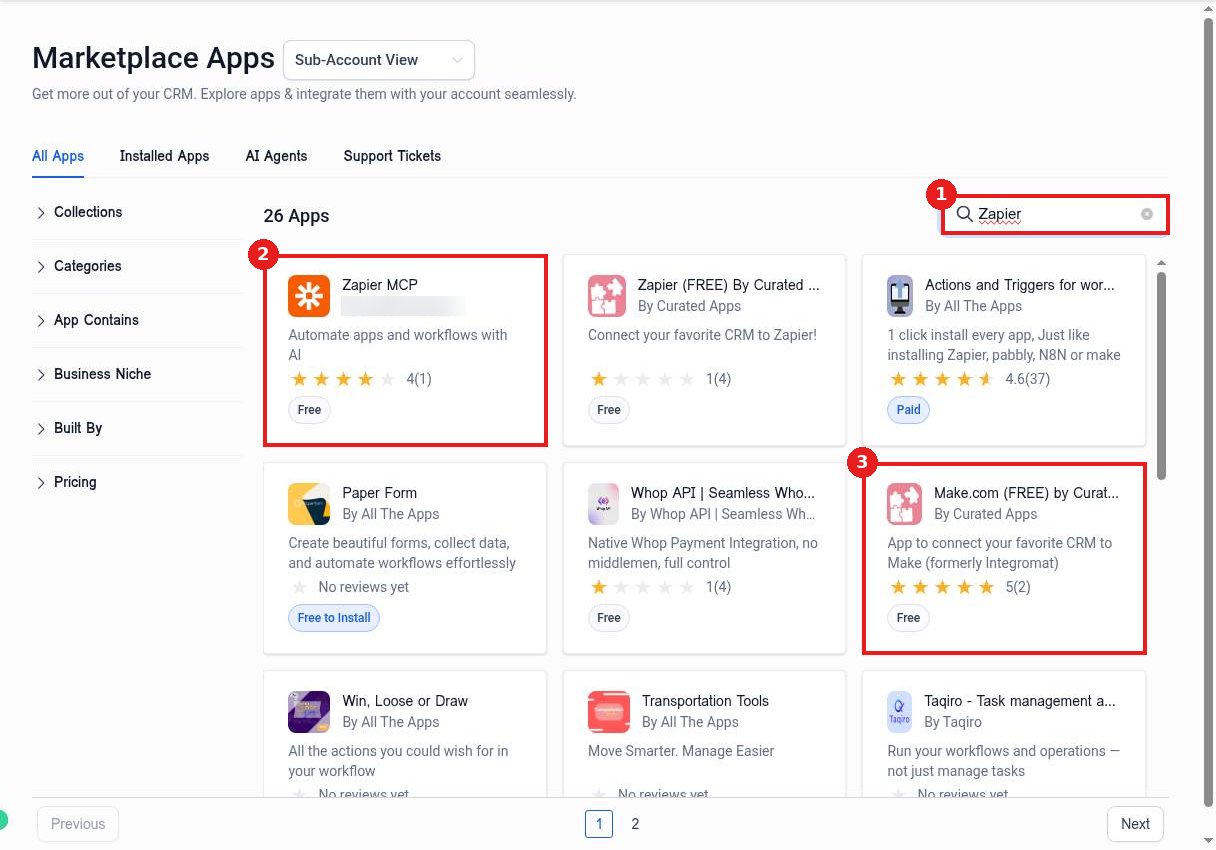
Type Zapier in Search Apps (1). Pick the Zapier app (2), or the Make app (3) for Make scenarios.
Step 2: Install it
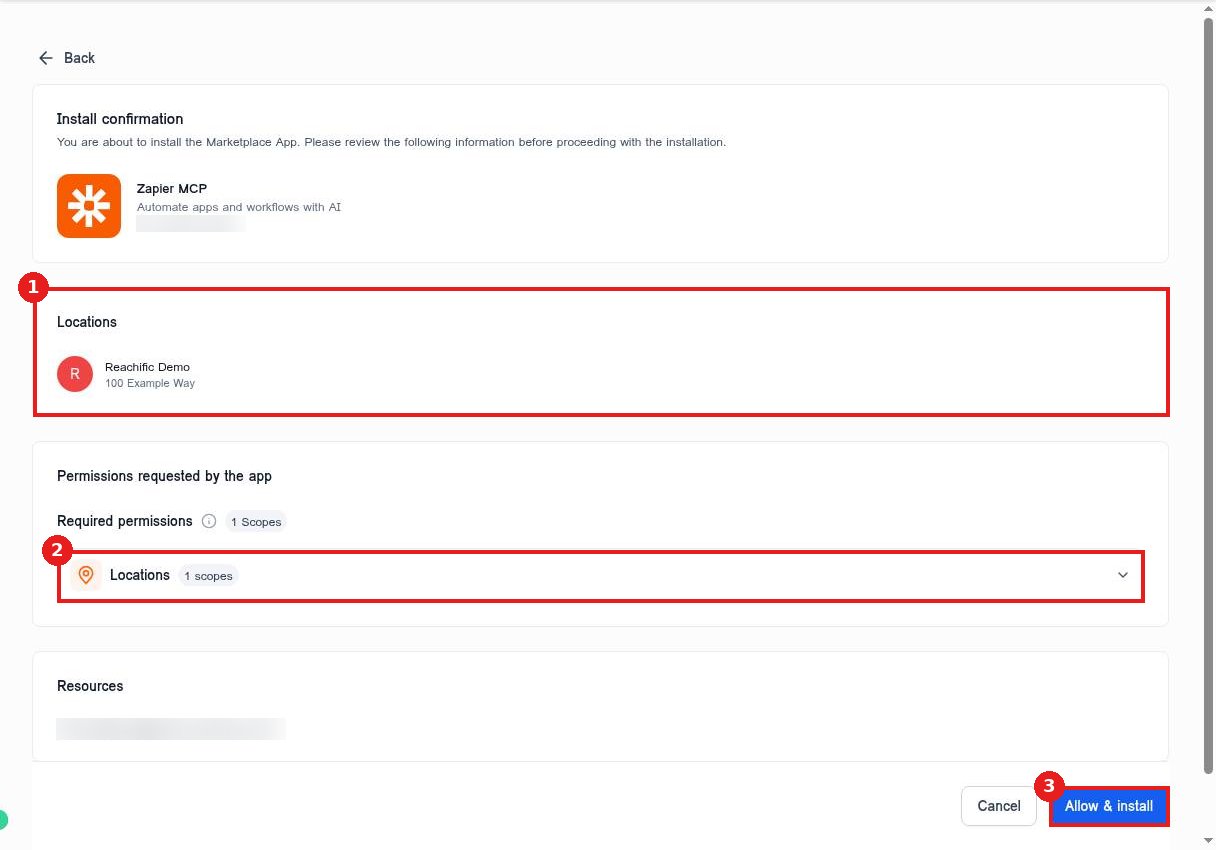
Open the app and click Install. Confirm the account (1), check the permissions (2) and click Allow & install (3).
Step 3: Connect from Zapier or Make
In Zapier or Make, add a step for the app, click to sign in, and choose your Reachific account. Test the step so you see real contact data come through.
Step 4: Use a key for custom builds
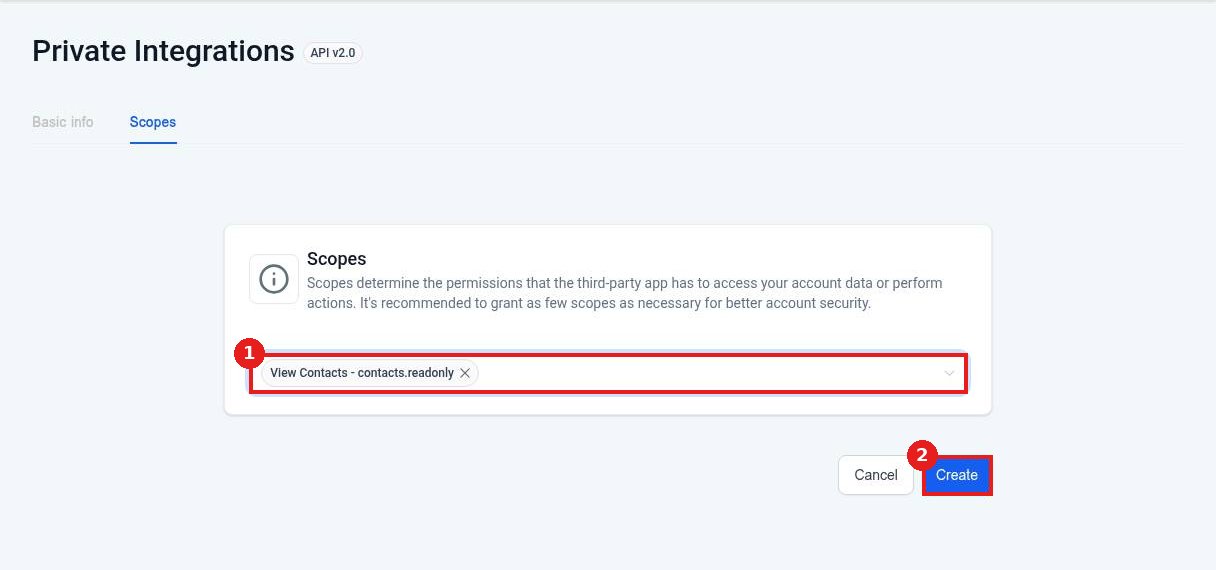
If a tool asks for an API key, create one in Settings > Private Integrations with only the scopes it needs (1) and click Create (2).
FAQ
Should I use Zapier or Make?
Both work. Use the one your team already knows. Make is often cheaper for high volume.
Can a workflow send data to Zapier or Make?
Yes. Add a Webhook action in a workflow and paste the hook URL from Zapier or Make.
Is there a cost?
The apps are free to install. Zapier and Make bill for their own plans.
Want us to handle it? Our team connects your tools, sets up the automations between them and tests every step so leads never slip through. Book a free strategy call and get a free quote.
Related articles
- How do I install an app from the App Marketplace?
- How do I create a private integration API key?
- How do I add actions like send text, send email and wait?
Still stuck? Submit a ticket and our team will help. Need faster answers? See our support plans.
