
How do I connect QuickBooks?
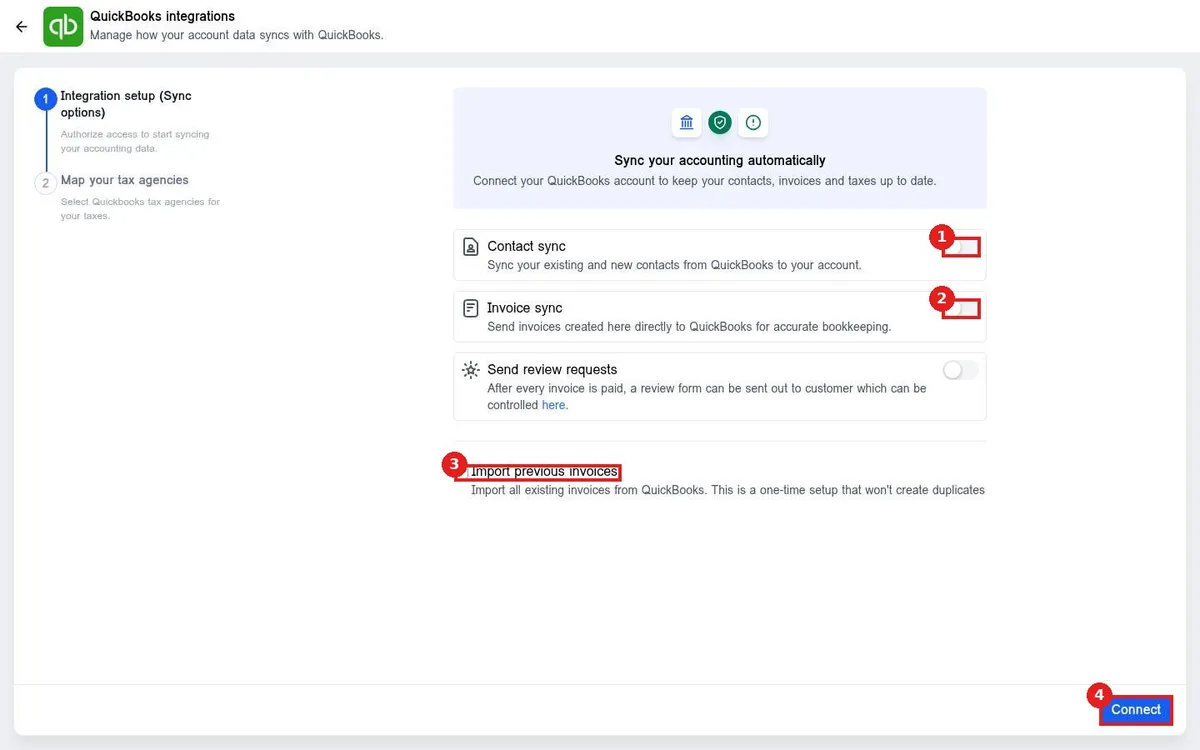
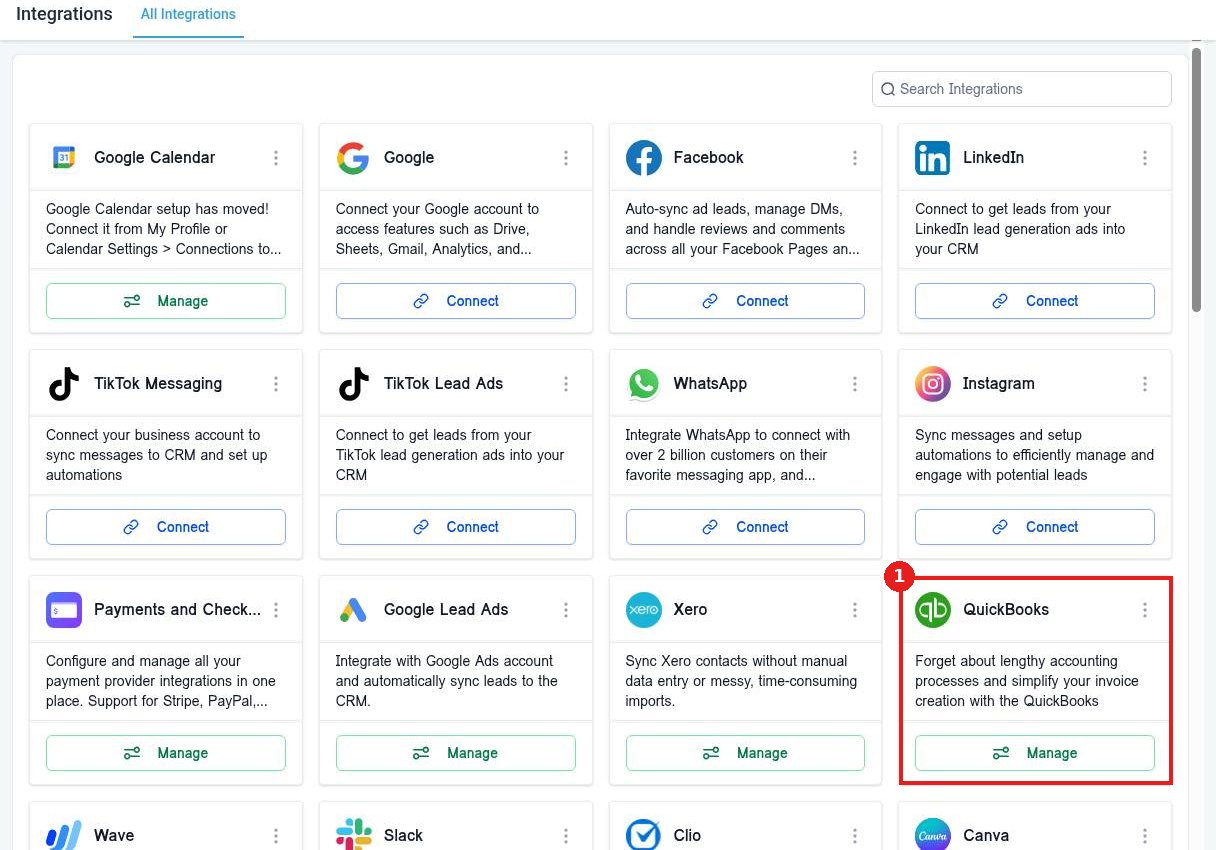
Quick answer: Go to Settings > Integrations and click Manage on the QuickBooks card. Turn on Contact sync and Invoice sync, tick Import previous invoices if you want old invoices brought in, then click Connect and sign in to QuickBooks. Finish by mapping your QuickBooks tax agencies.
Before you start
- You need a QuickBooks Online login with admin rights.
- Set up your taxes in Payments first so they map cleanly.
Step 1: Open the QuickBooks card
In Settings > Integrations find QuickBooks and click Manage (1).
Step 2: Pick sync options
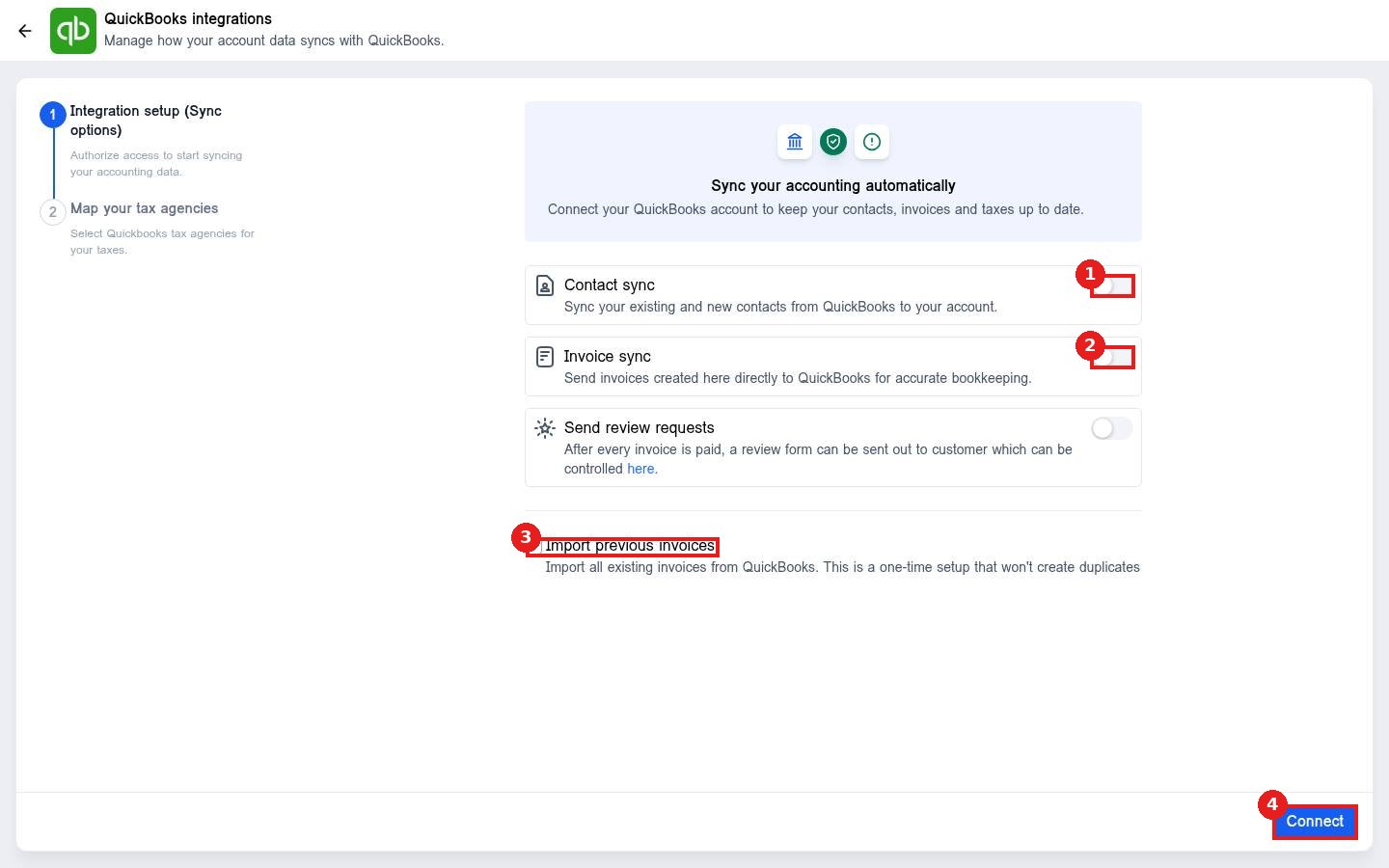
Turn on Contact sync (1) to bring QuickBooks customers into Contacts and Invoice sync (2) to send invoices you create here to QuickBooks. Tick Import previous invoices (3) for a one time import. Click Connect (4).
Step 3: Sign in and map taxes
Sign in to QuickBooks and approve access. On Map your tax agencies, match each tax to its QuickBooks agency and save.
FAQ
Will importing old invoices create duplicates?
No. The one time import skips invoices that already exist.
Can review requests go out after an invoice is paid?
Yes. Turn on Send review requests on the same screen.
Does it work with QuickBooks Desktop?
It connects to QuickBooks Online.
Want us to handle it? Our team sets up invoicing, payments and bookkeeping syncs so your numbers match without double entry. Book a free strategy call and get a free quote.
Related articles
- How do I install an app from the App Marketplace?
- How do I set my payment and tax settings?
- How do I connect Google, Facebook and other integrations?
Still stuck? Submit a ticket and our team will help. Need faster answers? See our support plans.
