
How do I connect Google, Facebook and other integrations?
Quick answer: Go to Settings > Integrations. Find the service in the list or type it in Search Integrations. Click Connect, sign in with the account that owns the page or business, and approve the access it asks for. Connected services show Manage.
Before you start
- Sign in with the Google or Facebook login that is an admin of your business page, ad account or Business Profile.
- Pop up blockers can stop the sign in window. Allow pop ups for the app first.
Step 1: Open Integrations
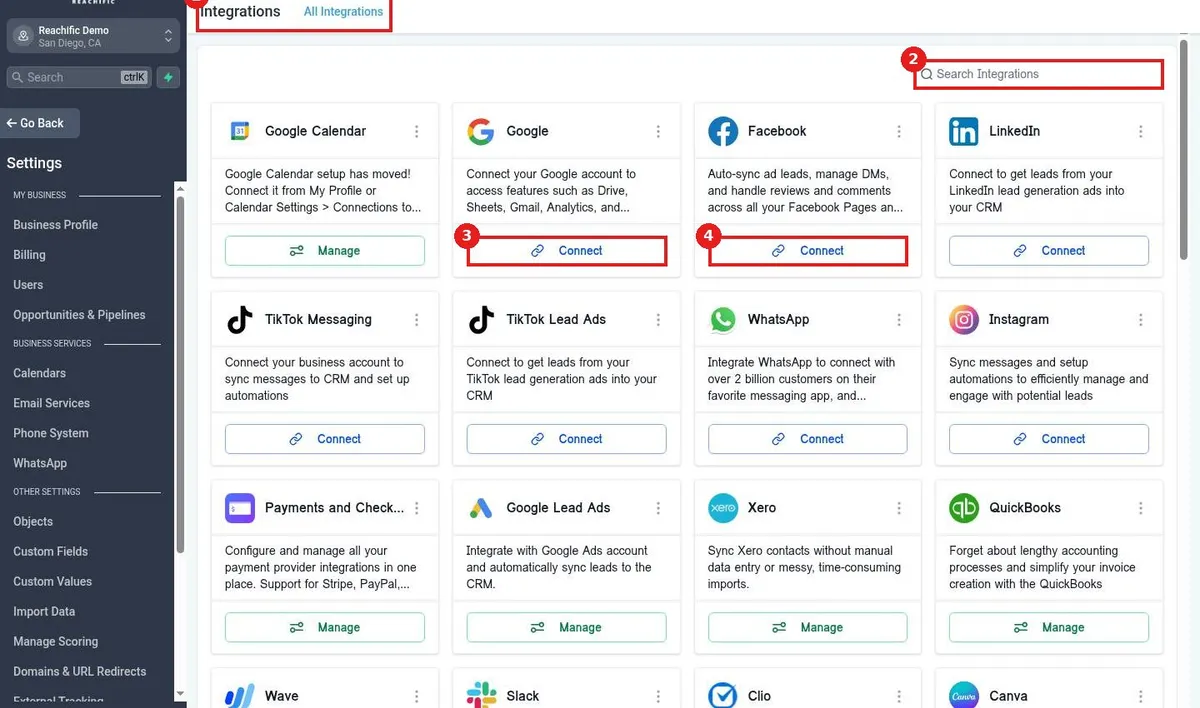
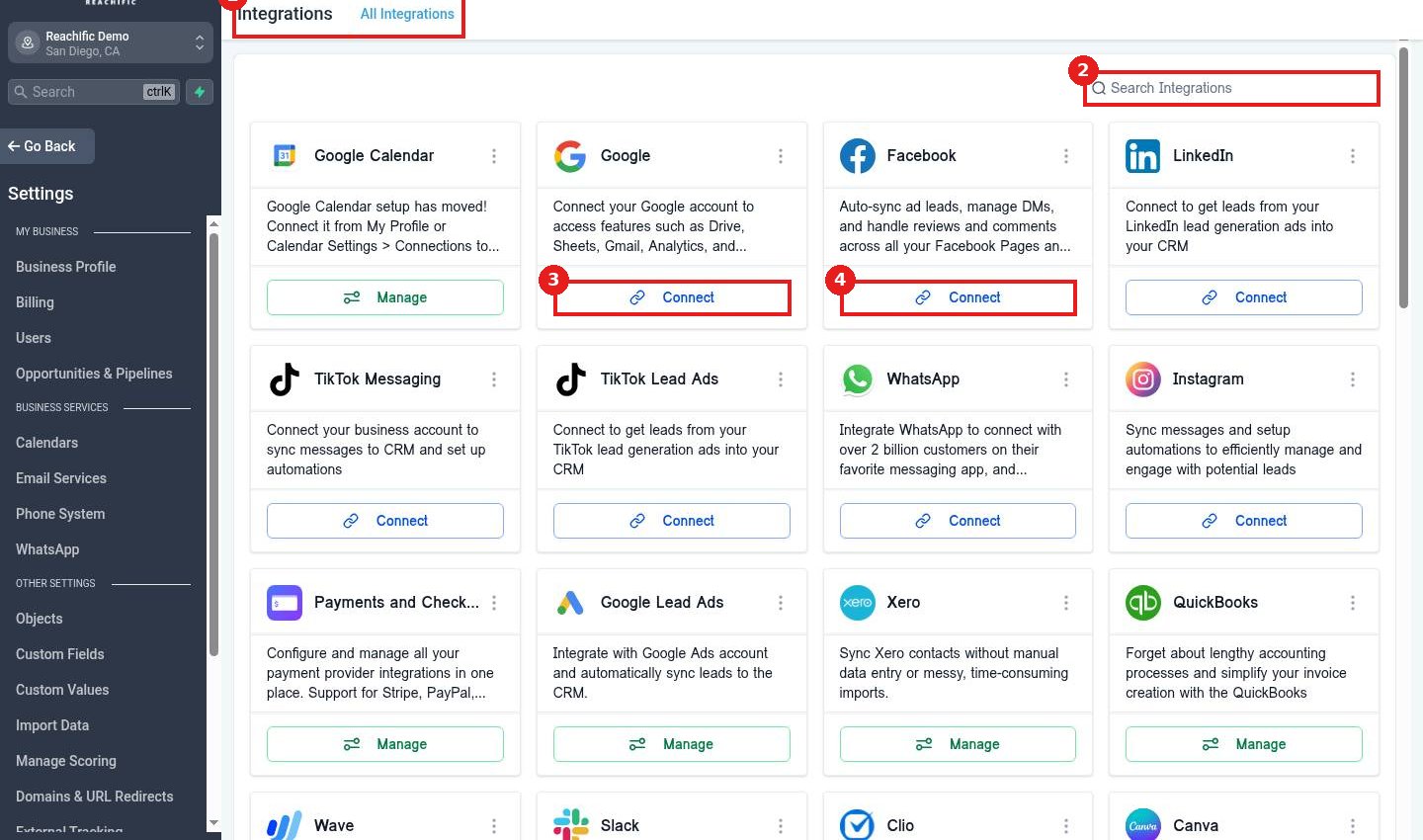
In Settings open All Integrations (1). Use Search Integrations (2) to filter. Click Connect on Google (3) or Facebook (4).
Step 2: Find related connections
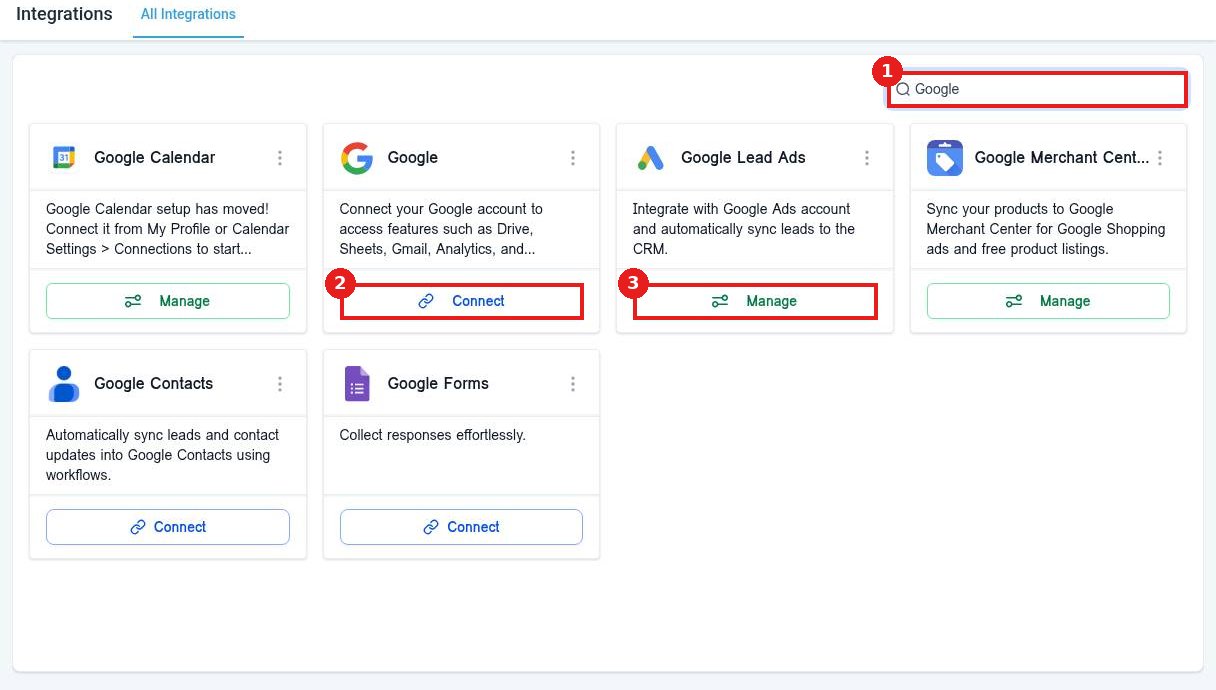
Search a brand name, such as Google (1), to see every connection for it. Click Connect (2) for the main account, or Manage (3) on a connection that is already set up.
Step 3: Sign in and approve
A sign in window opens. Choose your account, pick the pages, ad accounts or locations to share, and approve. Back in Reachific the card now shows Manage.
FAQ
What can I do after connecting Google?
Use your Google Business Profile for reviews and posts, Google Ads leads and reporting, and other Google features.
What does connecting Facebook give me?
Messenger and comments in Conversations, lead form syncing, reviews and social posting.
Where is Google Calendar?
Connect it from your user profile or calendar settings so each team member links their own calendar.
Want us to handle it? Our team connects your tools, sets up the automations between them and tests every step so leads never slip through. Book a free strategy call and get a free quote.
Related articles
- How do I install an app from the App Marketplace?
- How do I connect my Google Business Profile from the Launchpad?
- How do I connect my Facebook page from the Launchpad?
Still stuck? Submit a ticket and our team will help. Need faster answers? See our support plans.
