
How do I add a reviews widget to my website?
Quick answer: Go to Reputation > Widgets. Click Create new or Edit Widget, pick the review source and layout, and click Save. Then click the code icon, click Copy Code and paste it into your website.
Before you start
- Have at least one review in Reputation so the widget has something to show.
- Know where on your site the widget should appear.
Step 1: Open Widgets
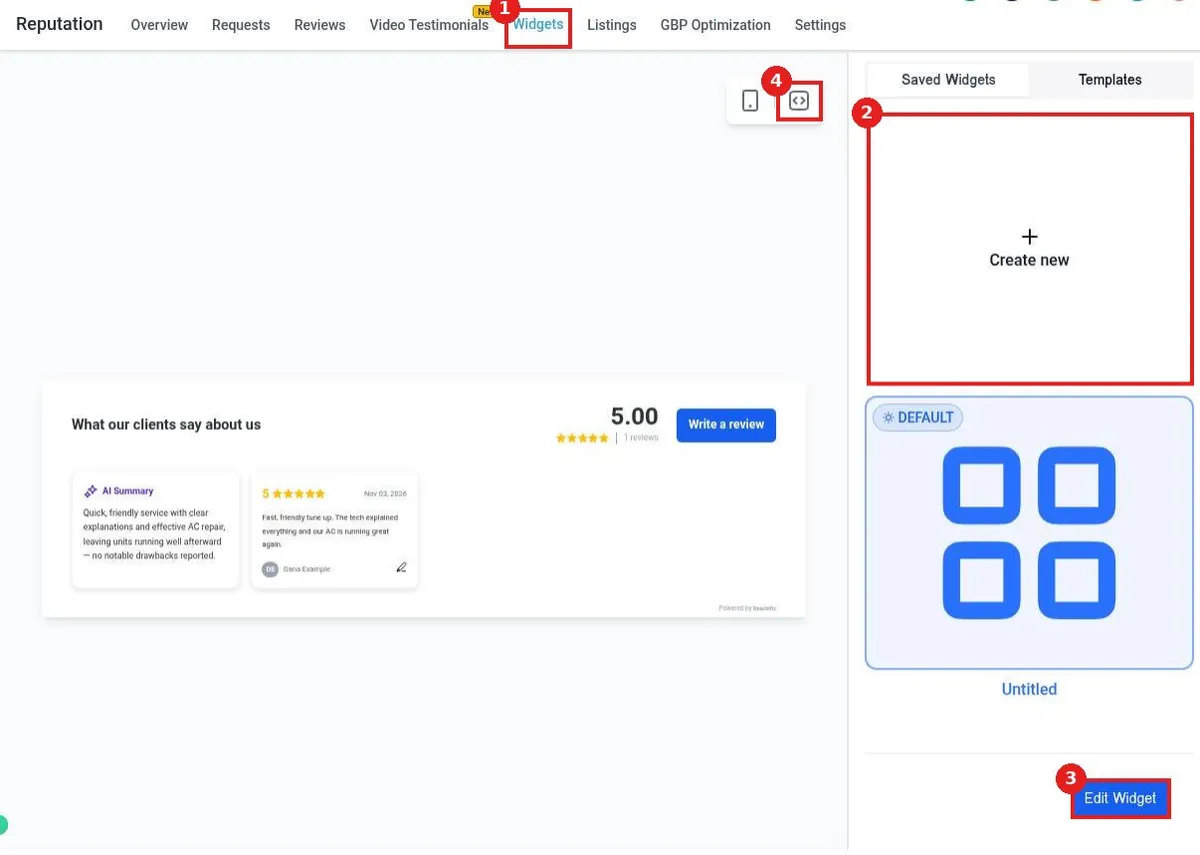
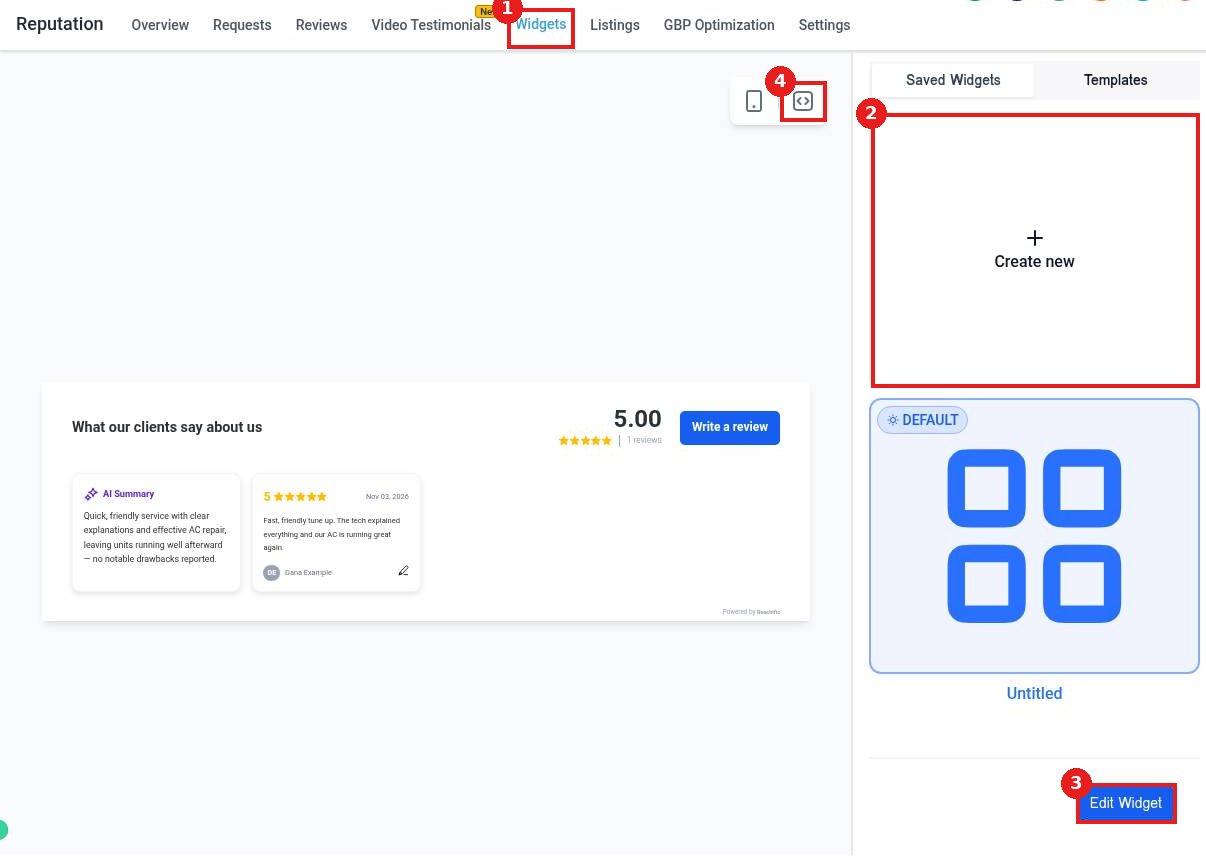
Click the Widgets tab (1). The left side shows a live preview. Click Create new (2) for a fresh widget, or select a saved one and click Edit Widget (3). The code icon (4) above the preview gives you the embed code.
Step 2: Choose what the widget shows
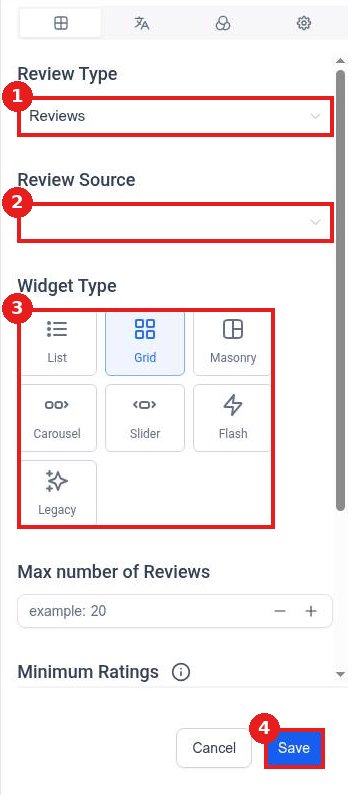
Set the Review Type (1) and Review Source (2). Pick a Widget Type (3) such as List, Grid, Carousel or Slider. Use the tabs at the top to change text, colors and settings. Click Save (4).
Step 3: Copy the code and add it to your site
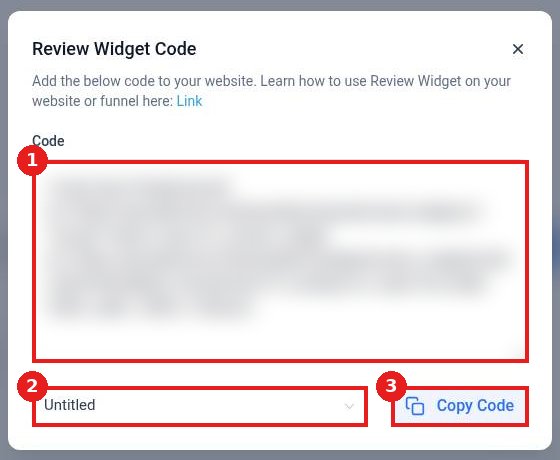
Click the code icon. The Code box (1) holds the embed code. Pick the widget (2) if you have more than one, then click Copy Code (3). Paste it into a Custom HTML or code element on your website or funnel page.
FAQ
Does the widget update by itself?
Yes. New reviews show up automatically. You do not need to paste the code again.
Can I hide low ratings?
Yes. Set Minimum Ratings in the widget editor.
Does it work on WordPress or other sites?
Yes. Paste the code into any page that accepts HTML.
Want us to handle it? Our team sets up review requests, AI replies and widgets so your star rating grows on autopilot. Book a free strategy call and get a free quote.
Related articles
Still stuck? Submit a ticket and our team will help. Need faster answers? See our support plans.
