
How do I add and reorder funnel steps?
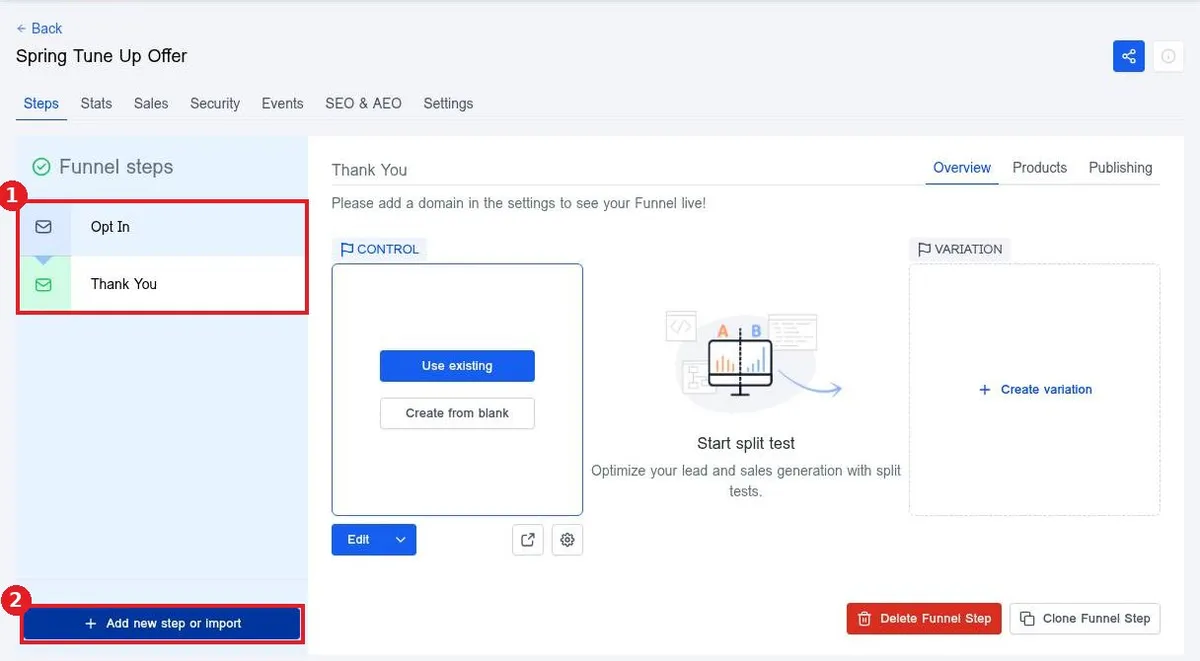
Quick answer: Open the funnel and click Add new step or import. Enter a Name for page and a Path, then click Create funnel step. To change the order, drag a step up or down in the Funnel steps list.
Before you start
- Visitors move through steps from top to bottom, so put the first page they should see at the top.
- Each step needs its own path, such as /offer or /thank-you.
Step 1: Add a new step
In the funnel, click Add new step or import. Type the Name for page (1) and the Path (2). Click Create funnel step (3).
Step 2: Reorder the steps
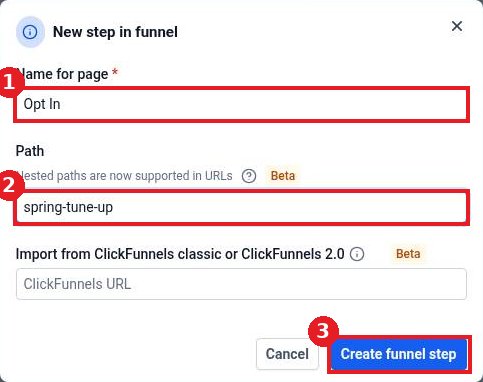
Your steps show in the Funnel steps list (1). Click and drag a step above or below another to change the order. Use Add new step or import (2) to add more.
Step 3: Remove or copy a step
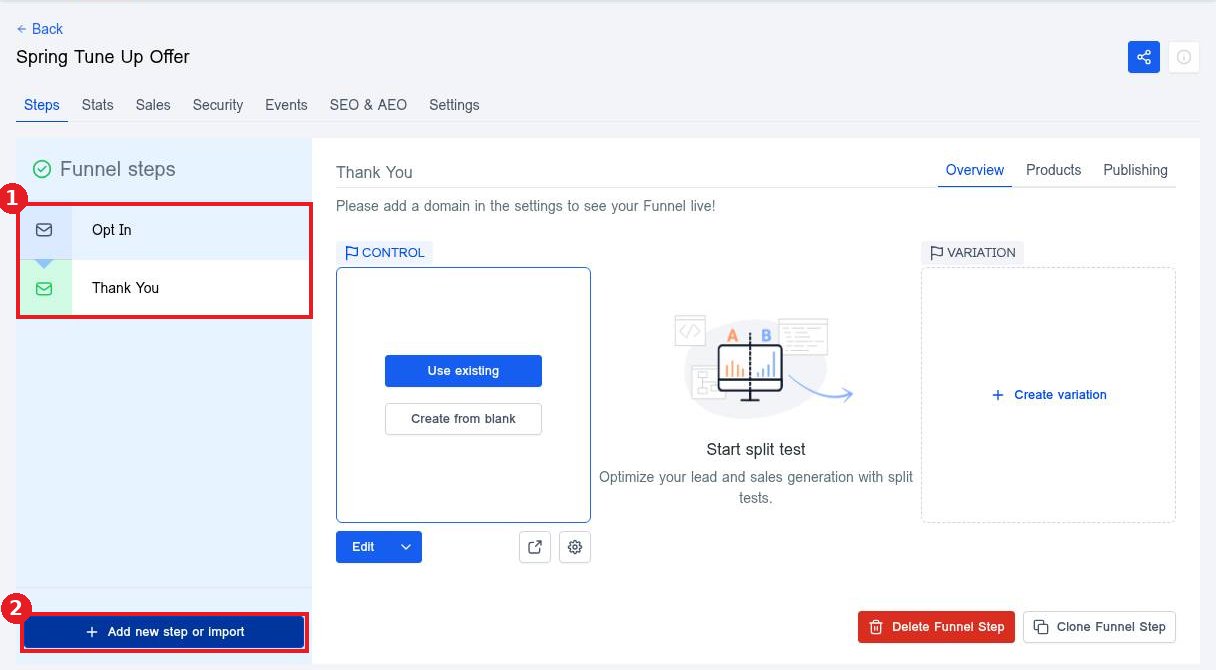
Select a step. Click Delete Funnel Step (1) to remove it or Clone Funnel Step (2) to copy it. The Publishing tab (3) holds the step name and URL.
Step 4: Rename a step or change its URL
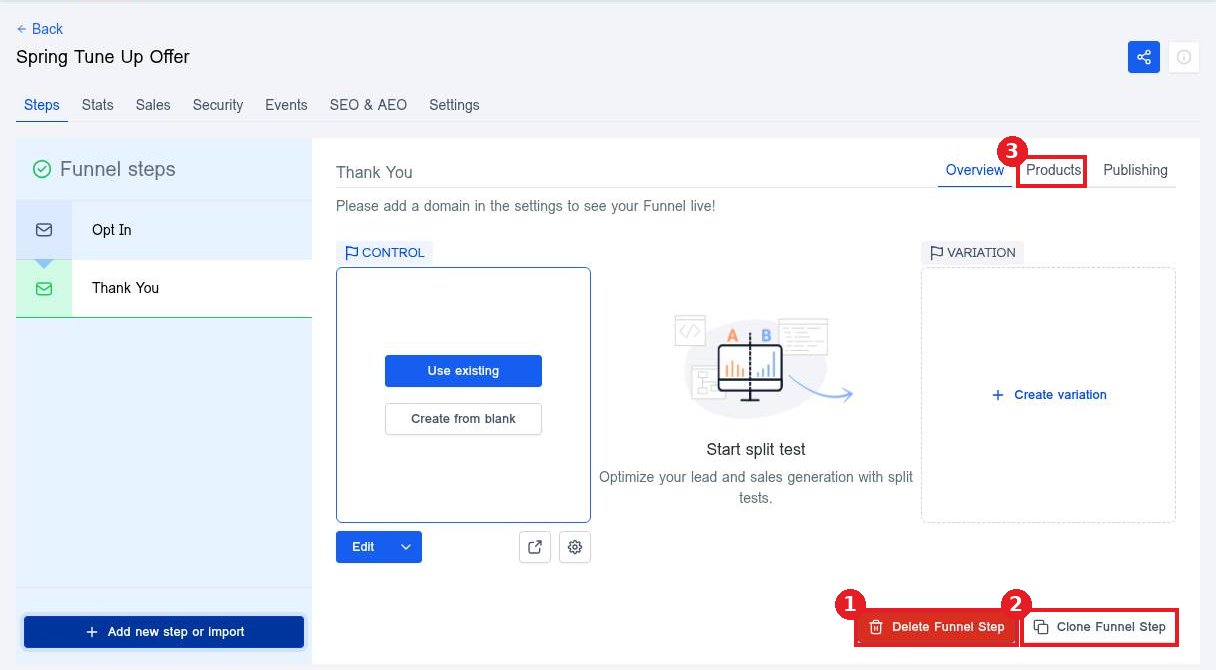
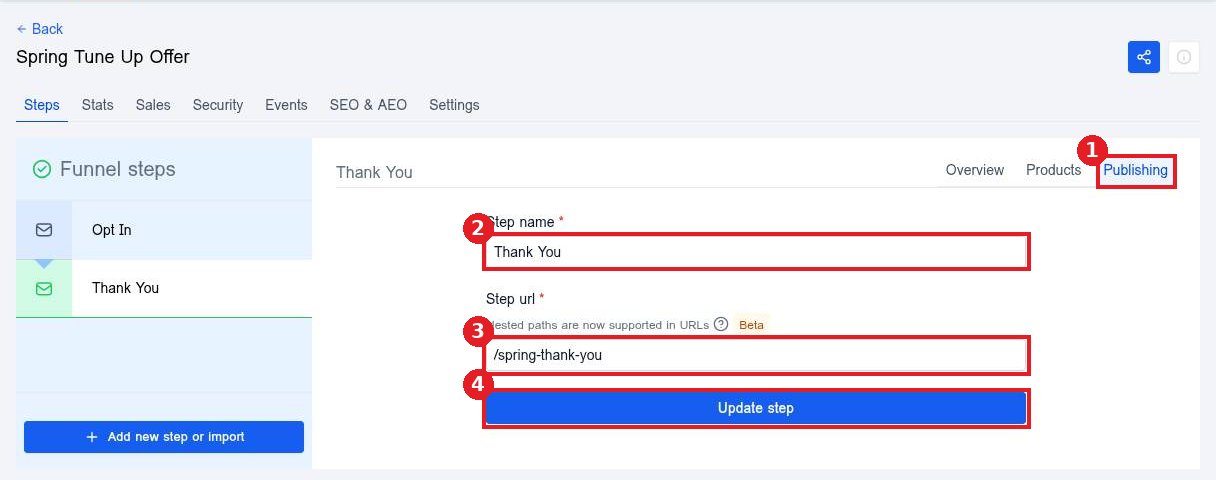
Open the Publishing tab (1). Edit the Step name (2) or Step url (3) and click Update step (4).
FAQ
Does reordering steps change my links?
No. Each step keeps its own path. Reordering only changes which page comes next.
Can I import a page from another builder?
Yes. The new step dialog has an import field for a page URL from another funnel builder.
What happens to buttons that point to the next step?
Buttons set to go to the next step follow the new order after you drag the steps.
Want us to handle it? Our team designs and builds fast, mobile friendly websites that turn visitors into leads, then keeps them updated for you. Book a free strategy call and get a free quote.
Related articles
- How do I create a funnel?
- How do I edit text and images on a page?
- How do I publish my website changes?
Still stuck? Submit a ticket and our team will help. Need faster answers? See our support plans.
