
How do I add a product and checkout to a funnel?
Quick answer: In your funnel, select the step that will take payment and open its Products tab. Click Add Product, pick the product, set the Product name and optional Price display override, and click Save. Then add an order form to that step page in the builder.
Before you start
- Create the product first in Payments > Products, with its price.
- Connect a payment processor in Payments so the checkout can charge cards.
Step 1: Open the step Products tab
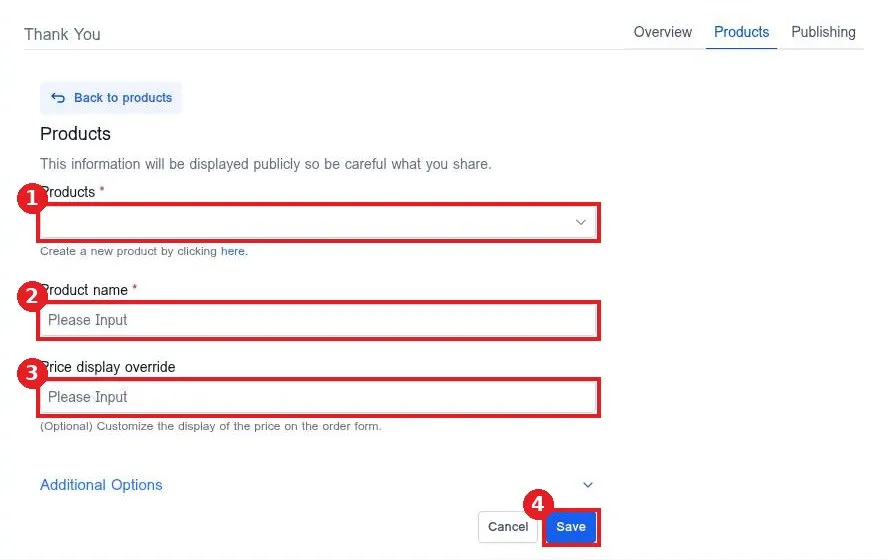
Select the checkout step in the funnel steps list (1). Open the Products tab (2) and click Add Product (3).
Step 2: Pick the product and save
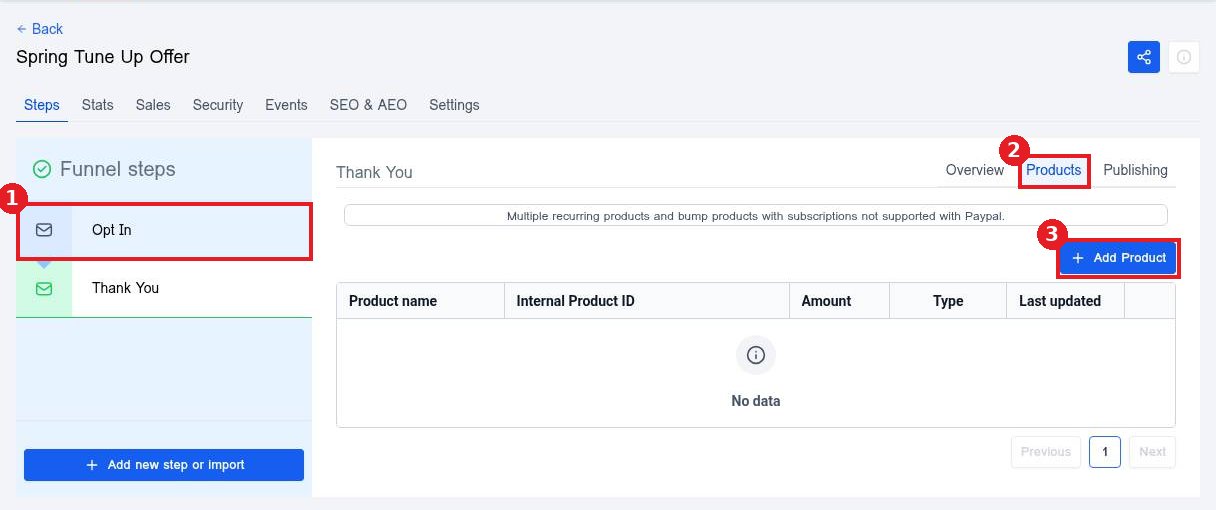
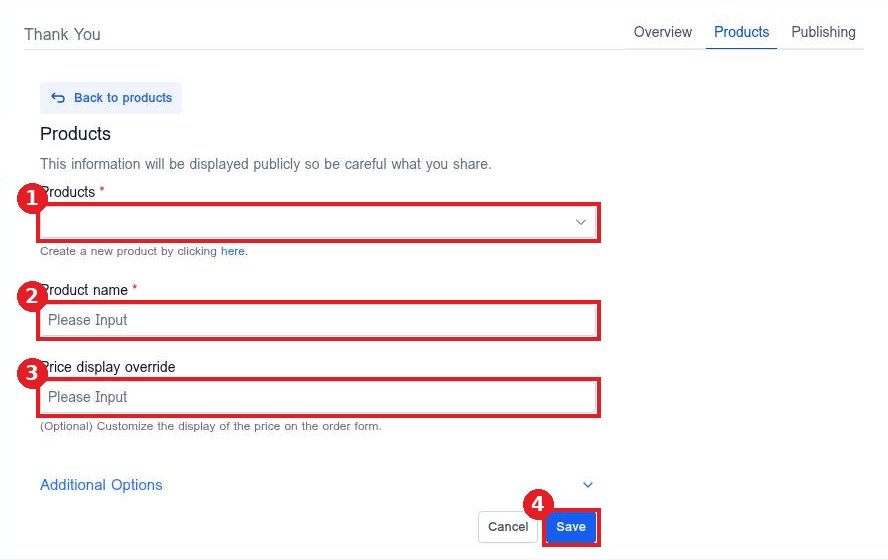
Choose the product in Products (1). Set the Product name (2) buyers will see. Use Price display override (3) only if you want custom price text on the order form. Click Save (4).
Step 3: Add the order form to the page
Click Edit on the step to open the builder. Add an order form element where buyers enter their details and card, then save and publish the page. The form charges for the products you added to that step.
FAQ
Can I sell more than one product on a step?
Yes. Add each product with Add Product. They all show on the step order form.
Why is my product not in the list?
Only products created in Payments show here. Create it there first, then come back and refresh.
Can I add an upsell after checkout?
Yes. Add another step after the checkout step, give it its own product and a one click upsell form.
Want us to handle it? Our team designs and builds fast, mobile friendly websites that turn visitors into leads, then keeps them updated for you. Book a free strategy call and get a free quote.
Related articles
Still stuck? Submit a ticket and our team will help. Need faster answers? See our support plans.
