
How do I add the chat widget to my website?
Quick answer: Go to Sites > Chat Widget and click New. Pick a chat type, set the style and click Save. Click Get code, copy the code and paste it into the body or footer of your website. On Reachific sites, add it in the site settings or a code element.
Before you start
Decide how visitors should reach you: live chat, a text or email follow up, or Voice AI.
Have access to your website's footer or custom code settings.
Step 1: Open Chat Widget
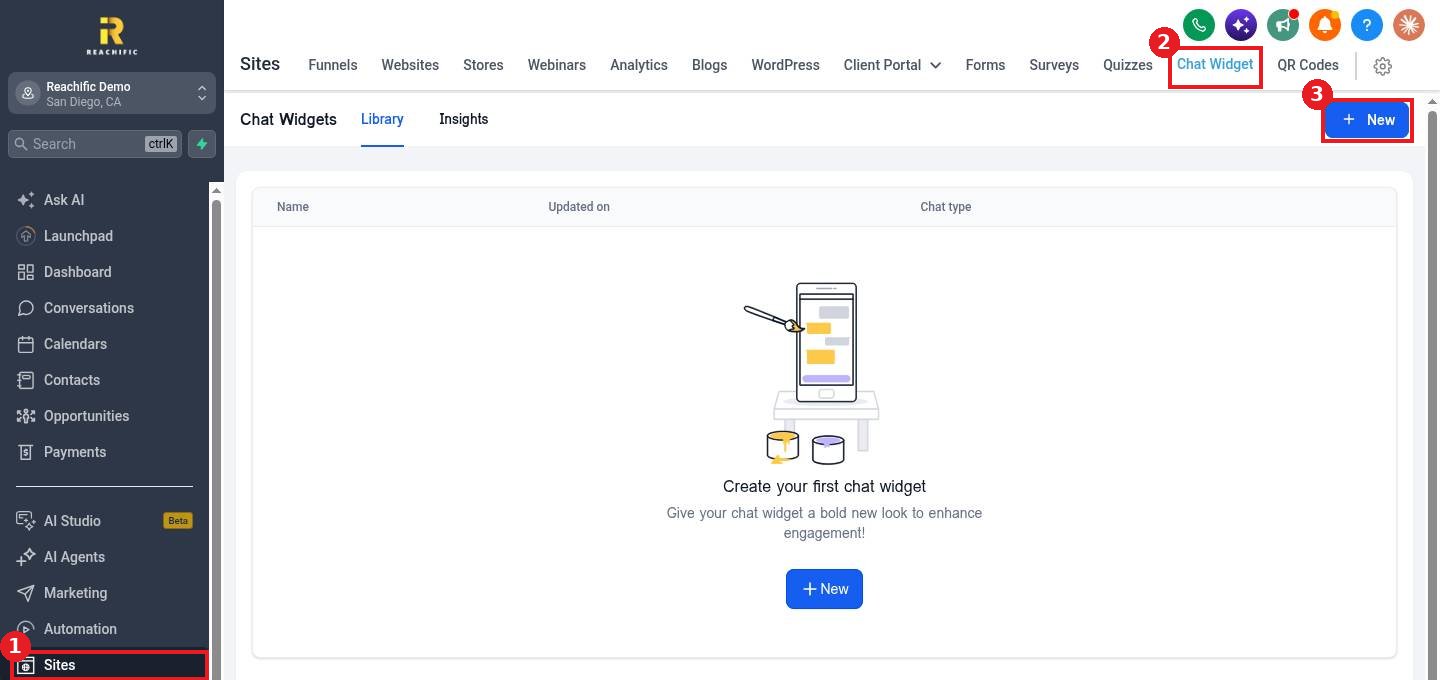
Click Sites (1), open the Chat Widget tab (2) and click New (3).
Step 2: Pick the chat type
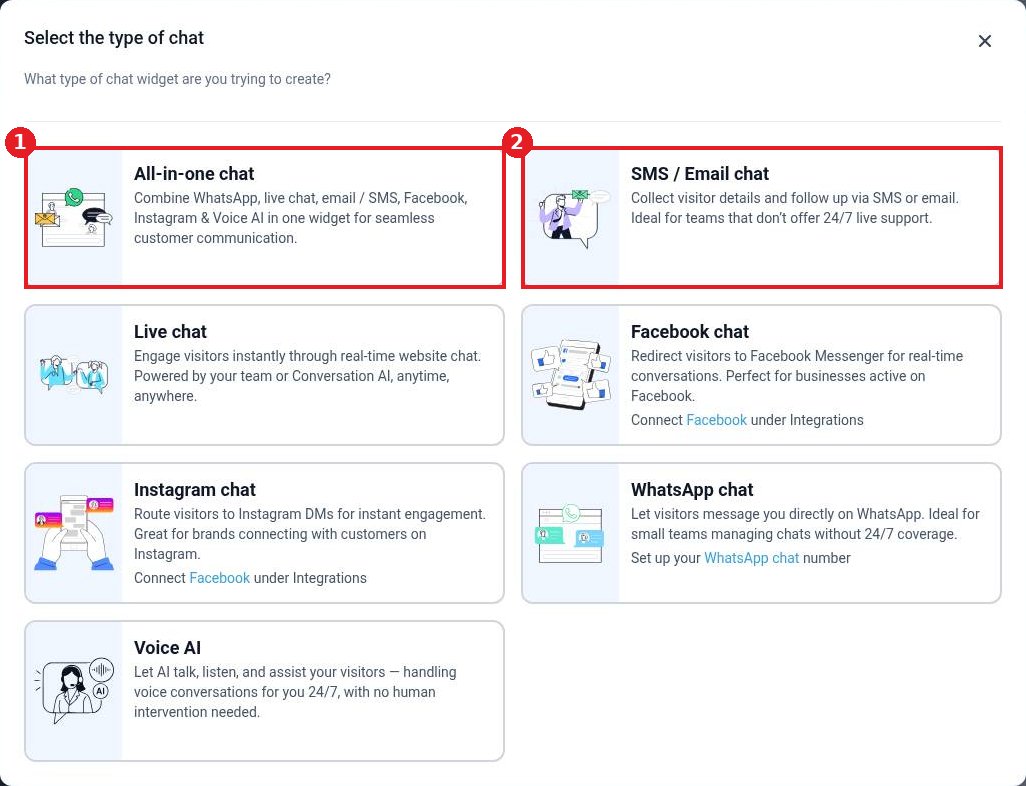
Choose All-in-one chat (1) to offer several channels in one widget, or SMS / Email chat (2) if you do not staff live chat. Other options include Live chat, Facebook, Instagram, WhatsApp and Voice AI.
Step 3: Style the widget and save
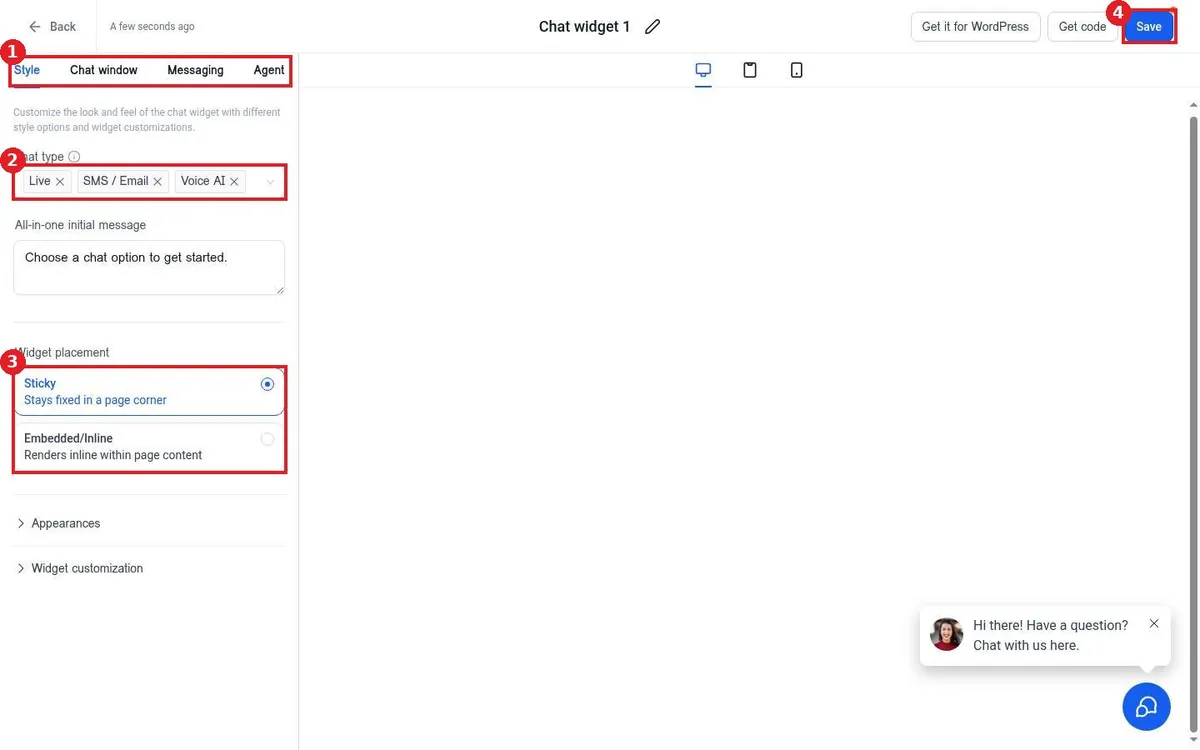
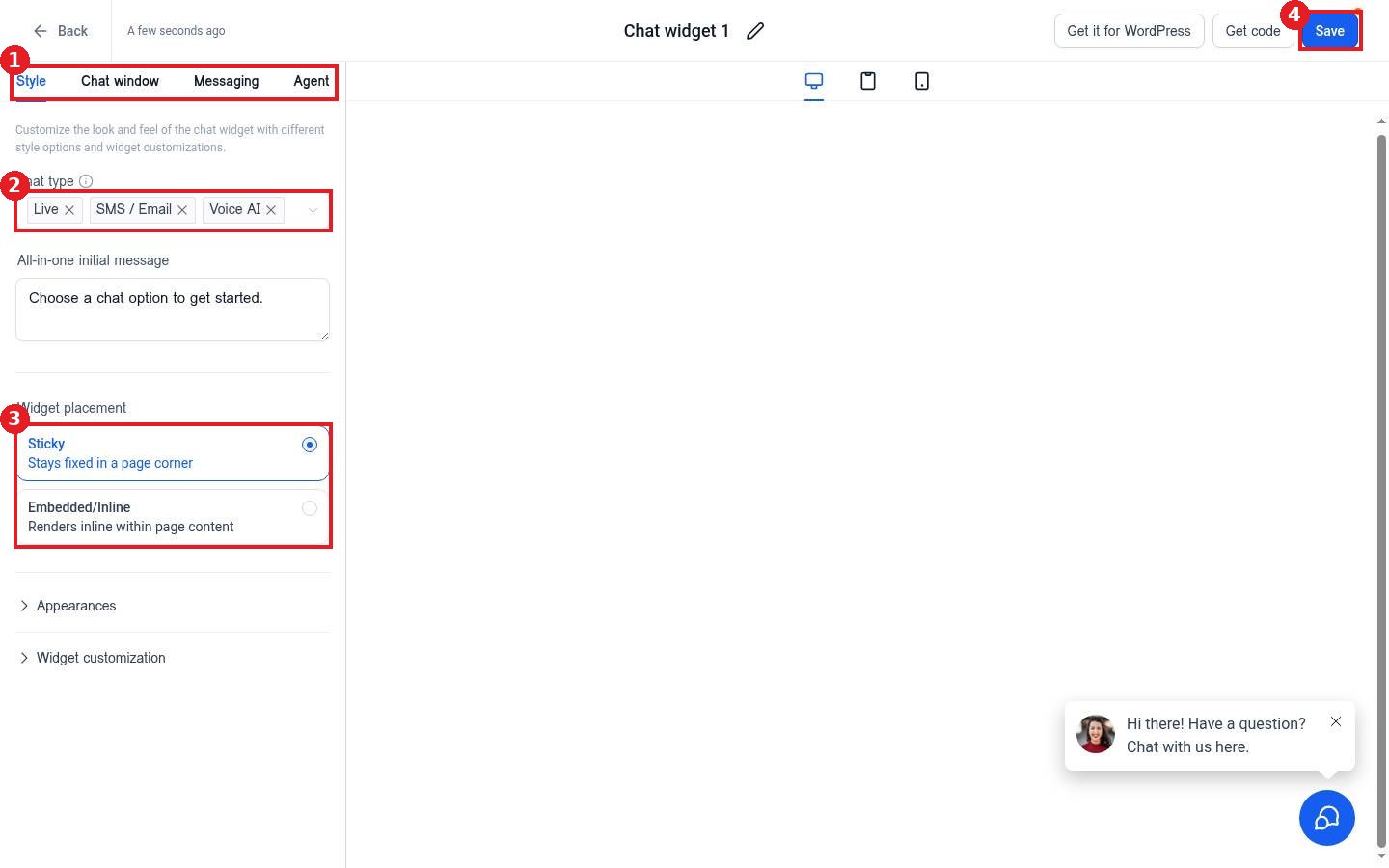
Use the tabs (1) to set the style, chat window, messages and agent. Adjust the Chat type (2) and Widget placement (3). Click Save (4).
Step 4: Copy the code to your site
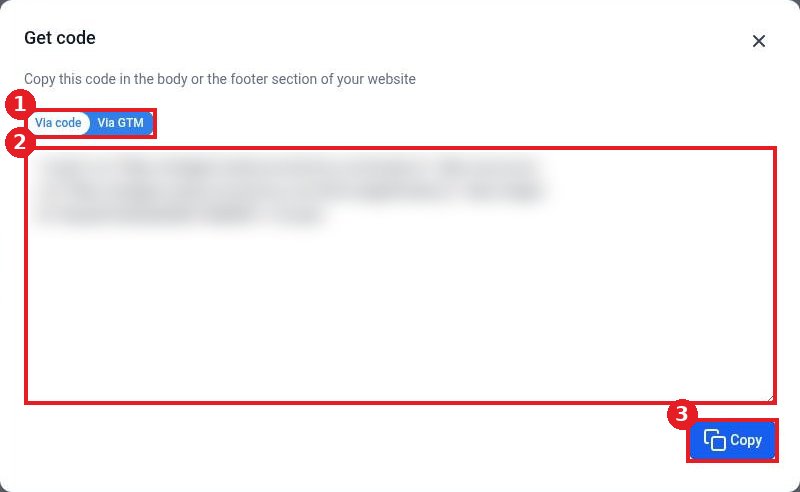
Click Get code. Choose Via code or Via GTM (1). Copy the code (2) with Copy (3) and paste it into your site's body or footer code. For WordPress, use Get it for WordPress.
FAQ
Where do chat messages go?
Every chat lands in Conversations, linked to the contact, so your team can reply from one place.
Can AI answer chats for me?
Yes. Connect a Conversation AI agent in the Agent tab so it replies when your team is away.
Do I need to re-paste the code after changes?
No. Saved changes show on your site automatically.
Related articles
Still stuck? Submit a ticket and our team will help. Need faster answers? See our support plans.
