
How do I see my Google Ads and Facebook Ads results?
Quick answer: Go to Reporting and open Google Ads report or Meta Ads (Facebook Ads) report. Click the link in the banner to connect your ad account, pick the date range, and review impressions, clicks, conversions, spend and each campaign.
Before you start
- You need admin access to the Google Ads or Meta ad account you want to connect.
- Until you connect, the report shows sample data so you can see the layout.
Step 1: Open the Google Ads report
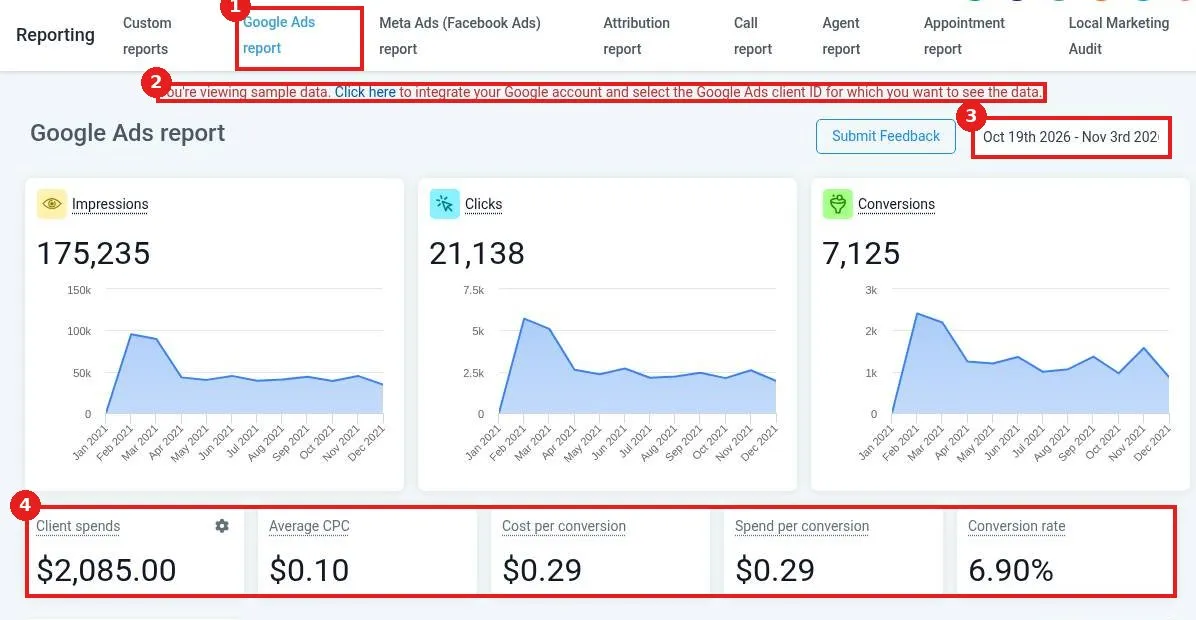
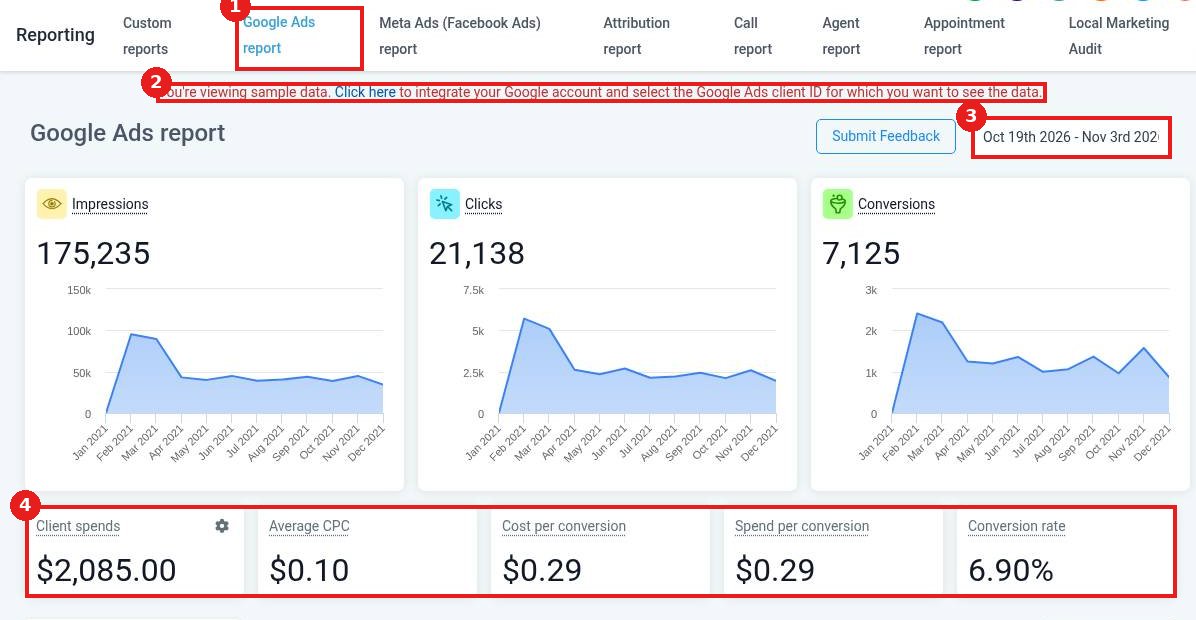
Click the Google Ads report tab (1). If you see the sample data banner (2), click Click here to connect Google and choose your Ads client ID. Set the date range (3). The cards (4) show spend, average cost per click, cost per conversion and conversion rate.
Step 2: Open the Meta Ads report
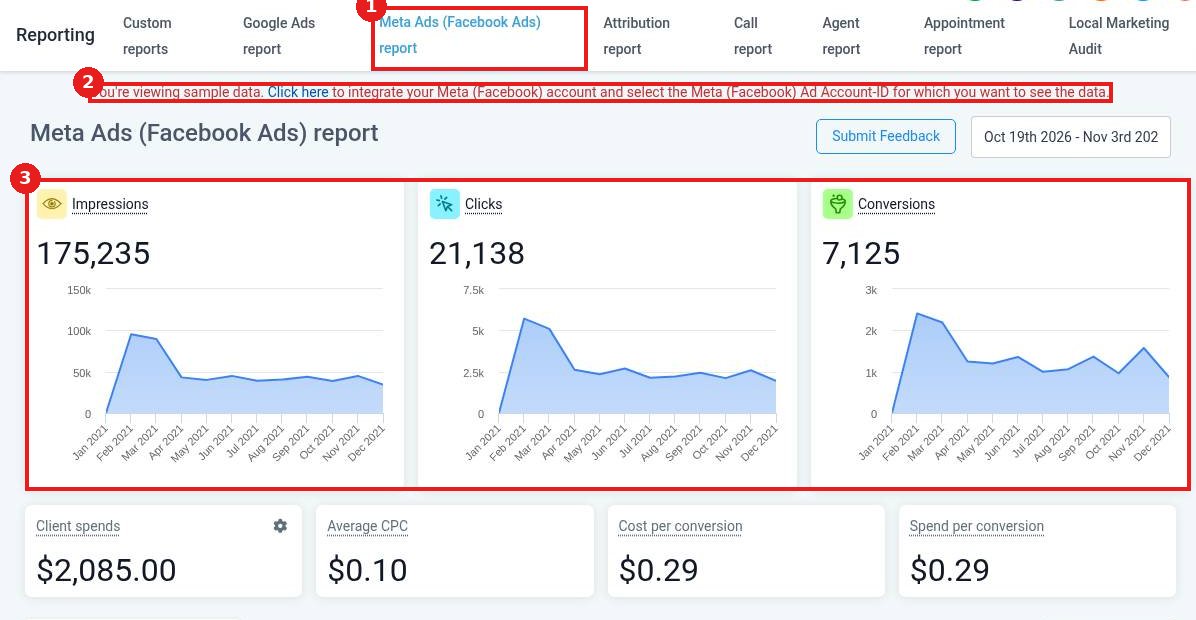
Click the Meta Ads (Facebook Ads) report tab (1). Use the banner (2) to connect your Meta account and pick the Ad Account ID. The charts (3) show impressions, clicks and conversions over time.
Step 3: Review campaigns
Scroll to the campaign table to compare clicks, cost, revenue, ROI, leads and sales for each campaign. Use Columns to show or hide fields.
FAQ
Why do I see sample data?
Your ad account is not connected yet. Click the banner link to connect it.
Where do revenue and sales numbers come from?
They come from leads and payments tracked in Reachific and matched to each campaign.
Can I add these numbers to a client report?
Yes. Add ad widgets to a custom report and schedule it.
Want us to handle it? Our team builds clear reports and dashboards so you always know what is working. Book a free strategy call and get a free quote.
Related articles
Still stuck? Submit a ticket and our team will help. Need faster answers? See our support plans.
