
How do I organize media into folders?
Quick answer: Open Media Storage and click the new folder icon next to Upload. Name the folder and click Save. To file something, open the file's three dot menu, click Move to folder, pick the folder and click Move here.
Before you start
- Plan a few simple folder names, such as Job Photos, Logos or Email Images.
- Folders can hold other folders.
Step 1: Create a folder
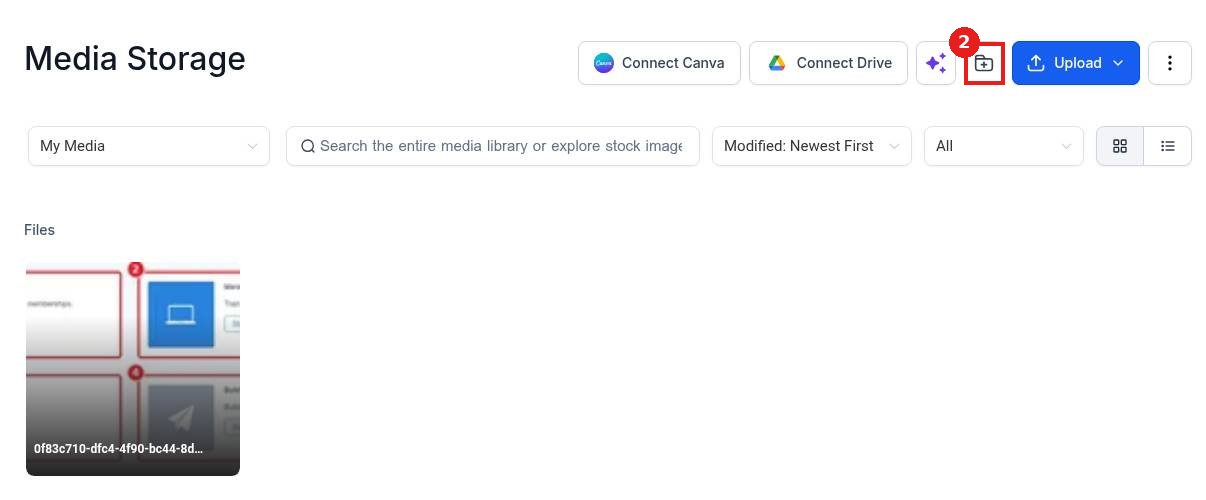
Click Media Storage (1) in the left menu, then the new folder icon (2) next to the Upload button.
Step 2: Name it and save
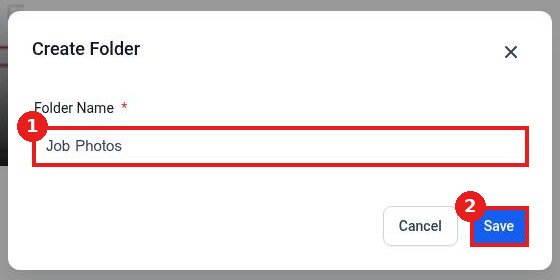
Type a Folder Name (1) and click Save (2).
The new folder (1) shows under Folders. Click the arrow next to Folders if the list is collapsed.

Step 3: Move a file into the folder
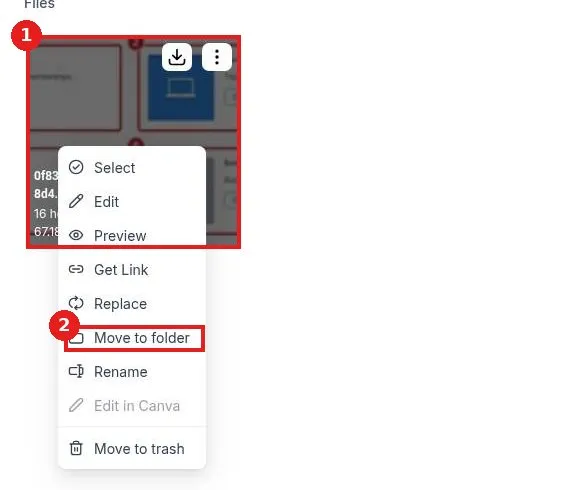
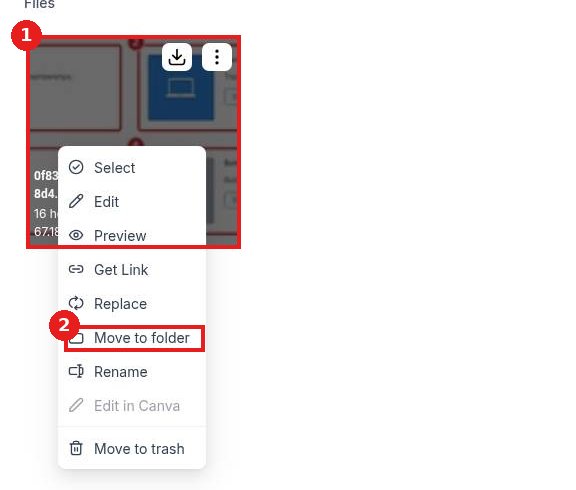
Hover a file (1) and click its three dot menu, then click Move to folder (2).
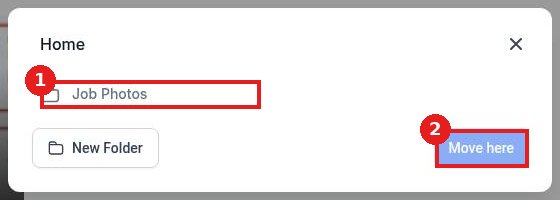
Step 4: Pick the folder and confirm
Click the folder (1) you want, then click Move here (2). Use New Folder in this window to create one on the spot.
FAQ
Can I move many files at once?
Yes. Use Select on each file, then Move to folder from the bar that appears.
Do links break when I move a file?
No. The file keeps the same link, so pages and emails using it still work.
Can I upload straight into a folder?
Yes. Open the folder first, then click Upload.
Want us to handle it? Our team can organize your images, build your pages and keep your brand assets tidy. Book a free strategy call and get a free quote.
Related articles
Still stuck? Submit a ticket and our team will help. Need faster answers? See our support plans.
