
How do I copy a file link from Media Storage?
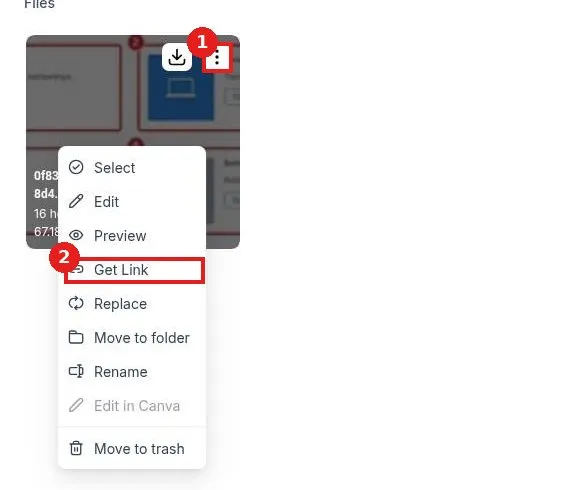
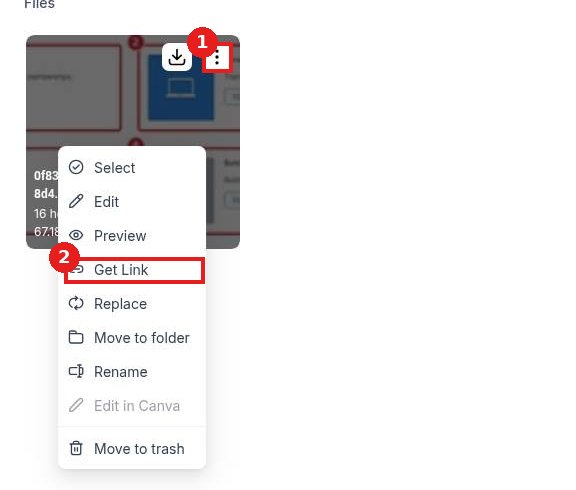
Quick answer: In Media Storage, hover the file, open its three dot menu and click Get Link. Or click the file to open its preview and click Copy link. The link is copied, ready to paste.
Before you start
- Upload the file to Media Storage first.
- Anyone with the link can open the file, so only share links for files meant to be public.
Step 1: Use the file menu
Hover the file and click its three dot menu (1). Click Get Link (2). The link is copied to your clipboard.
Step 2 (another way): Copy from the preview
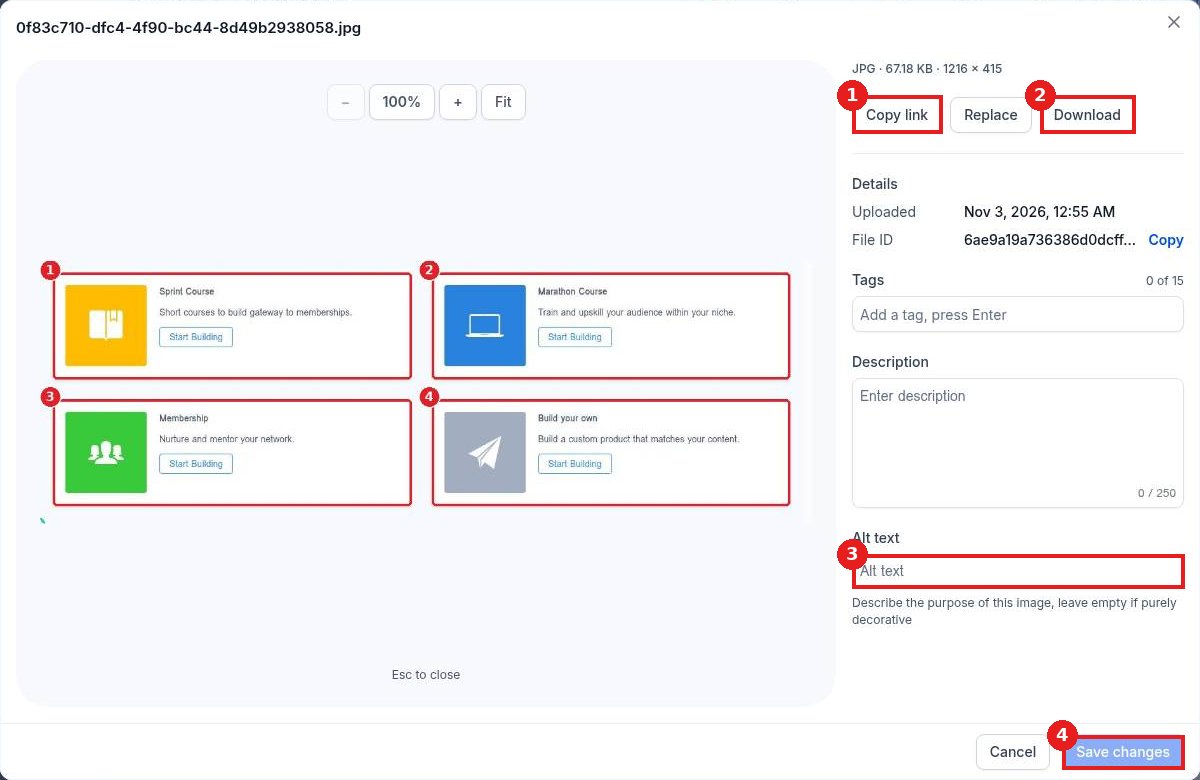
Click the file to open the preview. Click Copy link (1). From here you can also Download (2) the file, add Alt text (3) for accessibility and SEO, and click Save changes (4).
Step 3: Paste the link
Paste it where you need it, such as an image element in the page builder, an email, or a text message.
FAQ
Will the link change if I rename or move the file?
No. The link stays the same.
What if I replace the file?
Use Replace in the file menu to swap in a new version and keep the same link everywhere it is used.
Can I link to a PDF or video?
Yes. Get Link works for any file type in Media Storage.
Want us to handle it? Our team can organize your images, build your pages and keep your brand assets tidy. Book a free strategy call and get a free quote.
Related articles
Still stuck? Submit a ticket and our team will help. Need faster answers? See our support plans.
