
How do I read my reputation overview?
Quick answer: Go to Reputation > Overview > My Stats. Filter by source and date range, then read your average rating, total reviews, trend charts and sentiment. Open Competitor Analysis to compare with nearby businesses.
Before you start
- Connect your review sources so the overview has data.
Step 1: Set your filters
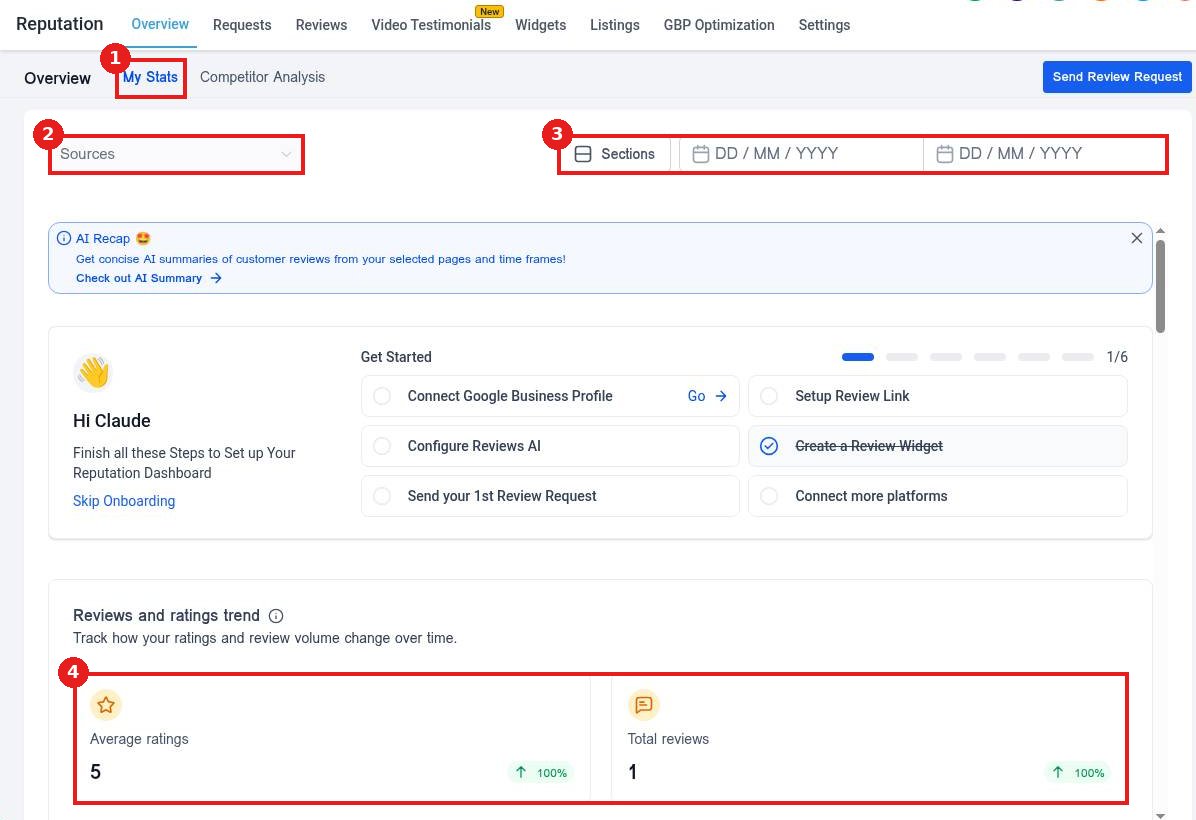
Open My Stats (1). Pick one or more Sources (2), such as Google or Facebook, and set the date range (3). The Reviews and ratings trend cards (4) show your average rating and total reviews with the change from the last period.
Step 2: Read the charts
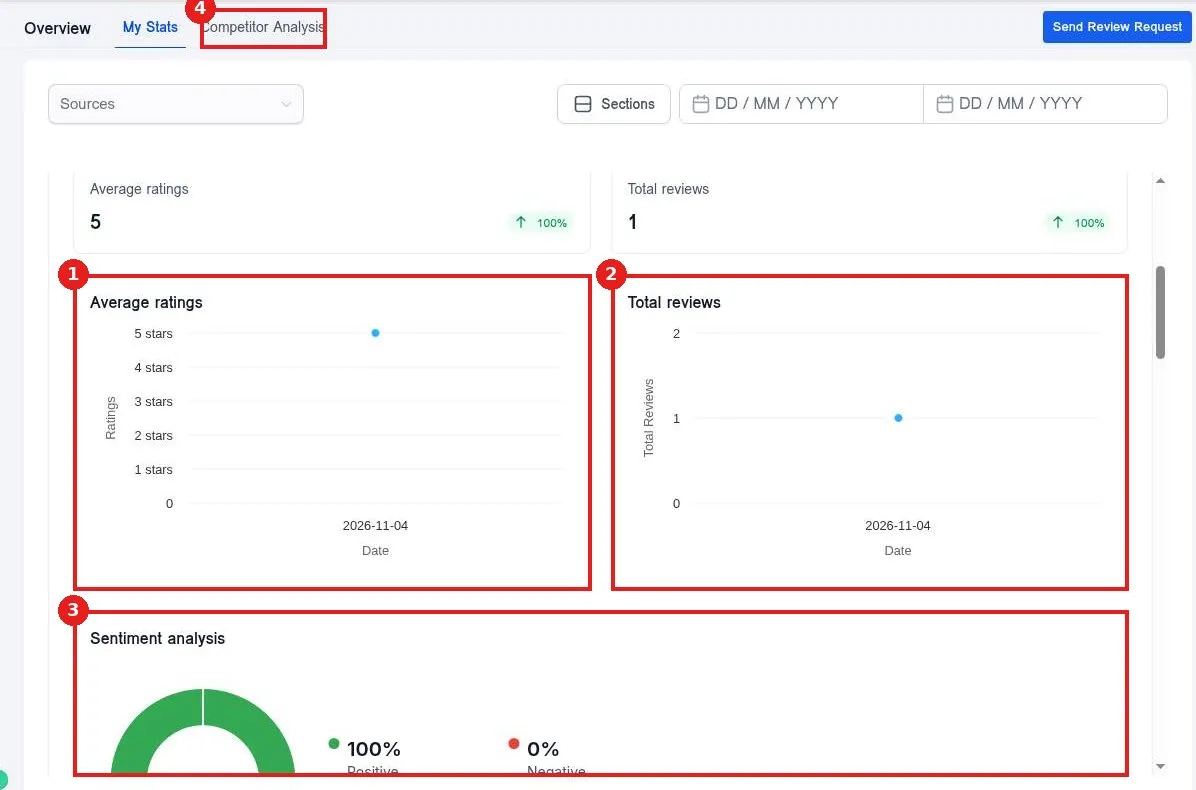
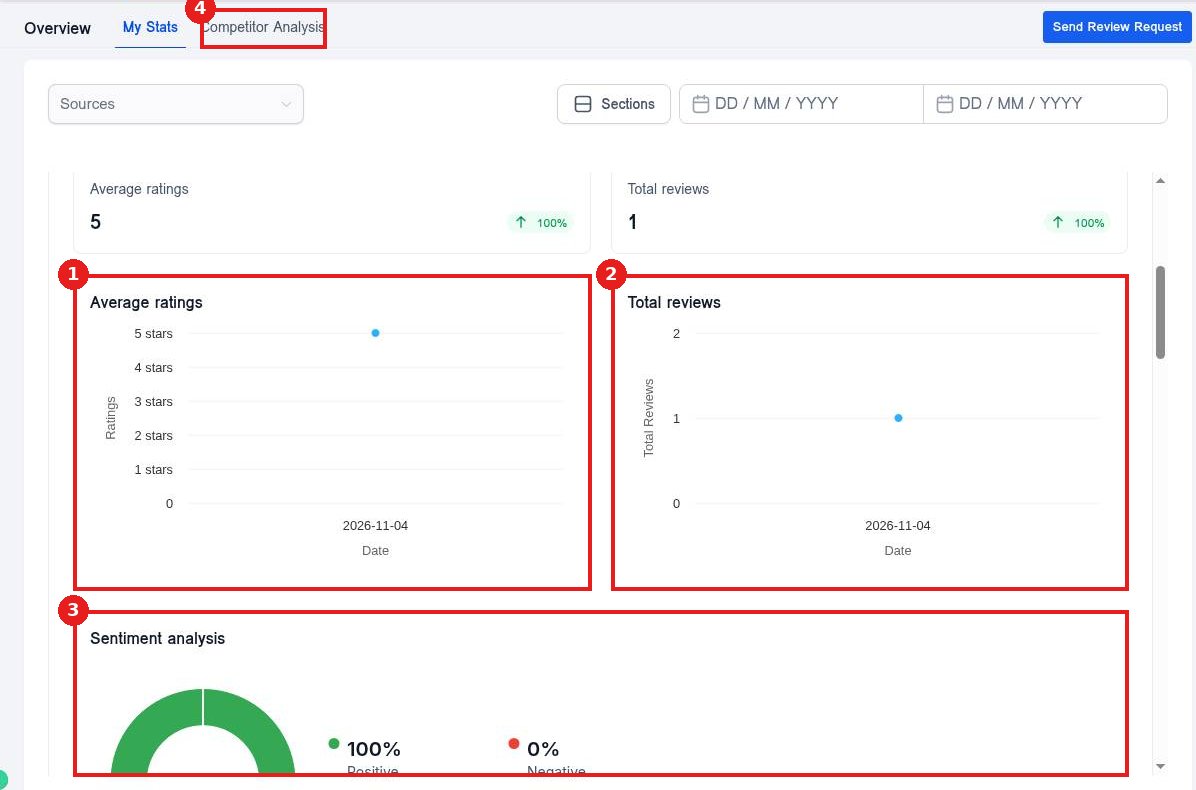
Scroll down. Average ratings (1) shows your star rating over time. Total reviews (2) shows how many reviews came in. Sentiment analysis (3) splits reviews into positive and negative. Click Competitor Analysis (4) to see how you stack up.
Step 3: Act on what you see
If review volume drops, send more review requests. If sentiment dips, read recent reviews and reply quickly.
FAQ
Can I hide sections I do not use?
Yes. Click Sections to choose which cards appear.
Why are my numbers zero?
No reviews match your filters. Widen the date range or connect a review source.
How often does it update?
New reviews show up as they sync from each connected source.
Want us to handle it? Our team sets up review requests, AI replies and reporting so your star rating grows on autopilot. Book a free strategy call and get a free quote.
Related articles
Still stuck? Submit a ticket and our team will help. Need faster answers? See our support plans.
